
Google's download page doesn't use the name "Antigravity 2.0". The Antigravity App is on its 2.x line, at v2.35.2, alongside the Antigravity CLI (agy) v1.5.16, the standalone Antigravity IDE v2.8.0 and the Antigravity SDK v0.1.24. The main 2.x changes are Orchestrator, interface layouts, OpenSSH windows, a built-in browser, new permission presets and a move from workflows to Agent skills.
Antigravity 2.0 surfaces and current versions
Versions below come from Google's download page. Requirements come from the getting-started guide.
| Surface | Version | Requirements | Role |
|---|---|---|---|
| Antigravity App | v2.35.2 | macOS 13+, 64-bit Windows 10 or 11, Linux (glibc >= 2.28, glibcxx >= 3.4.25), Googlebook OS | Desktop app with projects, worktrees and Automations |
Antigravity CLI (agy) | v1.5.16 | Installers for macOS, Linux, Googlebook and Windows | Terminal client |
| Standalone Antigravity IDE | v2.8.0 | macOS 12+, 64-bit Windows 10+, Linux or Googlebook (glibc >= 2.28, glibcxx >= 3.4.25) | Desktop editor with integrated agent panels |
| IDE extensions | VS Code v1.13.0, Visual Studio v1.0.261116.0, JetBrains, Zed and Xcode v1.5.0, Eclipse v1.2.0 | VS Code 1.90+, Visual Studio 2026 (17.8+), IntelliJ-based IDEs 2026.2.1+, Zed 0.140.0+, Xcode 27 beta 6+, Eclipse 2026-06+ | The agent inside an editor you already use |
| Antigravity SDK | v0.1.24 | Python 3.10+ virtual environment | Python package for building custom agents |
Android Studio connects through its Bring Your Own Agent (ACP) support. Enterprise sign-in is generally available in the VS Code, Visual Studio, JetBrains, Zed, Xcode and Eclipse extensions, and in preview for Android Studio.
New features across the Antigravity 2.x line
Orchestrator
Orchestrator splits work between two models. A planner explores the codebase, plans the work and reviews progress. A faster executor, such as Gemini 4 Hydrogen, runs searches, edits files, builds and runs tests. It hands control back to the planner whenever the plan needs repair.
- Pick Orchestrator in the App's model selector, or with
/modelin the CLI. - It is available on Google AI Ultra, Google AI Pro and Gemini Enterprise.
- On Pro and Ultra, set the Orchestrator Model and Executor Model in
Settings > Models > Orchestrator Settings. - In the CLI, step the Planner bar on the Orchestrator row in
/model. - Gemini Enterprise always pairs Gemini 4 Carbon with Gemini 4 Hydrogen, and custom roles aren't available.
Interface layouts and onboarding
From App v2.30.0, onboarding on personal accounts asks you to pick a role. The choices are Software Engineering, Knowledge Work, Data & Analytics, Science, Design and Other.
- Software Engineering and Data & Analytics open the Software Engineering layout, and so does Skip.
- Knowledge Work, Science, Design and Other open the Knowledge Work layout.
- You can switch layouts at any time in
Settings > General > Interface Layout. - Software Engineering also offers
Bring over my setup from other Agentic Developer Tools. - That option imports MCP servers, skills, rules and instructions from Claude Code, Codex, Cursor and Gemini CLI.
- In Knowledge Work, conversations run directly in your project's folders without a Git worktree prompt.
Projects and OpenSSH windows
A project can span several folders, so agents can work across codebases in one conversation. Settings are scoped per project, including security settings. Projects support Git worktrees, so agents can work in isolated background folders. In the Software Engineering layout, you choose between Local mode and New worktree mode.
From App v2.33.0, you can open a remote 64-bit Linux machine in its own window over OpenSSH.
- It uses your
~/.ssh/config, keys andProxyJumphosts. - Antigravity installs its remote server automatically.
- Closing the window disconnects SSH, but running agents stay active.
- Reconnect to pick them up again, or run
Stop SSH Server…to end them.
Browser, Automations, voice and remote access
- On personal accounts from App v2.30.0,
/browserruns browser subagents without installing Chrome. - Browser subagents run in isolated tabs with an animated live cursor and a
Stoptakeover button. - The built-in browser keeps its own cookies and sign-ins, separate from your Chrome profile.
- Business and enterprise accounts use
/browserto drive local Google Chrome v144+ through Chrome DevTools MCP. - Automations, formerly called scheduled tasks, run on a Flash Lite, Flash or Pro model tier, with Flash as the default.
- Start times are spread by up to 10% of the interval, and by no more than 15 minutes.
/run-workflow <task>has the agent write a short Python script that orchestrates many agents, which you approve.- Voice mode in the App uses Gemini Live, and in the CLI
/voice liveor F6 starts a two-way conversation. - Remote Control lets you drive App sessions and CLI instances from any browser, with push notifications when tasks complete.
- Remote Agents run in a Google-managed environment, so tasks continue while your computer is offline.
- Remote Agents are available on Google AI Pro and Ultra with a personal Google Account.
Side panel, Overview panel and subagents
Each App conversation has an Overview panel and a side panel. Open Overview with Cmd+Option+O on macOS or Ctrl+Alt+O on Windows and Linux. Open the side panel with Cmd+Shift+B or Ctrl+Shift+B. Overview lists Subagents, Background Tasks, Goals, Documents, Artifacts, Links, Modified Files and Uploads. Click a subagent to follow its conversation in the side panel.
In the CLI, the /agents panel lets you monitor subagents and approve their requests. Alt + J jumps to the next subagent waiting for approval. Ctrl + K approves a pending request without leaving the main conversation.
Install or upgrade on macOS, Windows, Linux and Python
Download the App and the standalone IDE from antigravity.google/download.
- macOS: open the Apple Silicon or Intel DMG and drag Antigravity to Applications.
- macOS upgrades: choose
Replacerather thanKeep Bothwhen prompted. - Windows: run the x64 or ARM64
.exeinstaller and follow the setup wizard. - Linux: run
tar -xzf Antigravity.tar.gz, then launch./Antigravity. - Googlebook: Antigravity comes pre-installed, and Google Play handles updates and reinstalls.
Install the CLI (agy):
# macOS, Linux and Googlebook (installs to ~/.local/bin/agy)
curl -fsSL https://antigravity.google/cli/install.sh | bash# Windows PowerShell (installs to C:\Users\<username>\AppData\Local\agy\bin)
irm https://antigravity.google/cli/install.ps1 | iexWindows CMD users can download and run install.cmd instead. Check the install with agy --version. On first launch, the CLI asks for a colour scheme, Alt-Screen or Inline rendering, and whether you trust the workspace.
Install the SDK with pip install google-antigravity inside a Python 3.10+ virtual environment, or add it with Poetry or uv. Set GEMINI_API_KEY for the Gemini API. For Vertex AI, set GOOGLE_GENAI_USE_VERTEXAI, GOOGLE_CLOUD_PROJECT and GOOGLE_CLOUD_LOCATION, then run gcloud auth application-default login.
Migrating legacy workflows to Agent skills
In May 2026, Antigravity adopted the open Agent Skills standard. Workflows are now deprecated, but existing workflows keep working for now. If a skill and a workflow share a name, the skill takes precedence.
| Feature | Legacy workflows (.md) | Agent skills (SKILL.md) |
|---|---|---|
| Workspace path | .agents/workflows/<name>.md | .agents/skills/<name>/SKILL.md |
| Global path | ~/.gemini/config/global_workflows/<name>.md | ~/.gemini/config/skills/<name>/SKILL.md |
| Loading | Entire file loaded into the prompt | Metadata upfront, body on demand |
| Bundled assets | Not supported | scripts/, references/, examples/ |
| Size limit | 12,000 characters | No bundle size limit, multi-file layout |
In the App 2.12.0 or later, /migrate-workflows converts workflows for you:
- It scans
~/.gemini/config/global_workflows/,~/.gemini/config/workflows/and.agents/workflows/. - It creates a
SKILL.mdfor each workflow in the matching skills folder. - It archives the original workflow files by adding
.bakto their names. - The new skills work straight away as slash commands and for agents.
/migrate-workflows is available only in the App, not in the Antigravity CLI or the Antigravity IDE. To migrate by hand:
- Create a skill folder under
.agents/skills/or~/.gemini/config/skills/. - Move the workflow file into that folder and name it
SKILL.md. - Add
nameanddescriptionfrontmatter that says what the skill does and when to use it. - Optionally, move scripts and long reference material into
scripts/andreferences/subfolders. - Test the skill by typing its slash command in the Antigravity App.
Permissions, sandboxing and plans
Permission presets and CLI modes
In the App, set a global preset in Settings > General > Global Permissions > Permission Preset. If remote agents are available, it sits under Permissions > This Computer. Projects inherit the global preset, and you can override it in Settings > Projects. From v2.23.0, a picker in the message box changes it too.
| App preset | Sandbox | Behaviour |
|---|---|---|
Request Review | Off | Every command needs approval |
Default (the default) | On | Commands run in the sandbox without prompts, and running outside it needs approval |
Auto | On | Sandboxed commands run, safe reversible outside commands proceed, risky ones still pause |
Turbo | Off | All commands run without restrictions, with full filesystem access |
- Your
allow,denyandaskrules sit on top of any preset and always take precedence. - If the sandbox is unavailable, the default preset is
Request Review. Autoneeds v2.23.0 or later on macOS and Linux, or v2.26.0 or later on Windows.Autoalso needs the sandbox, and it isn't available for business or enterprise accounts.- Business and enterprise accounts choose
Require Review,Proceed in SandboxorAlways Proceedfor terminal commands.
The CLI keeps its settings in ~/.gemini/antigravity-cli/settings.json. Its agentMode options are default, auto, accept-edits and plan. Shift + Tab cycles through them during a session. auto is the default since v1.5.7, where it is available. toolPermission defaults to request-review.
Plans, quotas and Google Workspace accounts
All plans include Gemini models, unlimited Tab completions and access to all product features. Baseline limits depend mainly on available capacity. Complex tasks use more quota than simple ones.
- Free and Google AI Plus: a quota refreshed weekly, a weekly rate limit and access to Gemini 4 Hydrogen.
- Google AI Pro: a high quota refreshed every five hours, until the weekly limit is reached.
- Google AI Pro models: Gemini 4 Neon, Gemini 4 Carbon, Gemini 4 Argon, Gemini 4 Hydrogen and paid third-party models.
- Google AI Pro trial: a lower quota and a more limited set of models.
- Google AI Ultra: the highest quota, refreshed every five hours, and the highest weekly rate limits.
- AI Credit Overages:
Alwaysuses AI credits once the baseline quota runs out, andNeverwaits for it to refresh. - Credit pricing: credits cost standard Gemini Enterprise consumption pricing.
- Not supported: bring-your-own-key or bring-your-own-endpoint for extra rate limits.
Google Workspace plans don't currently include Antigravity plans, higher rate limits or AI credits. A Workspace account signed in with Continue with Google gets a limited starter quota. For more, choose Pay As You Go and pay per token at Google Cloud API pricing. Alternatively, your Google Cloud administrator can assign you a Gemini Enterprise licence.
If an agent is running, Antigravity stops your computer from sleeping.
Watching Antigravity App sessions on a keypad or phone with Orbtile
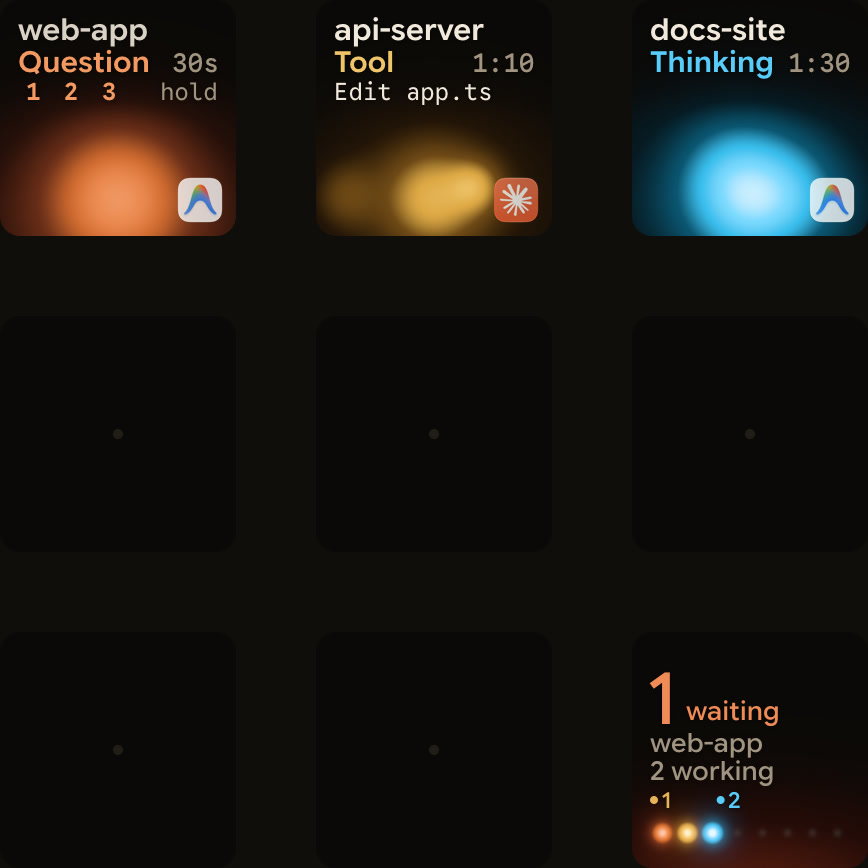
Orbtile runs on a computer with macOS 14.0 Sonoma or later on Apple silicon (M1 or later), or on Windows 11 (x64). It drives the nine LCD keys and two page buttons of a Logitech MX Creative Keypad over USB, without Logi Options+. Orbtile Mobile turns an iPhone (iOS 17+) or an Android phone (Android 8.0+) into a status pad.
- Each Antigravity desktop app conversation gets its own key, with its title and state.
- Replies also appear as live typewriter text.
- Antigravity uses an azure blue working palette, and its waiting states use the shared terracotta alarm colour.
- Waiting conversations move to the front.
- A tap on key 9 focuses the first waiting session, including sessions on other pages.
- To answer a numbered-option question, hold its key, then pick options on keys 1, 2, 3 and 7.
- Then hold
Sendon key 9 for 0.6 seconds, andSentmeans Antigravity acknowledged the reply. - This works for up to four questions with two to four choices each.
- Written answers, permission requests, remote sessions and unsupported questions stay on your computer.
Orbtile follows the Antigravity desktop app only, so Antigravity IDE and CLI sessions don't appear. If an Antigravity update changes how the app talks to Orbtile, live text and keypad answers stop until Orbtile catches up. The conversations and their states keep showing, and you answer in Antigravity. The same pad also shows Claude Code, Codex, ZCode and Kimi Code sessions.
FAQ
What versions make up Google Antigravity 2.0?
Google doesn't use the name Antigravity 2.0 on its download page. That page lists Antigravity App v2.35.2, Antigravity CLI (agy) v1.5.16, standalone Antigravity IDE v2.8.0 and Antigravity SDK v0.1.24, plus editor extensions. The getting-started guide adds Android Studio support.
How do I migrate legacy Antigravity workflows to Agent skills?
In the Antigravity App 2.12.0 or later, run /migrate-workflows. It creates a SKILL.md for each workflow and archives the originals with a .bak suffix. In the Antigravity CLI or IDE, move each workflow file into its own skills folder as SKILL.md and add name and description frontmatter.
Do Google Workspace subscriptions include paid Google Antigravity plans?
No. Google Workspace plans don't currently include Antigravity plans, higher rate limits or AI credits. A Workspace account signed in with Continue with Google gets a limited starter quota. For more, use Pay As You Go, or ask your Google Cloud administrator to assign a Gemini Enterprise licence.
Which Google Antigravity sessions can Orbtile show on a keypad or phone?
Orbtile follows conversations in the Antigravity desktop app on an Apple silicon Mac running macOS 14 or later, or on a Windows 11 x64 computer. It shows each conversation's title, state and live reply text on a Logitech MX Creative Keypad, an iPhone or an Android phone. Permission requests and written answers stay on your computer, and Antigravity IDE and CLI sessions don't appear.