
A keypad can send prompt macros and shortcuts to an active Claude Code window or show live session states across its LCD keys. Logi Options+ 2.07+ drives the Logitech MX Keypad for macros and ~/.claude/keybindings.json shortcuts, while Orbtile drives it over USB to monitor sessions and answer local prompts.
Ways to use a keypad with Claude Code
Claude Code runs in the terminal, VS Code, JetBrains IDEs (IntelliJ, PyCharm, WebStorm), the desktop app and the browser. Keypad capabilities depend on whether Logi Options+ or Orbtile drives the hardware.
| Setup | Software required | Supported OS | What the keys do |
|---|---|---|---|
| MX Keypad with Marketplace plugins | Logi Options+ 2.07+ and Logi ID | Windows 10+ (not ARM 64), macOS 13+ | Runs prompt macros, refactors code, starts voice commands and runs VS Code or IntelliJ actions |
| MX Keypad with pre-installed System plugin | Logi Options+ 2.07+ (1.83+ for MX Creative Console) | Windows 10+ (not ARM 64), macOS 13+ | Sends KEYBOARD SHORTCUT combos to trigger ~/.claude/keybindings.json actions in the active window |
| MX Creative Keypad or MX Keypad with Orbtile | Orbtile over USB (Logi Options+ not needed) | macOS 14.0+ Sonoma (Apple silicon M1+), Windows 11 (x64) | Shows one live session per key, sorts waiting sessions first and answers local approvals and multiple-choice questions |
Logitech MX Keypad and MX Creative Console requirements
Logitech lists the standalone MX Keypad at $99.99 in Graphite as part of its Master Series, made with recycled plastic and customisable LCD keys. Logitech's support docs cover both the MX Keypad and the MX Creative Console (keypad plus dialpad).
Check Logitech's software and OS rules before setup:
- The standalone MX Keypad requires Logi Options+ 2.07 or later.
- The MX Creative Console requires Logi Options+ 1.83 or later.
- Both devices run on macOS 13 or later and Windows 10 or later, but Windows systems with ARM 64 processors are not supported.
- The Logi Plugin Service runs both devices, their plugins and the marketplace, and it activates only when a device connects.
- Logitech says the Keypad cannot be used without Logi Options+, and the dialpad keeps only a limited set of basic actions.
Configurator languages and Logi ID sign-in rules
Logi Options+ supports 19 languages, while the MX Creative Console and MX Keypad configurator supports six: English, French, German, Japanese, Italian and Spanish. To change it, open Settings with the gear icon in the top right of the Logi Options+ home page.
The default profile and pre-installed System plugin actions work without signing in. A Logi ID (via the top-right Account icon) is required to download other plugins or application profiles. Logi Options+ prompts you to log in during the Device Feature tour, when clicking INSTALL in the Marketplace, or when adding an application profile.
See Logi Options+ alternative for the MX Keypad and MX Keypad alternatives for developers and coding agents.
How the MX Keypad works with Claude Code and IDEs in Logi Options+
Logitech describes the MX Keypad as "AI control keys for developers" supporting VS Code, GitHub Copilot, Claude Code, IntelliJ, OpenAI Codex, Zoom, Figma, Slack, Spotify and Adobe Creative Cloud.
In Logi Options+, the keypad uses plugins and app-aware profiles:
- One-tap AI controls run prompt macros, refactor code and launch voice commands across Claude Code, GitHub Copilot and OpenAI Codex.
- These AI controls need an active internet connection and an account with each AI provider.
- Native VS Code and IntelliJ integrations navigate code, launch agents, manage debuggers and toggle terminals.
- The keypad detects your active app and switches tools as you move between apps.
- Most plugins come with ready-to-use profiles, so you can start without customising.
- Developers can build custom tools with the Logi Actions SDK and share them on the Logi Marketplace.
Installing, updating and checking plugins in Logi Options+
A plugin packages the actions for an application or feature into groups in the right panel. Most application plugins include a default profile, though some defaults are not available yet. Web-service plugins such as Spotify, IFTTT, Philips Hue and Twitch need no local app.
To manage plugins in Logi Options+:
- On the device configuration page, click
All Actionsto reach the plugin section, then clickFIND MORE FROM MARKETPLACE. - Creating a profile for an app installs its plugin, if one exists.
- Depending on the active profile, some application plugins might not be available.
- A pulsating purple dot next to a plugin marks an available update.
- From Options+ 1.99, every Marketplace plugin goes through a security review.
- Third-party plugins can still be installed, but Logi Options+ shows a security warning about unverified software.
For a direct comparison, see Orbtile and Logitech's Claude plugin, compared.
Map keyboard shortcuts to the MX Keypad for terminal sessions
For terminal emulators without a Marketplace plugin, create a manual application profile in Logi Options+ and assign SYSTEM plugin shortcuts:
- Click
+in the top profile bar and selectAPPLICATION PROFILE. - Apps with plugin support are listed at the top, above your other installed apps.
- Pick your terminal or editor, or click
ADD APPLICATIONto select its executable. - Click
START WITH A BLANK TEMPLATE, name the profile and clickCONFIRM. - In the right panel, click
ALL ACTIONS, open theSYSTEMplugin and findKEYBOARD SHORTCUTunderKEYBOARD. - Drag
KEYBOARD SHORTCUTonto a keypad key. - Click the
KEYfield, press your shortcut to record it, rename it if you like and clickSave.
With the MX Creative Console dialpad, drag DIAL ADJUSTMENT (under ADVANCED in the SYSTEM plugin) onto a dial control. You can set an initial shortcut, then separate shortcuts for turning the dial each way. See MX Creative Console: setup, profiles, plugins and agents.
Customise Claude Code shortcuts in ~/.claude/keybindings.json
Pair Logi Options+ KEYBOARD SHORTCUT keys with Claude Code's keybindings file. Run /keybindings in Claude Code to create or open ~/.claude/keybindings.json. Edits apply automatically without a restart.
Each block in the bindings array sets a context and maps keys to namespace:action strings. In Chat, command:<name> runs a slash command, so command:compact runs /compact.
{
  "$schema": "https://www.schemastore.org/claude-code-keybindings.json",
  "$docs": "https://code.claude.com/docs/en/keybindings",
  "bindings": [
    {
      "context": "Chat",
      "bindings": {
        "ctrl+e": "chat:externalEditor",
        "meta+g": "command:compact",
        "ctrl+s": null
      }
    },
    {
      "context": "Confirmation",
      "bindings": {
        "y": "confirm:yes",
        "n": "confirm:no"
      }
    }
  ]
}
Useful Claude Code actions to trigger from a keypad
| Context | Action | Default shortcut | What it does |
|---|---|---|---|
Global | app:interrupt | Ctrl+C | Cancels current operation (reserved) |
Global | app:toggleTodos | Ctrl+T | Toggles to-do checklist (separate from /tasks) |
Global | app:toggleTranscript | Ctrl+O | Toggles verbose transcript view |
Global | app:redraw | (unbound) | Forces terminal redraw |
Chat | chat:cycleMode | Shift+Tab (Meta+M on Windows without VT) | Cycles permission modes |
Chat | chat:modelPicker | Meta+P | Opens model picker |
Chat | chat:fastMode | Meta+O | Toggles fast mode |
Chat | chat:thinkingToggle | Meta+T | Toggles extended thinking |
Chat | chat:queueSubmit | Ctrl+X Enter | Queues message without interrupting (v2.1.247+) |
Chat | chat:sendNow | Ctrl+Enter, Ctrl+X Ctrl+S | Sends queued messages and draft immediately (v2.1.275+) |
Chat | chat:externalEditor | Ctrl+G, Ctrl+X Ctrl+E | Opens prompt in external editor |
Chat | chat:killAgents | Ctrl+X Ctrl+K | Stops background subagents when pressed twice within 3 seconds |
Chat | voice:pushToTalk | Space | Dictates prompt when /voice is enabled (hold or tap) |
Chat | command:<name> | (unbound) | Runs slash command /<name> |
Confirmation | confirm:yes / confirm:no | Enter / Escape | Confirms or declines dialog |
Confirmation | confirm:cycleMode | Shift+Tab (Meta+M on Windows without VT) | Closes file prompt comment field or allows action for session |
Task | task:background | Ctrl+B, Ctrl+X Ctrl+B | Moves foreground task to background |
DiffPanel | app:cycleDiffBase | Ctrl+X B | Cycles diff base (session, uncommitted, branch) |
Agents | agents:switchView | Ctrl+S | Switches claude agents grouping between state and directory (v2.1.257+) |
Agents | agents:togglePin | Ctrl+T | Pins or unpins session in agent view (v2.1.257+) |
See Claude Code permission modes: settings, flags and rules and Claude Code background agents: subagents, tasks and hooks.
Modifiers, chords, reserved shortcuts and terminal conflicts
Follow Claude Code's keystroke rules when recording shortcuts:
- Join modifiers with
+, usingctrl,shift,meta(oralt,opt,option) andcmd(orcommand,super,win). - Key names are case-insensitive, so write
shift+kto bind Shift and a letter. - Most terminals do not send the
cmdmodifier, so preferctrlormetafor bindings you want to work everywhere. - Separate chord steps with spaces, such as
ctrl+k ctrl+s, and press each step within 3 seconds of the one before. - Set an action to
nullto unbind it. - To bind a prefix such as
ctrl+xon its own, first unbind every chord that uses it. - Reserved shortcuts cannot be rebound:
Ctrl+C,Ctrl+D,Ctrl+M,Ctrl+[,Ctrl+I,Ctrl+HandCaps Lock. - Watch for terminal conflicts:
Ctrl+Bis thetmuxprefix,Ctrl+Ais the GNUscreenprefix andCtrl+Zsuspends the process. - Start Claude Code with
claude --debugto see warnings for parse errors, misspelled modifiers, unknown actions and duplicate bindings.
Watch and answer Claude Code sessions on a keypad with Orbtile
Logi Options+ shortcuts only target the active window. Orbtile drives the Logitech MX Creative Keypad (or standalone MX Keypad) over USB as a live status pad, without Logi Options+. It follows sessions in terminal tabs, the Claude desktop app, background sessions and servers over SSH. It also works on iPhone (iOS 17+) and Android (8.0+) with Orbtile Mobile.
Orbtile requires macOS 14.0+ Sonoma (Apple silicon M1+) or Windows 11 (x64). Install the Claude Code plugin in Settings > Agents > Claude Code on a Mac, or with the Install button on Windows. Then restart running Claude Code sessions once.
- Keys 1 to 8 each show one session's name, state and latest words over an animated Frosted orb.
- Waiting sessions glow terracotta and move to the front, while working sessions glow warm amber gold.
- Key 9 in the bottom right summarises all sessions, and a tap opens the first waiting session, including on other pages.
- A short tap under 0.6 seconds on a session key opens that session's window.
- Holding a session key for 0.6 seconds opens Focus mode across all nine keys, where key 2 shows subagents.
- In Focus mode, tap
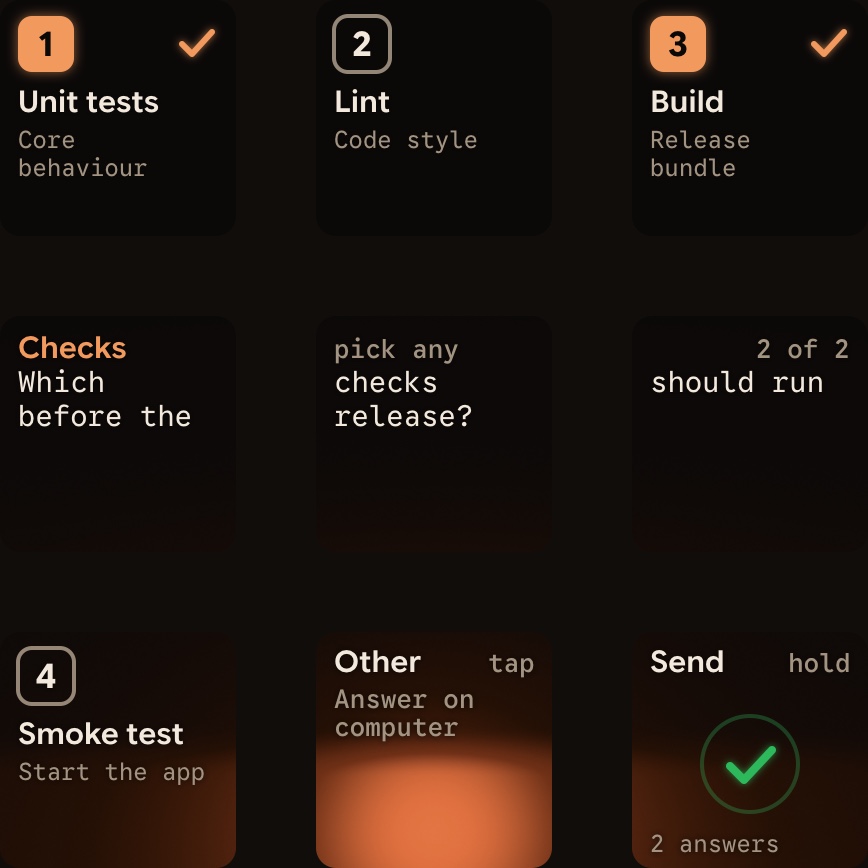
Denyon key 7 to decline, or holdAllowon key 9 for 0.6 seconds to approve. - For multiple-choice questions with up to four options, toggle keys 1, 2, 3 and 7, then hold
Sendon key 9. - Recent Claude Code versions start in auto mode, so switch to manual mode with
Shift+Taborclaude --permission-mode manualto see every request. - Typed answers stay on your computer, and sessions over SSH are display-only.
Logi Options+ can stay installed. Your Options+ profile for the keypad pauses while Orbtile is in control. To hand the keypad back, choose Release keypad, press Control-Option-Command-K (Ctrl+Alt+Win+K on Windows), hold both page buttons for 1.5 seconds, or quit Orbtile. Orbtile also shows Codex, ZCode, Antigravity desktop app and Kimi Code sessions. See The Logitech MX Keypad for developers, with and without Options+, Use the Logitech MX Creative Keypad without Logi Options+ and Approve agent tool calls without switching windows.
FAQ
Can the Logitech MX Keypad control Claude Code?
Yes. Logitech lists Claude Code among the supported AI tools for the MX Keypad, which needs Logi Options+ 2.07 or later. It offers one-tap prompt macros, code refactoring and voice commands, plus native integrations for VS Code and IntelliJ. You can also map custom shortcuts from ~/.claude/keybindings.json using the pre-installed System plugin, or drive the keypad over USB with Orbtile to see live session status and answer local prompts.
How do I map a Claude Code slash command to a keypad button?
Run /keybindings in Claude Code to open ~/.claude/keybindings.json. In the Chat context, bind a ctrl or meta shortcut to command: followed by the slash command name, such as command:compact. Changes apply automatically without restarting Claude Code. Then open Logi Options+, select the System plugin under All Actions, drag Keyboard Shortcut onto a keypad key and record that same key combination.
Why does a Command key shortcut not fire in my Claude Code terminal?
Claude Code only detects the cmd modifier group in terminals that report the Super modifier, such as terminals supporting the Kitty keyboard protocol or xterm's modifyOtherKeys mode. Most terminals do not send it, so bind your shortcuts with ctrl or meta instead.
Do I need to uninstall Logi Options+ to use the MX Keypad with Orbtile?
No. Orbtile drives the keypad directly over USB while Logi Options+ stays installed on your computer. Your Options+ keypad profile pauses while Orbtile is in control. It takes over again when you release the keypad from Orbtile or quit Orbtile.