
To uninstall Logi Options+ on Windows, remove Logitech Options/+ in Add or Remove Programs, or open Apps > Installed app, click [. . .] next to Logi Options+ and select Uninstall. On macOS, drag Options+ from Applications onto the Bin, then remove Logitech files from /Library and ~/Library. For a complete uninstall, also delete LogiPluginService, remnant folders, driver files and registry or library entries, then restart.
Standard vs complete uninstallation at a glance
Standard removal uninstalls the main app. Complete uninstallation also removes the background plugin service, application data, drivers and system entries.
| Step or component | Windows | macOS |
|---|---|---|
| Main application | Uninstall Logitech Options/+ in Add or Remove Programs, or Apps > Installed app > [. . .] > Uninstall | Drag Options+ from Applications onto the Bin |
| Plugin service | Delete the Logi folder (LogiPluginService) in %appdata% (Local) and %programdata% | Delete LogiPluginService from /Applications, /Applications/Utilities/LogiPluginService.app and ~/Applications/Utilities/LogiPluginService.app |
| Temporary and hidden files | Run Delete Temporary Files and enable Show hidden files, folders, and drives in File Explorer | Search /Library and ~/Library for Logitech in Finder and select Move to Trash |
| Remnant folders and bundles | Delete LogiOptions or LogiOptionsPlus from Logishrd in %appdata% and %programdata% | Delete /Applications/Utilities/Logi Options+ Driver Installer.bundle and Logitech files in /Library and ~/Library subfolders |
| Drivers and registry | Delete LdaCx2.dll and LogiLDA.DLL from System32 paths, and remove LogiOptions or LogiOptionsPlus from the Uninstall registry key | Not applicable on macOS |
| Final step | Restart and install available Windows updates | Restart and update macOS to the latest release |
How to completely uninstall Logi Options+ on Windows
Logitech's complete Windows uninstallation procedure covers both Logitech Options and Logi Options+. It removes the main program, LogiPluginService, temporary files, hidden folders, driver files and registry entries.
Remove the Logi Options+ application
Remove the main application in either place:
- Open
Add or Remove Programsand uninstallLogitech Options/+if present. - In Windows Settings, open
Apps > Installed app, click the three dots[. . .]next toLogi Options+and selectUninstall.
Delete LogiPluginService
Uninstalling the main program leaves LogiPluginService folders behind:
- Press the Windows Start key and
Rto open Run, type%appdata%and clickOK. - Open the
Localfolder and delete theLogifolder. - Open Run, type
%programdata%and delete theLogifolder there to removeLogiPluginService.
The user plugin service path is:
C:\Users\<username>\AppData\Local\Logi\LogiPluginServiceClean up temporary files and show hidden folders
Before deleting remnant folders, clear temporary files and reveal hidden items:
- Open the Windows app
Delete Temporary Files, selectTemporary fileand wait for the scan. - Make sure
Downloadsis not checked, clickRemove filesand wait for cleanup to finish. - In
File Explorer, click theViewtab and selectOptions. - In
Folder Options, open theViewtab, selectShow hidden files, folders, and drivesunderAdvanced settingsand clickOK.
Delete remnant folders, driver files and registry keys
With hidden items visible, remove the remaining folders, .dll files and registry entries:
- Open Run (
Win+R), type%appdata%, openLogishrdand deleteLogiOptionsorLogiOptionsPlus. - Repeat for
%programdata%and deleteLogiOptionsorLogiOptionsPlusfromLogishrd. - Open Run, paste the DriverStore path below, and delete
LdaCx2.dllandLogiLDA.DLL. - Open Run, paste
C:\Windows\System32\and deleteLogiLDA.DLL. - Open Run, type
regedit.exeand navigate to theUninstallregistry path below. - Delete the
LogiOptionsorLogiOptionsPlusfolder there and close Registry Editor. - Restart your computer and install any available Windows updates.
Use these paths in Run and Registry Editor:
C:\Windows\System32\DriverStore\FileRepository\unifhid.inf_amd64_3994342584154151\x64
C:\Windows\System32\
Computer\HKEY_LOCAL_MACHINE\SOFTWARE\Microsoft\Windows\CurrentVersion\Uninstall\| Windows location | Folder or file to delete |
|---|---|
C:\Users\<username>\AppData\Local\Logi\LogiPluginService | Logi folder |
%programdata% | Logi folder |
%appdata%\Logishrd and %programdata%\Logishrd | LogiOptions or LogiOptionsPlus folder |
C:\Windows\System32\DriverStore\FileRepository\unifhid.inf_amd64_3994342584154151\x64 | LdaCx2.dll and LogiLDA.DLL |
C:\Windows\System32\ | LogiLDA.DLL |
Computer\HKEY_LOCAL_MACHINE\SOFTWARE\Microsoft\Windows\CurrentVersion\Uninstall\ | LogiOptions or LogiOptionsPlus folder |
How to completely uninstall Logi Options+ on macOS
The Logi Options+ Offline Manual says you can uninstall the app by opening Applications and dragging Options+ onto the Bin. To remove Logitech Options or Options+ completely, with its background services and remnant files, clean up /Applications, /Library and ~/Library in Finder.
Search and trash Logitech files in Finder
- Open
Finder, clickGo > Go to Folder, type/Libraryand pressEnter. - Type
Logitechin the search bar and clickLibrarynext to the search field to narrow the search. - Right-click all
Logitechfiles and selectMove to Trash. - Repeat the
Go to Foldersearch and trash steps for~/Libraryin your Home Folder.
Delete macOS remnant bundles and Library subfolders
Check these paths for remnant files:
/Applications/Utilities/LogiPluginService.app
~/Applications/Utilities/LogiPluginService.app
/Applications/Utilities/Logi Options+ Driver Installer.bundle
Also delete LogiPluginService from /Applications, and delete Logitech files from both /Library and ~/Library in every location below:
| System library path | User library path |
|---|---|
/Library | ~/Library |
/Library/Application Support | ~/Library/Application Support |
/Library/Preferences | ~/Library/Preferences |
/Library/Caches | ~/Library/Caches |
/Library/LaunchAgents | ~/Library/LaunchAgents |
/Library/LaunchDaemons | ~/Library/LaunchDaemons |
/Library/Application Support/Logi/LogiPluginService | ~/Library/Application Support/Logi/LogiPluginService |
/Library/PreferencePanes | ~/Library/PreferencePanes |
/Library/StartupItems | ~/Library/StartupItems |
After deleting all files:
- Restart your Mac and make sure macOS is updated to the latest release.
- If you reinstall Logitech Options or Options+ later, configure macOS permissions after installation so it works properly.
What uninstalling Logi Options+ does to your devices and offline installs
Check how uninstallation affects your Logitech hardware and offline installer upgrades before removing the app.
Effects on the MX Creative Console and MX Keypad
Logitech's support page says Logitech software is required to use both devices:
- Without Logi Options+, the MX Keypad cannot be used, and the MX Creative Console dialpad only supports a very limited set of basic actions.
- The
Logi Plugin Servicepowers both devices, all plugins and the marketplace. - The service only activates when you connect the MX Creative Console or MX Keypad to your computer.
The MX Creative Console needs Logi Options+ 1.83 or later, and the MX Keypad needs 2.07 or later. Both run on Windows 10 and later or macOS 13 and later. Windows systems with ARM 64 processors are not supported. Logi Options+ supports 19 languages, but the Console and Keypad configurator supports English, French, German, Japanese, Italian and Spanish. The default profile and the pre-installed system plugin work without logging in. Downloading other plugins or installing other application profiles requires a Logi ID.
Offline installer upgrades vs switching to the online version
Logitech's offline installer is for computers that are offline and have no direct access to the internet. On Windows it is logioptionsplus_installer_offline.exe, at about 750 MB. On macOS it is logioptionsplus_installer_offline.zip, at about 800 MB. Like the online version, it needs administrator rights, which Windows uses for driver and virtual device setup.
- To upgrade an older offline installation, leave it installed and run the newer offline installer over it.
- Logitech calls this an over-install, and no settings or paired devices are lost.
- To switch to the online version, you currently need to uninstall the offline version first and then install the online version.
- The manual also notes that a silent install with the
Updateparameter set toyesallows updates to be checked.
Legacy Logitech software that has reached end of support
Logitech notes that these older utilities are no longer supported:
Logitech Options,Presentationsoftware,Firmware Update ToolandLogitech Preference Manager.Logitech Control Center,Logitech Connection Utility,Unifying SoftwareandSetPointsoftware.Logitech Gaming Software(LGS) has been succeeded byG HUBfor all new devices since 2019.- Logitech says all LGS installation files, download links and support documentation are permanently removed from its website from October 31, 2026.
Keep using the MX Creative Keypad after uninstalling, with Orbtile
Logitech says the MX Keypad cannot be used without Logi Options+. Orbtile is a separate route: it drives the Logitech MX Creative Keypad directly over USB as a live status pad for AI coding agents. The standalone MX Keypad is the same keypad and works the same way. Logi Options+ is not required.
You can uninstall Logi Options+ completely, or keep it installed for your other Logitech devices. Orbtile only takes over the keypad. On a Mac, the dialpad keeps working with Options+ the whole time. When both are installed, your Options+ keypad profile pauses while Orbtile is in control. Options+ gets the keypad back when you:
- Quit Orbtile, or choose
Give Keypad to Options+in the Mac menu bar or Windows system tray. - Press
Control-Option-Command-Kon Mac orCtrl+Alt+Win+Kon Windows. - Hold both page buttons below the LCD keys for 1.5 seconds.
Orbtile runs on macOS 14.0 Sonoma or later on Apple silicon (M1 or later), or Windows 11 (x64). Orbtile Mobile also turns an iPhone (App Store, iOS 17+) or Android phone (Android 8.0+) into the same status pad over your local network.
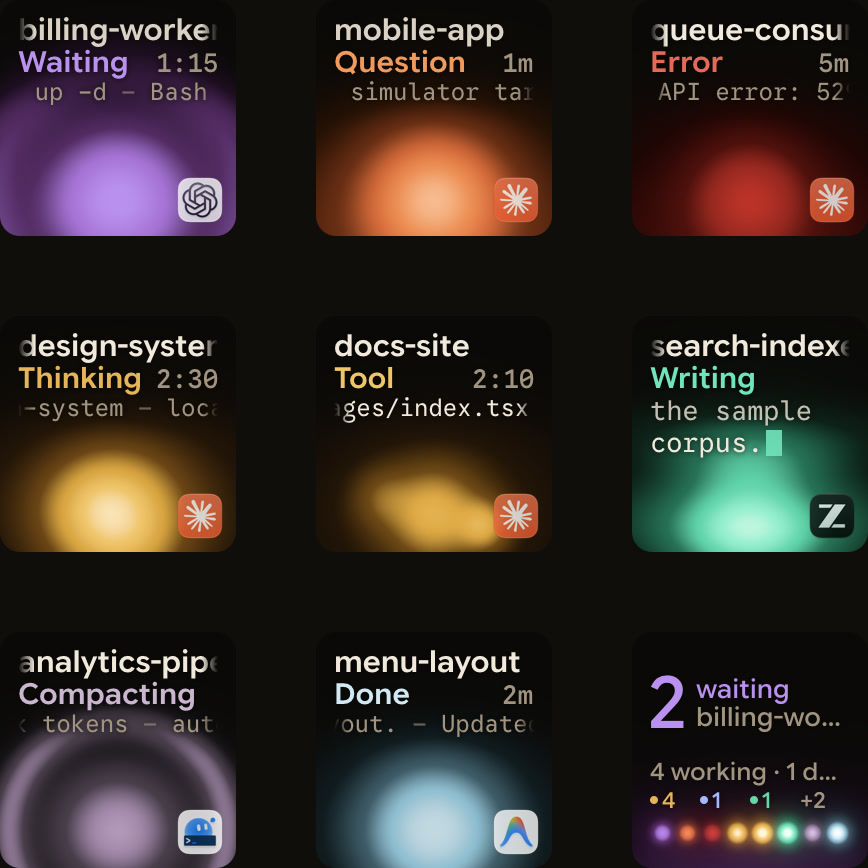
- Keys 1 to 8 each show one session from Claude Code, Codex, ZCode, the Antigravity desktop app or Kimi Code.
- Each session key shows the session name, state and latest words over an animated Frosted orb.
- Waiting sessions move to the front.
- Key 9 summarises all sessions, and tapping it focuses the first waiting session.
- Hold a session key for 0.6 seconds to open Focus mode across all nine keys.
- For local permission requests, press
Denyon key 7 or holdAllowon key 9 for 0.6 seconds. - Codex terminal command approvals offer
Allowonly on the keys, so decline them in the terminal. - For supported multiple-choice questions, pick options on keys 1, 2, 3 and 7, then hold
Sendon key 9. - Kimi Code questions work this way in Kimi's own server, started with
kimi web,kimi rcor/rc. - Antigravity IDE and CLI sessions do not appear automatically.
- Antigravity permission prompts and written answers stay on your computer.
- Remote sessions over SSH are display-only, except
Allowfor Codex terminal command approvals.
See Use the Logitech MX Creative Keypad without Logi Options+ and The Logitech MX Keypad for developers, with and without Options+ for setup details.
FAQ
How do I completely uninstall Logi Options+ on Windows?
First uninstall Logitech Options/+ in Add or Remove Programs, or open Apps and Installed app in Settings, click the three dots next to Logi Options+ and select Uninstall. Next, delete the Logi folder inside AppData Local and ProgramData to remove LogiPluginService. Run Delete Temporary Files, and enable Show hidden files, folders, and drives in File Explorer. Then delete LogiOptions or LogiOptionsPlus inside the Logishrd folder in AppData and ProgramData. Remove LdaCx2.dll and LogiLDA.DLL from the System32 paths, delete the LogiOptions or LogiOptionsPlus key under Uninstall in Registry Editor, and restart your computer.
How do I completely uninstall Logi Options+ on macOS?
Drag the Options+ application from Applications onto the Bin. Then open Finder and use Go to Folder to search both /Library and ~/Library for Logitech, and move all matching files to the Trash. Delete LogiPluginService from /Applications and the Utilities folders, and remove Logi Options+ Driver Installer.bundle from /Applications/Utilities. Delete leftover Logitech files in Application Support, Preferences, Caches, LaunchAgents, LaunchDaemons, PreferencePanes and StartupItems under /Library and ~/Library, and restart your Mac.
Do I need to uninstall the Logi Options+ offline version before upgrading?
Not when upgrading to a newer offline version. You can run the new offline installer over the existing offline installation, and no settings or paired devices are lost. Logitech says you currently need to uninstall the offline version first only if you are switching to the online version of Logi Options+.
Does the Logitech MX Keypad work if I uninstall Logi Options+?
Logitech says the MX Keypad cannot be used without Logi Options+, and that the MX Creative Console dialpad is limited to a very limited set of basic actions without it. For AI coding agents, Orbtile drives the MX Creative Keypad directly over USB without Logi Options+. It shows and answers supported sessions from Claude Code, Codex, ZCode, the Antigravity desktop app and Kimi Code.