
The Google Antigravity IDE is a standalone code editor built around an AI agent. The agent reasons over your code, uses tools including the browser, runs terminal commands and produces structured deliverables called artifacts. You can run several agent conversations in parallel, review implementation plans and walkthroughs, and control tool access with terminal sandboxing, Strict mode, permission rules and lifecycle hooks.
The Agent Manager, parallel conversations and customisations
The agent is a multi-step reasoning system powered by a frontier LLM. It has four core components: a reasoning model, tools, artifacts and knowledge. Artifacts include Markdown implementation plans, code diffs, architecture diagrams, images and browser recordings.
You can start multiple agent conversations and run them in parallel. To delete a conversation, right-click it in the Agent Manager and select Delete Conversation, or click the trash icon in the editor's Agent panel. You can also customise the agent with agent modes and settings, Model Context Protocol (MCP) servers, and rules and workflows.
Planning mode, implementation plans and walkthrough artifacts
You don't need to watch every tool call as it happens. Instead, you review artifacts at key milestones. When you start a conversation, you choose one of two execution modes:
- Planning mode: the agent researches the codebase, organises work into task groups and produces implementation plan artifacts before acting. You can also start structured planning at any time with the
/planslash command. - Fast mode: the agent acts directly without a planning phase. It suits small refactors, renaming a variable or running a specific command.
In the Agent tab of Settings, the artifact review policy controls when the agent pauses:
- Request review (recommended): the agent halts and asks for your explicit approval before applying proposed changes.
- Always proceed: the agent skips the pause and continues with implementation.
When an implementation plan pauses for review, you can leave comments to reduce the scope of changes, switch tech stacks or correct discrepancies. Click Proceed in the conversation or the artifact header to continue. Or click Review in the artifact header to examine all your comments and submit them as feedback.
When the agent finishes implementing a task, it creates a walkthrough artifact. The walkthrough summarises the changes made in the conversation. For browser tasks it often includes screenshots and screen recordings of what the agent built.
Command execution, terminal sandboxing and Strict mode
The Antigravity IDE settings control how the agent runs terminal commands, reaches files outside your project and isolates terminal processes.
| Setting or policy | Standard IDE settings | Strict mode enabled |
|---|---|---|
| Terminal command auto execution | Request Review (uses allowlist) or Always Proceed (uses denylist) | Set to Request Review; terminal allowlist ignored |
| Non-workspace file access | Project folders and ~/.gemini/antigravity-ide/ by default | Blocked; .gitignore rules respected |
| Terminal sandboxing | Disabled by default; optional toggle on macOS and Linux | Turned on automatically with network access denied |
| Artifact review policy | Request review or Always proceed | Set to Request Review |
Strict mode also asks before running JavaScript in the browser. It uses the browser allowlist and denylist to decide whether external Markdown images load and whether the Read URL tool runs automatically.
Outside Strict mode, you set each boundary yourself:
- Terminal command auto execution:
Request Reviewasks before every command not on your allowlist.Always Proceedruns every command not on your denylist. - Agent non-workspace file access: by default, the agent can only reach your project folders and
~/.gemini/antigravity-ide/, which holds artifacts, knowledge items and configuration files. Enable wider access with caution. - Terminal sandboxing: isolates terminal commands at the kernel level, using Seatbelt (
sandbox-exec) on macOS and kernel namespaces on Linux. Turn onEnable Terminal Sandboxso commands can only write to your workspace and essential system locations. UseSandbox Allow Networkto allow or block network access.
Fine-grained permissions: Deny, Ask and Allow
Antigravity checks each sensitive operation as an action(target) rule across Deny, Ask and Allow lists. Conflicts follow the strict order Deny > Ask > Allow. If command(*) is in Ask and command(git) is in Allow, Ask wins and every command prompts.
The actions are:
read_fileandwrite_file: match paths. Files inside your project need no prompt, while files outside it default toAsk. Allowingwrite_filealso grantsread_fileon that path, and denyingread_fileblockswrite_file.read_urlandexecute_url: match domains, including subdomains, and default toAsk.read_urlcovers reading pages, loading a domain in Chrome and the sandbox network allowlist.execute_urlcovers clicking and typing on a page.command: matches command prefixes word by word, or a regular expression with aregex:prefix. Constructs such as command substitution, brace expansion and some redirections turn off prefix matching. The command then needs a full-line match or falls back toAsk.mcp: matches one tool (mcp(server/tool)), a whole server (mcp(server/*)) or all MCP tools (mcp(*)).
When an Ask rule fires, a prompt card appears. Before you click Allow on a file, URL or MCP prompt, you can edit the target to widen the grant for the rest of the turn. This does not apply to terminal commands.
Lifecycle hooks in the Antigravity IDE
Hooks run your own scripts or shell commands at set points in Antigravity's execution loop, for example to run a linter after a command. In the standalone IDE, hooks live in hooks.json at two levels:
- Workspace level:
.agents/hooks.jsonin your open project. - Global level:
~/.gemini/config/hooks.json, the same path the Antigravity App and the Antigravity CLI use.
You can manage active hooks from … > Customizations > Hooks in the agent side panel.
{
  "my-linter-hook": {
    "PostToolUse": [
      {
        "matcher": "run_command",
        "hooks": [
          {
            "type": "command",
            "command": "./scripts/lint.sh",
            "timeout": 10
          }
        ]
      }
    ]
  }
}
Antigravity supports six hook events: SessionStart, PreToolUse, PostToolUse, PreInvocation, PostInvocation and Stop. On PreToolUse and PostToolUse, matcher takes a regular expression for tool names such as run_command, view_file, write_to_file or ask_question.
Each hook receives JSON on stdin with conversationId, workspacePaths, transcriptPath, artifactDirectoryPath and modelName. A PreToolUse hook can return a decision of allow, auto_approve, deny, ask, force_ask or deny_unless_prior_grant. A Stop hook can return "decision": "continue" to keep the agent working.
For how the terminal CLI uses these files, see Google Antigravity CLI: commands, settings and permissions. For how Google's tools compare with Anthropic's, see Google Antigravity vs Claude Code: what's the difference.
Watch Antigravity and other coding agents with Orbtile
Orbtile shows your coding agents on a Logitech MX Creative Keypad (or the standalone MX Keypad) over USB, or on an Android phone running Orbtile Mobile. It runs on a computer with macOS 14.0 Sonoma or later on Apple silicon, or Windows 11 (x64).
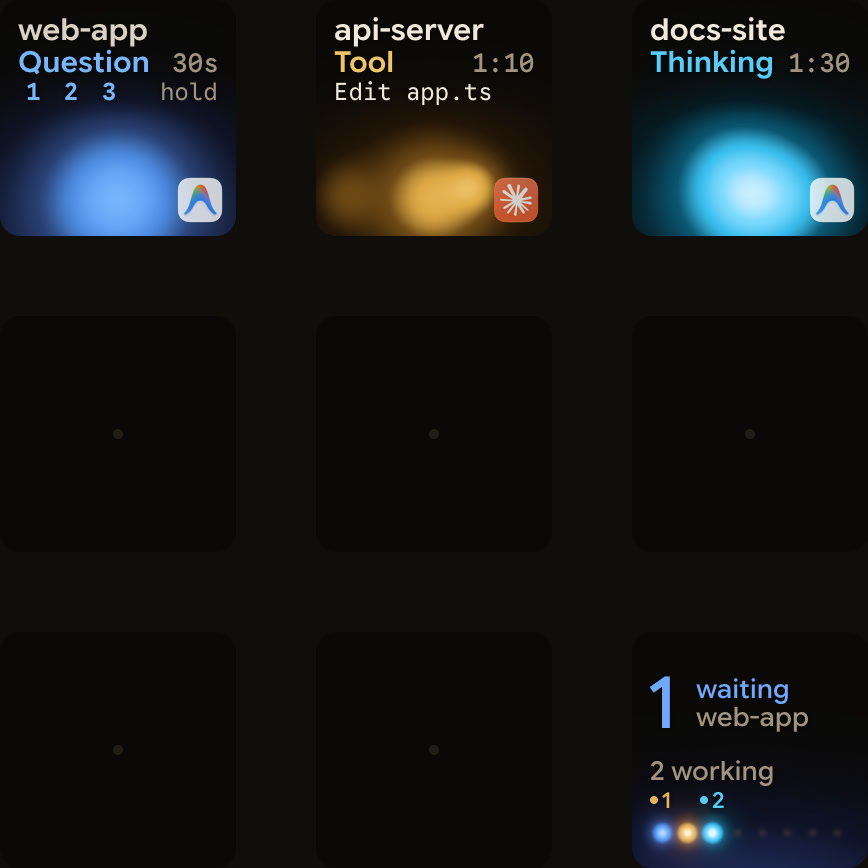
- Antigravity desktop app: each conversation gets its own key, with its title and state. A conversation waiting on a question moves to the front. You can answer questions with numbered options from the keypad, up to four questions with two to four choices each, by picking options and holding Send. Written answers and permissions stay on your computer.
- Antigravity IDE and CLI: Orbtile follows the desktop app only, so IDE and CLI sessions don't appear.
- Every agent on one pad: the same pad shows Claude Code, Codex and ZCode sessions, plus remote sessions over SSH. See Know when Google Antigravity is waiting for you.
FAQ
Where does the Google Antigravity IDE store its files and hooks?
The Antigravity IDE keeps artifacts, knowledge items and configuration files in ~/.gemini/antigravity-ide/. Workspace hooks go in .agents/hooks.json in your open project, and global hooks go in ~/.gemini/config/hooks.json.
What does Strict mode enforce in the Antigravity IDE?
Strict mode sets terminal command auto execution, browser JavaScript execution and artifact review to Request Review, and ignores the terminal allowlist. It turns on the terminal sandbox with network access denied and applies the browser allowlist to external Markdown images and the Read URL tool. It also respects .gitignore rules and blocks access to files outside your workspace.
How do implementation plan and walkthrough artifacts work?
In Planning mode, or when you run /plan, the agent creates an implementation plan artifact. You can comment on it, then click Proceed or Review. When the agent completes a task, it creates a walkthrough artifact summarising the changes, often with screenshots and screen recordings for browser tasks.
Does Orbtile show Google Antigravity IDE sessions?
No. Orbtile follows conversations in the Antigravity desktop app. IDE and CLI sessions don't appear.