

You don't need Logi Options+ to use the Logitech MX Creative Keypad. Orbtile drives the keypad's nine LCD keys and two page buttons directly over USB, so it works whether Options+ is installed or not. The standalone MX Keypad is the same keypad and works the same way.
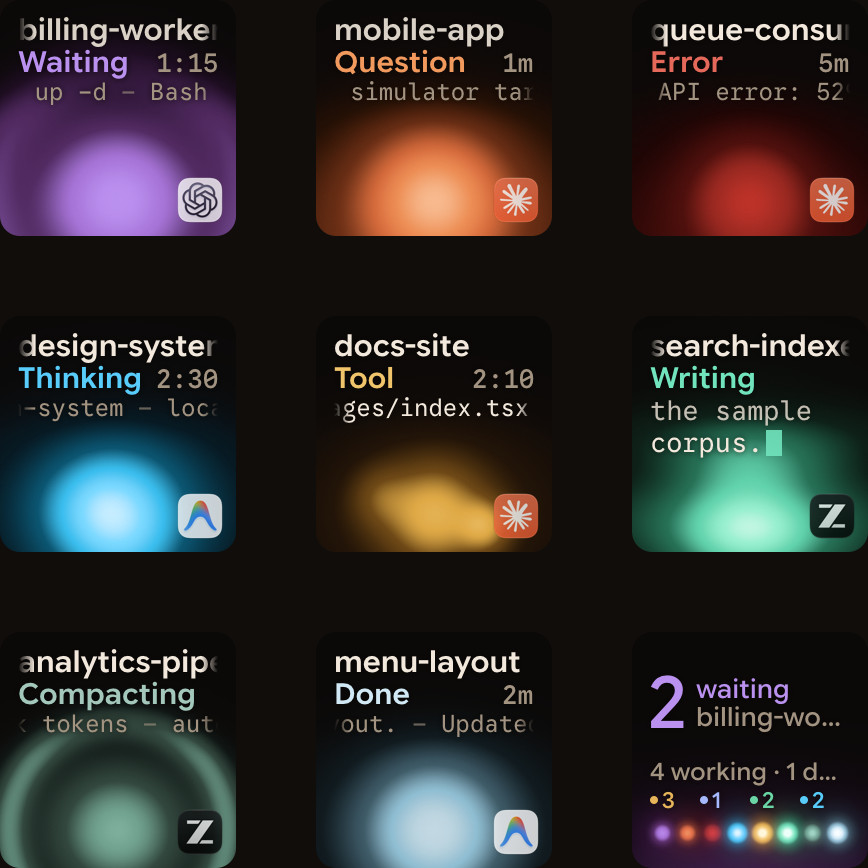
Why skip Options+ for the keypad
Options+ is built around profiles and plugins: a key runs an action in an app. That's useful for shortcuts. For coding agents you usually want the opposite: the keys showing you live state, updating on their own, without a plugin service in between.
Orbtile turns the keypad into a status pad for AI coding agents:
- one key per Claude Code, Codex, ZCode or Antigravity session, with its name, state and latest words over a glowing orb;
- waiting sessions move to the front and glow in their agent's alarm colour;
- key 9 summarises everything and jumps to the first waiting session;
- you can answer supported permission requests and questions on the keys.
On a Mac
Requirements: macOS 14 Sonoma or later on Apple silicon, and the keypad plugged in with its USB-C cable.
- Download Orbtile from the download page and drag it to Applications.
- Open Orbtile from the menu bar and choose Take Over Keypad. No account is needed.
If Options+ is installed, it stays installed. While Orbtile is in control, your Options+ profile for the keypad pauses. Options+ gets the keypad back straight away when you:
- quit Orbtile;
- switch to Options+ from Orbtile's menu bar;
- press Control-Option-Command-K;
- hold both page buttons on the keypad for 1.5 seconds.
When your Mac sleeps, the keypad goes back to Options+ and returns to Orbtile on wake.
On Windows
Orbtile runs on Windows 11 (x64). Install it from the download page, plug in the keypad, and Orbtile shows your sessions on its keys. If it says Released to Options+, choose Take Over Keypad. No account is needed.
To hand the keypad back to Options+, choose Give Keypad to Options+, hold both page buttons for 1.5 seconds, or quit Orbtile.
Keys that answer for you
When a session asks for permission, hold its key to open Focus view across all nine keys. Key 7 shows Deny and key 9 shows Allow. Press Deny once to deny. Hold Allow for 0.6 seconds while its ring fills to allow; letting go early does nothing. For questions with options, the options appear on the keys and you hold Send to answer.
The prompt on screen keeps working, and whichever answers first wins.
FAQ
Do I have to uninstall Logi Options+?
No. Options+ stays installed and keeps working for your other Logitech devices. Only the keypad switches between the two.
Does this work with the standalone MX Keypad?
Yes. It's the same keypad as the one in the MX Creative Console.
Can I still use the dialpad?
Yes. Orbtile only takes over the keypad. It doesn't touch the dialpad, which keeps working with Logi Options+ as before.