

Claude Code sends a desktop notification when it finishes or stops at a permission prompt, but by default only in Ghostty, Kitty and iTerm2, so on a Windows PC you usually get nothing. Two settings fix that: a terminal bell, or a Notification hook that opens a Windows dialog. With several sessions open, a status pad that shows which one is waiting does the rest.
1. The terminal bell
Add this to %USERPROFILE%\.claude\settings.json:
{
  "preferredNotifChannel": "terminal_bell"
}
Claude Code then rings the terminal bell when it needs you. What the bell does depends on your terminal's settings: a sound, a flash, or both.
2. A dialog from a Notification hook
For something you can't miss, a Notification hook can open a Windows dialog box through PowerShell:
{
  "hooks": {
    "Notification": [
      {
        "matcher": "",
        "hooks": [
          {
            "type": "command",
            "command": "powershell.exe -Command \"[System.Reflection.Assembly]::LoadWithPartialName('System.Windows.Forms'); [System.Windows.Forms.MessageBox]::Show('Claude Code needs your attention', 'Claude Code')\""
          }
        ]
      }
    ]
  }
}
It's a dialog box, not a notification in the corner of the screen, so it can open behind your terminal window. Run the PowerShell part on its own first to check it works. An empty matcher fires on every notification type; set it to permission_prompt to be told only about permission requests.
If you run Claude Code inside WSL, powershell.exe has to be on your path through Windows interop. If a hook fails with "blocking because Git Bash wasn't found", Claude Code couldn't find Git Bash on Windows; the hooks reference on code.claude.com has the fixes.
3. See every session at once
A bell or a dialog tells you that some session needs you. With four sessions in four tabs, you still have to find which one.
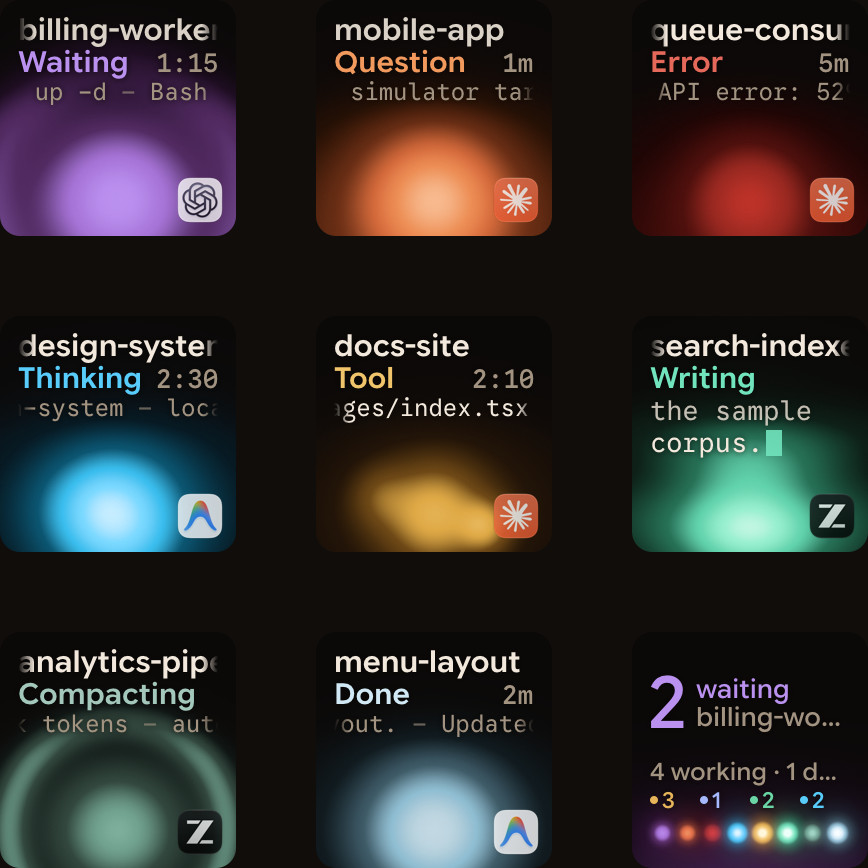
Orbtile runs on Windows 11 (x64) and shows every Claude Code session as its own key on the Logitech MX Creative Keypad, or a tile on an Android phone with Orbtile Mobile. The session that's waiting moves to the front, and you can answer its permission request from the key: press Deny, or hold Allow until its ring fills. It installs for your Windows user, without administrator rights.
The first time you run the installer, Windows SmartScreen says "Windows protected your PC", because the beta is signed with Orbtile's own certificate: choose More info, then Run anyway. With a phone, allow Orbtile.App when Windows Security asks about networks.
FAQ
Why don't I get a notification in Windows Terminal?
Claude Code sends its desktop notification only in Ghostty, Kitty and iTerm2. Set preferredNotifChannel to "terminal_bell", or add the Notification hook above.
Does Orbtile support Codex on Windows?
Not yet. On Windows, Claude Code and Antigravity are supported today; Codex and ZCode are being tested there.
Can I use the MX Creative Keypad with Logi Options+ installed?
Yes. On Windows, choose Take Over Keypad in Orbtile; Give Keypad to Options+, holding both page buttons for 1.5 seconds, or quitting Orbtile hands it back. See Use the Logitech MX Creative Keypad without Logi Options+.