
The Logitech MX Creative Console is an advanced dialpad and keypad for creative apps such as Adobe Photoshop, Premiere Pro and Lightroom. The MX Creative Keypad has customisable LCD display keys, and the wireless MX Creative Dialpad has an analogue dial, a roller and keys. You set both up in Logi Options+, which Logitech offers for Windows 10 or later and macOS 14 or later. There you assign Press actions to keys and buttons, map Rotate actions to the dial and roller, and let profiles switch with the app in the foreground. The keypad also works on its own, for example as a live status pad for AI coding agents with Orbtile.
Keypad and dialpad controls in Logi Options+
The console is two devices: the MX Creative Keypad and the MX Creative Dialpad. Logitech's support documentation says each one works on its own, and that the two give the most value together.
Logi Options+ sorts actions into two kinds:
- Press actions: single events, such as saving a file or opening an application, assigned to a key or button.
- Rotate actions: progressive changes, such as volume or layer opacity, assigned to the dial or the roller.
To configure a key, button, dial or roller:
- Select your device on the Logi Options+ home screen.
- Open the
KEYSorBUTTONtab and click theCUSTOMIZEicon. - Drag an action from the right panel onto a key, button, dial or roller.
The dialpad has two extra settings:
- Dial and roller speed and direction: select the MX Creative Dialpad, click
DIAL and ROLLERin the left panel, then set the direction and move the speed slider. - Contextual dial: the dial temporarily adjusts a tool you selected on the keypad, such as brush size, then returns to its default function.
| Component or setting | What it does in Logi Options+ |
|---|---|
| MX Creative Keypad | Customisable LCD display keys for Press actions and shortcuts |
| MX Creative Dialpad | Wireless analogue dial, roller and keys for Rotate and Press actions |
KEYS or BUTTON > CUSTOMIZE | Drag-and-drop assignment of actions to controls |
DIAL and ROLLER | Direction and speed of the dial and roller |
| Contextual dial | Temporarily adjusts a keypad-selected tool, then returns to its default function |
Profiles, file imports and automatic app switching
Profiles change what the console does as you move between programs. To add one, click the + button on the profile bar at the top of the device's configuration page:
- General Profile: holds actions not tied to an app. It is active when no application profile is active.
- Application Profile: a layout for one app, starting from the
Defaultprofile orSTART WITH A BLANK TEMPLATE. - Import Profile: loads a saved profile from a
*.lp4or*.lp5file.
How profiles behave:
- Adapt to App: Logi Options+ switches to an app's profile when that app opens or comes to the foreground. It is on by default.
- Export: automatic backup and restore is not available for MX Creative Console devices. To save or share a layout, open the three-dot menu on a profile icon and choose Export.
- Plugins follow the active profile: with a Photoshop profile active, for example, Premiere Pro plugin actions may be unavailable.
Marketplace plugins, the Actions SDK and version requirements
To find plugins in Logi Options+, click All Actions in the right panel to reach the plugin section. Then choose the option at the bottom to find more from the Marketplace. Options+ also installs a plugin automatically when you create a profile for an app that has one. On the Logi Marketplace page, developers can use the Logi Actions SDK to build custom plugins for their most-used apps.
Logitech recommends the latest release of each app and cannot guarantee compatibility with older versions. Its plugin page lists these minimum versions for MX Creative Console plugins:
| Application | Minimum supported version |
|---|---|
| Adobe Photoshop 2024 | v22.2.0 onwards |
| Adobe Lightroom Classic | v12.0 onwards |
| Adobe Lightroom CC / Desktop | v8.3 onwards |
| Adobe Premiere Pro | v23.0 onwards |
| Adobe Illustrator | v27.0 onwards |
| Ableton Live | v11 and v12 onwards |
| Capture One | 16.3 onwards |
| OBS Studio | 30.0 onwards |
Setting up Adobe Creative Cloud plugins
Adobe plugins have extra requirements in Logi Options+:
- Creative Cloud installation required: Adobe plugins work only with applications installed via Creative Cloud.
- Installation order: install the Adobe application first. If you installed the plugin before the application, reinstall the plugin.
- Photoshop user actions (macros): Logi Options+ lists them only while Photoshop is open. Keep Photoshop open while you assign them to keys.
- Premiere Pro control surface: open
Premiere > SETTINGS > CONTROL SURFACEon a Mac orEDIT > PREFERENCES > CONTROL SURFACEon Windows. ClickADD, selectLogiPlugin, then clickOK. - Lightroom pairing: open
Edit > Preferences > Interface, enable external controllers, restart Lightroom, and clickPair.
Show coding-agent sessions on the MX Creative Keypad with Orbtile
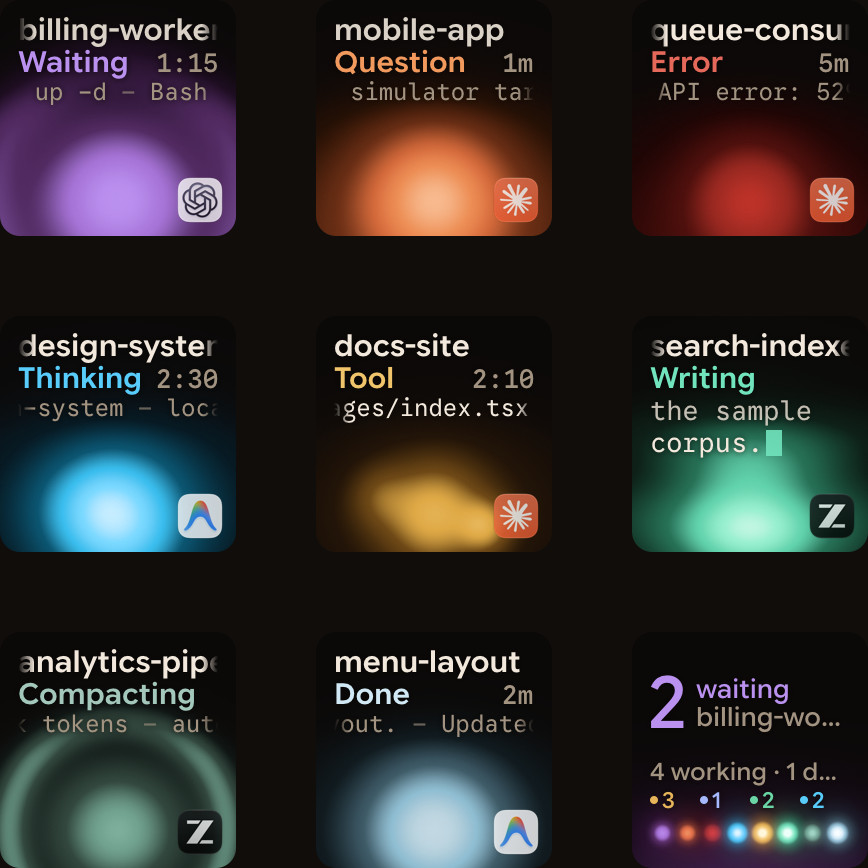
Because the keypad works on its own, you can use it as a live status pad for AI coding agents while the dialpad stays with Logi Options+. Orbtile drives the keypad's nine LCD keys and two page buttons over its USB-C cable. It runs on a computer with macOS 14.0 Sonoma or later on Apple silicon, or Windows 11 (x64).
- One key per session: keys 1 to 8 show Claude Code, Codex, ZCode and Antigravity desktop sessions, scripts connected through the Adapter API, and remote sessions over SSH. Each key shows the session's name, state and, where supported, its latest words. Waiting sessions move to the front, and a tap on key 9 opens the first waiting session.
- Answers on the keys: for supported agents, hold a waiting key to open Focus mode, then press Deny once or hold Allow for 0.6 seconds. Supported multiple-choice questions can be answered on the keys too. Typed answers, unsupported requests and remote sessions stay on the computer or host.
- Options+ when you need it: Orbtile does not need Logi Options+ and never modifies it. Your Options+ keypad profile pauses while Orbtile holds the keypad. It comes back at once when you switch in Orbtile's menu, press
Control-Option-Command-Kon a Mac, hold both page buttons for 1.5 seconds, or quit Orbtile.
See The Logitech MX Keypad for developers, with and without Options+ and Use the Logitech MX Creative Keypad without Logi Options+ for how both setups work together.
FAQ
Can the MX Creative Keypad and MX Creative Dialpad work separately?
Yes. Logitech says each device works on its own, though the two give the most value together. You can also let Orbtile drive the keypad over USB while the dialpad stays with Logi Options+.
Which profile file types can Logi Options+ import for the MX Creative Console?
Logi Options+ imports profiles from .lp4 and .lp5 files. Click the plus button on the profile bar and choose Import Profile. An imported profile works only with the device you started the import from.
Why are my Photoshop actions or plugin controls missing in Logi Options+?
Plugin actions depend on the active profile, so a Photoshop profile can hide Premiere Pro actions. Adobe plugins also need applications installed via Creative Cloud, and Photoshop must be open for its user actions to appear.
How do I switch the MX Creative Keypad between Orbtile and Logi Options+?
Hold both page buttons below the keys for 1.5 seconds, switch from the Orbtile menu bar on a Mac or the tray on Windows, press Control-Option-Command-K on a Mac, or quit Orbtile. Your Logi Options+ keypad profile comes back right away.