
Agent view is Claude Code's screen for background sessions. Open it with claude agents, and it lists every background session under Needs input, Working and Completed, so the one waiting for you is at the top and you can reply without opening each session. It's a research preview, added in Claude Code 2.1.139. Below: how to start background sessions, read the list, answer them, and see the same sessions on a keypad or your phone.
Start background sessions
Agent view lists background sessions only. A session in another terminal doesn't appear until you move it to the background. There are three ways to get one:
- From your shell:
claude --bg "<prompt>"starts a session that runs without a terminal. - From a running session: type
/bg, or press←on an empty prompt. The conversation moves to the background and keeps working. - From agent view itself: type a prompt in its input and press
Enterto dispatch a new session.
/fork copies a session into a new background session, while the original keeps running.
Read the list
Run claude agents. Add --cwd <path> to see only the sessions started under one project.
| Group | What's in it |
|---|---|
| Needs input | A question, a permission prompt or another dialog is waiting |
| Working | The session is running |
| Completed | Done, plus failed and stopped sessions |
Pinned sessions and a Ready for review group sit above these. A session's icon shows its state: Needs input is yellow, Completed green, Failed red, Stopped grey.
Reply without leaving the list
- Press
Spaceto open a session's peek panel, type your reply and pressEnter. - For a question with set choices, press the choice's number, then
Enter. - A permission prompt can't be answered from the peek panel. Press
→orEnterto attach to that session, answer it there, then press←on an empty prompt to go back to the list. Detaching never stops the session.
While agent view is open, Claude Code also notifies you when a background session needs input, finishes or fails. It fires the Notification hook with the agent_needs_input or agent_completed type, and the terminal tab title shows how many sessions are waiting. In a regular session, a ← 2 agents hint in the footer counts the ones waiting on you.
Know the limits
- It's a research preview. The screen and the shortcuts can still change.
- Sessions are local. They survive sleep and stop when the machine shuts down.
- Usage adds up. Each background session uses your plan's usage like an interactive one, so ten sessions use it about ten times as fast.
- Worktrees go with the session. Deleting a session in agent view also deletes the worktree Claude created for it, so commit its changes first.
See the same sessions on a keypad or your phone
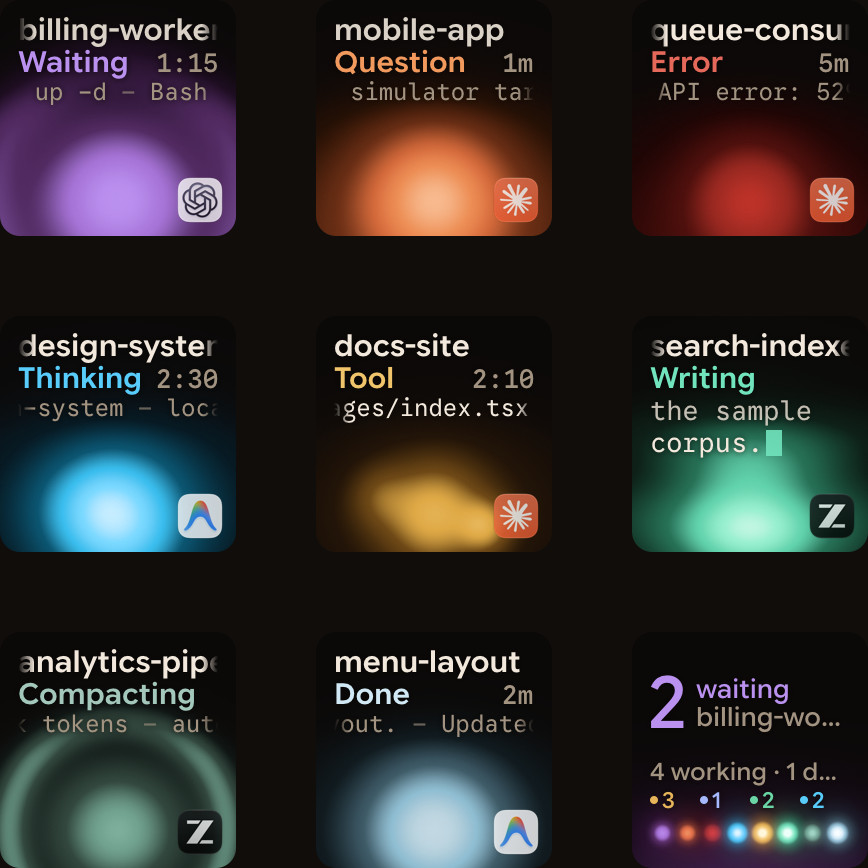
Agent view lives in a terminal window. Orbtile puts your sessions on a Logitech MX Creative Keypad or an old Android phone instead, next to your keyboard, so you see which one waits without switching to the terminal.
- Background sessions: turn on Show background sessions in Orbtile's settings, and agent view's sessions get their own tiles too. When one needs input, its tile shows it waiting.
- Everything else: sessions in any terminal, sessions on servers over SSH, and Codex, ZCode and Antigravity, all on the same pad.
- Answers: for the sessions in your terminals, you answer a permission prompt from the tile: Deny with a tap, Allow with a hold. See Approve agent tool calls without switching windows.
FAQ
Does agent view show the sessions in my other terminals?
No. It lists background sessions only. Type /bg in a session, or press ← on an empty prompt, to move it to the background, and it appears in the list.
Can I approve a permission prompt from agent view?
Not from the peek panel. Attach to the session with → or Enter and answer the prompt there; your queued replies wait until you do.
Do background sessions keep running when my Mac sleeps?
Yes. They're preserved across sleep. They stop when the machine shuts down, and they show as failed or stopped when you come back.