
Plan Mode in Claude Code tells Claude to research your codebase, run exploratory shell commands and write a plan without editing your source files. You can switch into it during an interactive session by pressing Shift+Tab, prefixing a single prompt with /plan, or launching from the command line with claude --permission-mode plan. When the plan is ready, Claude presents it for your approval, and you choose whether it starts editing or keeps planning.
What Plan Mode does and what it blocks
With Claude Code v2.1.283 or later, interactive terminal and VS Code sessions start in auto mode by default. Switching to plan mode changes the permission rules so Claude can explore unfamiliar code and propose changes before touching disk.
Mode (config value) | UI label | What runs without asking | Best for |
|---|---|---|---|
default | Manual | Reads only | Reviewing every action yourself, sensitive work |
acceptEdits | Edit automatically | Reads, file edits and common filesystem commands (mkdir, touch, mv, cp, rm, rmdir, sed) | Iterating on code you are reviewing |
plan | Plan | Reads, plus classifier-approved commands when auto mode is available | Exploring a codebase before changing it |
auto | Auto | Everything, with background safety checks | Long tasks, reducing prompt fatigue |
dontAsk | Not in the Shift+Tab cycle | File reads in working directories and pre-approved tools; prompts are denied | Locked-down CI and scripts |
bypassPermissions | Bypass permissions | Everything | Isolated containers and VMs only |
While Plan Mode is active, Claude Code sets clear limits on tools and subagents:
- File edits stay blocked: except in interactive terminal sessions where bypass permissions are available, Claude Code blocks file edits until you approve the plan. File edits are never auto-approved in
planmode, even when an allow rule matches or aPreToolUsehook returnsallow. - Shell commands depend on auto mode: when
automode is available anduseAutoModeDuringPlanis on (its default), the classifier reviews shell commands other than critical-path removals instead of prompting you. Whenautomode is unavailable oruseAutoModeDuringPlanis off, commands outside the built-in read-only set prompt for approval, even when the sandbox's auto-allow mode is on. - Subagents inherit Plan Mode: if your main session is in
planmode, a subagent whose definition setspermissionMode: "acceptEdits"still runs inplanmode. Handing work to a subagent does not get around reviewing the plan first.
How to enter and exit Plan Mode
Each Claude Code surface below has its own control for Plan Mode:
- CLI and JetBrains terminal: press
Shift+Tabto cycle permission modes. Fromauto, the first press switches todefault(⏸ manual mode on), thenacceptEdits(⏵⏵ accept edits on) andplan(⏸ plan mode on). Enabled optional modes slot in afterplan. PressShift+Tabagain to leave Plan Mode without approving a plan. - VS Code extension: click the mode indicator at the bottom of the prompt box and select
Plan. PickingPlanapplies to that conversation only. - Claude desktop app: in the Code tab, use the mode selector in the row under the prompt box. Other modes are remembered per folder, but picking
Planapplies only to the current session. - Web and mobile app: on
claude.ai/code, use the mode dropdown next to the prompt box. In the mobile app, tap the+button in the prompt box and selectPermission.
Claude also has a built-in EnterPlanMode tool that switches the session to Plan Mode to design an approach before coding.
Set Plan Mode as the default permission mode
To start new terminal sessions in Plan Mode, set permissions.defaultMode to "plan" in .claude/settings.json for one project, in ~/.claude/settings.json for every terminal session on your computer, or in managed settings for your organisation:
{
  "permissions": {
    "defaultMode": "plan"
  }
}
When more than one settings file sets permissions.defaultMode, a project or managed value outranks ~/.claude/settings.json. The Claude desktop app reads the same settings files and applies the mode to new local sessions.
The VS Code extension never reads a project's .claude/settings.json or .claude/settings.local.json for the starting permission mode. To make Plan Mode the default in VS Code, set claudeCode.initialPermissionMode to "plan" in your VS Code user settings.
Review, edit and approve a plan
While researching, Claude may call AskUserQuestion to ask multiple-choice questions that clarify requirements. Once the plan is ready, Claude calls the ExitPlanMode tool to present it and ask how to proceed.
Before Claude starts editing, you can press Ctrl+G to open the proposed plan in your default text editor and edit it directly. At the approval prompt, you choose from these options:
- Yes, and use auto mode: approves the plan, exits Plan Mode and starts editing in
automode. Ifautomode is unavailable to your session, this option readsYes, auto-accept edits. - Yes, manually approve edits: approves the plan, exits Plan Mode and switches to manual review, so you approve each edit.
- No, keep planning: stays in Plan Mode so you can tell Claude what to change.
If you enable showClearContextOnPlanAccept, the list gains a first option that approves the plan and clears the planning context. A question from AskUserQuestion can close on its own if you set askUserQuestionTimeout, but plan approval never auto-resolves on idle.
Run Plan Mode in headless sessions, the Agent SDK and agent view
You can also use Plan Mode outside an interactive terminal window:
- Non-interactive CLI runs: pass
--permission-mode planalongside-p(or--print) to have Claude output a plan without editing files:
claude -p "propose a refactoring plan for src/auth" --permission-mode plan- Claude Agent SDK: set
permission_mode="plan"in Python orpermissionMode: "plan"in TypeScript when callingquery(). In streaming sessions, callset_permission_mode("acceptEdits")in Python orsetPermissionMode("acceptEdits")in TypeScript after reviewing Claude's initial approach. File edits, and on v2.1.212 or later shell commands that modify files such astouchandrm, always go to yourcanUseToolcallback inplanmode. - Background sessions in agent view: move a running session into the background with
/bgor by pressing←on an empty prompt, then open agent view withclaude agents. A session waiting on you appears in the yellowNeeds inputgroup at the top. TheSpacepeek panel cannot answer a permission prompt such as plan approval: press→orEnterto attach, approve the plan, then press←on an empty prompt to detach.
Watch Plan Mode sessions on a keypad or phone with Orbtile
If you run several sessions across terminal tabs or in agent view, it is hard to see which one has finished planning. Orbtile puts each session on a key of the Logitech MX Creative Keypad or a tile on an Android phone (Android 8.0 or later) with Orbtile Mobile, next to a computer running macOS 14.0 Sonoma or later on Apple silicon or Windows 11 (x64).
- Live planning state: each key or tile shows the session's name, state and latest words over an animated orb, with motion that follows
plan,readorshelltools as Claude explores. - Clarifying questions on the keys: when a local Claude Code session asks a multiple-choice question, its key glows in Claude Code's alarm colour, moves to the front and shows
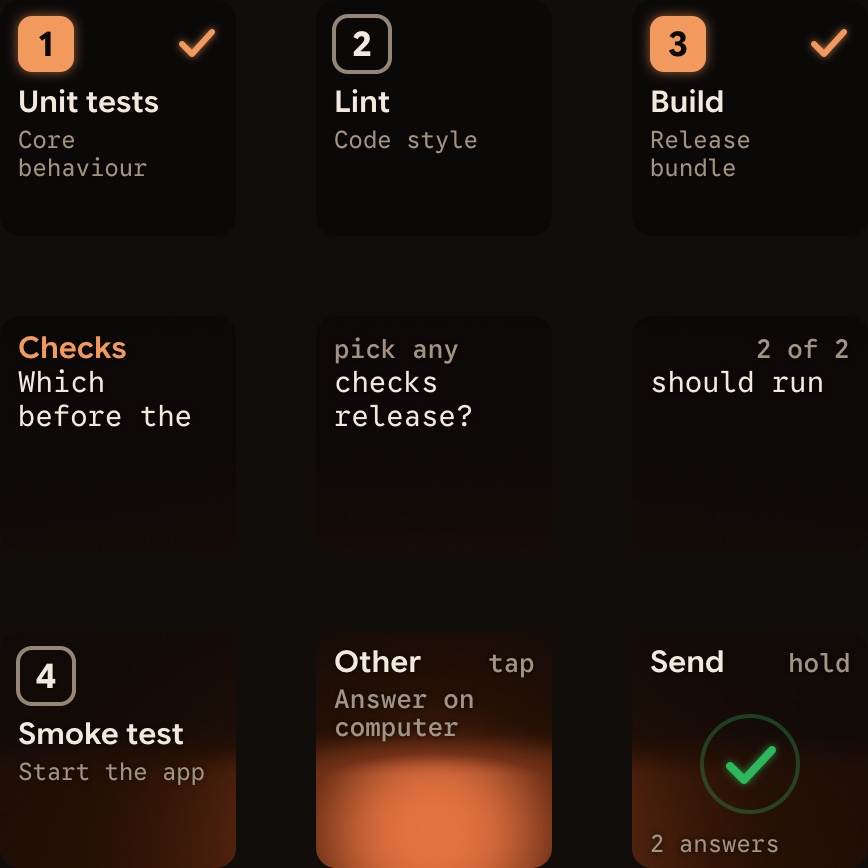
Question. Hold the key, tap your choices on keys 1, 2, 3 and 7, and holdSendon key 9 for 0.6 seconds. - Plan approval alerts: when a plan waits for your decision, the key moves to the front and shows
QuestionwithOn computer. A tap on the key brings that session's app to the front, so you can edit the plan withCtrl+Gor approve it in Claude Code itself. See Know when Claude Code asks you a question or wants a plan approved and Approve agent tool calls without switching windows.
FAQ
How do I turn on Plan Mode in Claude Code?
In the CLI or JetBrains terminal, press Shift+Tab until the status bar shows plan mode on, prefix a single prompt with /plan, or start a session with the permission-mode flag set to plan. In VS Code, the Claude desktop app, the web interface and the mobile app, select Plan from the permission mode control by the prompt box.
Does Claude Code edit files while in Plan Mode?
No. Except in interactive terminal sessions where bypass permissions are available, Claude Code blocks file edits in Plan Mode until you approve the plan, even if an allow rule matches or a hook returns allow.
Can I approve a Claude Code plan from the Logitech MX Creative Keypad?
Not directly. When a local Claude Code session waits for plan approval, Orbtile moves its key to the front and shows Question with On computer. A tap on the key opens the session so you can approve the plan there. Multiple-choice questions and tool permission prompts can be answered on the keys.