
Run Kimi Code, Claude Code and Codex at the same time, and Orbtile gives every session its own key or tile on one status pad. You see each session's title, state and latest words, with waiting sessions first. Use a Logitech MX Creative Keypad or Orbtile Mobile on your phone, and answer supported approvals and questions without switching windows.
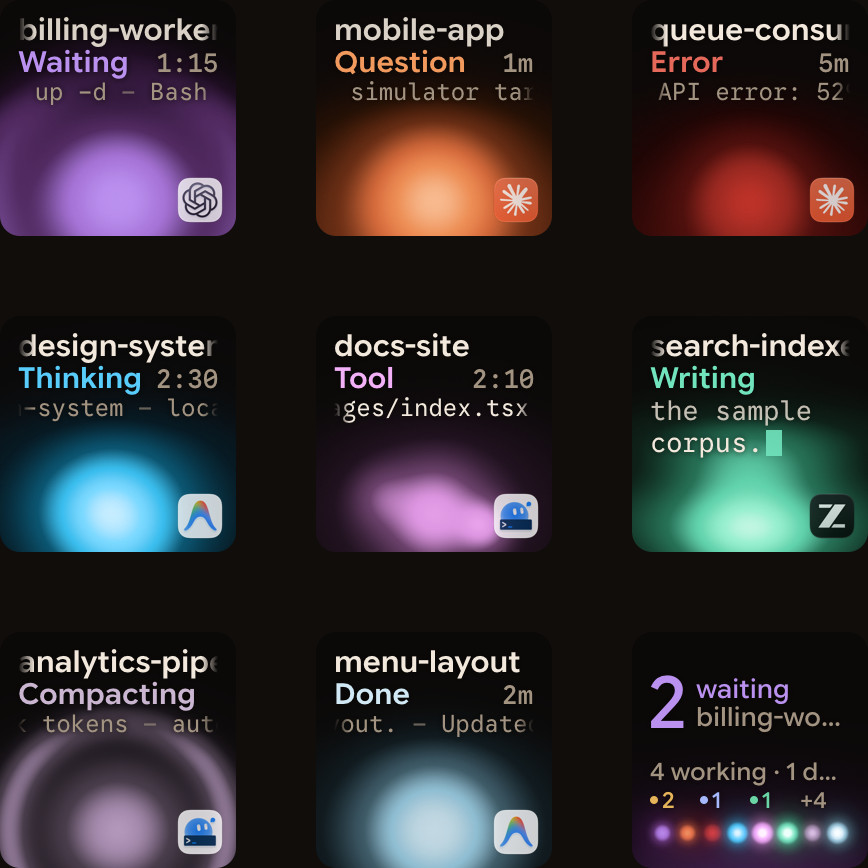
One board for three agents
Each agent keeps its own sessions and its own colour palette. Orbtile puts them in one order: waiting, working, recently finished, then idle. A session that starts waiting moves ahead, and the summary tile counts the work across the board.
| Agent | State and live text | Supported answers from the pad |
|---|---|---|
| Kimi Code | Read from Kimi's own session files, with nothing to install | Approvals and listed-option questions for sessions in Kimi's own server |
| Claude Code | Terminal and desktop sessions through the Orbtile plugin | Local approvals and supported multiple-choice questions |
| Codex | Desktop threads, terminal sessions and codex exec runs, with nothing to install | Offered desktop command decisions and supported desktop questions; terminal command approvals offer Allow only |
The pad does not replace any agent's prompt. Unsupported requests, written answers and anything marked Answer on computer remain in the agent on your computer.
Connect all three
- Install Orbtile on your computer from the download page. It runs on an Apple silicon Mac with macOS 14 or later, or a Windows 11 PC (x64).
- For Claude Code, open Settings > Agents > Claude Code and click Install once. Restart sessions that were already running so they load the plugin.
- For Codex, start your desktop, terminal or
codex execwork. Session state and assistant text need nothing installed. Optional hooks add Compacting and slightly earlier updates, but are not required. - For Kimi Code, start your sessions normally. They need nothing installed to show. To answer from the pad, use
kimi weborkimi rc, or type/rcin a Kimi terminal session. - Connect your keypad, or set up Orbtile Mobile with the same account on your phone and computer. Turn on Settings > Keypad > Phone pad for the phone.
For an iPhone with iOS 17 or later, Orbtile Mobile is on the App Store. For a phone with Android 8.0 or later, it is a beta on Google Play. The phone and computer use the same local network.
A three-session workflow
Give each agent a separate task, then let them work. You might ask Claude Code to change a feature, Codex to review another part of the project, and Kimi Code to investigate a failing test. Their tiles stay visible together while you do something else.
When one session asks for permission, its tile glows and moves toward the front. You can identify the agent from its icon and palette, read the request, and decide what to do next:
- Tap the tile when you want the full session. Its terminal or app window comes to the front on your computer.
- Hold the tile for 0.6 seconds when you want the focus view. Read more of the latest response and any supported request on the pad.
- Use the summary tile to jump to the first waiting session, including a session on another page.
- Change pages when more than eight sessions are active. Working and waiting sessions remain visible.
This is useful even when you do not answer from the pad. A single glance tells you which agent is working and which one has stopped for you.
Approve or answer from the pad
For a permission request, open the waiting session's focus view. Tap Deny where that choice is offered, or hold Allow for 0.6 seconds. Releasing Allow early does nothing. The request in the agent stays available.
For a supported question, tap your choices. For a multiple-select question, tap each choice to turn it on or off. When every question has a pick, hold Send for 0.6 seconds. Nothing is sent before that hold completes.
The exact limits depend on the agent:
- Claude Code: local terminal and desktop sessions support approvals and questions with options. The on-screen prompt also works, and whichever answer arrives first wins.
- Codex desktop: compatible chats offer their current Allow or Deny command decisions and supported multiple-choice questions. An unreachable or incompatible engine shows activity only.
- Codex terminal: a command approval offers Allow only. Decline it in the terminal, and answer terminal questions there too.
- Kimi Code: approvals and listed-option questions work only in Kimi's own server. Permission answers are available for up to 2 minutes, or less under Kimi's own limit. Other sessions show Answer on computer.
Remote sessions are display-only apart from the documented Codex terminal Allow route. For any unsupported request, open the session and answer on your computer.
Choose the pad that fits your desk
On the Logitech MX Creative Keypad, each session occupies a physical key. Hold its key for the focus view, use Deny or a held Allow for approvals, and use the numbered keys for question choices.
On Orbtile Mobile, the same sessions appear as touch tiles. Tap to open a session on your computer, hold for its focus view, and use the on-screen decision area for supported answers. Allow and Send require a hold on the phone too.
On iPhone, pad input keeps the screen awake by disabling the idle timer. Leaving the app releases that setting and cancels contacts. On either phone platform, return to the app and let it reconnect before answering.
FAQ
Can Kimi Code, Claude Code and Codex really share one status pad?
Yes. Orbtile gives each session its own key or tile, keeps the agents' colours and icons, and sorts waiting sessions ahead of working, recently finished and idle sessions. You can use the Logitech keypad or Orbtile Mobile on your phone.
Do all three agents need an integration installed?
No. Claude Code connects with one Install click for Orbtile's plugin. Kimi Code and Codex session state and live text need nothing installed. Their optional hooks add Compacting and slightly earlier updates, and Kimi answers additionally require Kimi's own server.
Which Codex requests can I answer from the pad?
Compatible desktop chats support offered Allow or Deny command decisions and supported multiple-choice questions. Terminal command approvals offer Allow only; decline and answer questions in the terminal. Other terminal waits and unsupported questions stay on your computer.
Which phones work with the three-agent pad?
Orbtile Mobile supports iPhone with iOS 17 or later through the App Store, and Android 8.0 or later through a beta on Google Play. Use the same Orbtile account on the phone and computer, and keep both on the same local network.