
Install the Claude Code CLI with curl -fsSL https://claude.ai/install.sh | bash on macOS, Linux or WSL, irm https://claude.ai/install.ps1 | iex in Windows PowerShell, or curl -fsSL https://claude.ai/install.cmd -o install.cmd && install.cmd && del install.cmd in CMD. You can also use Homebrew, WinGet, apt, dnf, apk, npm, the desktop app, VS Code or JetBrains. Then open a new terminal, check claude --version, and run claude to sign in.
System requirements and account access
Every surface uses the same Claude Code engine, so your CLAUDE.md files, settings and MCP servers work across all of them.
| Requirement | Supported configuration |
|---|---|
| Operating systems | macOS 13.0+, Windows 10 1809+, Windows Server 2019+, Ubuntu 20.04+, Debian 10+, Alpine Linux 3.19+ |
| Hardware | 4 GB+ RAM, x64 or ARM64 processor, roughly 512 MB of free memory to install |
| Shells | Bash, Zsh, PowerShell or CMD |
| Network and region | Internet connection, in Anthropic supported countries |
| Dependencies | ripgrep (usually included). Git is optional; if installed, claude plugin eval and cloud session repo uploads from macOS, Linux or WSL need git 2.31+ |
| Accounts | Claude Pro, Max, Ultra, Team, Enterprise, Claude Console (pre-paid credits), or a third-party provider |
The free claude.ai plan does not include Claude Code. The CLI, VS Code and JetBrains also support third-party providers such as Amazon Bedrock, Google Cloud's Agent Platform and Microsoft Foundry. The CLI can also sign in through a self-hosted Claude apps gateway, if your organisation runs one.
Install the Claude Code CLI with the native installer
The native installer is the recommended method, and it updates automatically in the background. Run the command for your OS and shell.
On macOS, Linux and WSL:
curl -fsSL https://claude.ai/install.sh | bashOn Windows PowerShell (prompt starts with PS C:\):
irm https://claude.ai/install.ps1 | iexOn Windows CMD (prompt starts with C:\):
curl -fsSL https://claude.ai/install.cmd -o install.cmd && install.cmd && del install.cmdPlatform details:
- The installer shows no progress while it downloads Claude Code.
- On macOS and Linux, the launcher at
~/.local/bin/claudeis a symlink into~/.local/share/claude/versions/. - On Windows, the installer places
%USERPROFILE%\.local\bin\claude.exe. - The error
The token '&&' is not a valid statement separatormeans you ran the CMD command in PowerShell. - The error
'irm' is not recognizedmeans you ran the PowerShell command in CMD.
Install the stable channel or a specific version
The native installer accepts a release channel (latest or stable) or a version number such as 2.1.89. The channel you choose at install time becomes your default for auto-updates. The stable channel is typically about one week old and skips releases with major regressions:
# macOS, Linux, WSL (replace stable with e.g. 2.1.89 for a specific version)
curl -fsSL https://claude.ai/install.sh | bash -s stable# Windows PowerShell
& ([scriptblock]::Create((irm https://claude.ai/install.ps1))) stable:: Windows CMD
curl -fsSL https://claude.ai/install.cmd -o install.cmd && install.cmd stable && del install.cmdInstall with Homebrew, WinGet or npm
You can also install Claude Code with Homebrew on macOS, WinGet on Windows or npm.
| Install method | Install command | Manual upgrade command | Auto-updates by default |
|---|---|---|---|
| Native installer | install.sh, install.ps1 or install.cmd | claude update | Yes |
| Homebrew stable | brew install --cask claude-code | brew upgrade claude-code | No |
| Homebrew latest | brew install --cask claude-code@latest | brew upgrade claude-code@latest | No |
| WinGet | winget install Anthropic.ClaudeCode | winget upgrade Anthropic.ClaudeCode | No |
| npm global | npm install -g @anthropic-ai/claude-code | npm install -g @anthropic-ai/claude-code@latest | Yes, if the npm global directory is writable |
Package manager notes:
- Homebrew keeps old versions on disk after upgrades, so run
brew cleanupperiodically to reclaim space. - Set
CLAUDE_CODE_PACKAGE_MANAGER_AUTO_UPDATEto1to have Claude Code run Homebrew or WinGet upgrades in the background. - If Windows locks the running executable during a WinGet upgrade, Claude Code shows the manual command instead.
- The npm package installs the native binary on
darwin-arm64,darwin-x64,linux-x64,linux-arm64,linux-x64-musl,linux-arm64-musl,win32-x64andwin32-arm64. - The npm package requires Node.js 22 or later.
- On an older Node.js, npm prints an
EBADENGINEwarning, butclaudestill runs because the binary does not use Node.js at runtime. - Do not use
sudo npm install -g, as it can lead to permission issues and security risks. - Claude Code runs npm without
sudowhen it updates itself, so an install that needssudocannot update automatically. - Avoid
npm update -g, which respects the semver range from the original install.
Platform setup on Windows, WSL, Linux repositories and Alpine
Native Windows vs WSL
Choose native Windows (PowerShell or CMD) or WSL based on where your projects are and which features you need:
| Windows option | Requirements | Sandboxing | When to use |
|---|---|---|---|
| Native Windows | None; Git for Windows optional | Not supported | Windows-native projects and tools |
| WSL 2 | WSL 2 enabled | Supported | Linux toolchains or sandboxed command execution |
| WSL 1 | WSL 1 enabled | Not supported | If WSL 2 is unavailable |
Native Windows installs do not need Administrator rights. Without Git for Windows, Claude Code runs shell commands through the PowerShell tool. Git for Windows adds Git Bash, which the Bash and Monitor tools need. The PowerShell tool stays available alongside Bash. It is on by default for claude.ai and Console accounts. On Amazon Bedrock, Google Cloud's Agent Platform and Microsoft Foundry, turn it on with CLAUDE_CODE_USE_POWERSHELL_TOOL=1. Set it to 0 to turn the tool off.
If Claude Code cannot find Git Bash, set its path in settings.json:
{
  "env": {
    "CLAUDE_CODE_GIT_BASH_PATH": "C:\\Program Files\\Git\\bin\\bash.exe"
  }
}
For WSL, run the Linux install.sh command inside your WSL terminal, and launch claude there too. WSL does not need Git for Windows. See Claude Code in PowerShell: install, setup and commands on Windows and Claude Code in Windows Terminal: setup, profiles and keys.
Signed Linux repositories: apt, dnf and apk
Claude Code publishes signed apt, dnf and apk repositories, each with a stable and a latest channel. These installs do not auto-update through Claude Code, because upgrades need elevated privileges. Updates arrive through your normal system upgrades.
On Debian and Ubuntu (apt), download the signing key and check that gpg --show-keys prints only the fingerprint 31DDDE24DDFAB679F42D7BD2BAA929FF1A7ECACE. Then register the repository and install:
sudo apt install curl gnupg
sudo install -d -m 0755 /etc/apt/keyrings
sudo curl -fsSL https://downloads.claude.ai/keys/claude-code.asc \
  -o /etc/apt/keyrings/claude-code.asc
gpg --show-keys /etc/apt/keyrings/claude-code.asc
echo "deb [signed-by=/etc/apt/keyrings/claude-code.asc] https://downloads.claude.ai/claude-code/apt/stable stable main" \
  | sudo tee /etc/apt/sources.list.d/claude-code.list
sudo apt update && sudo apt install claude-code
For the latest channel, replace /apt/stable stable main with /apt/latest latest main. To upgrade later, run sudo apt update && sudo apt upgrade claude-code.
On Fedora and RHEL (dnf), dnf asks you to confirm the key fingerprint on first install. Check that it matches 31DD DE24 DDFA B679 F42D 7BD2 BAA9 29FF 1A7E CACE before accepting:
sudo tee /etc/yum.repos.d/claude-code.repo <<'EOF'
[claude-code]
name=Claude Code
baseurl=https://downloads.claude.ai/claude-code/rpm/stable
enabled=1
gpgcheck=1
gpgkey=https://downloads.claude.ai/keys/claude-code.asc
EOF
sudo dnf install claude-code
To upgrade later, run sudo dnf upgrade claude-code.
Alpine Linux and musl-based distributions
On Alpine and other musl or uClibc distributions, install bash, curl, libgcc, libstdc++ and ripgrep. On Alpine, ripgrep is in the community repository. If apk reports it missing, add that repository to /etc/apk/repositories, run apk update and try again:
apk add bash curl libgcc libstdc++ ripgrepThen set USE_BUILTIN_RIPGREP to "0" in settings.json:
{
  "env": {
    "USE_BUILTIN_RIPGREP": "0"
  }
}
You can also install from the signed Alpine apk repository. Download https://downloads.claude.ai/keys/claude-code.rsa.pub to /etc/apk/keys/claude-code.rsa.pub. Check that sha256sum reports 395759c1f7449ef4cdef305a42e820f3c766d6090d142634ebdb049f113168b6. Add https://downloads.claude.ai/claude-code/apk/stable to /etc/apk/repositories, then run apk add claude-code.
Install Claude Code in VS Code, JetBrains IDEs and the desktop app
| Surface | Separate CLI install | Requirements and platforms | How to install and open |
|---|---|---|---|
| VS Code extension | Only for the integrated terminal | VS Code 1.94.0+; also installs in Cursor, Devin Desktop and Kiro | Search "Claude Code" in the Extensions view (Cmd+Shift+X or Ctrl+Shift+X), then click the Spark icon or ✻ Claude Code |
| JetBrains plugin | Yes | IntelliJ IDEA, PyCharm, Android Studio, WebStorm, PhpStorm, GoLand | Install the CLI, install the plugin from JetBrains Marketplace, restart the IDE |
| Claude desktop app | No | macOS (Intel, Apple Silicon), Windows (x64, ARM64), Ubuntu 22.04+ or Debian 12+ (x86_64, arm64, in beta) | Download for macOS or Windows, or apt install claude-desktop on Linux, then open the Code tab |
| Web and mobile | No | Desktop browsers, Claude app for iOS and Android | Open claude.ai/code |
VS Code and JetBrains setup details
- The VS Code extension bundles its own copy of the CLI for its chat panel and does not add
claudeto yourPATH. - Install the standalone CLI to run
claudein VS Code's integrated terminal. - The JetBrains plugin runs
claudein the IDE terminal and shows a "Cannot launch Claude Code" notification whenclaudeis not on yourPATH. - If your IDE cannot find
claude, set its full path in the plugin's Claude command setting underSettings → Tools → Claude Code [Beta]. - For WSL, set the Claude command to
wsl -d Ubuntu -- bash -lic "claude", replacingUbuntuwith your distribution name. - You can also run
claudein an external terminal and type/ideto connect to your JetBrains IDE.
Install the Claude desktop app on Ubuntu and Debian
The desktop app includes Claude Code in its Code tab and needs a paid subscription. On Linux, it signs in with a claude.ai subscription or through your organisation's SSO. For API-key sign-in, use the CLI instead. The app needs Ubuntu 22.04 or later, or Debian 12 or later, on x86_64 or arm64. Check that gpg --show-keys prints only the fingerprint 31DDDE24DDFAB679F42D7BD2BAA929FF1A7ECACE, then install claude-desktop:
sudo apt install curl gnupg
sudo curl -fsSLo /usr/share/keyrings/claude-desktop-archive-keyring.asc https://downloads.claude.ai/claude-desktop/key.asc
gpg --show-keys /usr/share/keyrings/claude-desktop-archive-keyring.asc
echo "deb [arch=amd64,arm64 signed-by=/usr/share/keyrings/claude-desktop-archive-keyring.asc] https://downloads.claude.ai/claude-desktop/apt/stable stable main" | sudo tee /etc/apt/sources.list.d/claude-desktop.list
sudo apt update && sudo apt install claude-desktop
Verify, sign in, update and fix PATH errors
Open a new terminal and check the version. A working install prints a version number such as 2.1.211 (Claude Code). Then run claude doctor for read-only diagnostics on install health, settings and warnings:
claude --version
claude doctor
Start a session in your project folder:
cd /path/to/your/project
claude
Log in when prompted. Your credentials are saved, and /login switches accounts later. If you set ANTHROPIC_API_KEY and approve the key when asked, Claude Code skips the login prompt.
Fix command not found and add the install folder to PATH
If claude is not found, first check that the program is in place. Run ls -la ~/.local/bin/claude on macOS or Linux, Test-Path "$env:USERPROFILE\.local\bin\claude.exe" in PowerShell, or dir "%USERPROFILE%\.local\bin\claude.exe" in CMD. Then add the folder to your PATH. For Zsh, the default on macOS:
echo 'export PATH="$HOME/.local/bin:$PATH"' >> ~/.zshrc
source ~/.zshrc
For Bash, run the same two commands with ~/.bashrc on Linux or ~/.bash_profile on macOS.
In Windows PowerShell, update your User PATH and restart the terminal:
$currentPath = [Environment]::GetEnvironmentVariable('PATH', 'User')
[Environment]::SetEnvironmentVariable('PATH', "$currentPath;$env:USERPROFILE\.local\bin", 'User')
To find duplicate installs, run which -a claude on macOS or Linux, or where.exe claude in PowerShell. Keep only one install, and remove the extra npm, Homebrew or WinGet copies.
Manage updates, release channels and uninstall
Run claude update to update straight away, or set update options in settings.json:
{
  "autoUpdatesChannel": "stable",
  "minimumVersion": "2.1.100",
  "env": {
    "DISABLE_AUTOUPDATER": "1"
  }
}autoUpdatesChannelis"latest"by default, or"stable"for the delayed channel.minimumVersionsets a floor, so updates never install a version below it.DISABLE_AUTOUPDATERset to"1"stops the background check, butclaude updateandclaude installstill work.DISABLE_UPDATESblocks all update paths, manual updates included.
To uninstall a native install:
# macOS, Linux, WSL
rm -f ~/.local/bin/claude && rm -rf ~/.local/share/claude# Windows PowerShell
Remove-Item "$env:USERPROFILE\.local\bin\claude.exe" -Force
Remove-Item "$env:USERPROFILE\.local\share\claude" -Recurse -ForceWatch your Claude Code sessions on a keypad or phone with Orbtile
When you run several Claude Code sessions across terminals, the Claude desktop app and SSH, Orbtile shows each one on a key of the Logitech MX Creative Keypad. It can also show them as tiles in Orbtile Mobile on an iPhone (iOS 17+) or Android phone (Android 8.0+). Orbtile runs on a computer with macOS 14.0 Sonoma or later on Apple silicon, or Windows 11 (x64). Logi Options+ is not required.
- Install the Claude Code plugin in Settings > Agents > Claude Code on a Mac, or with its Install button on Windows.
- Restart Claude Code sessions that were already running once, so they load the plugin.
- Turn on Show background sessions, so headless or scheduled sessions get keys too.
- Keys 1 to 8 show each session's name, state and latest words over an animated Frosted orb.
- A waiting session glows terracotta and moves to the front.
- Tap key 9 to open the first waiting session.
- Hold a session key for 0.6 seconds to open Focus mode.
- For a local permission request, press Deny on key 7 or hold Allow on key 9 for 0.6 seconds.
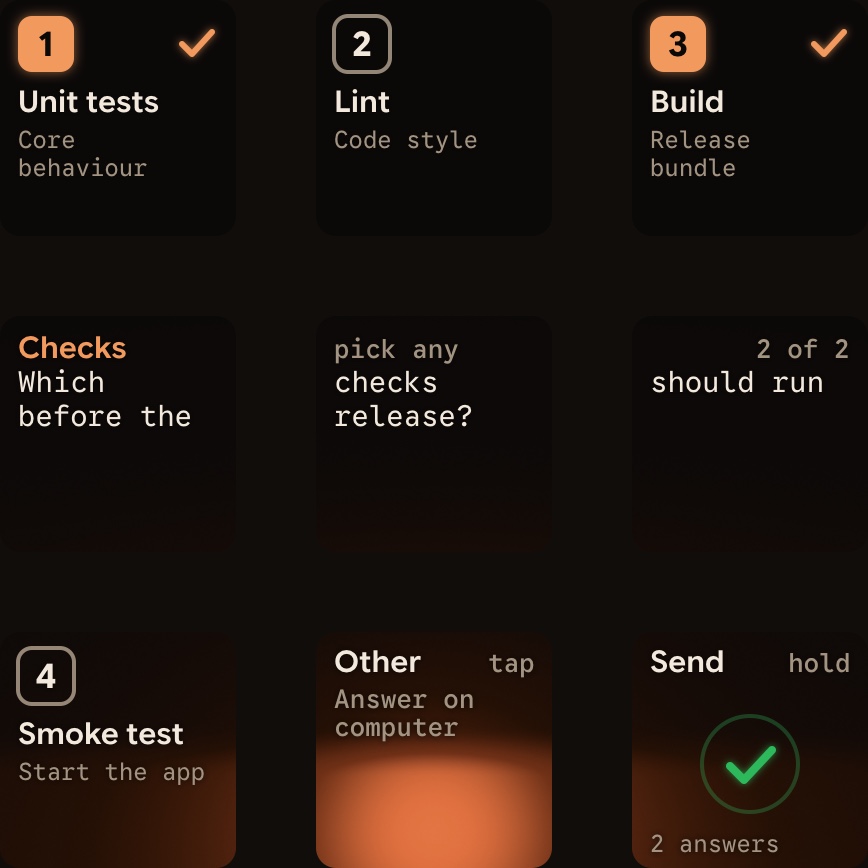
- For a local multiple-choice question with up to four options, tap keys 1, 2, 3 and 7, then hold Send on key 9.
- Typed answers stay on your computer, and remote sessions over SSH are display-only.
Orbtile also shows Codex, ZCode, Antigravity desktop and Kimi Code sessions. See Run several Claude Code sessions and see which one needs you and Approve agent tool calls without switching windows.
FAQ
What is the recommended way to install Claude Code?
Anthropic marks the native installer as recommended, and it updates automatically in the background. Run the curl install.sh script on macOS, Linux or WSL, the irm install.ps1 command in Windows PowerShell, or the curl install.cmd command in Windows CMD. Then open a new terminal window and run claude --version.
Why does my terminal say claude command not found after installing?
The native installer places the launcher in the .local/bin folder inside your home directory, which may not be on your shell PATH yet. Add that folder to your Zsh, Bash or Windows User PATH and open a new terminal window. The VS Code extension bundles a private copy of the CLI for its chat panel and does not add claude to your terminal PATH.
Do I need to install the Claude Code CLI separately for VS Code, JetBrains or the desktop app?
The Claude desktop app includes Claude Code in its Code tab, so it needs no separate CLI. The VS Code extension bundles its own copy of the CLI for the chat panel, but you still need the standalone CLI to run claude in VS Code's integrated terminal. The JetBrains plugin does not bundle the CLI, so you must install the Claude Code CLI separately.
How do I connect Claude Code to Orbtile after installation?
Open Orbtile on your computer. On a Mac, install the Claude Code plugin in Settings > Agents > Claude Code. On Windows, use the plugin's Install button. Restart any Claude Code sessions that were already running so they load the plugin. Your sessions then appear on your Logitech MX Creative Keypad, or on an iPhone or Android phone with Orbtile Mobile.