
Install Claude Code natively in Windows PowerShell without Administrator privileges by running irm https://claude.ai/install.ps1 | iex, then open a new terminal and verify with claude --version. On native Windows, Claude Code runs shell commands through its built-in PowerShell tool, detecting pwsh.exe for PowerShell 7+ and falling back to powershell.exe for Windows PowerShell 5.1. This guide also covers environment variables, profiles and notification hooks, and how to watch sessions on a Logitech MX Creative Keypad or Android phone with Orbtile.
System requirements and native Windows vs WSL
Claude Code runs natively on Windows 10 1809+ and Windows Server 2019+ with 4 GB+ RAM, an x64 or ARM64 processor, and an internet connection. Supported shells are Bash, Zsh, PowerShell and CMD. ripgrep is usually included with Claude Code.
Choose between native Windows in PowerShell or Windows Subsystem for Linux (WSL):
| Option | Requirements | Sandboxing | When to use |
|---|---|---|---|
| Native Windows | None (Git for Windows optional) | Not supported | Windows-native projects and tools |
| WSL 2 | WSL 2 enabled | Supported | Linux toolchains or sandboxed command execution |
| WSL 1 | WSL 1 enabled | Not supported | When WSL 2 is unavailable |
Git for Windows is optional on native Windows:
- Without it, Claude Code runs shell commands via the PowerShell tool.
- With it installed, Git Bash provides the Bash and Monitor tools, and the PowerShell tool stays available alongside them.
If Claude Code can't find Git Bash, set its path as CLAUDE_CODE_GIT_BASH_PATH in settings.json:
{
  "env": {
    "CLAUDE_CODE_GIT_BASH_PATH": "C:\\Program Files\\Git\\bin\\bash.exe"
  }
}
Install and update Claude Code in PowerShell
Your prompt starts with PS C:\ in PowerShell and C:\ in CMD. You do not need to run as Administrator. Run the native installer in PowerShell:
irm https://claude.ai/install.ps1 | iexThe installer shows no progress while it downloads. Afterwards, open a new PowerShell window, go to your project, and run claude, or check the installation first:
claude --version
claude doctor
A working installation prints a version such as 2.1.211 (Claude Code). claude doctor prints read-only diagnostics: install health, settings-file validation errors, and warnings with suggested fixes. Run claude to sign in through your browser with a Pro, Max, Ultra, Team, Enterprise or Console account. You can also use Amazon Bedrock, Google Cloud's Agent Platform or Microsoft Foundry.
Install a specific release channel or version in PowerShell
The installer accepts a release channel or an exact version number. The channel you choose at install time becomes your default for auto-updates. The stable channel is typically about one week old and skips releases with major regressions. To install stable or version 2.1.89:
& ([scriptblock]::Create((irm https://claude.ai/install.ps1))) stable
& ([scriptblock]::Create((irm https://claude.ai/install.ps1))) 2.1.89
Alternative Windows installers: WinGet and npm
- WinGet: run
winget install Anthropic.ClaudeCode. - npm: run
npm install -g @anthropic-ai/claude-codewith Node.js 22 or later.
The npm package installs the same native binary on win32-x64 and win32-arm64, and that binary does not use Node.js at runtime. Upgrade it with npm install -g @anthropic-ai/claude-code@latest. Avoid npm update -g, which respects the semver range from the original install.
Background updates, manual upgrades and binary verification
Native installs check for updates on startup and periodically while running. Updates install in the background and take effect the next time you start Claude Code. To update immediately:
claude updateWinGet installs do not auto-update by default. Run winget upgrade Anthropic.ClaudeCode, or set CLAUDE_CODE_PACKAGE_MANAGER_AUTO_UPDATE=1 to have Claude Code run the upgrade in the background. If Windows locks the running executable, Claude Code shows the manual command instead.
Control updates in settings.json:
"autoUpdatesChannel": "stable"follows the stable channel instead of the default"latest"."minimumVersion": "2.1.100"stops updates from installing any version below that floor."DISABLE_AUTOUPDATER": "1"underenvstops the background check, whileclaude updatestill works.DISABLE_UPDATESblocks every update path, including manual updates.
Check the binary's SHA256 hash against the release manifest.json, or check its "Anthropic, PBC" Authenticode signature:
(Get-FileHash claude.exe -Algorithm SHA256).Hash.ToLower()
Get-AuthenticodeSignature .\claude.exe
Uninstall Claude Code in PowerShell
The first two lines remove the binary and version files. The last two also delete your settings, allowed tools, MCP server configurations and session history:
Remove-Item -Path "$env:USERPROFILE\.local\bin\claude.exe" -Force
Remove-Item -Path "$env:USERPROFILE\.local\share\claude" -Recurse -Force
Remove-Item -Path "$env:USERPROFILE\.claude" -Recurse -Force
Remove-Item -Path "$env:USERPROFILE\.claude.json" -Force
Fix PATH, execution policy and common PowerShell install errors
If PowerShell prints claude : The term 'claude' is not recognized as the name of a cmdlet, the program is missing or its folder is not on your PATH.
Verify the binary and update your User PATH
Check that the installer put claude.exe in place, then list your PATH entries:
Test-Path "$env:USERPROFILE\.local\bin\claude.exe"
$env:PATH -split ';' | Select-String '\.local\\bin'
If Test-Path prints True and Select-String prints nothing, add %USERPROFILE%\.local\bin to your User PATH:
$currentPath = [Environment]::GetEnvironmentVariable('PATH', 'User')
[Environment]::SetEnvironmentVariable('PATH', "$currentPath;$env:USERPROFILE\.local\bin", 'User')
Restart your terminal and run claude --version. To find conflicting npm, WinGet or native installs, run where.exe claude and Get-Command claude | Select-Object Source. Remove a legacy local npm install with Remove-Item -Recurse -Force "$env:USERPROFILE\.claude\local".
Fix PowerShell script execution policy and command errors
| Error message or symptom | Cause in PowerShell | Solution |
|---|---|---|
running scripts is disabled on this system (PSSecurityException) | Execution policy blocks the npm.ps1 or claude.ps1 launcher that npm creates | Run Set-ExecutionPolicy -ExecutionPolicy RemoteSigned -Scope CurrentUser, call claude.cmd, or use the native installer |
The token '&&' is not a valid statement separator | You ran the CMD install command in PowerShell | Use the PowerShell install command above |
A parameter cannot be found that matches parameter name 'fsSL' | You ran the macOS and Linux curl command, and PowerShell aliases curl to Invoke-WebRequest | Use the PowerShell install command above |
| Prints the script text without installing | You ran irm on its own | Pipe the irm output to iex, as in the install command above |
Could not create SSL/TLS secure channel | A TLS connection error | In Windows PowerShell 5.1, run [Net.ServicePointManager]::SecurityProtocol = [Net.SecurityProtocolType]::Tls12, then the installer in the same window |
The process cannot access the file ... because it is being used by another process | Another install attempt or an antivirus scan holds %USERPROFILE%\.claude\downloads | Close other installer windows, delete that folder with Remove-Item -Recurse -Force, and retry |
'claude' is not recognized right after an update | The update left a claude.exe.old.* backup but no claude.exe | Rename the newest backup back to claude.exe |
To restore the newest backup after a failed update:
Get-ChildItem "$env:USERPROFILE\.local\bin\claude.exe.old.*" | Sort-Object Name | Select-Object -Last 1 | Rename-Item -NewName claude.exeBehind a corporate proxy, set $env:HTTP_PROXY and $env:HTTPS_PROXY before installing. The PowerShell installer downloads through .NET, which checks TLS against the Windows certificate store. For a proxy that inspects TLS, ask your IT team to add its CA certificate to that store. Then set $env:NODE_EXTRA_CA_CERTS = 'C:\path\to\corporate-ca.pem' so Claude Code's API requests trust it too.
How the PowerShell tool works in Claude Code
Claude Code's built-in PowerShell tool runs PowerShell commands natively on Windows, instead of routing them through Git Bash:
- It detects
pwsh.exefor PowerShell 7+ and falls back topowershell.exefor PowerShell 5.1. - Without Git Bash, the tool is enabled automatically.
- With Git Bash installed, it is on by default for claude.ai and Console accounts.
- In Amazon Bedrock, Google Cloud's Agent Platform and Microsoft Foundry sessions, set
CLAUDE_CODE_USE_POWERSHELL_TOOL=1to enable it. - On Windows, set
CLAUDE_CODE_USE_POWERSHELL_TOOL=0to turn it off.
When the tool is enabled, Claude treats PowerShell as the primary shell. During the preview, the PowerShell tool does not load PowerShell profiles, and sandboxing is not supported on Windows.
Process-scope execution policy in spawned commands
The PowerShell tool spawns PowerShell with -ExecutionPolicy Bypass at process scope only. That lets .ps1 scripts and module imports run without changing the machine's policy. It does not override Group Policy MachinePolicy or UserPolicy, so enterprise policies still apply. Set CLAUDE_CODE_POWERSHELL_RESPECT_EXECUTION_POLICY=1 to respect the machine's effective policy instead.
Permission rules, hook matchers and timeouts for PowerShell
Write rules as PowerShell(specifier) in permissions.allow and permissions.deny, the /permissions interface, the --allowedTools flag, or a hook's if condition:
{
  "permissions": {
    "allow": [
      "PowerShell(Get-ChildItem *)"
    ]
  }
}
On Windows with Git Bash installed, a Bash deny rule also turns the PowerShell tool off for the session. To keep it on, set CLAUDE_CODE_USE_POWERSHELL_TOOL=1 or add a scoped PowerShell rule, such as PowerShell(git push *) as a deny rule.
For hooks that inspect shell commands, set matcher to "Bash|PowerShell", because matching Bash alone is not enough. See Claude Code hooks: events, matchers, settings and handlers.
The PowerShell tool reads the same timeout and directory variables as Bash:
BASH_DEFAULT_TIMEOUT_MSsets the default foreground timeout, which is120000ms (2 minutes).BASH_MAX_TIMEOUT_MSsets the longest foreground timeout Claude can choose, which is600000ms (10 minutes).CLAUDE_BASH_MAINTAIN_PROJECT_WORKING_DIRreturns to the original working directory after each command in the main session.CLAUDE_CODE_DISABLE_BACKGROUND_TASKS=1removesrun_in_backgroundfrom theBash,PowerShelland subagent tools.
Set environment variables, PowerShell profiles and Windows alerts
Session variables, User variables and settings.json
Set a variable for the current PowerShell session, check it, or keep it for every session under your Windows User account. After the last command, open a new terminal:
$env:API_TIMEOUT_MS = "1200000"
echo $env:API_TIMEOUT_MS
[Environment]::SetEnvironmentVariable("API_TIMEOUT_MS", "1200000", "User")
You can also define variables under env in ~/.claude/settings.json, for you in every project. Use .claude/settings.json for everyone working in the project:
{
  "env": {
    "API_TIMEOUT_MS": "1200000",
    "BASH_DEFAULT_TIMEOUT_MS": "300000",
    "CLAUDE_CODE_USE_POWERSHELL_TOOL": "1"
  }
}
When a variable is set in both places, the settings file value applies in most sessions. Claude Code sets CLAUDECODE=1 and CLAUDE_CODE_CHILD_SESSION=1 in the commands it runs through the Bash and PowerShell tools and in hook commands. If each press of Backspace deletes a whole word, set CLAUDE_CODE_BS_AS_CTRL_BACKSPACE=0.
Customise your interactive shell with a PowerShell $PROFILE script
A PowerShell profile is a script that runs when PowerShell starts. It can load commands, aliases, functions, variables and modules. $PROFILE stores the path to the "Current User, Current Host" profile. It shapes the console you launch claude from, not the PowerShell tool. To inspect the profile paths, create the file if it is missing, and open it:
$PROFILE | Select-Object *
if (!(Test-Path -Path $PROFILE)) {
  New-Item -ItemType File -Path $PROFILE -Force
}
notepad $PROFILE
The Restricted execution policy is the default, and it stops profiles from running. Set-ExecutionPolicy -ExecutionPolicy RemoteSigned -Scope CurrentUser allows locally created scripts for your user. To start PowerShell without profiles, run pwsh -NoProfile.
Configure Windows notifications and Remote Control
By default, Claude Code sends a desktop notification only in Ghostty, Kitty and iTerm2. Other terminals get nothing. To get a bell character in any terminal, set "preferredNotifChannel": "terminal_bell" in ~/.claude/settings.json. For a Windows dialog box instead, add a Notification hook:
{
  "hooks": {
    "Notification": [
      {
        "matcher": "",
        "hooks": [
          {
            "type": "command",
            "command": "powershell.exe -Command \"[System.Reflection.Assembly]::LoadWithPartialName('System.Windows.Forms'); [System.Windows.Forms.MessageBox]::Show('Claude Code needs your attention', 'Claude Code')\""
          }
        ]
      }
    ]
  }
}
The dialog box can open behind your terminal window, so test the command in PowerShell first.
When you're away from your desk, run claude remote-control, claude --remote-control or /remote-control. This connects claude.ai/code or the Claude app for iOS and Android to your local session. Your session makes outbound HTTPS requests only. To get push notifications on your phone, turn them on in /config.
Watch PowerShell Claude Code sessions on a keypad or phone with Orbtile
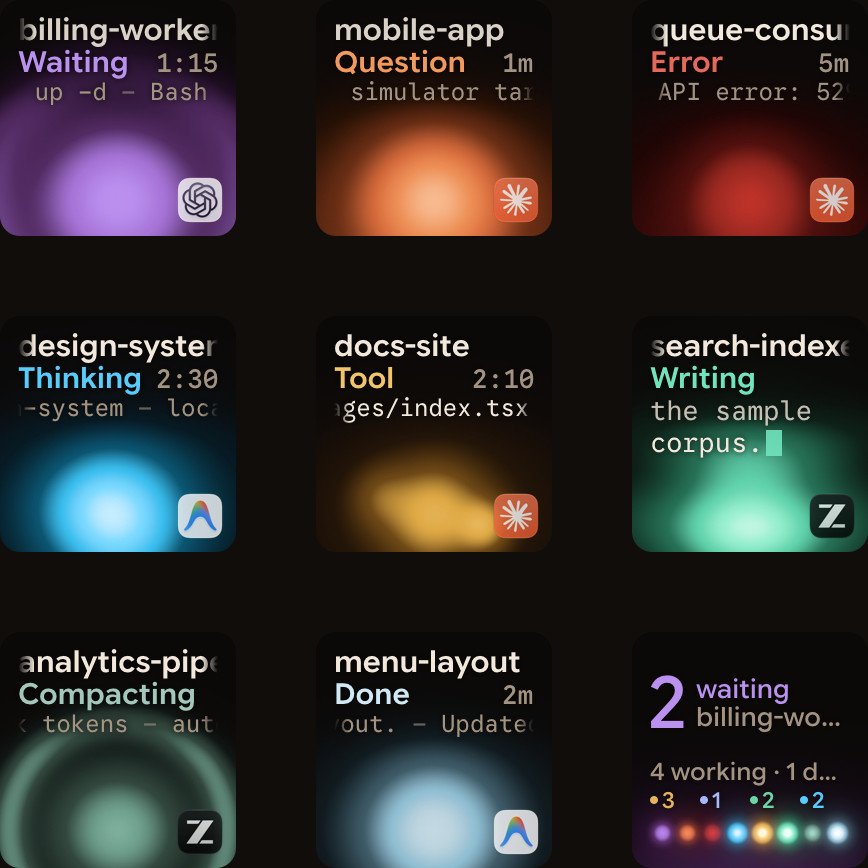
A bell or a dialog box does not say which of several PowerShell windows stopped. Orbtile runs on Windows 11 (x64), or macOS 14.0 Sonoma or later on Apple silicon. It puts each Claude Code session on a key of the Logitech MX Creative Keypad, or a tile on an Android phone (Android 8.0 or later) with Orbtile Mobile:
- Each key shows the session's name, state and latest words over an animated orb.
- Waiting Claude Code sessions glow in terracotta and move to the front.
- A tap on key 9 focuses the first waiting session, including sessions on other pages.
- Hold a session's key to open Focus mode across all nine keys.
- In Focus mode, press Deny on key 7 to refuse a local permission request.
- To allow it, hold Allow on key 9 for 0.6 seconds while its ring fills.
- For questions with up to four options, tap your picks and then hold Send.
- On Windows, Orbtile installs for your user without administrator rights and keeps running in the system tray.
- Your own PowerShell scripts can show their status on the pad through Orbtile's local Adapter API.
Orbtile also shows Claude Code sessions on servers you reach over SSH, next to your local ones. See Show any script or agent on a keypad with the Orbtile Adapter API and Approve agent tool calls without switching windows.
FAQ
How do I install Claude Code in Windows PowerShell?
Open Windows PowerShell and run irm https://claude.ai/install.ps1 | iex. You do not need Administrator privileges. When the installer finishes, open a new PowerShell window and run claude --version to confirm the installation.
Do I need Git for Windows to run Claude Code in PowerShell?
No. Git for Windows is optional on native Windows. Without it, Claude Code runs shell commands through its built-in PowerShell tool. Installing it adds Git Bash, which the Bash tool and the Monitor tool need.
Why does PowerShell say claude is not recognized after installation?
The native installer puts claude.exe in the .local\bin folder inside your user profile. If that folder is not on your User PATH, add it with the SetEnvironmentVariable command shown above, then restart your terminal.
How can I watch several PowerShell Claude Code sessions at once on Windows?
Orbtile runs on Windows 11 x64 and shows each Claude Code session on a key of a Logitech MX Creative Keypad or a tile on an Android phone with Orbtile Mobile. Waiting sessions move to the front, and you can press Deny or hold Allow from the keypad.