
Google Antigravity connects to Model Context Protocol (MCP) servers across the Antigravity App, the Antigravity IDE, the Antigravity CLI (agy) and the Python Antigravity SDK. You can install pre-built integrations from the built-in MCP Store in the App and IDE, manage connections with /mcp in the CLI, or define custom local stdio and remote Streamable HTTP servers in ~/.gemini/config/mcp_config.json and .agents/mcp_config.json. By default, every unconfigured MCP tool runs in Ask mode, so the agent pauses for your approval unless an Allow or Deny rule matches.
Install and manage MCP servers in the App, IDE and CLI
MCP acts as a bridge between Antigravity and your wider development environment. Connected servers let the agent inspect a live Neon, Supabase or AlloyDB schema when writing a SQL query, pull recent build logs from Netlify or Heroku when debugging a deployment, or create a Linear issue for a TODO item.
Each Antigravity surface has its own interface for adding and managing MCP servers:
- Antigravity App: click the
Settingsbutton at the bottom left of the window, selectCustomizations, and find theInstalled MCP Serverssection. ClickAdd MCPto open the searchable MCP Store, pick a server and clickAdd. From the installed list, use the toggle switch to disable or enable a server, click the refresh button to reload it, or click the trash can icon to uninstall it. - Antigravity IDE: click
…at the top of the editor's agent side panel and selectMCP Serversto browse the MCP Store. Hover over a supported server and clickInstall(or open its details first and clickInstall), then follow any on-screen prompts. To add a custom server not in the store, open… > MCP Servers, clickManage MCP Servers, and clickView raw configto editmcp_config.json. - Antigravity CLI (
agy): type/mcpin the prompt panel and pressEnterto open the interactive MCP Manager Overlay. The overlay displays live status rings for active, disconnected or loading servers, and lets you manually reload server configurations or inspect real-time connection logs. - Antigravity SDK: in Python applications built with the Antigravity SDK, you can connect
stdio, SSE or HTTP MCP servers programmatically alongside built-in tools and custom Python functions. The SDK also discovers servers configured in your workspace's.agents/mcp_config.jsonfile automatically.
For more on the CLI and standalone editor settings around these tools, see Google Antigravity CLI: commands, settings and permissions and Google Antigravity IDE: editor, agents and permissions.
Where mcp_config.json files live and how they are structured
Antigravity loads custom MCP server definitions from JSON configuration files at two main scopes, plus enabled plugins:
- Global configuration (
~/.gemini/config/mcp_config.json): applies to all your projects. The IDE and CLI docs both name this file. - Workspace configuration (
<workspace>/.agents/mcp_config.json): applies only to that project workspace. - Plugin configuration (
<plugin-root>/mcp_config.json): enabled plugins can bundle their own MCP server definitions.
Every mcp_config.json file uses the same JSON schema. The root object contains an mcpServers map where each key is a unique server identifier, and each entry sets either command (for a local stdio process) or serverUrl (for a remote Streamable HTTP server):
{
  "mcpServers": {
    "sqlite-explorer": {
      "command": "node",
      "args": ["/usr/local/bin/sqlite-mcp-server.js"],
      "env": {
        "SQLITE_DB_PATH": "/var/data/app.db"
      }
    },
    "my-remote-server": {
      "serverUrl": "https://api.example.com/mcp/",
      "headers": {
        "Authorization": "Bearer YOUR_API_TOKEN"
      }
    }
  }
}
MCP configuration properties
| Property | Type | Default | What it does |
|---|---|---|---|
command | string | Required for stdio | Executable path or command name used to launch a local stdio MCP server process |
serverUrl | string | Required for remote | Endpoint URL of a remote MCP server using the Streamable HTTP transport (url also works) |
args | string[] | [] | Command-line arguments passed to the command executable (stdio transport only) |
env | object | {} | Key-value map of environment variables injected into the local stdio process |
cwd | string | None | Working directory used when spawning a local stdio server process |
headers | object | {} | Custom HTTP request headers sent with remote serverUrl connections |
authProviderType | string | None | Built-in authentication provider; set to "google_credentials" for Google Application Default Credentials |
oauth | object | None | Manual OAuth 2.0 client credentials (clientId and optional clientSecret) when Dynamic Client Registration is not supported |
disabled | boolean | false | When true, suspends the server connection without deleting its entry from mcp_config.json |
enabledTools | string[] | None | Allowlist of tool names exposed to the agent; hides all other tools on that server |
disabledTools | string[] | [] | Denylist of tool names withheld from the agent |
timeoutSeconds | integer | 180 per call, 300 to connect | Timeout in seconds for connecting and listing tools, and for each tool call; -1 disables both |
Configure local stdio, remote Streamable HTTP and timeouts
When you add a server to mcp_config.json, transport requirements and timeouts control how Antigravity starts and talks to it:
- Local
stdioservers: setcommandto the binary or runtime (such asnodeorpython), pass script paths and flags inargs, set a working directory withcwdif needed, and pass secrets or paths inenv. - Remote Streamable HTTP servers: set the endpoint in
serverUrl(orurl). Remote MCP servers in the App, IDE and CLI must use the Streamable HTTP transport. The legacy HTTP+SSE transport and thehttpUrlfield are not supported. - Filtering exposed tools: if an MCP server exposes tools you do not want the agent calling, list them in
disabledTools, or list only the permitted tool names inenabledToolsto hide everything else on that server. Set"disabled": trueto pause a server temporarily without removing its JSON block.
By default, Antigravity waits up to 5 minutes (300 seconds) for an MCP server to connect and list its tools, and up to 3 minutes (180 seconds) for each tool call. If a tool call exceeds the limit, it fails with an error naming the server and limit, such as MCP tool call to server "sqlite-explorer" timed out after 3m0s.
You can change this per server with timeoutSeconds:
- Positive integer: replaces both the connection timeout and the per-tool-call timeout with that number of seconds. For example,
"timeoutSeconds": 600allows up to 10 minutes per tool call. Because the same number caps connection time, setting a very small value can prevent a slow-starting server from connecting. - Negative integer (such as
-1): turns off both the connection limit and the per-call limit. 0or omitted: keeps the default 5-minute connection and 3-minute tool-call timeouts.
Authenticate MCP servers with Google credentials, OAuth or headers
Connected MCP servers can authenticate with external services in three ways:
Google Application Default Credentials (ADC)
For Google Cloud services, set authProviderType to "google_credentials":
{
  "mcpServers": {
    "my-gcp-service": {
      "serverUrl": "https://example.googleapis.com/mcp/",
      "authProviderType": "google_credentials"
    }
  }
}
This uses local Application Default Credentials. Set them up in your terminal with gcloud auth application-default login. If you have already logged in, make sure your quota project is configured by running gcloud auth application-default set-quota-project {QUOTA_PROJECT}.
OAuth 2.0 flows
If a remote server supports Dynamic Client Registration (DCR), Antigravity handles OAuth automatically with only serverUrl configured. If the server does not support DCR, add an oauth object with your clientId and clientSecret, and register https://antigravity.google/oauth-callback as a redirect URI in your OAuth provider:
{
  "mcpServers": {
    "oauth-server": {
      "serverUrl": "https://api.example.com/mcp/",
      "oauth": {
        "clientId": "your-client-id",
        "clientSecret": "your-client-secret"
      }
    }
  }
}
To complete the OAuth sign-in flow:
- Open Agent settings with
Cmd + ,on macOS orCtrl + ,on Windows and Linux. - Go to the
Customizationstab and clickAuthenticatenext to the server. - Finish authentication in your browser and copy the authorisation code.
- Paste the code into the settings panel and click
Submit.
The server reconnects automatically once authenticated. Antigravity saves access tokens in ~/.gemini/antigravity/mcp_oauth_tokens.json, refreshes expired tokens automatically, and removes invalid tokens.
Custom HTTP headers
For remote servers that take an API key or bearer token, pass the header in the headers object on that server's entry in mcp_config.json.
Control MCP tool execution with Ask, Allow and Deny rules
Access to MCP tools and resources is governed by Antigravity's permission engine. By default, unconfigured MCP tools run in Ask mode and pause the agent for your approval before a tool call runs. In the App, the Request Review, Default and Auto (Preview) presets all set MCP & Web to Ask. Only the Turbo preset sets MCP & Web to Allowed by default. In the CLI, the Ask default is subject to your execution mode and toolPermission setting.
You can write fine-grained mcp(...) rules in your Allow, Ask and Deny lists (in the CLI, inside ~/.gemini/antigravity-cli/settings.json under permissions). Rules apply equally to local and remote MCP servers:
mcp(server/tool): matches one specific tool on a specific server, such asmcp(sql/execute_mutation).mcp(server/*): matches every tool on a specific server, such asmcp(linter/*).mcp(*): matches any MCP tool across all connected servers.
{
  "permissions": {
    "allow": [
      "mcp(linter/*)"
    ],
    "ask": [
      "mcp(sql/execute_mutation)"
    ],
    "deny": [
      "mcp(prod-db/drop_table)"
    ]
  }
}
Conflicting rules are evaluated in strict priority order: Deny > Ask > Allow. If a tool matches both an Allow rule and an Ask rule, Ask wins and the agent prompts you.
When an MCP tool call brings up an interactive permission prompt card in the App's editor or the CLI's terminal interface, you can edit the target string in the card before confirming Allow (for example, widening mcp(linter/check_file) to mcp(linter/*)). Antigravity checks that the edited target covers the operation and applies the wider grant for the rest of the turn.
Built-in MCP Store integrations
The built-in MCP Store includes direct integrations across five categories:
- Databases and storage (15 servers): AlloyDB for PostgreSQL, BigQuery, Bigtable Admin remote MCP, ClickHouse, Cloud SQL, Dataplex, MCP Toolbox for Databases, MongoDB, Neo4j, Neon, Pinecone, Prisma, Redis, Spanner and Supabase.
- Developer tools and CI/CD (17 servers): Apigee MCP, Atlassian, Cloud CLI Execution, Forge, GitHub, GitLab Orbit, GKE OneMCP, Harness, Heroku, Home Developer MCP, Linear, mabl, Netlify, Opsera AI Agents, Postman, SonarQube and Vercel.
- Frontend and design (8 servers): Canva, Chrome DevTools, Dart, Figma Dev Mode MCP, Locofy, Lovable MCP, Miro and Mobbin MCP.
- Security (4 servers): CrowdStrike, Endor Labs, Splunk and Wiz.
- Analytics, AI and cloud (33 servers): includes Airweave, Arize, Cloud Audit Manager, Docusign, Exa, Firebase, Google Cloud Quotas, Stripe and Windsor AI.
Watch Antigravity and other coding agents with Orbtile
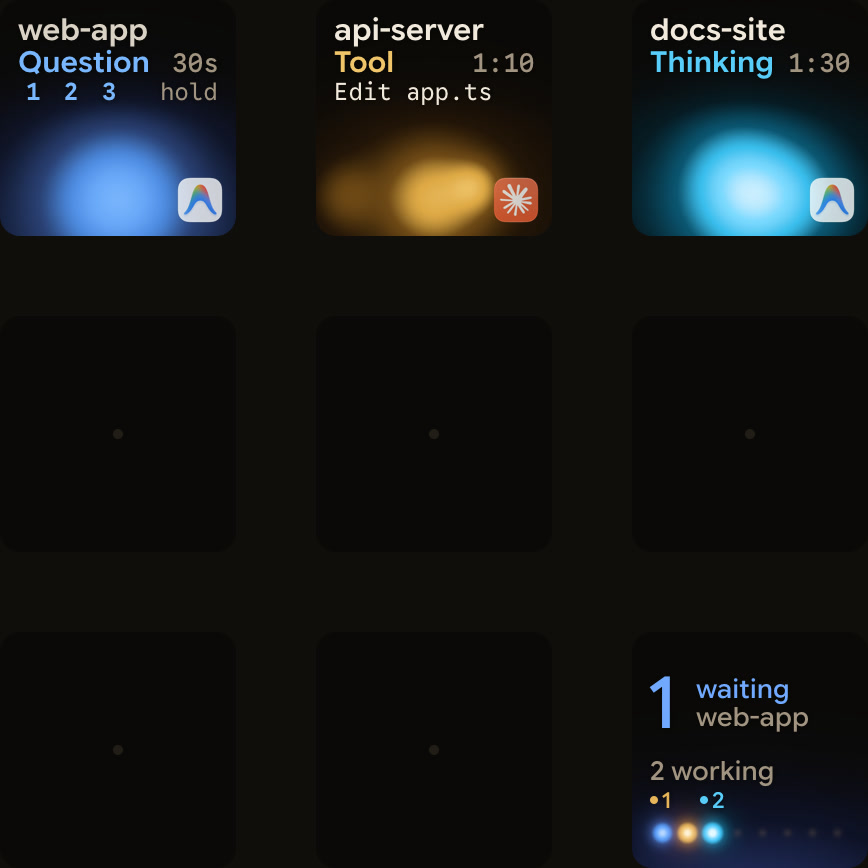
When you run several agent conversations across projects, Orbtile shows your coding agents on a Logitech MX Creative Keypad or an Android phone (Android 8.0 or later) with Orbtile Mobile, connected to a computer running macOS 14.0 Sonoma or later on Apple silicon, or Windows 11 (x64).
- Antigravity desktop app: Orbtile follows conversations in the Antigravity desktop app. Each conversation gets its own key or tile showing its title, state and live response text, and a conversation waiting on a question moves to the front. When an agent asks a question with numbered options, you can answer up to four questions with two to four choices each from the keypad by tapping your picks and holding Send. Permission prompts, including MCP tool approvals, and written answers stay on your computer.
- Antigravity CLI and IDE: Antigravity CLI and Antigravity IDE sessions do not appear automatically. A hook script can send CLI session updates to Orbtile's local Adapter API. In Settings > Agents, choose Build your own, turn on Let your own tools show sessions, then allow your adapter.
- All your agents in one view: the same keypad or phone also shows sessions from Claude Code, Codex and ZCode, plus remote sessions over SSH. See Know when Google Antigravity is waiting for you and Show any script or agent on a keypad with the Orbtile Adapter API.
FAQ
Where does Google Antigravity store its mcp_config.json files?
Global MCP server configurations live in ~/.gemini/config/mcp_config.json and apply to all projects. Workspace-specific configurations live in .agents/mcp_config.json inside the project root, and enabled plugins can also include their own mcp_config.json file.
Does Google Antigravity support HTTP+SSE for remote MCP servers?
No. Remote MCP servers in the Antigravity App, IDE and CLI must use the Streamable HTTP transport configured with the serverUrl or url property. The legacy HTTP+SSE transport and the httpUrl field are not supported.
How do I allow an MCP server to run tools without asking every time?
Add a rule for that server to your Allow list. A server-wide rule with a wildcard in place of the tool name permits every tool on that server, and a rule naming one tool permits only that tool. You can also edit the target string inside an interactive permission prompt card before clicking Allow to widen the scope for the rest of the turn.
Can Orbtile approve Google Antigravity MCP permission prompts from the keypad?
No. Orbtile follows conversations in the Antigravity desktop app and lets you answer multiple-choice questions with numbered options from the keypad, up to four questions with two to four choices each. Permission prompts for MCP tools and terminal commands stay on your computer.