
Kimi Code's terminal UI sends desktop notifications, set under [notifications] in ~/.kimi-code/tui.toml. They are on by default and, by default, fire only when the terminal is not focused. For more control, a Notification hook in config.toml can run any command when a background task completes. The opt-in NotifyUser tool posts progress updates mid-turn, and the web UI has its own notification toggles. If you run several sessions, Orbtile shows each Kimi Code session on a Logitech MX Creative Keypad or an Android phone.
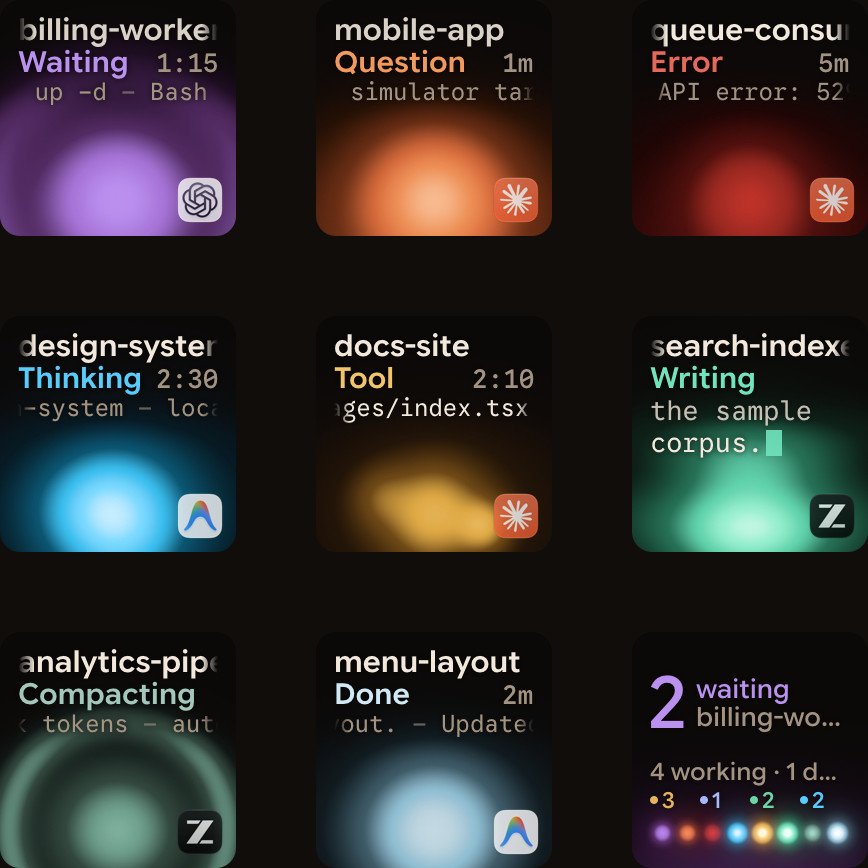
Overview of Kimi Code notification channels
Kimi Code has several notification channels, and each one is set in a different place.
| Channel or feature | Where you configure it | When it fires | What it does |
|---|---|---|---|
| TUI desktop notifications | [notifications] in ~/.kimi-code/tui.toml, or /settings | When the terminal is not focused (default), or always | Sends desktop notifications. /reload-tui applies changes at once |
Terminal status (OSC 7501) | Automatic from CLI 2.4.0 | During main-session and subagent work | Reports main-session and subagent status to compatible terminals |
Web UI (kimi web) | Settings toggles in the web UI | When a tool needs approval, on completion, or when the agent asks a question | Sends notifications and plays a completion sound. Question notifications are off by default |
Notification hook | [[hooks]] in ~/.kimi-code/config.toml | When a background task status changes | Runs your shell command, such as terminal-notifier, with event JSON on stdin |
NotifyUser tool | /experiments, config.toml, an environment variable, or Settings > Lab | When an agent posts an update mid-turn | Shows updates in the TUI Updates panel, or as progress rows in the desktop app and kimi web |
| Background task notifications | run_in_background on Bash and Agent, background on AskUserQuestion | When a background command, subagent or question finishes | Tells the agent, not you, so it can act on the result |
Configure TUI, terminal and web UI notifications
Kimi Code keeps its settings in ~/.kimi-code/, or in $KIMI_CODE_HOME when that is set. config.toml holds runtime settings such as models, providers, permissions and hooks. tui.toml holds terminal UI preferences, including notifications.
# Written in ~/.kimi-code/tui.toml
[notifications]
enabled = true                        # default: send desktop notifications
notification_condition = "unfocused" # default; the other value is "always"
With "unfocused", Kimi Code notifies you only when the terminal is not focused. Set it to "always" to be notified every time. Changes apply on the next start, or straight away with /reload-tui. The /config, /theme and /editor commands also write to tui.toml for you.
Type / in the TUI input box to see slash commands, then press Enter to run one:
| Slash command | Alias | Available while streaming | What it does |
|---|---|---|---|
/settings | /config | Yes | Opens the settings panel inside the TUI |
/reload-tui | None | Yes | Reloads only tui.toml preferences (theme, editor, notifications) without rebuilding the session |
/reload | None | No | Reloads the current session and applies the latest config.toml and tui.toml settings |
/update-config | None | No | Built-in skill to inspect or edit config.toml (model, provider, permission, hooks) |
/experiments | /experimental | Yes | Opens the experimental feature panel |
/tasks | /task | Yes | Browses the background task list |
Idle-only commands are blocked while a session is streaming output or compacting context. Press Esc or Ctrl-C to interrupt first.
Kimi Code also signals through the terminal and the browser:
- From version 2.3.0, Kimi Code generates a session title after the first turn and shows it as the terminal window title.
- From version 2.4.0, it reports main-session and subagent status to compatible terminals with
OSC 7501. - The web UI, opened with
kimi webor/webin the TUI, notifies you when a tool needs approval. - Its Settings have separate toggles for completion notifications, question notifications and the completion sound.
- Question notifications are off by default, so question text reaches your desktop only after you opt in.
Pop up desktop notifications with Kimi Code hooks
Hooks run a local shell command when a lifecycle event happens. A common use is a system notification when a background task completes, so you come back to review the results.
Add a Notification hook in config.toml
Add rules to [[hooks]] in ~/.kimi-code/config.toml. This rule runs terminal-notifier, which must be installed on macOS, when a background task completes:
# Written in ~/.kimi-code/config.toml
[[hooks]]
event = "Notification" # Trigger: when a background task status changes
matcher = "task\\.completed" # Only care about "completed" notifications
command = "terminal-notifier -title Kimi -message 'Task done'"
Save the file and start a new session. Each [[hooks]] entry allows only these four fields. Extra fields cause the config file to fail to load.
| Field | Type | Required | Description |
|---|---|---|---|
event | string | Yes | Trigger event name |
matcher | string | No | Regex to filter event targets; matches all if omitted |
command | string | Yes | Shell command to run |
timeout | integer | No | Timeout in seconds (1 to 600, default 30) |
How hook execution, stdin JSON and fail-open behaviour work
When an event triggers [[hooks]] rules:
- Matching rules run in parallel from the session's project directory.
- Rules with identical commands run only once.
- On non-Windows platforms, a hook that times out gets a signal first and is then force-terminated.
- If a script errors or times out, Kimi Code carries on without interrupting your work.
Each triggered hook receives base JSON on stdin, plus fields for its event:
{
  "hook_event_name": "PreToolUse",
  "session_id": "session_abc",
  "session_title": "Fix the login page",
  "client_type": "kimi_code_cli",
  "cwd": "/path/to/project"
}
Only PreToolUse, Stop and UserPromptSubmit can block. They block with exit code 2, or with stdout JSON that sets hookSpecificOutput.permissionDecision to "deny". All other events are observation-only:
| Hook event | What matcher filters | Supports blocking | When it triggers |
|---|---|---|---|
Notification | Notification type (e.g. task.completed) | No | Background task status changes |
PermissionRequest | Tool name | No | Just before waiting for user approval |
PermissionResult | Tool name | No | After approval completes |
SubagentStop | Sub-agent name | No | After a sub-agent completes successfully |
TaskStarted | Task kind (agent, process, question) | No | Background task starts; includes task_id, description, detached |
Stop | Empty string | Yes | Model is about to end the turn |
StopFailure | Error type | No | Turn fails due to an error |
Interrupt | Empty string | No | User interrupts the turn (e.g. Esc); fires instead of Stop |
Enable mid-turn progress updates with NotifyUser
Added in Kimi Code CLI 2.2.0, NotifyUser is a built-in tool that lets the main agent and subagents post progress updates without ending the turn. Its approval default is Auto-allow.
Each update has two parts:
- An optional
title, one short line that is shown on its own wherever space is tight. - A
messagewith the details.
An update appears only after a successful tool result confirms it was displayed. The transcript keeps a record of whether each call displayed an update. Important findings still belong in the final reply or the subagent's handoff.
Where NotifyUser updates appear
- In the CLI TUI, updates appear in the Updates panel above the input box, grouped by agent.
- Press
Ctrl-Nto browse them, or click the panel in fullscreen mode. - Fullscreen mode is the experimental
tui_mode = "fullscreen"setting intui.toml. - The panel folds when the turn ends and resets for the next main-agent turn.
- In the desktop app and
kimi web, each update is a progress row showing its title, and a click opens the message.
How to turn on NotifyUser
NotifyUser is off by default. Enable it in ~/.kimi-code/config.toml:
# Written in ~/.kimi-code/config.toml
[experimental]
notify_user = true
You can also enable it in other ways:
- Set the environment variable
KIMI_CODE_EXPERIMENTAL_NOTIFY_USER=1. - Turn on
NotifyUserin/experimentsin the TUI. - Turn it on in the Lab section of Settings in the desktop app or web UI.
Session rules when you change it:
- The setting applies only to sessions created afterwards.
- Sessions created while it was off have neither the tool nor its prompt guidance, so start a new session.
- Changing only this flag in
/experimentsdoes not reload the session. - Turning it off hides the panel and disables its shortcuts.
- Existing
NotifyUsercalls then finish normally and report that the update was not displayed.
How background tasks and questions notify the agent
These notifications go to the agent, not to you. They let it act on a finished command, subagent or answer. To hear about them yourself, use the Notification hook above.
Three built-in tools create background tasks. Bash runs commands:
- With
run_in_background=true,Bashreturns a task ID at once and notifies the agent when the task finishes. - A background
Bashcall must include adescription. - A foreground command that hits its 60-second default timeout is not killed and keeps running as a background task.
- Background tasks time out after 600 seconds by default, set by
bash_task_timeout_s, where0means no timeout. - In
kimi -pprint mode, background tasks have no timeout by default. - Set
bash_auto_background_on_timeout = falseunder[background]to kill timed-out commands instead.
Agent runs subagents:
- With
run_in_background=true,Agentstarts a background subagent and returns a task ID. - When the subagent is done, its result reaches the main agent as a synthetic User message.
- Agent tasks time out after 2 hours by default, set by
[subagent] timeout_msorKIMI_SUBAGENT_TIMEOUT_MS. - If a subagent is stopped, times out or fails, the parent still gets its text so far, marked as incomplete.
AskUserQuestion asks you questions:
- It accepts 1 to 4 questions with 2 to 4 choices each, and adds an "Other" option automatically.
- With
backgroundset to true, it returns a task ID, and the question stays open after the turn ends. - Your answer reaches the agent as a notification when you respond.
Four tools manage background tasks:
TaskListlists only running tasks by default, with alimitof 20 that you can set from 1 to 100./tasksin the TUI browses the same background task list.TaskOutputreturns an immediate snapshot with anoutput_pathand at most the latest 32 KB of output.WaitForsuspends the turn until a task finishes, its requiredtimeoutof up to 90 seconds passes, or a steer message arrives.- A task already reported by
WaitFordoes not also produce an automatic completion notification. TaskStopstops a running task, needs your approval and is blocked in Plan mode.
In the TUI, /undo withdraws recent prompts. It restores conversation history, todo lists, plan mode and task notifications together.
Watch Kimi Code sessions on a keypad or phone with Orbtile
If you run several Kimi Code sessions alongside other coding agents, Orbtile shows each one as a key on the Logitech MX Creative Keypad or a tile on an Android phone. The phone needs Android 8.0 or later and Orbtile Mobile. Orbtile runs on a Mac with macOS 14.0 Sonoma or later and Apple silicon, or on a Windows 11 PC (x64).
- There is nothing to install: Orbtile reads Kimi Code's session files on your computer and shows each session's state and live text.
- It reads them from
~/.kimi-code, or%USERPROFILE%\.kimi-codeon Windows, andKIMI_CODE_HOMEoverrides this folder. - Working Kimi Code sessions glow magenta, and waiting sessions turn terracotta and move to the front.
- A tap on a session key brings its terminal or Kimi window to the front.
- A tap on key 9 focuses the first waiting session, including sessions on other pages.
- Optional Kimi Code hooks add a Compacting state and slightly earlier updates, and they never approve or deny anything.
On a Mac or a Windows PC, you can answer some requests from the keypad for sessions in Kimi's own server. Start it with kimi web or kimi rc, or type /rc in a Kimi terminal session to hand it over.
- Hold the waiting session's key to open Focus mode.
- For a permission request, press Deny on key 7, or hold Allow on key 9 for 0.6 seconds.
- The keypad can answer a permission request for up to 2 minutes, or less if Kimi Code's own limit is shorter.
- For a question with listed options, pick options on keys 1, 2, 3 and 7, then hold Send on key 9.
Other Kimi sessions, other questions and written answers stay on your computer. Kimi's server API is experimental. If a Kimi update changes it, keypad answers stop until Orbtile catches up, and sessions still show.
For how Kimi's browser server starts, authenticates with bearer tokens and shares sessions over a local network, see Kimi Code web UI: kimi web, /web, tokens and LAN setup.
Orbtile also shows Claude Code, Codex, ZCode and Antigravity sessions. See Approve agent tool calls without switching windows and Get notified when Claude Code needs approval or finishes.
FAQ
Why do Kimi Code desktop notifications only appear sometimes?
By default, notification_condition in tui.toml is set to unfocused, so Kimi Code notifies you only when the terminal is not focused. Set it to always under [notifications] in ~/.kimi-code/tui.toml to be notified every time, then run /reload-tui.
How do I get a desktop notification when a Kimi Code background task completes?
Add a hooks entry in ~/.kimi-code/config.toml with event set to Notification, matcher set to task\.completed, and command set to your notification tool, such as terminal-notifier on macOS. Save the file and start a new session. Each hook entry allows only the event, matcher, command and timeout fields.
How do I turn on NotifyUser progress updates in Kimi Code?
NotifyUser is off by default. Turn it on in /experiments in the TUI, add notify_user = true under experimental in config.toml, set KIMI_CODE_EXPERIMENTAL_NOTIFY_USER=1, or use the Lab section of Settings in the desktop app or web UI. Then start a new session, and press Ctrl-N in the TUI to browse updates.
Can I answer Kimi Code prompts from the Logitech MX Creative Keypad with Orbtile?
Yes, on a Mac or a Windows PC, for sessions in Kimi's own server, which you start with kimi web, kimi rc, or /rc in a terminal session. You can press Deny or hold Allow on a permission request for up to 2 minutes, and pick listed options for questions. Other Kimi Code sessions show their state and live text on the keypad, and you answer them on your computer.