
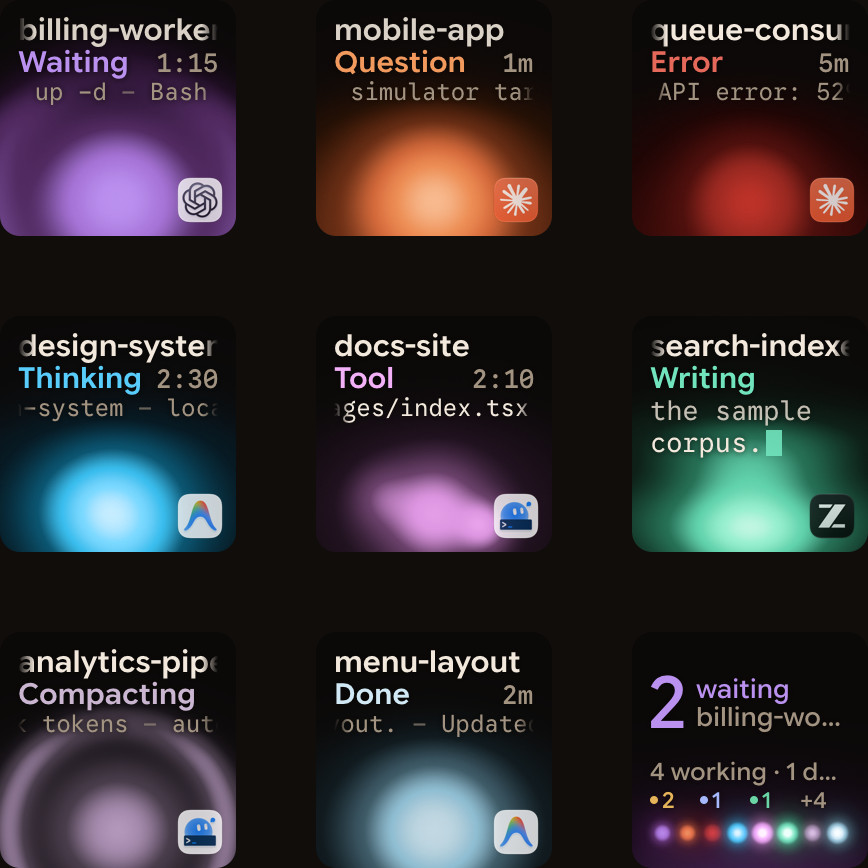
Put your iPhone on a MagSafe desk stand, open Orbtile Mobile and use it as a live Claude Code and Codex status pad. Each tile shows its session's name, state and latest words, waiting sessions first, with supported answers on the phone. You need iOS 17 or later, the App Store app and Orbtile on your computer.
What you need
| Item | Requirement |
|---|---|
| iPhone | iOS 17 or later, with Orbtile Mobile from the App Store. |
| Stand | A MagSafe desk stand that holds the phone where you can read it |
| Computer | An Apple silicon Mac with macOS 14 or later, or a Windows 11 PC (x64), running Orbtile |
| Network | The iPhone and computer on the same local network |
| Account | The same Orbtile account on the phone and computer |
MagSafe is only the stand in this setup. Orbtile does not use MagSafe to find sessions, send answers or add any other feature. The phone pad talks to your computer over the local network.
Set up the desk pad
- Install Orbtile on your computer from the download page, then open Settings.
- Connect Claude Code with one click on Install under Settings > Agents > Claude Code. Restart any Claude Code sessions that were already open. Codex sessions need nothing installed for their state and live text to show.
- Sign in to your Orbtile account on your computer, then turn on Settings > Keypad > Phone pad.
- On your iPhone, open the Orbtile Mobile App Store page and install the app.
- Open Orbtile Mobile and sign in with the same account as your computer.
- On Windows, allow Orbtile when Windows Security asks about networks so the phone can reach the PC.
- Put the iPhone on its stand and leave Orbtile Mobile open. Your Claude Code and Codex sessions appear as tiles.
Orbtile Mobile for iPhone is on the App Store.
The screen stays awake while the pad is active
While Orbtile Mobile has pad input enabled, it disables the iPhone's idle timer. That keeps the screen awake while you use the live pad. Backgrounding the app releases the keep-awake setting and disconnects the pad, and losing pad input releases it too.
For a desk setup, keep the app in the foreground on the stand. When you come back after leaving the app, let it reconnect before touching a session or an answer.
Read the board without switching windows
- One tile per session. See the session name, its current state and its latest response text over an animated orb.
- Waiting first. Tiles sort by waiting, working, recently finished, then idle. A newly waiting session moves ahead, so you do not have to scan every agent window.
- Tap to switch. A tap on a session brings its window to the front on your computer.
- Hold for detail. Hold a session tile for 0.6 seconds to open its focus view, with more room for the response and any supported request.
- More than one page. Eight session tiles fit on a page, with the ninth tile as a summary. Page controls let you move through additional sessions.
The stand only needs to keep the screen visible. Portrait and landscape focus layouts are both supported, so turn the phone to the orientation that makes the question and its options easiest for you to read.
Answer a supported request from the stand
For a Claude Code permission request, open the session's focus view. Tap Deny, or hold Allow for 0.6 seconds. Releasing Allow early does nothing. For a supported question, tap your choices and hold Send.
Claude Code terminal and desktop sessions support approvals and questions. Compatible Codex desktop chats support offered command approvals and supported multiple-choice questions. A Codex terminal command approval offers Allow only; decline it in the terminal. Other Codex terminal requests and unsupported questions stay on your computer. Written answers stay on your computer too.
The original prompt in the agent remains available. Use whichever is closer, the iPhone or the computer.
FAQ
Does Orbtile use MagSafe?
No. MagSafe is only the stand in this guide. Orbtile Mobile uses your local network to talk to your computer and does not claim any MagSafe feature.
Can I use a Windows PC with the iPhone on the stand?
Yes. Your computer can be a Windows 11 PC (x64) running Orbtile, or an Apple silicon Mac with macOS 14 or later. Allow Orbtile through the Windows network prompt so the phone can connect.
Will the iPhone screen stay on all day?
The app disables the idle timer while pad input is enabled. It releases that setting when pad input stops or the app backgrounds, so leave Orbtile Mobile open and connected when you want a persistent desk display.
Is the iPhone app generally available?
Yes. Orbtile Mobile for iPhone is on the App Store. It needs iOS 17 or later. Get it from the download page.