
To update OpenAI Codex CLI, run codex update on releases that support self-update, or re-run the standalone installer for macOS, Linux or Windows. Check the installed version with codex --version in your terminal or with /statusline in the interactive TUI footer. Run codex doctor to inspect installation health, and set startup update checks in ~/.codex/config.toml.
Check the Codex CLI version and inspect your installation
You can check the active OpenAI Codex CLI release from your shell or inside the interactive terminal UI (TUI).
Check the version from your terminal
On Windows, OpenAI suggests opening a new PowerShell window without administrator privileges and running:
Get-Command codex
codex --version
codex
Get-Command codex shows which executable starts, so you can confirm it resolves to the installation you intended. codex --version reports the version. If codex is not recognised after installation, open a new terminal and check the account's command directory and PATH.
Show the Codex version in the interactive TUI and footer
Running codex opens the interactive TUI. Its header shows the release, as in OpenAI's example OpenAI Codex(v0.143.0).
Slash commands inside an interactive session show version and configuration details:
- Type
/statuslineto pick footer items, such as the Codex version, model, context stats, rate limits, git branch and project root. - Type
/statusto review the active model, approval policy, writable roots and current token usage. - Type
/debug-configto print config layer and requirements diagnostics.
Check configuration compatibility and installation health
When you upgrade or switch releases, two CLI options help catch configuration mismatches and broken installations:
codex --strict-config
codex doctor
codex doctor --summary
With --strict-config, Codex reports an error when config.toml contains fields the current version does not recognise. Runtime commands such as codex, exec, review, resume, fork, app-server and exec-server support it.
codex doctor (Stable) generates a diagnostic report for your local installation:
codex doctor or debug option | Type | What it checks or outputs |
|---|---|---|
codex doctor | Subcommand (Stable) | Diagnostic report for local installation, config, auth, runtime, Git, terminal, app-server and thread inventory issues |
codex doctor --all | Flag | Expands long lists in the detailed human-readable report |
codex doctor --ascii | Flag | Uses ASCII status labels and separators in human-readable output |
codex doctor --json | Flag | Emits a redacted machine-readable support report |
codex doctor --network-only | Flag | Limits checks to configuration, the network environment, provider HTTP connectivity and Responses WebSocket connectivity |
codex doctor --no-color | Flag | Disables ANSI colour in human-readable output |
codex doctor --summary | Flag | Shows grouped check rows and the final count summary only |
codex debug models --bundled | Flag on codex debug models (Experimental) | Skips refresh and prints only the model catalogue bundled with the current Codex binary |
Update Codex CLI with codex update or the standalone installer
Your update method depends on whether your release supports self-update and how you installed Codex CLI.
| Method | Command | Notes | |
|---|---|---|---|
| Built-in self-updater | codex update | Checks for and applies an update when the installed release supports self-update | |
| Standalone installer for macOS and Linux | `curl -fsSL https://chatgpt.com/codex/install.sh \ | sh` | Downloads from releases.openai.com/codex and falls back to GitHub Releases |
| Standalone installer for Windows | `powershell -ExecutionPolicy ByPass -c "irm https://chatgpt.com/codex/install.ps1 \ | iex"` | Defaults to latest when no release is specified |
| npm | npm install -g @openai/codex | Pin a release with npm install -g "@openai/codex@$CodexRelease" | |
| Homebrew | brew install --cask codex | Installs the codex cask | |
| GitHub Releases for macOS and Linux | Download a .tar.gz archive | Rename the extracted binary to codex |
Run codex update
codex update (Stable) checks for and applies a Codex CLI update when the installed release supports self-update:
codex updateOn a debug build, codex update prints a message telling you to install a release build instead.
Re-run the standalone installer on macOS, Linux or Windows
OpenAI lists the standalone installer command as the way to update Codex CLI on macOS and Linux:
curl -fsSL https://chatgpt.com/codex/install.sh | shOn Windows, run the PowerShell installer:
powershell -ExecutionPolicy ByPass -c "irm https://chatgpt.com/codex/install.ps1 | iex"The standalone installers download from https://releases.openai.com/codex by default. They fall back to GitHub Releases if a metadata or asset download is unavailable. To force GitHub Releases, set CODEX_INSTALLER_USE_RELEASES_OPENAI_COM to false. The values 0 and no are also accepted.
curl -fsSL https://chatgpt.com/codex/install.sh | CODEX_INSTALLER_USE_RELEASES_OPENAI_COM=false shIn Windows PowerShell:
$env:CODEX_INSTALLER_USE_RELEASES_OPENAI_COM='false'; irm https://chatgpt.com/codex/install.ps1 | iexPackage managers and manual GitHub Release binaries
You can also install Codex CLI with npm or Homebrew. Another option is to download a binary from the latest GitHub Release in the openai/codex repository, which is Apache-2.0 licensed.
npm install -g @openai/codex
brew install --cask codex
The README lists these archives:
codex-aarch64-apple-darwin.tar.gzis for macOS on Apple Silicon and arm64.codex-x86_64-apple-darwin.tar.gzis for macOS on x86_64.codex-x86_64-unknown-linux-musl.tar.gzis for Linux on x86_64.codex-aarch64-unknown-linux-musl.tar.gzis for Linux on arm64.
Each archive contains a single entry with the platform in its name, such as codex-x86_64-unknown-linux-musl. Rename it to codex after extracting it. For initial setup, AGENTS.md files and non-interactive runs, see Codex CLI: install, download, commands and config.toml.
Scripted updates, custom install directories and version pinning
Environment variables and installer parameters control prompts, install paths and version pinning for scripted updates and managed Windows deployments.
Environment variables for the standalone installers
These environment variables affect the standalone installers and where Codex keeps its files:
| Environment variable | Default value | What it controls |
|---|---|---|
CODEX_NON_INTERACTIVE | false | Set to 1, true or yes to skip installer prompts, which then use their default responses |
CODEX_INSTALL_DIR | ~/.local/bin on macOS and Linux, %LOCALAPPDATA%\Programs\OpenAI\Codex\bin on Windows | Where the visible codex command is installed |
CODEX_INSTALLER_USE_RELEASES_OPENAI_COM | Uses https://releases.openai.com/codex | Set to false, 0 or no to force downloads from GitHub Releases |
CODEX_HOME | ~/.codex | Root for Codex state, including config, auth, logs, sessions, skills and standalone package metadata |
CODEX_SQLITE_HOME | CODEX_HOME | Where SQLite-backed state is stored, unless the sqlite_home config option is set |
Use CODEX_NON_INTERACTIVE=1 for scripted installs and updates, not for first-run setup:
curl -fsSL https://chatgpt.com/codex/install.sh | CODEX_NON_INTERACTIVE=1 shIn Windows PowerShell:
$env:CODEX_NON_INTERACTIVE=1; irm https://chatgpt.com/codex/install.ps1 | iexCODEX_INSTALL_DIR moves the visible codex command, but the standalone package cache still lives under CODEX_HOME/packages/standalone. If you set CODEX_HOME, the directory must already exist.
Pin an approved Codex CLI version on Windows
The standalone installer defaults to latest when no release is specified. For managed Windows deployments, pass -Release with an approved version in x.y.z form:
$CodexRelease = '<approved-version>'
Invoke-WebRequest -UseBasicParsing -Uri 'https://chatgpt.com/codex/install.ps1' -OutFile '.\codex-install.ps1'
powershell -ExecutionPolicy Bypass -File .\codex-install.ps1 -Release $CodexRelease
You can also pin the same release through npm:
$CodexRelease = '<approved-version>'
npm install -g "@openai/codex@$CodexRelease"
Keep these Windows deployment rules in mind:
- Running the unchanged installer as
SYSTEMtargets theSYSTEMprofile and environment. - Keep the standalone runtime files together, because copying only
codex.exeis not a complete standalone package. - For each update, change the explicit
-Releasevalue or npm package version in your deployment package. - Update the package's detection rule at the same time.
- Do not switch the managed package back to an installer command without an explicit release.
- After deployment, use
/statusand/debug-configin Codex to confirm the effective policy.
Some Windows checks depend on the CLI version. On CLI version 0.162.0 or later, OpenAI gives this compatibility probe to run from a project directory:
codex -c windows.sandbox=mxc sandbox --include-managed-config --permission-profile :workspace -- cmd.exe /d /c echo MXC_OK
$LASTEXITCODE
The expected output is MXC_OK with exit code 0.
Control startup update checks and version notices in config.toml
User-level configuration lives in ~/.codex/config.toml. Project overrides live in .codex/config.toml, and Codex loads them only when you trust the project.
check_for_update_on_startup = false

[tui]
show_server_version_notice = true
These config.toml settings cover update checks, version notices and model migrations:
| Setting key | Type | What it does |
|---|---|---|
check_for_update_on_startup | boolean | Checks for Codex updates on startup; set it to false only when updates are centrally managed |
tui.show_server_version_notice | boolean (default: true) | Shows informational notices about connected app-server version differences |
notice.hide_gpt-5.1-codex-max_migration_prompt | boolean | Tracks acknowledgement of the gpt-5.1-codex-max migration prompt |
notice.hide_gpt5_1_migration_prompt | boolean | Tracks acknowledgement of the GPT-5.1 migration prompt |
notice.model_migrations | map<string,string> | Tracks acknowledged model migrations as old->new mappings |
How ChatGPT desktop app update policies differ from Codex CLI
The ChatGPT desktop app normally checks for and installs updates on its own. Its enterprise update policy is separate from Codex CLI:
- Add
in_app_updates = falseunder[features]inrequirements.tomlto turn off the built-in updater on supported macOS and Windows builds. - Don't add a second
[features]table, and don't put the setting inconfig.toml. - Users must fully quit and reopen the ChatGPT desktop app after you save the policy.
- In Settings > General, the In-app updates row then shows Managed.
- The policy doesn't manage updates for mobile apps, Codex CLI or the IDE extension.
- It doesn't stop Microsoft Store, Microsoft Intune, mobile device management (MDM) or package managers from installing updates.
- It doesn't provide OpenAI-managed version pinning, a separate release channel or guaranteed service compatibility for older versions.
Watch Codex CLI sessions on a keypad or phone with Orbtile
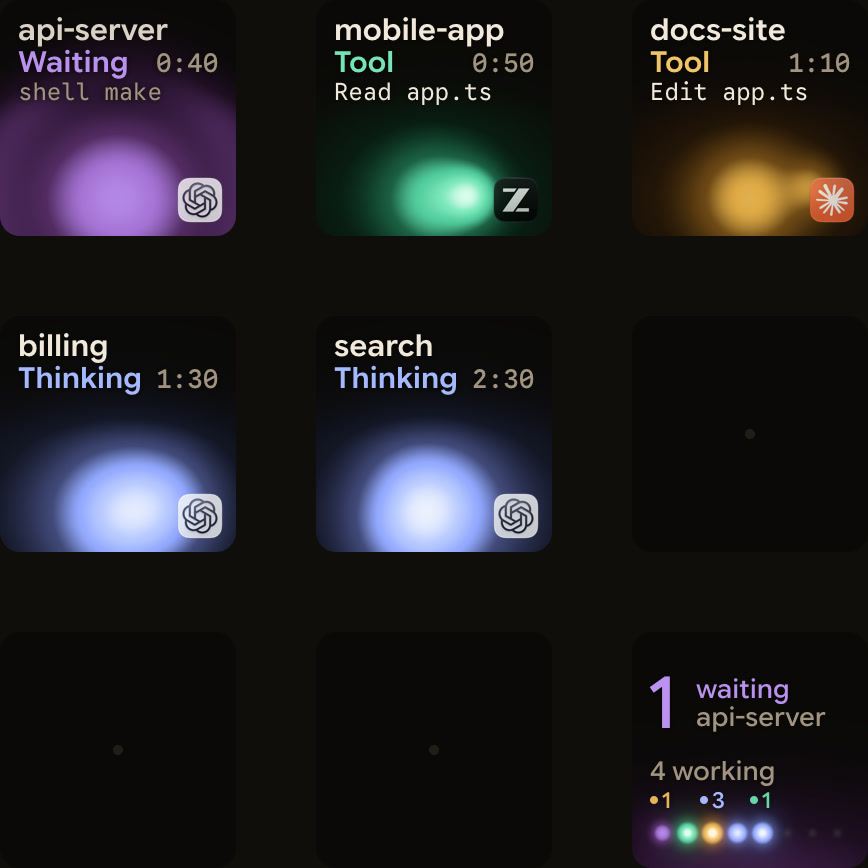
If you run several Codex CLI sessions alongside desktop chats and other coding agents, Orbtile shows each session on a Logitech MX Creative Keypad, an iPhone (App Store, iOS 17 or later) or an Android phone (Android 8.0 or later) with Orbtile Mobile. Orbtile runs on a computer with macOS 14.0 Sonoma or later on Apple silicon, or with Windows 11 (x64). It works with Claude Code, Codex, ZCode, Antigravity and Kimi Code.
- Nothing to install: Orbtile reads Codex thread files and Codex's own signals for session state, tool labels, waits and assistant text.
- Desktop threads, terminal
codexsessions andcodex execruns use a cool blue working palette. - Waiting sessions glow magenta-violet and move to the front, and key 9 jumps to the first waiting session.
- Compatible Codex desktop chats offer the app's current Allow or Deny decisions for command approvals, plus supported multiple-choice questions.
- Terminal command approvals offer Allow only, which you hold for 0.6 seconds, so decline them in the terminal.
- Other terminal waits and unsupported questions say Answer on computer.
codex execruns don't ask for command approval in Codex 0.159.0.
The Codex version and CLI flags also affect what Orbtile can show:
- An unreachable or incompatible engine shows activity only.
- In 0.159.0, ordinary
codexterminal sessions use the shared daemon by default, which supplies native waiting signals. - Using
--no-daemon,--ossor--profilecan select a private engine that cannot supply those signals. - Optional Codex hooks, installed from Orbtile's Settings > Agents > Codex, add a compacting state and slightly earlier updates.
- If you install them, open Codex > Settings > Hooks, review the 12 Orbtile hooks and trust them.
For terminal alerts and remote SSH sessions, see Codex notifications for finished turns and approvals and Watch Claude Code and Codex running on a remote server over SSH.
FAQ
How do I update OpenAI Codex CLI to the latest version?
Run codex update in your terminal to check for and apply an update when your installed release supports self-update. You can also re-run the standalone install.sh script on macOS and Linux, run the install.ps1 script in Windows PowerShell, or update through npm or Homebrew.
How do I check which version of Codex CLI is installed?
Run codex --version in your terminal. On Windows PowerShell, run Get-Command codex as well to confirm which executable starts. Inside an interactive session, the /statusline slash command can show the Codex version in the TUI footer.
How do I stop Codex CLI from checking for updates on startup?
Set check_for_update_on_startup = false in your ~/.codex/config.toml file. OpenAI says to set it to false only when updates are centrally managed. To skip the standalone installer's prompts in scripted updates, set CODEX_NON_INTERACTIVE=1.
Does updating Codex CLI affect how Orbtile tracks my sessions?
Orbtile needs nothing installed for Codex, because it reads Codex thread files and Codex's own signals. If you use the optional Orbtile hooks, changed hooks need review again in Codex under Settings and Hooks. An unreachable or incompatible engine shows activity only.