
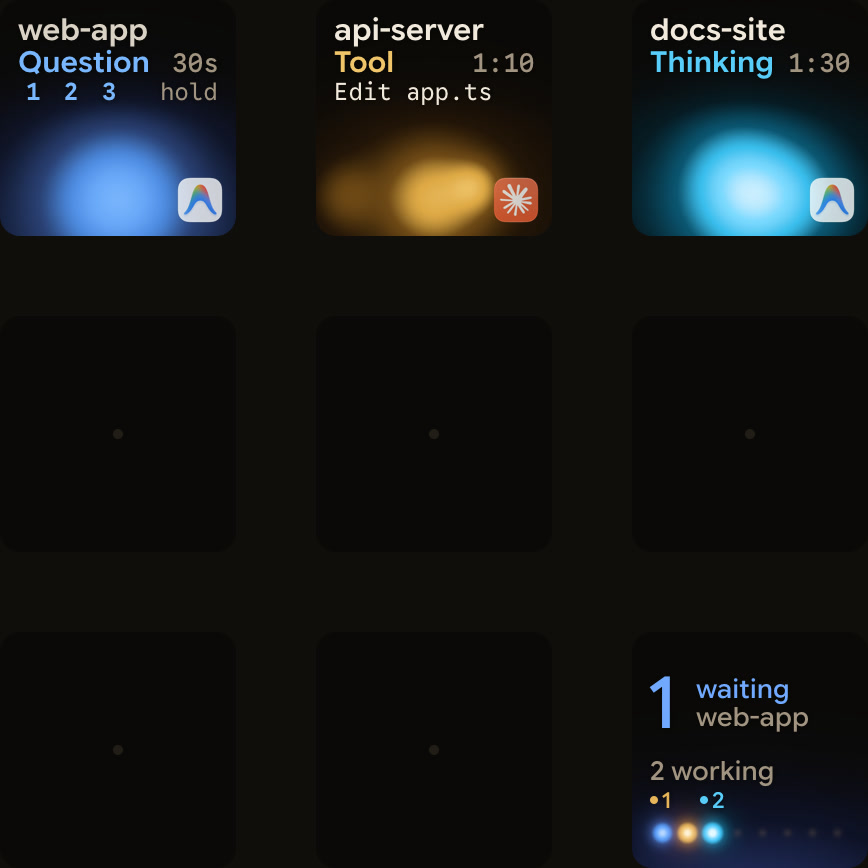
To use Google Antigravity on Windows 10 (64-bit) or Windows 11, download the Antigravity App or the Antigravity IDE installer from antigravity.google/download and run it. The App has installers for x64 and ARM64. For the terminal, install the agy CLI from PowerShell or Command Prompt. On Windows 11, Orbtile shows each Antigravity App conversation on a keypad or phone.
Windows system requirements and Antigravity surfaces
The Antigravity App, the CLI, IDE extensions and the SDK share one sign-in.
| Surface | Windows requirements | Installation |
|---|---|---|
Antigravity App (v2.5+) | Windows 10 (64-bit) or Windows 11, x64 or ARM64 | .exe installer from antigravity.google/download |
Antigravity CLI (agy, v1.2+) | PowerShell or CMD | install.ps1 or install.cmd script |
| Antigravity IDE | Windows 10 (64-bit) or later | Standalone installer from antigravity.google/download |
| Editor extensions | VS Code 1.90+, Visual Studio 2026 (17.8+), IntelliJ-based IDEs 2026.2.1+, Eclipse 2026-06+ | The editor's extension manager or marketplace |
| Antigravity SDK | Python 3.10+ in a virtual environment | pip install google-antigravity, poetry add google-antigravity or uv add google-antigravity |
Install the Antigravity App, IDE and editor extensions on Windows
Antigravity App on Windows 10 and Windows 11
Download the x64 (Antigravity-x64.exe) or ARM64 (Antigravity-arm64.exe) installer from antigravity.google/download. Run it and follow the setup wizard.
Agents work inside Projects:
- Click
New Projectin the left sidebar, thenAdd Folderto choose your repositories or folders, thenCreate. - Choose
Local modeto work in your active folders, orNew worktree modeto work in an isolated Git worktree.
Windows keyboard shortcuts in the App:
Ctrl + Nstarts a new conversation, andCtrl + Kopens the conversation picker.Alt + UpandAlt + Downmove to the previous or next conversation.Ctrl + Psearches files, andCtrl + Shift + Popens commands.Ctrl + Lfocuses the message box, andCtrl + Ffinds text.
Standalone Antigravity IDE and Windows editor extensions
Download the standalone Antigravity IDE installer from antigravity.google/download and run it. The IDE downloads new versions in the background. It then prompts Restart to Update, or Install Update for a system-wide installation.
In the standalone IDE, the agent runs in the Agent side panel on the right:
Ctrl+Lmoves focus to the Agent panel. From the editor, it also adds the selected lines to your prompt as context.Ctrl+Shift+Lstarts a new conversation.- The
Toggle Agentbutton in the title bar shows or hides the panel.
To install Antigravity in an editor you already use:
- VS Code 1.90+: press
Ctrl+Shift+X, searchGoogle Antigravityand clickInstall. - Visual Studio 2026 (17.8+): in
Extensions > Manage Extensions, downloadGoogle Antigravityand restart Visual Studio to finish the VSIX install. - In Visual Studio,
Ctrl+, Ctrl+Aopens the Antigravity tool window. - IntelliJ-based IDEs 2026.2.1+: open
JetBrains AI > Settings > Agents, searchAntigravityand clickInstall. - Eclipse 2026-06+: in
Help > Eclipse Marketplace, installGoogle Antigravityand restart Eclipse. - In Eclipse,
Ctrl + Alt + Ktoggles the chat view.
See Google Antigravity IDE: editor, agents and permissions.
Install the Antigravity CLI (agy) in PowerShell or CMD
In Windows PowerShell, run:
irm https://antigravity.google/cli/install.ps1 | iexIn Command Prompt (CMD), run:
curl -fsSL https://antigravity.google/cli/install.cmd -o install.cmd && install.cmd && del install.cmdBoth put the binary in C:\Users\<username>\AppData\Local\agy\bin. Check the install with agy --version.
Initial terminal setup and first CLI session
On first launch, pick a colour scheme (Dark, Solarized Dark, Solarized Light or your terminal default). Then choose the Alt-Screen or Inline rendering mode and confirm workspace trust.
Run agy to start the interactive interface. Run agy -i "prompt" to start a session with an initial prompt, or agy -p "prompt" to run one prompt and print the response.
Shift + Tabswitches between theauto,plan,defaultandaccept-editsmodes./diffopens the diff viewer, andCtrl + Ropens Artifact Review.Tabinspects file diffs and tool details, andCtrl + Oexpands or collapses a tool pill./agentsswitches subagents, and/statuslineconfigures the status line./usageshows your credit usage and quotas.Ctrl + Cinterrupts generation, andCtrl + Dor/exitends the session.
Fix PATH and self-updater lock errors on Windows
If agy returns a "command not found" error, its folder is not on your PATH. Google's fix is to open PowerShell as Administrator and append the folder to your User Path:
[System.Environment]::SetEnvironmentVariable("Path", [System.Environment]::GetEnvironmentVariable("Path", "User") + ";C:\Program Files\Google\antigravity-cli", "User")Google's example adds C:\Program Files\Google\antigravity-cli. The installer's default folder is C:\Users\<username>\AppData\Local\agy\bin, so use whichever folder holds agy. Then restart your terminal.
The background self-updater keeps a 15-minute marker (last_check.timestamp) and a lock file (update.lock) in ~/.gemini/antigravity-cli/updater/. A crashed updater can leave the lock behind. If agy hangs or warns about update.lock:
- Delete
~/.gemini/antigravity-cli/updater/update.lock. - Make sure your user can write to
%LOCALAPPDATA%\agy\bin. - Set
AGY_CLI_DISABLE_AUTO_UPDATE=truein your shell profile to turn off auto-updates.
See Google Antigravity CLI: commands, settings and permissions.
Sign in and share credentials on Windows
The Antigravity App, the CLI, IDE extensions and the SDK use one sign-in. Signing in on one of them shares your credentials with the others on your computer.
To compare what personal Google AI plans and Gemini Enterprise licences cost and include, see Google Antigravity pricing: plans, quotas, models and credits.
When you launch agy, it looks for a saved token profile in Windows Credential Manager. If it finds one, it signs you in silently. Otherwise your default browser opens:
- Sign in with a personal Google Account.
- Or choose
Business account, thenContinue with Google CloudorAdvanced WIF Configuration. - For a business account, confirm the linked project, or pick
Otherand enter a GCP Project ID and a location:global,usoreu. - To switch projects or regions, log out and sign in again.
- Run
/logoutin the CLI to clear your saved credentials from Credential Manager.
The CLI can also authenticate in two other ways:
- Gemini API key: set
"modelProvider": "gemini"in~/.gemini/antigravity-cli/settings.json, then setGEMINI_API_KEY. - The CLI ignores
GOOGLE_API_KEYand.envfiles, andGEMINI_API_KEYalone has no effect. - Application Default Credentials: run
gcloud auth application-default login --project {GCP_PROJECT}. - Then set
AGY_ADC_AUTH=true, or set"enableAdc": trueunderuserSettingsin~/.gemini/config/config.json.
Where Antigravity stores settings, rules and MCP configs
Global files live under ~/.gemini in your Windows user profile. Workspace files live in your project, mostly under .agents.
| Item | Workspace path | Global path |
|---|---|---|
| CLI settings | Not listed | ~/.gemini/antigravity-cli/settings.json |
| Always-on rules | AGENTS.md, GEMINI.md, .agents/AGENTS.md, .agents/GEMINI.md | ~/.gemini/AGENTS.md, ~/.gemini/GEMINI.md, ~/.gemini/config/AGENTS.md, ~/.gemini/config/GEMINI.md |
| Modular rules | .agents/rules/*.md and .agents/rules.json | ~/.gemini/config/rules/*.md |
| MCP configs and cache | <workspace>/.agents/mcp_config.json | ~/.gemini/config/mcp_config.json, ~/.gemini/antigravity/mcp_oauth_tokens.json, ~/.gemini/antigravity/mcp/ or ~/.gemini/antigravity-cli/mcp/ |
Workspace and global rule files
AGENTS.mdandGEMINI.mddo not use YAML frontmatter.- Every
.mdfile in arules/folder must start with YAML frontmatter that sets a validtrigger. triggertakesmodel_decision,always_on,globormanual, and the CLI does not supportmanual.- Files nested in subfolders of
.agents/rules/are ignored unless you register them in.agents/rules.json. - Rule files are truncated at 24,000 bytes, counted after
@[label](path)includes are expanded. - Global and
always_onrules share a 20,000-token budget. - Over that budget, the largest files become pointers that the agent reads on demand.
Model Context Protocol (MCP) servers
In the App, manage MCP servers under Customizations > Installed > MCP Servers, where Copy Config File Path gives the file's location. In the IDE, click … at the top of the agent side panel and select MCP Servers. In the CLI, type /mcp.
Each mcpServers entry in mcp_config.json sets command for a local stdio server, with optional args, env and cwd. A remote server uses serverUrl and must use the Streamable HTTP transport. By default, connecting times out after 300 seconds and each tool call after 180 seconds. A positive timeoutSeconds value replaces both limits. Tool schemas load lazily unless you set "eager": true for a tool. See Google Antigravity MCP servers: set up and manage tools.
Windows terminal sandboxing and permission rules
Antigravity's Windows terminal sandbox runs agent shell commands in an AppContainer. It is built on native Windows features, so there are no VMs or Docker images to manage.
Windows 11 24H2 sandbox requirements and boundaries
- The sandbox needs Windows 11 24H2 or later with the August 2026 update or later.
- On Windows 10 or earlier Windows 11 builds,
enableTerminalSandboxand--sandboxhave no effect. - Without the sandbox,
proceed-in-sandboxbehaves likerequest-review, andautomode is not offered. - Your saved settings are kept and take effect once the sandbox is available.
- Sandboxed commands can write to workspace folders, temporary folders and common build caches.
- Sensitive files such as
~/.sshand.envare blocked, and other files in your user profile stay hidden. - Folders outside your user profile are readable but not writable.
- Sandboxed commands have no network access, apart from domains allowed under
read_url.
Presets, execution modes and Windows path normalisation
In the App, choose a preset in Settings > General > Global Permissions > Permission Preset:
Defaultruns commands in the sandbox without prompting and asks before running outside it.Autoalso lets safe, reversible commands run outside the sandbox, while risky ones still ask.- On Windows,
Autoneeds App v2.26.0 or later and is not available for business or enterprise accounts. Request Reviewturns the sandbox off and asks before every command.Turboruns all commands without restrictions.
In the CLI, agy --mode=auto starts auto mode, which turns the sandbox on. On Windows, auto mode needs CLI v1.4.4 or later and a personal account. To force the sandbox for one session, run agy --sandbox. To keep it on, set this in ~/.gemini/antigravity-cli/settings.json:
{
  "enableTerminalSandbox": true,
  "toolPermission": "proceed-in-sandbox"
}
With proceed-in-sandbox, sandboxed commands run without prompting, and commands that need to run outside the sandbox still ask.
Permission rules take the form action(target) and follow Deny > Ask > Allow priority. Google's examples allow command(git), command(regex:npm run (build|lint|test)) and write_file(src/), and deny command(rm -rf).
- On Windows, paths lose their drive letter and backslashes become forward slashes before rules are checked.
- A command with constructs that can hide other commands, such as
$(...), runs without a prompt only if a rule matches the whole line. - The
regex:prefix lets a rule match commands with a regular expression.
See Google Antigravity multi-agent: run parallel coding agents.
Watch Antigravity sessions on Windows with Orbtile
Logitech's Logi Options+ supports the MX Creative Console from version 1.83 and the MX Keypad from version 2.07. It runs on Windows 10 and later, but not on ARM64. Downloading extra plugins needs a Logi ID.
Orbtile drives the MX Creative Keypad's nine LCD keys and two page buttons over USB by itself, without Logi Options+ or an account. It runs on Windows 11 (x64) or an Apple silicon Mac with macOS 14 or later. Orbtile Mobile can be the pad instead, on Android 8.0 or later or an iPhone with iOS 17 or later.
On Windows 11, install Orbtile from the Microsoft Store, with winget install --id 9P9HNFZHR8NG --source msstore, or with the .msi installer, which needs no administrator rights.
- Orbtile follows conversations in the Antigravity desktop app, giving each a key with its title, state and live response text.
- A conversation waiting on a question moves to the front.
- To answer questions with numbered options from the keypad, turn on
Settings > Agents > Antigravity > Answer questions from the keypad. - Then tap your picks and hold
Send, for up to four questions with two to four choices each. - Permission prompts and written answers stay on your computer.
- Antigravity IDE and CLI sessions do not appear automatically.
- A CLI hook script can report each session to Orbtile's local Adapter API, which you turn on in
Settings > Agents. - The same pad also shows Claude Code, Codex, ZCode and Kimi Code sessions.
- Press
Ctrl+Alt+Win+Kor hold both page buttons for 1.5 seconds to hand the keypad back to Logi Options+.
See Antigravity notifications: know when an agent is waiting, Use the Logitech MX Creative Keypad without Logi Options+ and Show any script or agent on a keypad with the Orbtile Adapter API.
FAQ
How do I install Google Antigravity and the agy CLI on Windows?
Download the Antigravity App or the standalone Antigravity IDE installer from antigravity.google/download and run it on Windows 10 64-bit or Windows 11. The App has x64 and ARM64 installers. To install the agy CLI, run irm https://antigravity.google/cli/install.ps1 | iex in PowerShell, or the curl install.cmd command in Command Prompt. Both put the binary in AppData\Local\agy\bin in your user profile.
What Windows version is required for the Google Antigravity terminal sandbox?
The sandbox needs Windows 11 24H2 or later with the August 2026 update or later. It runs agent shell commands in an AppContainer. On Windows 10 or earlier Windows 11 builds, the sandbox is not available and the sandbox settings have no effect.
How does Google Antigravity handle Windows file paths in permission rules?
Before it checks permission rules, Antigravity removes drive letters such as C: from Windows paths and turns backslashes into forward slashes. This lets the same rules work on every operating system. For commands, the regex: prefix lets a rule match with a regular expression.
Which Google Antigravity sessions does Orbtile show on Windows 11?
Orbtile runs on Windows 11 x64 and follows conversations in the Antigravity desktop app. It shows each conversation's title, state and live response text on a Logitech MX Creative Keypad or a phone running Orbtile Mobile. You can answer questions with numbered options from the keypad, while permission prompts stay on your computer. Antigravity CLI and IDE sessions do not appear automatically, but a CLI hook script can report them through Orbtile's local Adapter API.