
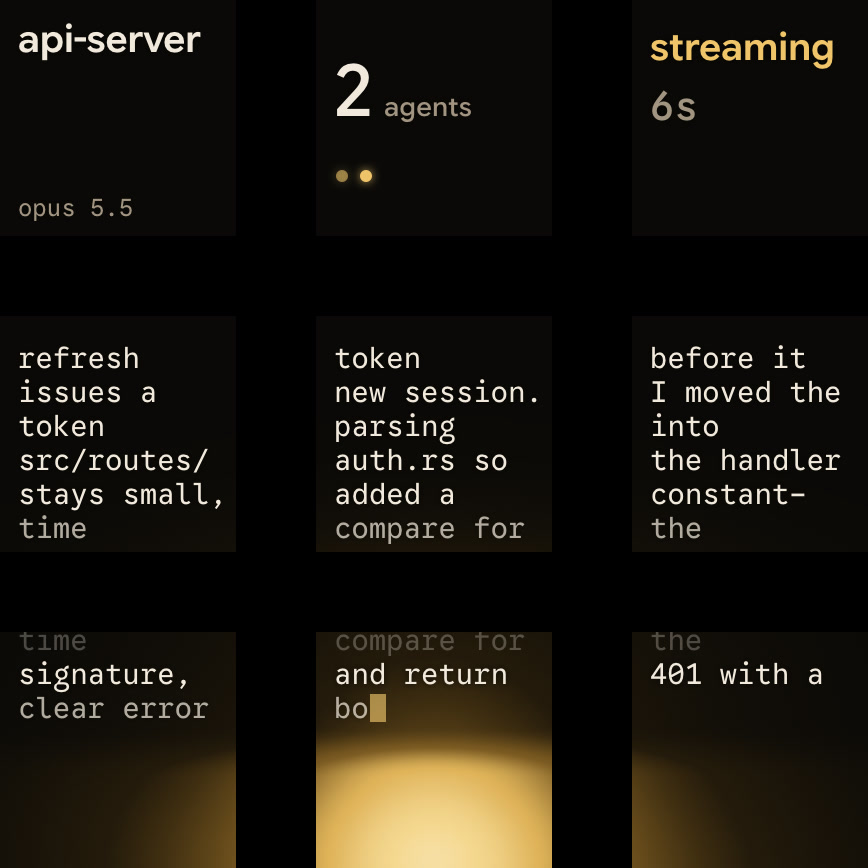
Orbtile Mobile turns your iPhone into a live view of Claude Code and Codex sessions running on your computer. Watch each session's state and latest words, hold a tile to open its focus view, and answer supported permission requests and multiple-choice questions from the phone. The iPhone app needs iOS 17 or later and is on the App Store.
Before you start
Your computer needs to be an Apple silicon Mac with macOS 14 or later, or a Windows 11 PC (x64), running Orbtile. The phone and computer need the same local network and the same Orbtile account.
For Claude Code, connect Orbtile's plugin with one Install click under Settings > Agents > Claude Code, then restart sessions that were already running. Codex state and live text need nothing installed.
Connect your iPhone
- On your computer, install Orbtile from the download page and sign in.
- Turn on Settings > Keypad > Phone pad. On Windows, allow Orbtile when the network security prompt appears.
- On your iPhone, open the Orbtile Mobile App Store page and install the app.
- Open Orbtile Mobile and sign in with the same account as your computer.
- Start or return to your Claude Code and Codex work. Their sessions appear on the phone.
Find the session that needs you
The grid gives each session its own tile. You see its title, state and latest response text, not just a notification that something happened. Waiting sessions come first, followed by working sessions, recent finishes and idle sessions. A new wait can move ahead at once.
Eight sessions fit on a page. The ninth tile summarises the board and can take you to the first waiting session, including one on another page. Use the page controls when you have more sessions.
Two gestures cover most of your work:
- Tap a session to bring its terminal or app window to the front on your computer.
- Hold a session for 0.6 seconds to open its focus view on the iPhone. The focus view gives the latest response more room and shows a decision area when the request supports phone answers.
On the focus view, tap the session header to open that session on your computer. Hold the header to open its details on the phone.
Answer a permission request
When Claude Code or a compatible Codex session asks for permission, hold its waiting tile to open the request.
- Tap Deny to decline where that decision is offered.
- Hold Allow for 0.6 seconds to approve. Letting go before the hold completes does nothing.
- Return to the computer when the phone says Answer on computer, View on computer or Request expired.
The phone checks that the displayed request is current and answerable before it transports an answer. Backgrounding, rotating or losing the connection during a hold cancels it. A timeout never approves the request for you.
Answer a question with options
For a supported multiple-choice question, open the waiting session's focus view. Tap an option to select it. If the question allows several answers, each tap turns an option on or off. After every question has a pick, hold Send for 0.6 seconds to send your answers together.
An early release sends nothing. Questions with an Other response, unsupported questions and written answers stay on your computer.
What each agent accepts from the phone
| Session | Permission requests | Questions with options |
|---|---|---|
| Claude Code terminal or desktop | Deny with a tap or Allow with a hold | Pick supported options and hold Send |
| Compatible Codex desktop chat | Offered Allow or Deny decisions | Supported multiple-choice questions |
| Codex terminal | Allow only for a command approval; decline in the terminal | Answer in the terminal |
For Codex desktop, an unreachable or incompatible engine leaves the session visible but removes phone answers. Other Codex terminal waits and unsupported request types stay on the computer.
To see how the ChatGPT desktop app and the terminal CLI differ across environments, worktrees and commands, read Codex app vs Codex CLI: desktop app and terminal compared.
Keep the live view open
While pad input is enabled, Orbtile Mobile disables the iPhone idle timer so the screen stays awake. When you leave the app, it releases that setting, cancels contacts and clears the pad content from the app switcher snapshot. Return to the app and let it reconnect before answering anything.
The live pad connection is between your phone and computer on your local network. Orbtile Mobile is not a second Claude Code or Codex editor: it shows your sessions and sends supported decisions, while full conversations and typed replies remain in the agent on your computer.
FAQ
Can I answer every Claude Code and Codex prompt from my iPhone?
No. Claude Code supports approvals and questions with options. Compatible Codex desktop chats support offered command decisions and supported multiple-choice questions. Codex terminal command approvals offer Allow only, and other terminal requests stay on the computer. Typed answers always stay on the computer.
Does a short tap on Allow approve a command?
No. Allow needs a 0.6-second hold. Releasing early, backgrounding the app or losing the connection cancels the action instead of approving it.
Can I keep watching when the iPhone app is in the background?
The live pad reconnects when you return to the app. Backgrounding cancels contacts, releases the keep-awake setting and clears sensitive pad content from the snapshot, so leave the app open when you want a continuous status display.
How do I install Orbtile Mobile on my iPhone?
Get Orbtile Mobile from the App Store page and install it on your iPhone. The app requires iOS 17 or later.