
Google Antigravity manages parallel coding agents across the standalone Antigravity App, the Antigravity IDE Agent side panel, and the Antigravity CLI (agy) /agents panel. You can organise multi-folder Projects, isolate conversations in Git worktrees, monitor subagents, and review plans and diffs. With Orbtile, you can also track desktop app conversations on a keypad or phone.
How agent management works across Google Antigravity surfaces
The Antigravity desktop download is available on macOS, Windows, Linux and Googlebook. Agent management spans these surfaces:
| Surface | Interface | Open or control | Capabilities |
|---|---|---|---|
Antigravity App (v2.5+) | Overview panel and side panel | Cmd+N (Ctrl+N), Cmd+Option+O (Ctrl+Alt+O), Cmd+Shift+B (Ctrl+Shift+B) | Parallel local agents, multi-folder Projects, scheduled tasks, artifacts and the Review pane |
| Antigravity IDE | Agent side panel | Toggle Agent, Cmd+L (Ctrl+L), Cmd+Shift+L (Ctrl+Shift+L) | Editor conversations, Worked for logs, inline diffs, Accept all and Reject all |
Antigravity CLI (agy, v1.2+) | /agents and /tasks panels | /agents, /tasks, Alt+J, Ctrl+K | Live subagent list, inline approvals and /diff |
| Antigravity SDK (Python 3.10+) | Python package google-antigravity | Python scripts | Custom agents built in code |
Antigravity also has extensions for VS Code, IntelliJ-based JetBrains IDEs, Visual Studio, Zed and Xcode. An Eclipse extension is in Public Preview. See Google Antigravity IDE: editor, agents and permissions and Antigravity CLI (agy): settings and allow all permissions.
For a direct comparison of the desktop command centre and the standalone editor, see Antigravity App vs Antigravity IDE: what's the difference.
Start, search and organise conversations in the Antigravity App and IDE
Organise folders and Git worktrees with Projects
In the Antigravity App, a Project groups one or more Local folders or Local Git checkout folders. Each conversation runs in one of two modes:
Local modeworks directly in your active local folders or Git checkouts.New worktree modecreates a new Git worktree for the conversation.
New projects use the Inherit Global permission preset, which follows your global permission settings. With Default, terminal commands run without prompting inside the sandbox, and commands outside it need approval. With Auto, commands outside the sandbox are evaluated automatically, so only risky or irreversible actions pause for approval.
In the CLI, conversations run in default-cli-project unless you pass a project flag:
agy --project=<project_id>attaches the session to an existing project.agy --new-projectcreates a new project and starts the session inside it./resumeresumes a conversation during a session./fork <project_id>copies the current conversation into another project.
Navigate conversations in the Antigravity App
| Action | macOS | Windows and Linux | What it does |
|---|---|---|---|
| New conversation | Cmd+N | Ctrl+N | Starts an agent session |
| Conversation picker | Cmd+K | Ctrl+K | Searches conversations by title or full text |
| Previous or next | Option+Up or Option+Down | Alt+Up or Alt+Down | Switches sidebar conversations |
| Focus input | Cmd+L | Ctrl+L | Focuses the message box |
| File search | Cmd+P | Ctrl+P | Searches project files |
| Commands | Cmd+Shift+P | Ctrl+Shift+P | Runs app commands |
Useful slash commands include /goal, which runs a task autonomously until completion, and /grill-me, where the agent interviews you about requirements. /schedule runs an instruction once after a delay or on a recurring cron schedule. /browser starts browser debugging and research in Google Chrome.
Use the Agent side panel in the Antigravity IDE
Click Toggle Agent in the IDE title bar to show or hide the Agent side panel. Cmd+L (Ctrl+L) moves focus to the panel, and Cmd+Shift+L (Ctrl+Shift+L) starts a new conversation. From the panel header you can start a conversation, open a sidebar to switch conversations, and search across them.
In the prompt box:
- Type
@to mention files and other context. - Type
/to run actions. - Click
+to add files, folders and other context. - Pick a model in the model picker.
Each turn has an expandable Worked for summary of the agent's steps. A changed-files card summarises the edited files and has a Review button. When edits await review, a bar such as 1 File With Changes appears above the prompt, with Reject all and Accept all buttons. The edits are also highlighted inline in the editor.
Use the Overview panel and side panel in the Antigravity App
Track conversation output in the Overview panel
Click Toggle Overview Panel at the top right of the conversation, or press Cmd+Option+O (Ctrl+Alt+O). When space is tight, the panel opens over the conversation. Press Esc or click outside it to close it.
The top rows:
Reviewshows the total lines added and deleted, and opens the Review tab.Filesopens the project file tree in anOpen Filetab.Terminalopens a new terminal tab on each click.Extensionslists the side panel views that installed plugins add.
Output sections sit below these rows, and empty sections do not appear. Each section shows up to four items, and See all shows the rest.
Subagentslists the subagents the agent started.Background Taskslets you point to a running task and clickCancel Task.Goalslists conversation goals, with running ones first.Artifactslists artifacts such as plans and walkthroughs.Documentscollects PDFs, Office files and Google Workspace links.
Work in side panel tabs
Toggle the side panel with Cmd+Shift+B (Ctrl+Shift+B). Artifacts, files, diffs, terminals, subagent conversations and web pages open in it as tabs.
- Press
Cmd+T(Ctrl+T) to open a new tab. - Press
Ctrl+TaborCtrl+Shift+Tabto switch tabs. - Press
Cmd+Shift+T(Ctrl+Shift+T) to reopen the last closed tab. - Press
Cmd+Shift+M(Ctrl+Shift+M) to maximise the pane, and again to restore it.
Monitor background subagents in the CLI /agents panel
Subagents run asynchronously in the background. A Running subagent is actively working, and you stop it with Stop Subagent in the panel or k in the CLI. An Idle subagent has finished and wakes with its context when it receives a message. A Killed subagent is permanently terminated. For custom subagents, nesting and the /boost and /teamwork orchestrators, see Google Antigravity multi-agent: run parallel coding agents.
In agy, run /agents for a live list of background agents. It has four columns: Identifier, Role, State (running, done, killed or error) and Step. You can open a detail view of each agent's logs. Press Alt+J to jump to the next subagent waiting for your approval. Press Ctrl+K to approve the pending action without leaving your prompt.
Run /tasks to track background work that is not an agent, such as shell commands, test suites and /btw queries. You can view stdout logs there and terminate runaway processes.
Review implementation plans, artifacts and code diffs
Implementation plans and the Plan Review Policy
Run /plan at any time to start structured planning. Artifacts include Markdown plans, code diffs, architecture diagrams, images, browser recordings and interactive HTML widgets, such as those built with /generative_ui.
In Settings > General, Plan Review Policy offers two options:
Request review(shown asAlways Ask) makes the agent halt for your explicit approval before it proceeds with proposed changes.- With
Always proceed(shown asAlways Proceed), the plan card might not show a Proceed button, so you approve by replying, for example withproceed.
When you ask for a plan with /plan, the agent always stops for your approval, whatever the policy. To have it continue after writing a plan, say so in your prompt.
You can comment on passages of a plan. The comments attach to your next message as a chip, such as 2 Comments, above the message box. Click Proceed on the plan card to continue with the plan and your comments.
Inspect diffs and commit in the Review pane and /diff
Open the App's Review tab from the Overview panel, or click a turn's "N files changed" card. That card's view shows For Turn with the turn's prompt, and Clear filter returns to all changes. Click Toggle sidebar to list changed files with status letters such as M (Modified), A (Added), U (Untracked), D (Deleted) and R (Renamed).
Comparison modes:
Uncommittedis the default.Branchshows changes on your branch.Agent Editsshows the agent's edits.
The three-dot menu offers View Split Diff, Hide Whitespace Changes and Collapse All. To comment, click + beside a line, or select lines and click Comment. Comments attach to your next message as a chip. Quote, or Cmd+L (Ctrl+L), adds a line-range reference instead.
In the Uncommitted view, use + to stage a change and − to unstage it. Discard unstaged changes takes effect immediately, with no confirmation. It also deletes untracked files from disk.
The Commit dialog can include unstaged changes if you select Include unstaged changes. Leave the message empty to have it generated for you. The arrow menu offers Amend and Push, and Push does not force push.
In the CLI, run /diff to open the diff viewer. Press the left and right arrow keys to switch between All Changes, Per Turn and Commit Tree. To comment, move to a line, press C, type and press Enter. If you exit with unsent comments, press Y on the Unsent Comments screen to send them as your next prompt.
Watch Google Antigravity conversations on a keypad or phone with Orbtile
With Logi Options+, you can map shortcuts like Cmd+K or Cmd+Option+O to a Logitech MX Creative Console or MX Keypad. Click + in the profile bar, choose APPLICATION PROFILE and select the app, using ADD APPLICATION if it is not listed. Click START WITH A BLANK TEMPLATE, then open ALL ACTIONS and the SYSTEM plugin. Drag KEYBOARD SHORTCUT onto a key and press your key combination.
Orbtile works differently. It drives the Logitech MX Creative Keypad's nine LCD keys and two page buttons directly over USB, without Logi Options+ or an account. It can also use Orbtile Mobile on an Android phone (Android 8.0 or later) or an iPhone (App Store, iOS 17 or later). Orbtile runs on a computer with macOS 14.0 or later on Apple silicon, or on Windows 11 (x64).
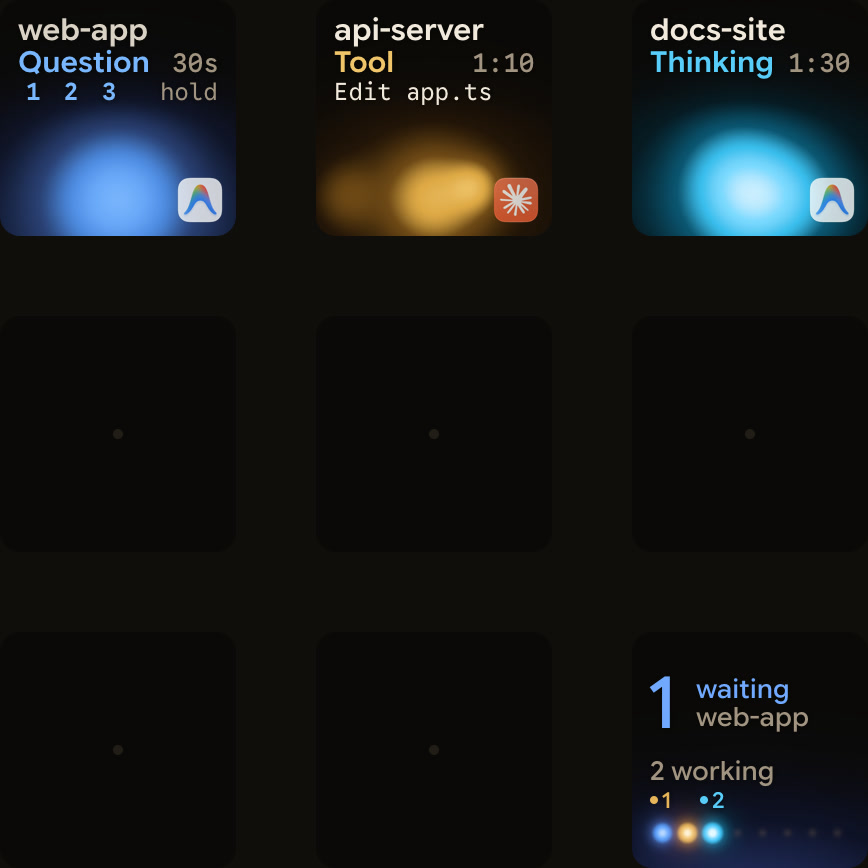
- Each Antigravity desktop app conversation gets its own key with its title and state.
- From Orbtile 0.2.10, replies also appear as live typewriter text.
- Antigravity uses an azure blue working palette.
- From Orbtile 0.3.4, Antigravity's waiting states use the shared terracotta alarm colour.
- Waiting conversations move to the front.
- A tap on key 9 focuses the first waiting session, including sessions on other pages.
- A press under 0.6 seconds on a key opens that conversation.
- From Orbtile 0.2.6, keys for questions with numbered options show the numbers, such as
1 2 3 hold. - To answer, hold the key, pick options on keys 1, 2, 3 and 7, then hold
Sendon key 9. Sentmeans Antigravity acknowledged the reply.- This works for up to four questions with two to four choices each.
- Written answers and permission prompts stay on your computer.
If an Antigravity update changes how the app talks to Orbtile, live text and keypad answers stop until Orbtile catches up, and you answer in Antigravity. Antigravity IDE and CLI sessions do not appear automatically. A CLI hook script can report each session to Orbtile's local Adapter API. In Orbtile's Settings > Agents, choose Build your own, turn on Let your own tools show sessions, then allow the adapter. The same pad also shows Claude Code, Codex, ZCode and Kimi Code sessions. See Antigravity notifications: CLI alerts and waiting agents and Show any script or agent on a keypad with the Orbtile Adapter API.
FAQ
How do I open the Agent side panel and Overview panel in Google Antigravity?
In the Antigravity IDE, click Toggle Agent in the title bar to show or hide the Agent side panel. Press Cmd+L on macOS or Ctrl+L on Windows and Linux to move focus to it. In the Antigravity App, press Cmd+Option+O or Ctrl+Alt+O to toggle the Overview panel, and Cmd+Shift+B or Ctrl+Shift+B to toggle the side panel.
How do I monitor and approve background subagents in the Antigravity CLI?
Run /agents to open a live list of each subagent's identifier, role, state and current step. Press Alt+J to jump to the next subagent waiting for approval, or Ctrl+K to approve the pending action without leaving your prompt.
How do I review implementation plans and file diffs before an agent changes my code?
In Settings under General, set Plan Review Policy to Request review, shown as Always Ask. The agent then halts for your approval before it proceeds with proposed changes. A plan requested with /plan always waits for your approval. To inspect code changes file by file, click Review in the Overview panel, or run /diff in the CLI.
Which Google Antigravity sessions can Orbtile show on a keypad or phone?
Orbtile follows conversations in the Antigravity desktop app, on a Mac with Apple silicon and macOS 14 or later, or on a Windows 11 PC. It shows each conversation's title, state and live reply text on a Logitech MX Creative Keypad, an Android phone or an iPhone. Antigravity IDE and CLI sessions do not appear automatically, and permission prompts stay on your computer.