
Claude Code Remote Control connects claude.ai/code or the Claude app for iOS and Android to a Claude Code session running on your machine. Start it with claude remote-control, claude --remote-control or /remote-control. Code execution and filesystem access stay on your machine while you steer from another device.
How Remote Control works vs cloud sessions
Remote Control and cloud sessions both use claude.ai/code and the Code tab in the Claude app. The difference is where Claude runs.
| Mode | Trigger | Where it runs | Setup | Best for |
|---|---|---|---|---|
| Remote Control | Drive a running session from claude.ai/code or the Claude app | Your machine (CLI, Desktop or VS Code) | claude remote-control or /remote-control | Steering in-progress work from another device |
| Cloud sessions | Start a task from claude.ai/code or the Claude app | Cloud infrastructure, Anthropic-managed by default | Connect GitHub and set up an environment | Tasks without local setup, or with your laptop closed |
| Dispatch | Message a task from the Claude mobile app | Your machine (Desktop app) | Pair the mobile app with Desktop (Pro, Max or Ultra) | Delegating work while you're away |
| Channels | Push events from Telegram, Discord or your own server | Your machine (CLI) | Install a channel plugin | Reacting to CI failures or chat messages |
A project combines the two: its threads run in the cloud, and it uses Remote Control to run a thread on your computer when you ask for one there.
While a local session runs, the browser and app are a window into it:
- Your computer has to stay on, and the
claudeprocess has to keep running. - If your machine sleeps or the network drops, Claude Code reconnects automatically when it comes back online.
- Your filesystem, MCP servers, tools and project configuration stay available.
- The conversation and the progress of subagents stay in sync across terminal, browser and phone.
- Claude sees attached photos directly, and Claude Code also saves each photo under
~/.claude/uploads/. - Other attached files are downloaded to your machine and passed to Claude as
@file references.
Plan, login and endpoint requirements
Check that your account, endpoint and environment variables meet these requirements:
- Remote Control needs a Pro, Max, Ultra, Team or Enterprise plan, and API keys are not supported.
- Sign in through claude.ai with
/login, or runclaude auth loginand choose the claude.ai option. - If
ANTHROPIC_API_KEY,ANTHROPIC_AUTH_TOKENor anapiKeyHelpersetting is in use, remove it wherever it is set. - Tokens from
claude setup-tokenorCLAUDE_CODE_OAUTH_TOKENcan't start Remote Control, so runclaude auth logininstead. - On Team and Enterprise, an Owner must first turn on the Remote Control toggle at
claude.ai/admin-settings/claude-code. - Enterprise custom roles must include both the cloud sessions permission and the Claude Code remote control permission.
- Remote Control is not available on Amazon Bedrock, Google Cloud's Agent Platform, Microsoft Foundry or through an enterprise Claude apps gateway.
- It is also unavailable when
ANTHROPIC_BASE_URLpoints at a host other thanapi.anthropic.com, such as an LLM gateway or proxy. - Setting
CLAUDE_CODE_DISABLE_NONESSENTIAL_TRAFFICorDISABLE_GROWTHBOOKmakes Remote Control unavailable until you unset it. - With only
DISABLE_TELEMETRYorDO_NOT_TRACKset, Remote Control stays available unless your organisation requires Trusted Devices. - Using Remote Control with either of those two variables set needs Claude Code v2.1.283 or later, or v2.1.304 or later in the Desktop app.
- In a directory you haven't trusted,
claude remote-controlasks before it starts, and trust is never saved for your home directory.
Start a Remote Control session in the CLI, Desktop or VS Code
Launch Remote Control in server mode, or when starting an interactive CLI session:
claude remote-control
claude remote-control --name "My Project" --spawn worktree
claude --remote-control "My Project"
In an open CLI, VS Code or Claude Desktop Code tab session, run:
/remote-control
/rc My Project
Server mode and /remote-control ask you to accept a one-time confirmation the first time. Then they behave like this:
claude remote-controlruns a server in your terminal, prints a session URL and shows a QR code when you press spacebar.claude --remote-control, or--rc, opens an interactive terminal session that you can use locally and remotely./remote-control, or/rc, connects an open session and carries over its conversation history.- In the CLI, running
/remote-controlagain opens a status panel where you can disconnect while the local session keeps running. - In VS Code, the command takes no name and shows no QR code, but it posts the session URL in the conversation.
- In the Desktop app's Code tab, the session appears in the list at
claude.ai/code, and running the command again disconnects.
Server mode flags for claude remote-control
| Flag | What it does |
|---|---|
--name "My Project" | Custom title at claude.ai/code |
--remote-control-session-name-prefix <prefix> | Auto-name prefix (default: hostname, or set CLAUDE_REMOTE_CONTROL_SESSION_NAME_PREFIX) |
-c, --continue | Brings back the session the last server in this directory started with (v2.1.200 or later) |
--session-id <id> | Brings back one session by its ID (v2.1.200 or later) |
--spawn <mode> | same-dir, worktree (each session gets its own git worktree) or session (single-session mode) |
--capacity <N> | Maximum concurrent sessions (default 32, not usable with --spawn=session) |
--[no-]create-session-in-dir | Pre-creates one session (on by default); the negated form archives the server's sessions on stop |
--permission-mode <mode> | Starting permission mode, such as acceptEdits |
-d, --debug[=<filter>] | Debug logging, optionally filtered, such as --debug=api,hooks (v2.1.282 or later) |
--verbose | Detailed connection and session logs |
Press w in the server terminal to switch between same-dir and worktree. The mode you switch to becomes the default for that project.
The --sandbox and --no-sandbox flags were removed in v2.1.300. To sandbox server sessions, turn on sandboxing in a settings file.
See Claude Code permission modes: settings, flags and rules and Git worktrees for parallel coding agents: Claude Code and Codex.
Connect from a browser or the Claude mobile app
Remote Control sessions live in the Code tab of the Claude app for iOS and Android. If you don't have the app, run /mobile, /ios or /android to show a QR code that opens the right app store.
- Open the session URL from the terminal in any browser, or scan the QR code to open the Claude app.
- Or find the session at
claude.ai/codeor in the app's Code tab, where it shows a computer icon with a green dot when online. - While
claude remote-controlruns, tap your machine's device card in the Code tab, then pick a directory to start a session.
What connected devices can see and control
- Connected devices show the conversation live, including compaction progress and
/clearresets. - They show background subagents and workflows, and stopping one from a device stops it on your machine.
- Picking a model from a device needs v2.1.238 or later.
- Setting the effort level from a device applies it to the session on your machine.
- In the app, Remote Control sessions offer Manual, Accept edits, Plan and Auto permission modes, but not Bypass permissions.
- Text-output commands such as
/compact,/clear,/context,/usageand/exitwork remotely. /model,/effort,/fast,/colorand/renametake their value as an argument, such as/model sonnet.- Terminal-only commands such as
/pluginand/resumework only from the local CLI. - After
/resumeor/teleportin the terminal, devices get new messages but not that conversation's earlier history. - Permission prompts and
AskUserQuestionquestions stay open until you answer them.
Auto-connect at startup, resume sessions and set up push alerts
To connect every interactive session automatically, set Enable Remote Control for all sessions to true in /config. VS Code has the same toggle in the command menu's Settings section. In the Desktop app, turn on Connect new sessions to Remote Control. You can also set it in your user ~/.claude/settings.json or in managed settings:
{
  "remoteControlAtStartup": true
}
Scoping, resume and timeout rules:
- With auto-connect on, each interactive Claude Code process registers one remote session.
- In project settings (
.claude/settings.jsonor.claude/settings.local.json), afalseturns auto-connect off, even over a managedtrue. - Project settings ignore a
true, so a checked-in file can't turn Remote Control on for everyone. - After you stop
claude remote-controlwithCtrl+C, run it again in the same directory to bring back every session it was serving. --continueor--session-id <id>brings back one session and exits when that session ends.- These commands work for about four hours, unless you started the server with
--no-create-session-in-dir. - If your machine is awake but offline, server mode gives up after roughly 10 minutes and exits.
- Interactive sessions keep retrying through an outage and reconnect when the network returns.
Mobile push notifications
- Sign in to the Claude app with the same account and organisation you use for Claude Code.
- Accept the notification permission prompt from your phone's operating system.
- In
/config, enable Push when Claude decides, Push when actions required, or both. - Pushes are skipped while you type in or focus the connected terminal.
- To skip them whenever you are at the machine, set
CLAUDE_CLIENT_PRESENCE_FILEto a marker file path. - Pushes are skipped while that file exists, so a screen-lock tool can create it on unlock and delete it on lock.
For local desktop alerts, see Get notified when Claude Code needs approval or finishes.
Security, transcripts and Trusted Devices
Remote Control makes outbound HTTPS requests only and never opens inbound ports on your machine. All traffic goes through the Anthropic API over TLS, using short-lived credentials that are each scoped to one purpose.
- While connected, the transcript, including messages, responses and tool activity, is stored on Anthropic servers for sync and reconnection.
- Organisations with Zero Data Retention or the HIPAA configuration can't enable Remote Control.
- The
disableRemoteControlsetting turns Remote Control off entirely.
Trusted Devices is in beta and off by default. When it is on, each browser, phone or desktop app must enrol before it can view or steer Remote Control sessions.
- On Team and Enterprise, an Owner turns on Require trusted devices under
Organization settings > Capabilities > Remote sessions. - On Pro, Max and Ultra, you turn it on yourself on the Cowork or Account settings page.
- Once your sign-in is more than 18 hours old, you confirm with Face ID, Touch ID, Windows Hello or a passkey.
- You can review and remove enrolled devices at
claude.ai/settings/account.
Watch and answer Claude Code sessions at your desk with Orbtile
Remote Control is for steering a session from another device. At your desk, Orbtile shows each Claude Code session on its own key. It covers sessions in your terminal and the Claude desktop app, background sessions from agent view when Show background sessions is on, and remote sessions over SSH.
Orbtile runs on a computer with macOS 14.0 Sonoma or later on Apple silicon, or Windows 11 (x64). It drives the nine LCD keys and two page buttons of the Logitech MX Creative Keypad over USB, without Logi Options+. It can also use an iPhone (iOS 17 or later) or an Android phone (Android 8.0 or later) running Orbtile Mobile on your local network.
- Install the Claude Code plugin in Settings > Agents > Claude Code on a Mac, or with its Install button on Windows.
- Restart sessions that were already running once, so they load the plugin.
- Keys 1 to 8 show each session's name, state and live text over an animated Frosted orb.
- Codex, ZCode, Antigravity and Kimi Code sessions can appear alongside your Claude Code sessions.
- Waiting Claude Code sessions glow terracotta and move to the front.
- Tap key 9 to focus the first waiting session, including sessions on other pages.
- Tap a session key to open its window, or hold it for 0.6 seconds to open Focus mode across all nine keys.
- For a local permission request in Focus mode, press Deny on key 7 or hold Allow on key 9 for 0.6 seconds.
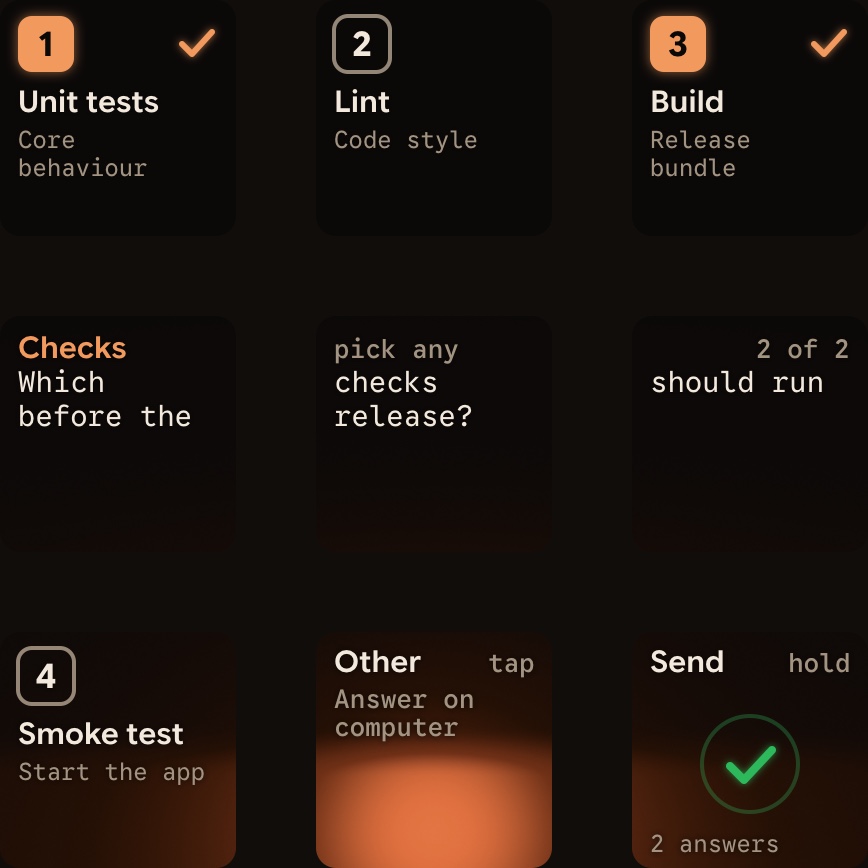
- For a local multiple-choice question with up to four options, pick on keys 1, 2, 3 and 7, then hold Send on key 9.
- The prompt on screen keeps working, and whichever answer comes first wins.
- Claude Code sessions on SSH servers are display-only, so you answer them on the server.
See Approve agent tool calls without switching windows and Watch and answer Claude Code and Codex sessions from your iPhone.
FAQ
Does Claude Code Remote Control run my code in the cloud?
No. Remote Control connects claude.ai/code or the Claude app to a Claude Code session running on your own machine. Code execution and filesystem access stay local, so your computer has to stay on and the claude process has to keep running.
Which plans support Claude Code Remote Control?
Remote Control is available on Pro, Max, Ultra, Team and Enterprise plans. It does not work with API keys, Amazon Bedrock, Google Cloud's Agent Platform, Microsoft Foundry, or an ANTHROPIC_BASE_URL that points to a host other than api.anthropic.com. On Team and Enterprise, an Owner must turn on the Remote Control toggle first.
How long can I resume a stopped claude remote-control server?
About four hours. In the same directory, run claude remote-control to bring back every session, or add --continue or --session-id to bring back one. This does not work if you started the server with --no-create-session-in-dir.
How does Orbtile work alongside Claude Code Remote Control?
Remote Control lets you steer a local Claude Code session from another device. At your desk, Orbtile shows your local and SSH Claude Code sessions, plus Codex, ZCode, Antigravity and Kimi Code sessions, on a Logitech MX Creative Keypad, an iPhone or an Android phone. From the pad, you can answer local Claude Code permission requests and multiple-choice questions.