
To monitor multiple Claude Code sessions, use agent view for background tasks, notifications or hooks for alerts, tmux for visible terminals, and an IDE panel in VS Code. For a persistent display without returning to a terminal, Orbtile puts live tiles on an MX Creative Keypad, an iPhone or an Android phone.
Compare the monitoring methods
Start with where your sessions run and what you need to see. A terminal multiplexer organises interactive windows, but it does not automatically understand a permission prompt. A notification understands an event, but it disappears after you dismiss it. A persistent display keeps the waiting state visible.
| Method | Sessions it covers | Waiting or completion signal | Persistent session overview | Answer from the same place |
|---|---|---|---|---|
| tmux windows and panes | Interactive programs inside tmux | Terminal content and Claude notifications with passthrough | Yes, for visible panes and its session tree | In the relevant terminal pane |
| Built-in notifications | Claude Code sessions that emit the notification | Desktop notification or terminal bell | No | Open the session yourself |
| Claude Code hooks | Events from terminal, IDE, desktop and cloud sessions | Any command your hook runs | Only if you build one | Depends on your integration |
| Agent view | Claude Code background sessions | Needs input, Working and Completed groups | Yes, in a terminal | Replies in peek, permissions after attaching |
| VS Code extension | Conversations in its panel, tabs or windows | The session interface and Claude notifications | Yes, in the sessions list | In the selected conversation |
| Orbtile | Supported local and SSH sessions, plus other agents | Waiting tiles move first and glow | Yes, on a keypad, phone or computer panel | Supported requests on the pad, others on the computer |
For a guide focused on starting parallel work rather than comparing monitoring methods, see Run several Claude Code sessions and see which one needs you.
tmux: organise interactive sessions and keep them running
tmux runs multiple terminal programs inside one outer terminal. Each program occupies a pane, panes belong to windows, and windows belong to sessions. You can split a window to watch several Claude Code conversations at once, or use separate windows and switch between them.
The official tmux guide documents these useful monitoring actions:
- Press
C-b %to split the current pane into two panes next to each other. - Press
C-b "to split the current pane into two panes one above the other. - Press
C-b wto open a tree of sessions and windows with previews. - Press
C-b dto detach while leaving the tmux session and its programs running. - Run
tmux attachto attach to an existing session again.
Detaching is useful for long tasks and remote servers, but it does not replace state monitoring. You still need a signal that tells you which pane needs attention.
Notification and status caveats inside tmux
Anthropic's terminal documentation says desktop notifications do not reach the outer terminal by default when Claude Code runs inside tmux. Add set -g allow-passthrough on to ~/.tmux.conf and configure the relevant notification channel. Anthropic's example sends notifications only from a visible pane, so a hidden waiting pane may remain silent.
The OSC 7501 terminal status protocol has a separate limitation. Claude Code can report working, waiting or done to supporting terminals for interactive sessions, but inside tmux it checks tmux for support rather than your outer terminal. Anthropic says allow-passthrough has no effect on that status reporting and recommends starting the session outside tmux when you rely on it.
Use tmux for organisation and persistence. Add notifications or another status display for the sessions you cannot see.
Built-in notifications: a simple alert for one or several sessions
Claude Code fires a notification event when it finishes a task or pauses for a permission prompt while you appear to be away from the terminal. In Ghostty, Kitty and iTerm2, it can send a desktop notification. Other terminals may need a bell or a custom hook.
Set "preferredNotifChannel": "terminal_bell" in ~/.claude/settings.json to request the bell character regardless of terminal or profile. Your terminal and operating system still determine how that bell looks or sounds. For iTerm2 desktop alerts, Anthropic documents enabling Notification Center Alerts and escape sequence-generated alerts.
Notifications also work over SSH with the supported local terminal configuration. This makes them useful when the agent runs elsewhere but you need to return to it locally.
The limitation is identification and persistence. A banner may name the session, but after it disappears you still need to find the right tab. Several banners can also arrive close together. Keep notifications for the alert, then use agent view, a terminal layout or a status pad to locate the session.
For setup examples, read Get notified when Claude Code needs approval or finishes.
Hooks: turn session events into your own signal
A Claude Code hook runs a user-defined command when a lifecycle event occurs. The Notification event fires when Claude Code sends a notification, while Stop fires when Claude finishes responding. Hooks receive JSON event context and can run a sound, a desktop banner or another local command.
A Notification hook complements the built-in notification rather than replacing it. Anthropic's hook guide includes macOS, Linux and Windows notification commands. You can inspect configured hooks with /hooks and test the configuration before relying on it.
Hooks are the right choice when a banner or bell is not the signal you want. For example, your command can write an event to a monitoring script or trigger a custom sound for a permission prompt. The hook itself does not create a session dashboard. You must build and maintain that display, including session identity and clearing resolved waits.
Hooks also need care with settings scope and commands. A project settings file can share hooks with a repository, while your user settings apply across projects. Review any command before enabling it, particularly when the configuration comes from another project.
For event details, see Claude Code hooks: events, matchers, settings and handlers. For a custom display integration, read Build your own status display with Claude Code hooks.
Agent view: a dashboard for background sessions
Agent view is Claude Code's own monitoring screen for background sessions. Run claude agents to open it. Anthropic describes it as a research preview, so its interface and shortcuts may change.
The list groups sessions under Needs input, Working and Completed. You can dispatch a new background session from its input, move an existing conversation into the background with /bg, or start one from the shell with claude --bg. Each row represents a full Claude Code conversation that continues without a terminal attached.
Select a row and press Space to peek at recent output or a waiting question. You can type a reply without leaving agent view. For a permission prompt, attach to the full conversation with Enter or the right arrow and answer there. Detaching returns to the list without stopping the session.
Agent view does not list ordinary interactive sessions in your other terminals until you move them to the background. It is therefore not a direct replacement for a tmux window full of interactive conversations. It is the strongest native overview when background sessions are already your chosen way to work.
See Claude Code agent view: run and watch background sessions for its groups, replies and limits.
IDE panels and the Claude desktop app
The Claude Code VS Code extension provides a graphical panel inside the editor. Its Activity Bar icon opens a sessions list, and you can open multiple conversations in separate tabs or windows. The panel can be repositioned within VS Code, which lets you keep a conversation beside the files and diffs you are reviewing.
This is useful when monitoring is part of an editing workflow rather than a separate terminal task. It also keeps plan review, conversation history and inline code context in the same application. It does not create a unified list of arbitrary terminal sessions outside the extension.
The Claude desktop app's Code tab provides another session sidebar. Each session has its own chat history and project folder, and the sidebar lets several run in parallel. Anthropic says the app sends an operating-system notification when a Code session finishes while you are not viewing it.
Choose these panels when their session environments match how you already work. For terminal sessions spread across several projects, add a signal outside the editor as well.
To run the Claude Code extension or the standalone CLI inside Cursor and import your existing rules, see Cursor vs Claude Code: differences and how to use both.
Orbtile: persistent tiles on a keypad or phone
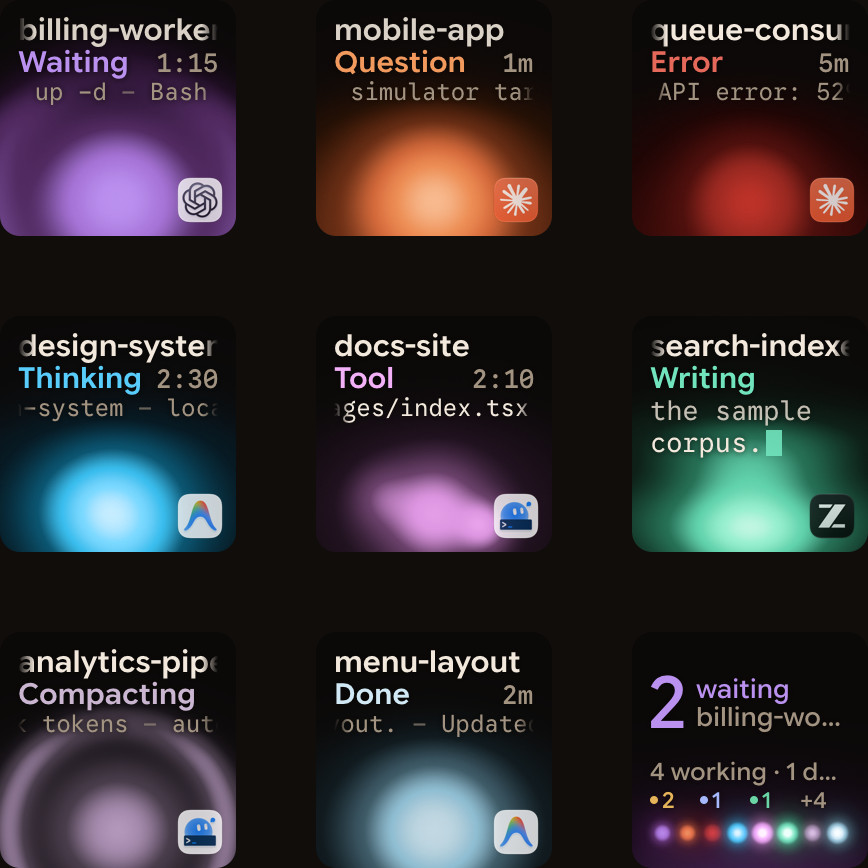
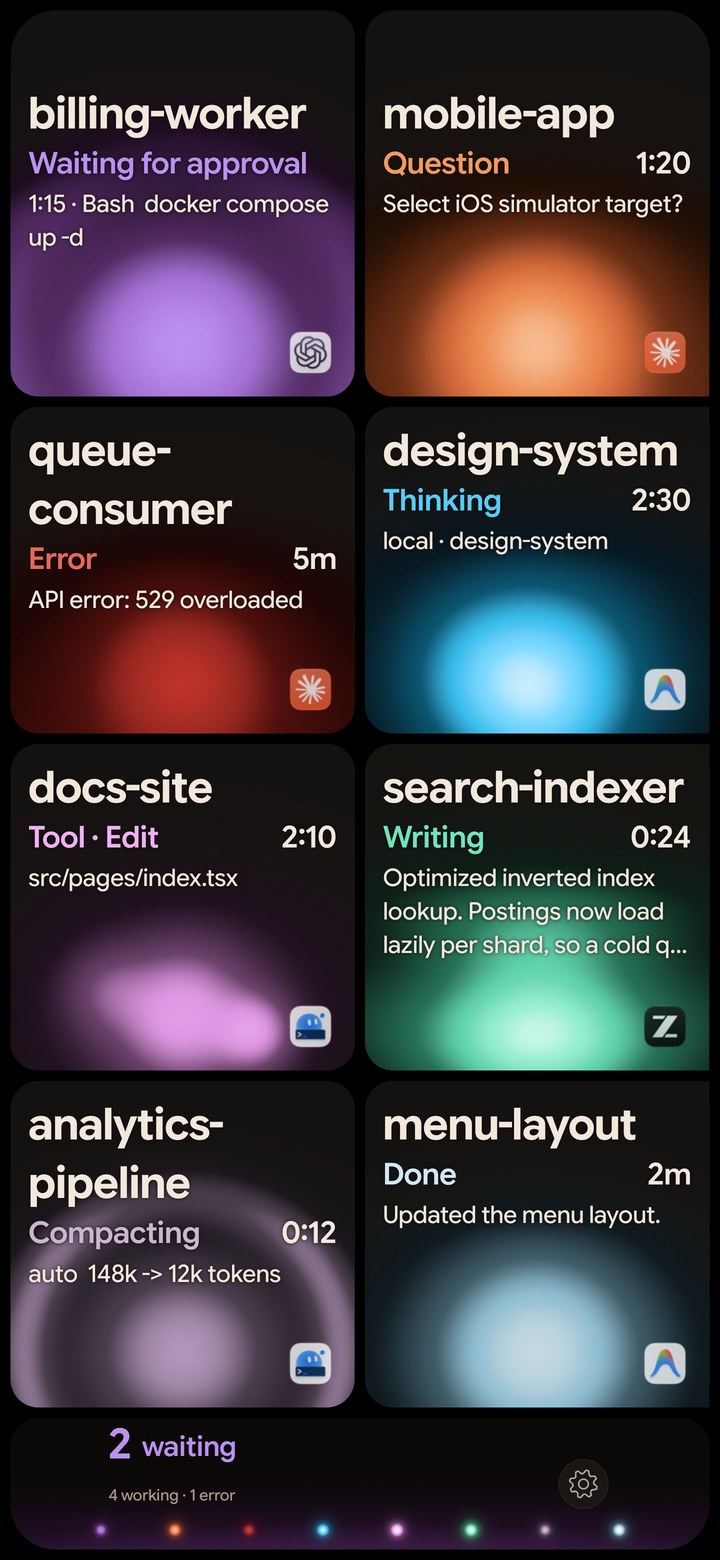
Orbtile addresses the gap between one-off alerts and switching among terminal windows. It shows each session as a tile on a Logitech MX Creative Keypad, an iPhone or an Android phone, with its name, state and latest words. Waiting sessions move to the front and glow in their agent's alarm colour. Key 9 opens the first waiting session, including one on another page.
The same pad can show Claude Code, Codex, ZCode, the Antigravity desktop app and Kimi Code. It can also show Claude Code, Codex and ZCode CLI sessions on configured SSH hosts. This gives you one view across supported local and remote sessions rather than a separate monitoring method for each terminal.
A tap opens the session's window on your computer. Holding a session key opens Focus mode. For supported local Claude Code permission requests, press Deny or hold Allow for 0.6 seconds. Supported multiple-choice questions can be answered on the pad as well.
Orbtile runs on an Apple silicon Mac with macOS 14.0 Sonoma or later, or a Windows 11 PC (x64). Orbtile Mobile runs on an iPhone with iOS 17 or later (App Store) or an Android phone with Android 8.0 or later (beta on Google Play), over your local network. You can also use the computer's Orbtile panel when no keypad or phone is connected.
Where Orbtile does not fit
Orbtile does not replace tmux for keeping remote terminal programs alive or arranging shell panes. It does not replace agent view for dispatching background sessions, or an IDE panel for reviewing diffs and plans. It is a monitoring and response surface, not a general terminal multiplexer.
Remote SSH sessions are display-only, except Allow for Codex terminal command approvals. Typed answers, unsupported questions and unsupported permission requests stay on the computer. The terminal prompt remains available for requests that can be answered on the pad.
For the hardware choice, see Stream Deck alternatives for developers and coding agents and MX Creative Keypad vs Loupedeck vs Stream Deck for developers.
FAQ
Does agent view show all my open terminal sessions?
No. Agent view lists background sessions. Move an existing conversation to the background with /bg or the left arrow on an empty prompt to include it. Ordinary sessions in other terminals do not appear automatically.
Can tmux tell me which Claude Code session needs input?
Tmux organises sessions, windows and panes, but it does not understand Claude's permission state by itself. Use visible panes, Claude notifications with passthrough, or a separate status display to identify the waiting session.
Are Claude Code notifications enough for several sessions?
They can alert you when a task finishes or a permission prompt needs attention. They do not provide a persistent dashboard after the alert is dismissed. Pair them with agent view, an IDE sessions list, tmux or a status pad.
Does Orbtile replace Claude Code hooks and notifications?
No. Orbtile uses its own Claude Code integration to show session state, while your existing notifications and terminal prompts remain available. You can use those alerts alongside the persistent tiles.