
Codex in the ChatGPT desktop app is a visual workspace. It lets you run projects in parallel, work in Git worktrees, preview files, use the built-in browser and schedule tasks. OpenAI Codex CLI (codex) is an Apache-2.0 licensed coding agent that runs in your terminal. It suits local coding loops, code reviews, and scripts or CI with codex exec. The codex app command opens the desktop app from the terminal.
Codex in the ChatGPT desktop app vs Codex CLI at a glance
Both can work on your computer or send tasks to Codex cloud environments.
| Capability | ChatGPT desktop app | OpenAI Codex CLI (codex) |
|---|---|---|
| Interface | Desktop workspace with file previews, an integrated terminal and a browser | Interactive terminal UI (codex) and non-interactive runner (codex exec) |
| OS | macOS, Windows, Linux | macOS, Linux, Windows (PowerShell installer) |
| Best for | Parallel projects, files, browser and app use, scheduled tasks | Terminal repo loops, scripts and CI, local reviews, cloud submission |
| Modes | Local, Worktree, Cloud | Local directory, --worktree, --remote app server, codex cloud |
| Worktrees | Worktree mode, Hand off, .worktreeinclude, snapshot before cleanup | --worktree on codex, codex fork, codex exec and codex exec fork |
| Automation | Standalone or in-chat scheduled tasks, in background worktrees in Git repos | codex exec with --json and --output-schema |
| Code review | /review and the Git review panel | /review and codex review |
| Windows | Native PowerShell agent with Windows sandbox, or WSL2 with Linux sandbox | PowerShell installer, or the CLI inside WSL |
When to use the ChatGPT desktop app or the Codex CLI
Use the ChatGPT desktop app to:
- Coordinate parallel work across projects and open documents, spreadsheets and other files in one workspace.
- Use the browser, desktop apps and plugins, or set up scheduled tasks.
Use the Codex CLI to:
- Explore, edit and run a repository in one focused terminal loop.
- Call
codex execin scripts and CI. - Run a local code review, or hand work to the cloud from the terminal.
For config.toml, AGENTS.md and terminal sandboxes, see Codex CLI: install, download, commands and config.toml.
Installing both surfaces and bridging them with codex app
Download the ChatGPT desktop app for macOS, Windows or Linux from OpenAI's documentation. On Windows you can also install it with winget:
winget install --id 9PLM9XGG6VKS -s msstoreSign in with your ChatGPT account and choose Codex. Start with New chat, or point to it and select the Quick chat icon for a quick question.
Install or update the Codex CLI on macOS or Linux:
curl -fsSL https://chatgpt.com/codex/install.sh | shOn Windows PowerShell:
powershell -ExecutionPolicy ByPass -c "irm https://chatgpt.com/codex/install.ps1 | iex"The standalone installers download from https://releases.openai.com/codex by default. They fall back to GitHub Releases. To force GitHub Releases, set CODEX_INSTALLER_USE_RELEASES_OPENAI_COM to false, 0 or no. You can also use npm install -g @openai/codex or brew install --cask codex. Another option is to download a binary from the latest GitHub Release and rename it to codex. Run codex and pick Sign in with ChatGPT (Plus, Pro, Business, Edu or Enterprise), or use an API key.
Bridge terminal and desktop with codex app:
codex applaunches the desktop app on macOS or Windows.- If the app is not installed,
codex appstarts the installer. - Passing a workspace path opens it on macOS, while on Windows Codex prints the path.
Environments, Git worktrees and Handoff
Local, Worktree and Cloud modes in the ChatGPT desktop app
When you start a Codex chat, choose This computer or Cloud from Work in:
Localworks directly in your current project directory.Worktreeisolates changes in a Git worktree, separate from your current checkout.Cloudruns a remote task in a published environment.- A cloud task does not automatically get your local files, running processes, browser sign-ins or VPN access.
You can start and continue cloud tasks on the web or on mobile.
How the desktop app manages worktrees, Handoff and .worktreeinclude
Codex creates worktrees in $CODEX_HOME/worktrees in a detached HEAD state. Each starts at the HEAD of the branch you selected. If that branch has uncommitted local changes, Codex applies them to the new worktree too.
To finish work:
- Click
Create branch herein the chat header to turn the worktree into a named branch, with acodex/prefix by default. - Use
Hand offto move a chat and its code betweenLocaland a worktree. - Handoff also fixes
fatal: 'feature/a' is already used by worktree at '<WORKTREE_PATH>', since Git allows a branch in only one place.
To copy gitignored setup files into new managed worktrees, add .worktreeinclude to the repo root:
# .worktreeinclude
.env
.env.local
config/secrets.json
Desktop worktree rules:
- Only ignored files that match the list are copied, and an ignored
AGENTS.override.mdis copied automatically. - Codex skips source symlinks and won't overwrite files that already exist.
.worktreeincludeapplies only to desktop-managed worktrees, not remote worktrees or ones you create from the command line.- Codex keeps your 15 most recent managed worktrees by default, and you can change that limit or turn off automatic deletion.
- Change the Worktree root in
Settings > Worktrees. - Codex never auto-deletes a worktree tied to a pinned chat or a chat still in progress.
- Before deleting a managed worktree, Codex saves a snapshot you can restore by reopening the chat.
Worktrees, directory flags and cloud tasks in the Codex CLI
Start a CLI run in a new managed worktree with --worktree:
codex exec --worktree "implement the next step"
codex exec fork <SESSION_ID> --worktree "try an alternative approach"--worktreeworks with new interactive sessions,codex fork <SESSION_ID>,codex execandcodex exec fork, and requires local execution.- For
codex exec,--worktreecannot be combined withresume,review,--ephemeralor--ignore-user-config. --cd <path>or-C <path>sets the agent's working directory.- Repeat
--add-dir <path>to grant write access to more directories. codex cloudopens a picker,codex cloud exec --env <ENV_ID>submits a task, andcodex cloud listshows recent chats.codex apply <TASK_ID>(aliascodex a) applies the latest cloud diff to your local working tree.
Interactive commands, code reviews and non-interactive codex exec
Slash commands and session management
The desktop app composer offers /feedback, /goal, /init, /mcp, /plan, /review and /status. ChatGPT web has its own / menu, which does not include these. The CLI documentation highlights /init, which creates AGENTS.md, plus /status, /permissions, /model and /review. The CLI also has shell subcommands:
codex resume,codex fork,codex archive,codex unarchiveandcodex deletemanage saved sessions.codex agentsopens the agent command center on a shared local or remote server.codex queue --thread <SESSION_ID> --message "..."queues a message for an existing session.codex mcpmanages MCP servers, andcodex pluginmanages plugins from configured marketplaces.codex doctorreports on installation, config, authentication, runtime, Git, terminal and app server health.
Non-interactive scripting and CI with codex exec and codex review
codex exec (alias codex e) streams progress to stderr and prints only the final agent message to stdout:
codex exec "generate release notes for the last 10 commits" | tee release-notes.mdKey flags and commands:
codex execruns in aread-onlysandbox by default.- It requires a Git repository unless you pass
--skip-git-repo-check. --sandbox workspace-writeallows edits.--approve-for-meenables automatic approval review withon-requestapprovals and theworkspace-writesandbox.- Use
--yoloor--sandbox danger-full-accessonly inside an externally hardened environment, such as an isolated runner. --ephemeralstops session rollout files being saved to disk.--ignore-user-configskips$CODEX_HOME/config.toml, and--ignore-rulesskips user and project.rulesfiles.--jsonstreams JSON Lines events such asthread.started,turn.completedanderror.--output-schema <path>asks for a final response that matches a JSON Schema.-o <path>writes the final message to a file as well as printing it.- Piped
stdinadds context to a prompt, andcodex exec -reads the whole prompt fromstdin. codex reviewreviews--uncommittedchanges, a--base <branch>, a--commit <SHA>or a custom prompt.
In GitHub Actions, OpenAI recommends openai/codex-action@v1. Elsewhere, set CODEX_API_KEY inline for a single run:
CODEX_API_KEY=<api-key> codex exec --json "triage open bug reports"Windows setup, sandboxing and sharing .codex with WSL
On Windows, the desktop app and the CLI set up differently:
- The desktop app uses the Windows-native agent by default, which runs commands in PowerShell with a native Windows sandbox.
- In
Settings > Agent environmentyou can switch the app toWindows Subsystem for Linux, which needs a restart. - From Codex 0.115, the Linux sandbox uses bubblewrap, so WSL1 is no longer supported.
- Select
Ask for approvalbelow the composer to apply sandbox protections. - If PowerShell blocks scripts such as
npm.ps1, runSet-ExecutionPolicy -ExecutionPolicy RemoteSigned. - The
Openbutton supports editors such as VS Code, Visual Studio, Sublime Text, Rider and File Explorer. - The integrated terminal can use PowerShell, Command Prompt, Git Bash or WSL.
- Store projects on the Windows filesystem and reach them from WSL through
/mnt/<drive>/..., because Git may not be detected in\\wsl$projects.
The Windows app uses the same Codex home as native Codex on Windows, %USERPROFILE%\.codex. The CLI inside WSL uses the Linux home directory by default. To share config, auth and history, sync the two, or set CODEX_HOME in your WSL shell profile, such as ~/.bashrc or ~/.zshrc:
export CODEX_HOME=/mnt/c/Users/<windows-user>/.codexSee Codex notifications for finished turns and approvals.
Watch Codex desktop and CLI sessions together with Orbtile
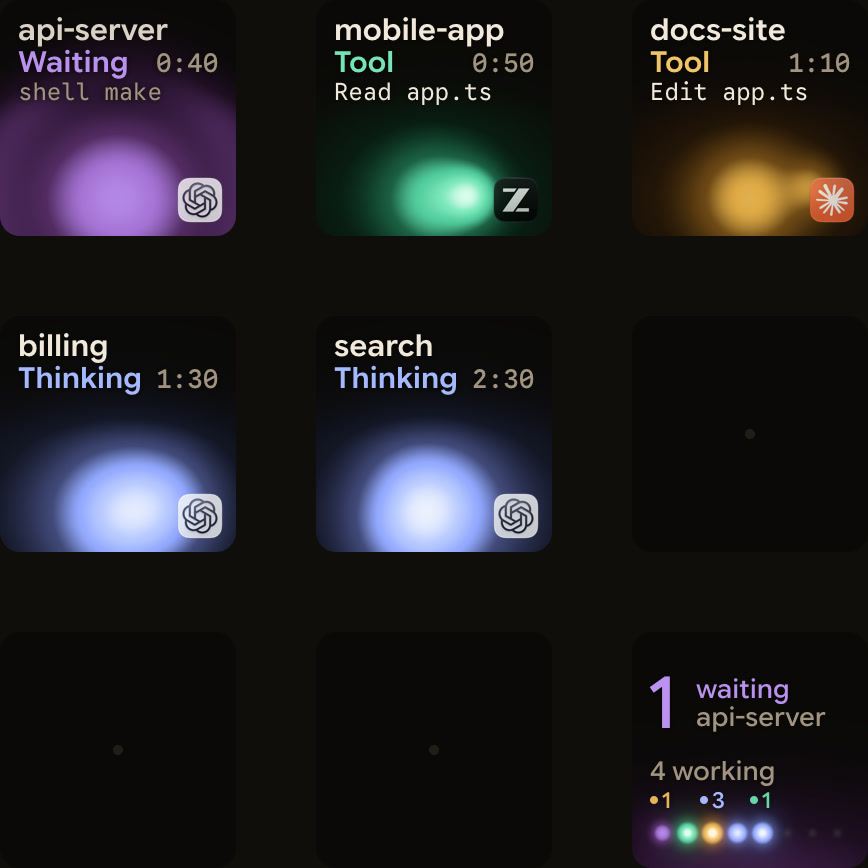
Orbtile shows Codex desktop chats, terminal codex sessions and codex exec runs side by side. It uses a Logitech MX Creative Keypad, or an iPhone (iOS 17 or later) or Android phone (Android 8.0 or later) with Orbtile Mobile. It runs on a computer with macOS 14.0 Sonoma or later on Apple silicon, or Windows 11 (x64).
How Orbtile tracks and controls sessions:
- There is nothing to install, because Orbtile reads Codex thread files and Codex's own signals.
- Working sessions glow cool blue, and waiting or permission states glow magenta-violet.
- Waiting sessions move to the front with tool labels and the latest assistant text.
- Tap a key to open its window, or tap key 9 to focus the first waiting session across pages.
- Hold a session key for 0.6 seconds to open Focus mode across all nine keys.
- Compatible desktop chats let you press Deny on key 7 or hold Allow on key 9 for 0.6 seconds.
- For supported desktop multiple-choice questions, pick options on keys 1, 2, 3 and 7, then hold Send on key 9.
- Terminal
codexcommand approvals offer Allow only on the keys, so decline them in the terminal. codex execnever asks for command approval in Codex 0.159.0.- Other terminal waits and unsupported questions show
Answer on computer. - Optional hooks, installed in
Settings > Agents > Codexand trusted in Codex underSettings > Hooks, add a compacting state and earlier updates. - Orbtile also tracks remote Codex CLI sessions over SSH, which are display-only except Allow for terminal command approvals.
See Approve agent tool calls without switching windows and Watch Claude Code and Codex running on a remote server over SSH.
FAQ
What is the difference between Codex in the ChatGPT desktop app and the Codex CLI?
Codex in the ChatGPT desktop app is a visual workspace for coordinating parallel projects, running Local, Worktree and Cloud chats, working with files, using the browser and scheduling tasks. The Codex CLI runs in your terminal for interactive coding loops, local code reviews and non-interactive scripts or CI jobs with codex exec.
What does the codex app command do in the Codex CLI?
Running codex app in your terminal launches the ChatGPT desktop app on macOS or Windows, or starts the installer if the app is not installed. When you pass a workspace path, Codex opens that path on macOS and prints it on Windows.
How do the Windows desktop app and the WSL Codex CLI share configuration and sessions?
On Windows, the ChatGPT desktop app uses the native Codex home at %USERPROFILE%\.codex. The Codex CLI inside WSL uses the Linux home directory by default. To share config, auth and history, sync the two or set CODEX_HOME in WSL to /mnt/c/Users/<windows-user>/.codex.
Can Orbtile show and answer both Codex desktop chats and Codex CLI sessions?
Yes. Orbtile shows Codex desktop chats, terminal sessions and codex exec runs together on a Logitech MX Creative Keypad, an iPhone or an Android phone, with nothing to install in Codex. Compatible desktop chats offer Allow and Deny for command approvals and supported multiple-choice questions. Terminal command approvals offer Allow only, so you decline them in the terminal.