
To install OpenAI Codex CLI natively on 64-bit Windows, run powershell -ExecutionPolicy ByPass -c "irm https://chatgpt.com/codex/install.ps1 | iex" in PowerShell, or install it globally with npm install -g @openai/codex. The standalone installer puts runtime files in your user profile and adds %LOCALAPPDATA%\Programs\OpenAI\Codex\bin to your User PATH. Codex then runs natively in PowerShell with a Windows sandbox. You can also install Codex CLI inside WSL2 with install.sh for Linux-native tooling.
Windows system requirements and installation options
Codex CLI is an Apache-2.0 licensed coding agent from OpenAI that runs locally in your terminal. On Windows, OpenAI treats the ChatGPT desktop app and Codex CLI as separate installs: choose the app for desktop access or the CLI for terminal access. Codex can also run inside VS Code, Cursor and Windsurf.
| Installation method | Command | Where it runs | Default install location | |
|---|---|---|---|---|
| Standalone PowerShell installer | `powershell -ExecutionPolicy ByPass -c "irm https://chatgpt.com/codex/install.ps1 \ | iex"` | Native Windows PowerShell | %USERPROFILE%\.codex\packages\standalone and %LOCALAPPDATA%\Programs\OpenAI\Codex\bin |
| npm | npm install -g @openai/codex | Native Windows PowerShell | Global npm prefix of the account running npm | |
| WSL2 Linux installer | `curl -fsSL https://chatgpt.com/codex/install.sh \ | sh` | Linux environment inside WSL2 | Inside the WSL2 Linux distribution |
OpenAI's Windows sandbox documentation and install.ps1 specify these requirements:
| Requirement | Support level | Details |
|---|---|---|
| Windows 11 | Recommended | Best baseline, and the one to use when standardising an enterprise deployment |
| Recent, fully updated Windows 10 | Best effort | Depends on modern console support including ConPTY, with version 1809 or newer |
| Older Windows 10 builds | Not recommended | More likely to miss console components such as ConPTY and more likely to fail in enterprise setups |
| 64-bit Windows (X64 or Arm64) | Required by install.ps1 | Selects x86_64-pc-windows-msvc on X64 or aarch64-pc-windows-msvc on Arm64, and exits on 32-bit Windows or other architectures |
Windows Package Manager (winget) | Should be available | If it is missing, update Windows or install the Windows Package Manager before setting up Codex |
Install Codex CLI in PowerShell with install.ps1 or npm
For a native Windows setup, open PowerShell and run:
powershell -ExecutionPolicy ByPass -c "irm https://chatgpt.com/codex/install.ps1 | iex"The install.ps1 script supports Windows only and exits if $env:OS is not Windows_NT. By default, it downloads release metadata and packages from https://releases.openai.com/codex (30-second metadata timeout, 300-second asset timeout). It falls back to GitHub Releases only when a download is unavailable.
To force downloads from GitHub Releases, set CODEX_INSTALLER_USE_RELEASES_OPENAI_COM to false (0 or no also work):
$env:CODEX_INSTALLER_USE_RELEASES_OPENAI_COM='false'; irm https://chatgpt.com/codex/install.ps1 | iexWhat the standalone Windows installer sets up
install.ps1 verifies the archive's SHA-256 digest and sets up a per-user layout:
- The default home directory is
%USERPROFILE%\.codex, unless$env:CODEX_HOMEis set. - Releases are extracted under
packages\standalone\releases, with aninstall.lockfile and acurrentjunction pointing to the active release. - The default command directory is
%LOCALAPPDATA%\Programs\OpenAI\Codex\bin, unless$env:CODEX_INSTALL_DIRoverrides it. - The script adds the command directory to your User
PATHfor future sessions. - A standalone package requires
codex-package.json,bin\codex.exe,bin\codex-code-mode-host.exeandcodex-path\rg.exe. - It also requires
codex-resources\codex-command-runner.exeandcodex-resources\codex-windows-sandbox-setup.exe. bin\codex-exec-server.exeis required only when the package metadata lists it.
Install with npm and handle conflicting PATH entries
With Node.js and npm installed, you can install globally:
npm install -g @openai/codexTo avoid conflicts between package-manager and standalone installs:
install.ps1runsGet-Command codexto detect an existingnpmorbuninstallation.- Interactive runs offer to run
npm uninstall -g @openai/codexorbun remove -g @openai/codex. - If you keep both installs,
PATHorder decides whichcodexruns. - Setting
$env:CODEX_NON_INTERACTIVEto1,trueoryesskips the prompts.
Verify the installation and sign in
Open a new PowerShell window without administrator privileges and verify:
Get-Command codex
codex --version
codex
On first launch, select Sign in with ChatGPT (Plus, Pro, Business, Edu or Enterprise plan) or configure an API key. For CLI flags, config.toml layers and codex exec, see Codex CLI: install, download, commands and config.toml.
Configure the native Windows sandbox: MXC, elevated and unelevated
On Windows, Codex runs commands natively in PowerShell with a Windows sandbox. The sandbox enforces the active filesystem and network permissions for commands and their child processes. Your approval policy separately controls when Codex asks for more access.
Codex supports three native Windows sandbox modes:
| Sandbox mode | How it isolates commands | Setup and requirements | Key limits |
|---|---|---|---|
mxc | Native process isolation using Microsoft Execution Containers (MXC) | Recommended on compatible Windows 11 24H2 (build 26100.9278) and 25H2 (build 26200.9278); needs no administrator setup, extra accounts or firewall rules | Child processes stop when the foreground command exits; managed networking requires allow_local_binding = true |
elevated | Dedicated lower-privilege sandbox users, filesystem boundaries, firewall rules and local policy changes | Preferred legacy fallback when MXC is unavailable; requires administrator-approved setup, though sandboxed commands run without administrator privileges | Private desktop by default; deny-read globs match files present at process start |
unelevated | Restricted Windows token derived from your current user, ACL filesystem boundaries and environment-level offline controls | Legacy fallback when elevated setup is unavailable and policy permits it | Weaker network isolation than elevated, no denied read paths, private desktop by default |
Enable and test MXC on compatible Windows 11 builds
The desktop app automatically prefers MXC for consumer accounts on supported devices. Otherwise, enable the MXC preference in config.toml. Codex then uses MXC when the device and policy support it, and the legacy setup otherwise:
[features]
prefer_mxc = true
In Codex CLI 0.162.0 and later, test MXC for one command without changing saved config:
codex -c windows.sandbox=mxc sandbox --include-managed-config --permission-profile :workspace -- cmd.exe /d /c echo MXC_OK
$LASTEXITCODE
Expected output is MXC_OK with exit code 0. Explicitly choosing windows.sandbox = "mxc" fails if the native capabilities are unavailable or policy blocks MXC.
Configure the elevated or unelevated legacy fallback
When MXC is unavailable, select a fallback in config.toml:
[windows]
sandbox = "elevated" # or "unelevated"
IT can set up the elevated sandbox for an employee's Windows account and Codex home:
codex sandbox setup --elevated --user 'DOMAIN\alice' --codex-home 'C:\Users\alice\.codex'If legacy elevated setup fails, check these points:
- Setup fails if the UAC prompt is declined, or if policy blocks local user creation, firewall changes or sandbox-user logon rights.
- Windows error
1385means policy denies the logon type the sandbox user needs. - A warning that folders are writable by
Everyonemeans their permissions are too broad for the sandbox to fully protect them. - For read access problems, run
/statusand/debug-configin the CLI. - For OpenAI diagnostics, send
CODEX_HOME/.sandbox/sandbox.log, and never send the contents ofCODEX_HOME/.sandbox-secrets/.
Pin versions and deploy Codex CLI on managed Windows devices
The standalone installer defaults to latest. When you deploy with Microsoft Intune, Configuration Manager (SCCM) or another management tool, set -Release explicitly to pin an x.y.z release.
To pin an approved release with install.ps1 (which also reads $env:CODEX_RELEASE if -Release is omitted):
$CodexRelease = '<approved-version>'
Invoke-WebRequest -UseBasicParsing -Uri 'https://chatgpt.com/codex/install.ps1' -OutFile '.\codex-install.ps1'
powershell -ExecutionPolicy Bypass -File .\codex-install.ps1 -Release $CodexRelease
Or pin the version with npm:
$CodexRelease = '<approved-version>'
npm install -g "@openai/codex@$CodexRelease"
Keep these deployment rules in mind:
- Running the unchanged standalone installer as
SYSTEMinstalls into theSYSTEMprofile, not the employee's profile. - Selecting System in Intune does not make it an all-users installation.
- For a per-user install, run installation and detection in that user's context.
- Package a Win32 app for Intune with the Microsoft Win32 Content Prep Tool.
- Custom detection scripts must exit with code
0and write tostdout. - Any output on
stderrmakes detection fail.
For example, to package the installer script with the Content Prep Tool:
IntuneWinAppUtil.exe -c C:\Packages\Codex\Source -s Install-Codex.ps1 -o C:\Packages\Codex\Output -qEnforce Windows sandbox rules with requirements.toml
Deploy managed requirements to %ProgramData%\OpenAI\Codex\requirements.toml. To use another file, set the RequirementsPath string value under HKLM\SOFTWARE\Policies\OpenAI\Codex to its absolute path.
To permit only the elevated legacy implementation:
[windows]
allowed_sandbox_implementations = ["elevated"]
To block MXC, add this instead:
[windows]
allow_mxc = false
Install and run Codex CLI inside WSL2 on Windows
Choose WSL2 when you need Linux-native tooling, your repositories live in WSL2, or the native Windows sandbox does not fit your needs. In WSL2, Codex runs inside the Linux environment instead of the Windows sandbox. WSL1 was supported through Codex 0.114 and dropped in 0.115, when the Linux sandbox moved to bubblewrap.
From an elevated PowerShell or Windows Terminal window, install and start WSL:
wsl --install
wsl
Inside your WSL shell, run the Linux installer and start codex:
curl -fsSL https://chatgpt.com/codex/install.sh | sh
codex
OpenAI recommends these WSL2 practices:
- Keep repositories under your Linux home directory, such as
~/code/my-app, instead of/mnt/c. - Working under
/mnt/cis slower and causes symlink and permission issues. - If large repositories feel slow, move them out of
/mnt/c, then runwsl --updateandwsl --shutdown. - Reach your Linux files from Windows Explorer or the file picker through the
\\wsl$path. - With the VS Code WSL extension, run
code .inside WSL and confirmWSL: <distro>in the status bar or withecho $WSL_DISTRO_NAME. - If VS Code cannot find
codex, runwhich codex || echo "codex not found"in WSL.
Watch Windows Codex CLI sessions on a keypad or phone with Orbtile
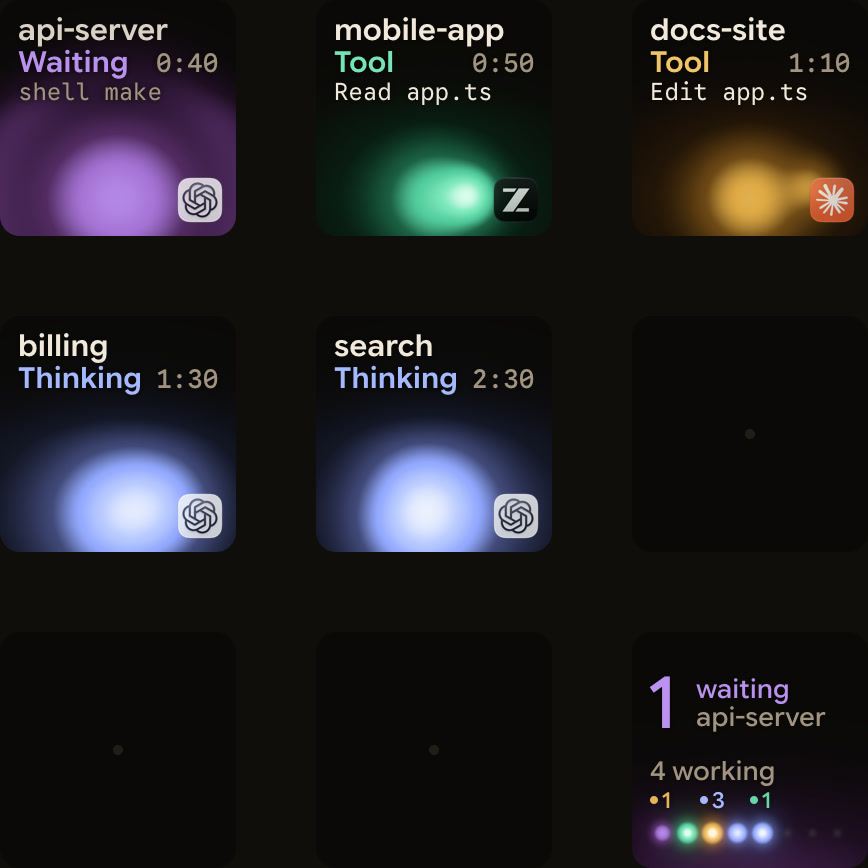
Orbtile runs on a Windows 11 PC (x64) or an Apple silicon Mac with macOS 14.0 Sonoma or later. It shows each Codex session on a Logitech MX Creative Keypad, or on an iPhone (iOS 17+) or Android phone (Android 8.0+) with Orbtile Mobile. Terminal codex sessions, codex exec runs and Codex desktop app chats each get their own key or tile. On Windows 11, install Orbtile from the Microsoft Store, with winget install --id 9P9HNFZHR8NG --source msstore, or with the .msi installer. The installer sets Orbtile up for your Windows user without administrator rights, and Orbtile runs in the system tray.
- Orbtile reads Codex thread files and Codex's own signals, so nothing needs installing in Codex.
- Each key shows the session's state, tool labels and latest assistant text over an animated orb.
- Codex sessions use a cool blue working palette and turn magenta-violet when they wait for you.
- Waiting sessions move to the front, and a tap on key 9 opens the first waiting session.
- For a terminal
codexcommand approval, hold the waiting key for Focus mode, then hold Allow on key 9 for 0.6 seconds. - To decline a terminal command approval, answer in the terminal.
- Compatible local Codex desktop app chats offer Allow and Deny for command approvals, plus answers to supported multiple-choice questions.
- Optional hooks, installed in Settings > Agents > Codex, add a Compacting state and slightly earlier updates.
- If you install them, review and trust the 12 Orbtile hooks in Codex under Settings > Hooks.
- The same pad also shows Claude Code, ZCode, Antigravity desktop app and Kimi Code sessions, plus remote Codex CLI sessions over SSH.
See Codex notifications for finished turns and approvals and Approve agent tool calls without switching windows.
FAQ
How do I install OpenAI Codex CLI natively in Windows PowerShell?
Open PowerShell on 64-bit Windows and run powershell -ExecutionPolicy ByPass -c "irm https://chatgpt.com/codex/install.ps1 | iex". You can also install it globally with npm install -g @openai/codex. Afterwards, open a new PowerShell window and run codex --version, then codex to sign in with your ChatGPT account or an API key.
Where does the Windows standalone installer put Codex CLI files?
By default, install.ps1 places runtime files under .codex\packages\standalone in your user profile. It creates the command directory at %LOCALAPPDATA%\Programs\OpenAI\Codex\bin and adds that folder to your User PATH. You can override the home directory with CODEX_HOME and the command directory with CODEX_INSTALL_DIR.
Which Windows sandbox modes does Codex CLI support?
On native Windows, Codex supports three sandbox modes: mxc, elevated and unelevated. MXC is recommended on compatible Windows 11 24H2 build 26100.9278 and 25H2 build 26200.9278 devices, and needs no administrator setup. Elevated is the preferred legacy fallback and requires administrator-approved setup. Unelevated is a legacy fallback for when elevated setup is unavailable, with weaker network isolation and no denied read paths.
Should I install Codex CLI on native Windows or inside WSL2?
Native Windows runs Codex in PowerShell with the Windows sandbox. Choose WSL2 when you need Linux-native tooling, your repositories already live inside WSL2, or the Windows sandbox does not fit your needs. WSL1 is no longer supported from Codex 0.115.