
To get Google Antigravity notifications on Windows, turn on the notifications setting in the Antigravity CLI (agy). It is off by default. Once it is on, the CLI rings the terminal bell and shows a desktop notification when the agent needs your approval or an answer, or finishes its turn. For the Antigravity App, Remote Control can send push notifications to your phone, and lifecycle hooks can run your own alert script in the App, the CLI or the IDE.
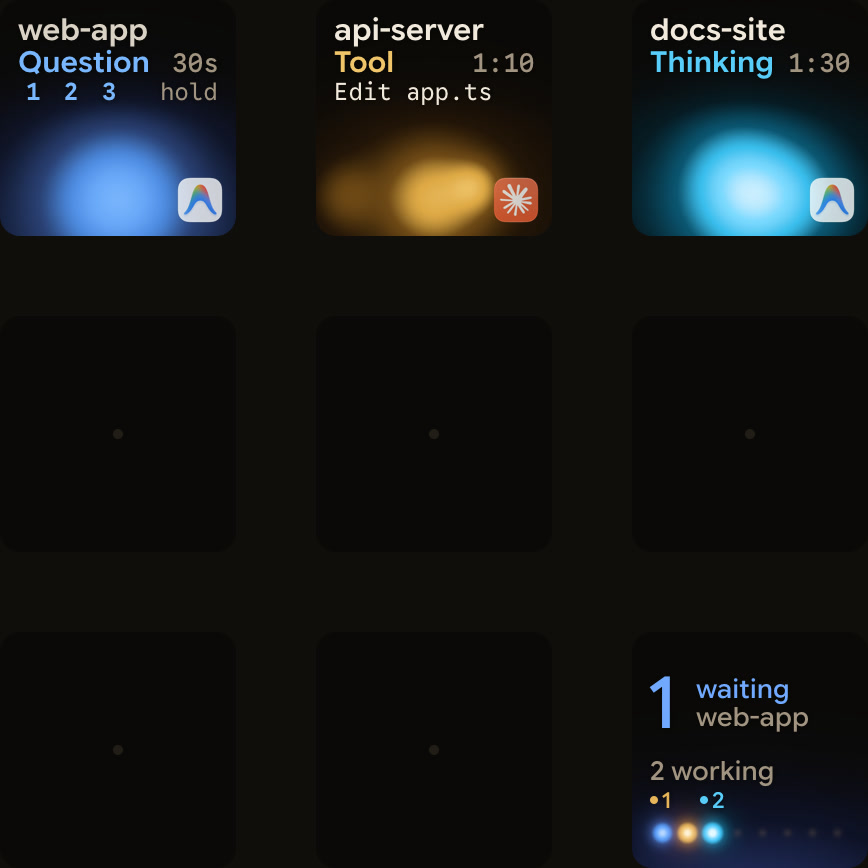
Notification options for Google Antigravity on Windows
| Method | Works with | Where to set it | What you get |
|---|---|---|---|
| CLI notifications | Antigravity CLI | /config, or "notifications": true in ~/.gemini/antigravity-cli/settings.json | Terminal bell and desktop notification when the agent needs approval or an answer, or finishes its turn |
| Bell style | Windows Terminal | bellStyle in Windows Terminal's settings.json | Chooses whether the bell plays a sound, flashes the taskbar icon, or both |
| Title and status line scripts | Antigravity CLI | title and statusLine in the CLI's settings.json | Your script receives the session state as JSON |
| Lifecycle hooks | App, CLI and IDE | .agents/hooks.json or ~/.gemini/config/hooks.json | Your own command runs at events such as Stop |
| Remote Control | App and CLI | App Settings > Application, or /remote-control in the CLI | Phone push notifications when agents complete tasks or request input |
| Orbtile | Antigravity App on a Windows 11 (x64) computer | Settings > Agents > Antigravity in Orbtile, shown on a Logitech MX Creative Keypad, iPhone or Android phone | Each conversation's title, state and live reply text, with waiting conversations first |
To install the App or the CLI first, see Google Antigravity on Windows: install, CLI and setup.
Turn on Antigravity CLI notifications
The setting is called Notifications (notifications), and it is off by default. You can turn it on in the CLI or in the settings file.
In the CLI:
- In an
agysession, type/config(or its alias/settings) and press Enter. - Move to Notifications with the up and down arrows, or type its name in Search.
- Press the left or right arrow to switch it on, and the change is saved right away.
- Press Esc to close the panel.
Or edit ~/.gemini/antigravity-cli/settings.json. Google's example looks like this:
{
  "$schema": "https://antigravity.google/schemas/v1/settings.json",
  "agentMode": "accept-edits",
  "colorScheme": "tokyo night",
  "notifications": true
}
The $schema line is optional. Editors with JSON Schema support, such as VS Code and JetBrains IDEs, use it for autocomplete, hover descriptions and validation. The CLI ignores it and keeps it when saving. The CLI saves only values that differ from the defaults.
If the file is not valid JSON or a value has the wrong type, a Settings Error dialog appears before the session starts. It offers three choices:
- Exit and fix manually.
- Continue with defaults this session.
- Overwrite the file with defaults, which saves a backup next to it as
settings.json.corrupted.<timestamp>.
For more on CLI alerts and waiting agents, see Antigravity notifications: CLI alerts and waiting agents.
Show the session state in the title or status line
In the CLI's settings.json, the title and statusLine objects each run a command of your choice. On Windows the command runs through cmd /c. It receives the session state as JSON on its standard input, so a script can show what the agent is doing.
| Property | Type (default) | Applies to | What it does |
|---|---|---|---|
command | String (required) | Both | The command that receives the session state |
type | String ("command") | Both | Optional, and "command" is the only type |
enabled | Boolean (true) | Both | false stops the script but keeps it in the file |
padding | Integer (0) | statusLine | Blank lines above the status line |
stack_with_default | Boolean (false) | statusLine | true shows your line below the built-in one |
Do not set these keys to plain true or false. A bare boolean is read as {"enabled": ...} with no command, so nothing runs. The /statusline and /title commands also save changes to settings.json.
Set the Windows Terminal bell style
The CLI's alert includes a terminal bell. Windows Terminal decides what the bell does with bellStyle. Set it in one profile in "list", or in "defaults" to apply it to every profile:
// Windows Terminal settings.json
"defaults":
{
    "bellStyle": "all"
}| Property | Accepts | Default | What it does |
|---|---|---|---|
bellStyle | "all", "audible", "window", "taskbar", "none" | "audible" | Controls what happens when the application sends a bell |
bellSound | A file location, or an array of file locations | Not listed | Sets the bell sound for "all" or "audible", picking at random from an array |
suppressApplicationTitle | true, false | Not listed | true keeps tabTitle (or name) and suppresses title changes from the application |
With "all", Windows Terminal plays a sound and flashes the taskbar icon. When the terminal is not in focus, only the taskbar icon flashes. If you use the CLI's title script, leave suppressApplicationTitle off so the title can change.
Why Antigravity stops and asks
Fewer approval stops means fewer alerts. In the Antigravity App, the Permission Preset sets when the agent pauses:
| Preset | Sandbox | When it asks |
|---|---|---|
| Request Review | Off | Every command requires approval |
| Default (the default) | On | Before running a command outside the sandbox |
| Auto | On | Only for risky or irreversible commands outside the sandbox |
| Turbo | None | Never: it runs all commands without restrictions |
Set the preset in Settings > General > Global Permissions > Permission Preset, or per project in Settings > Projects. From v2.23.0, the picker in the message box changes it too. Your allow, deny and ask rules always take precedence over the preset.
On Windows, Auto needs App v2.26.0 or later and an available sandbox. Business and enterprise accounts, including Antigravity in Gemini Enterprise, do not get Auto.
In the CLI, toolPermission defaults to request-review. It asks before running write, bash, web or MCP tools unless an allow rule covers the action. artifactReviewPolicy defaults to asks-for-review, so the agent always waits for your review. On Windows, auto mode needs CLI v1.4.4 or later, and business and enterprise accounts cannot use it. See Google Antigravity CLI: commands, settings and permissions and Google Antigravity IDE: editor, agents and permissions.
Run your own alert with lifecycle hooks
Hooks run a command at set points in the agent's loop. They work in the App, the CLI and the IDE.
- Put workspace hooks in
.agents/hooks.jsonin the workspace root. - Put global hooks in
~/.gemini/config/hooks.json. - The CLI also loads hooks from a plugin's
hooks.json. - Hooks in
~/.gemini/antigravity-cli/settings.jsonare not loaded.
To see or switch hooks, use Settings > Customizations > Hooks in the App, /hooks in the CLI, or the … menu in the IDE's agent side panel, then Customizations > Hooks.
| Event | When it fires |
|---|---|
SessionStart | Once, when a new conversation starts, before the first model call |
PreToolUse | Before a tool runs |
PostToolUse | After a tool completes |
PreInvocation | Before the model is called |
PostInvocation | Right after each model call completes |
Stop | When execution terminates |
For an alert when the agent stops, use Stop. Each top-level key names a hook. For every event except PreToolUse and PostToolUse, the handlers sit in a list directly under the event key:
{
  "notify-on-stop": {
    "Stop": [
      {
        "type": "command",
        "command": "python ./scripts/notify-stop.py",
        "timeout": 30
      }
    ]
  }
}
A handler needs command. type is optional and only "command" is supported. timeout is in seconds and defaults to 30. For PreToolUse and PostToolUse, handlers go in a hooks array inside an entry with a matcher, a regular expression for tool names.
Your script receives JSON with conversationId, workspacePaths, transcriptPath, artifactDirectoryPath, modelName and lastUserInput. A Stop hook also gets terminationReason, such as "model_stop", "max_steps_exceeded" or "error". It gets fullyIdle too, which is true when the agent is finished and background tasks have completed.
A Stop hook must print a decision. The value "continue" keeps the agent running, and any other value lets it stop.
Get phone alerts with Antigravity Remote Control
In the Antigravity App:
- Open Settings with
Ctrl + ,and go to the Application section. - Turn on Enable Remote Control.
- Optionally set a Device Name, such as
workstation-primary, to tell computers apart. - On your phone, sign in to the Remote Control Dashboard with the same Google Account.
- Add the web app to your home screen to get push notifications when agents complete tasks or request input.
Keep the computer awake and online. Google says the host must not be asleep or suspended.
The Antigravity CLI has two ways to use Remote Control:
| Interactive | Headless daemon | |
|---|---|---|
| Start | /remote-control in a session, or agy --remote-control | agy remote-control start |
| Scope | One terminal session, and you can run several, each with its own hostname | The whole computer, with one daemon per computer |
| Stop | /remote-control off, or when the session exits | agy remote-control stop |
agy remote-control start
agy remote-control status
agy remote-control stop
On Windows, the daemon works like this:
- It runs as a Scheduled Task.
- To start it at boot, run
startfrom an Administrator prompt in PowerShell or Command Prompt. - Started from a normal prompt, it resumes after a logout or restart only when you log back in.
statusandstopwork from a normal prompt.- After a crash, it tries up to three restarts, then waits for the next boot or a new
start. - Name the computer with
--name, or withcliRemoteControlHostnamein%USERPROFILE%\.gemini\config\config.json, then runstartagain. - Logs go to the newest
cli-*.logfile under%USERPROFILE%\.gemini\antigravity-cli\log.
Watch Google Antigravity on a keypad or phone with Orbtile
On Windows, Logitech's software for the keypad is Logi Options+. Logitech's support page lists Options+ 1.83 or later for the MX Creative Console and 2.07 or later for the MX Keypad, on Windows 10 and later but not on ARM64 processors.
Orbtile drives the Logitech MX Creative Keypad, or the standalone MX Keypad, over USB by itself, without Logi Options+ or an account. It runs on a Windows 11 (x64) computer or an Apple silicon Mac with macOS 14 or later. Orbtile Mobile can be the pad instead, on an iPhone with iOS 17 or later or an Android phone with Android 8.0 or later. On Windows 11, install Orbtile from the Microsoft Store, with winget install --id 9P9HNFZHR8NG --source msstore, or with the .msi installer, which needs no administrator rights.
- Orbtile follows conversations in the Antigravity desktop app and gives each one a key with its title, state and live reply text.
- A conversation waiting on a question moves to the front.
- In
Settings > General, Waiting in the tray can show a dot, or a dot and a count, when a session is waiting. - To answer questions with numbered options from the keypad, turn on
Settings > Agents > Antigravity > Answer questions from the keypad. - Pick your options, then hold
Send, andSentmeans Antigravity received your answer. - Up to four questions with two to four choices each work this way.
- Permission requests and written answers stay on your computer.
- If an Antigravity update changes how the app talks to Orbtile, live text and keypad answers stop until Orbtile catches up.
- Antigravity IDE and CLI sessions do not appear automatically.
- A CLI hook script can report each session to Orbtile's local Adapter API, which you turn on in
Settings > Agents > Build your own. - The same pad also shows Claude Code, Codex, ZCode and Kimi Code sessions.
- To hand the keypad back to Logi Options+, press
Ctrl+Alt+Win+K, hold both page buttons for 1.5 seconds, or quit Orbtile.
See Show any script or agent on a keypad with the Orbtile Adapter API and Use the Logitech MX Creative Keypad without Logi Options+.
FAQ
How do I turn on notifications in the Google Antigravity CLI on Windows?
In an agy session, run the /config or /settings command, move to Notifications and switch it on. You can also set the notifications key to true in ~/.gemini/antigravity-cli/settings.json. When it is on, the CLI rings the terminal bell and shows a desktop notification when the agent needs your approval or an answer, or finishes its turn.
How do I make Windows Terminal flash the taskbar icon when the Antigravity CLI rings the bell?
Turn on notifications in the Antigravity CLI first. Then open the Windows Terminal settings.json file and set bellStyle to all in your profile or in the defaults section. With all, Windows Terminal plays a sound and flashes the taskbar icon. When the terminal is not in focus, only the taskbar icon flashes.
Can Google Antigravity send notifications to my phone?
Yes, through Remote Control. Turn on Enable Remote Control in the App's Application settings, or start Remote Control from the CLI. Then sign in to the Remote Control Dashboard on your phone with the same Google Account and add the web app to your home screen. You then get push notifications when agents complete tasks or request input.
Which Google Antigravity sessions can Orbtile show on Windows?
On a Windows 11 x64 computer, Orbtile follows conversations in the Antigravity desktop app. It shows each conversation's title, state and live reply text on a Logitech MX Creative Keypad, an iPhone or an Android phone. You can answer up to four numbered-option questions with two to four choices each from the keys. Permission requests and written answers stay on your computer. Antigravity IDE and CLI sessions do not appear automatically, but a CLI hook script can report sessions through Orbtile's local Adapter API.