
To use a keypad with Kimi Code, map Kimi Code CLI's keyboard shortcuts to the keys of a Logitech MX Keypad. In Logi Options+ 2.07 or later, create an Application Profile for your terminal or Kimi Code Desktop, then drag the SYSTEM plugin's KEYBOARD SHORTCUT action onto each key. To see which Kimi Code session needs you and answer some requests from the keys, Orbtile can drive the same keypad without Logi Options+.
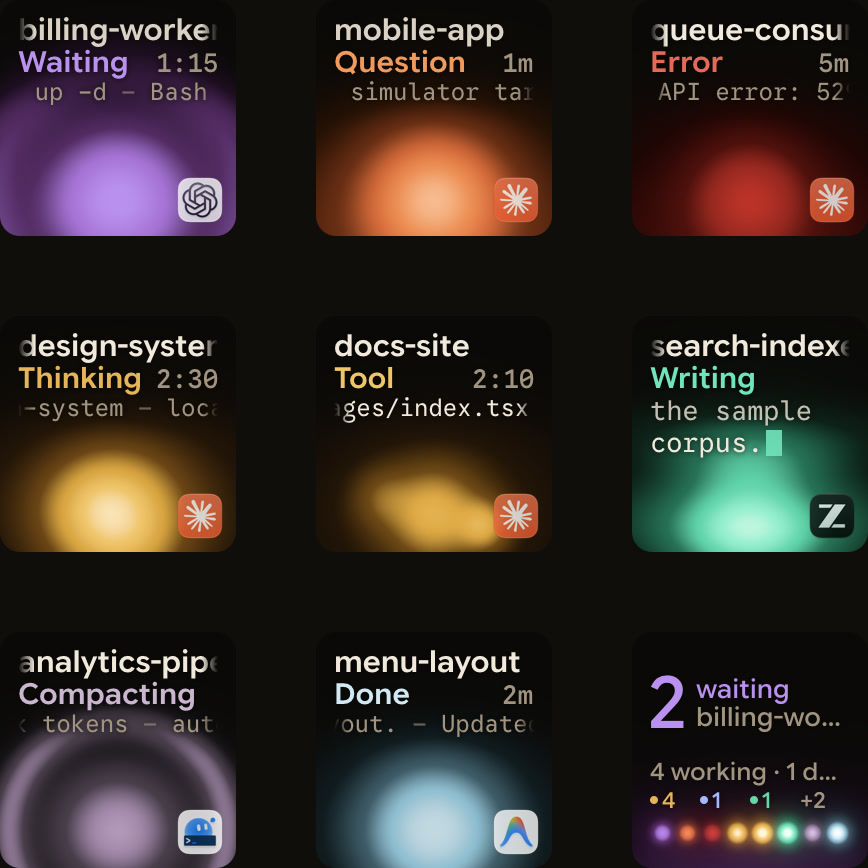
Two ways to use a keypad with Kimi Code
Logitech's MX Keypad has customisable LCD keys and costs $99.99 in Graphite. Logitech says it works with VS Code, GitHub Copilot, Claude Code, IntelliJ, Zoom, Figma and more. Kimi Code comes as a Desktop app, a CLI started with kimi, a VS Code extension and API access for third-party tools.
| Approach | Software needed | What the keys do | Limits |
|---|---|---|---|
| Shortcut profile in Logi Options+ | Logi Options+ 2.07 or later on Windows 10 or later, or macOS 13 or later | Send keyboard shortcuts such as Shift-Tab, Ctrl-S or 1 to Kimi Code CLI or Kimi Code Desktop | A Logi ID sign-in is needed to add an application profile. Windows on ARM 64 is not supported |
| Live status with Orbtile | Orbtile on macOS 14.0 or later (Apple silicon) or Windows 11 (x64), with no Logi Options+ | Show one live key per session, and answer some permission requests and questions | Answers work only for sessions in Kimi's own server |
Set up the MX Keypad in Logi Options+
Logitech sells the MX Keypad on its own and as part of the MX Creative Console, which adds a dialpad. Check the software requirements first:
- The MX Keypad needs Logi Options+ version 2.07 or later.
- The MX Creative Console needs Logi Options+ version 1.83 or later.
- Logi Options+ runs on Windows 10 and later, and on macOS 13 and later.
- Windows computers with ARM 64 processors are not supported.
- The Keypad cannot be used without Logi Options+.
- Without Logi Options+, the dialpad keeps only a very limited set of basic actions.
You can use the default profile and every action in the pre-installed SYSTEM plugin without signing in. Logi Options+ asks for a Logi ID when you add a profile for an application, install from the Marketplace or start the Device Feature tour.
Create an Application Profile for Kimi Code
Logitech's steps for an app without its own plugin work for a terminal or Kimi Code Desktop:
- Click the
+icon in the profile bar and chooseAPPLICATION PROFILE. - Select your terminal or Kimi Code Desktop from the list.
- If the app is not listed, scroll to the bottom, click
ADD APPLICATIONand pick its executable. - Click
START WITH A BLANK TEMPLATE, give the profile a name and clickCONFIRM. - In the right panel, click
ALL ACTIONSand select theSYSTEMplugin. - Drag the
KEYBOARD SHORTCUTaction, found underKEYBOARD, onto a key. - In the window that opens, click the
KEYfield and press the Kimi Code shortcut you want. - Rename the action if you like, then click
Save.
On an MX Creative Console, you can drag the SYSTEM plugin's DIAL ADJUSTMENT action to a key or button. Its window lets you pick an initial shortcut to run before the adjustment.
See The Logitech MX Keypad for developers, with and without Options+ and Logi Options+ alternative for the MX Keypad.
Install Kimi Code CLI
Kimi Code CLI is written in TypeScript and runs on Node.js. With Node.js 22.19.0 or later, install it with npm install -g @moonshot-ai/kimi-code or pnpm add -g @moonshot-ai/kimi-code. The install scripts work without Node.js already on your computer:
curl -fsSL https://code.kimi.com/kimi-code/install.sh | bashirm https://code.kimi.com/kimi-code/install.ps1 | iexThe docs recommend a terminal with true-color and ligature support, such as Kitty or Ghostty. On Windows, Kimi Code CLI uses Git Bash as its shell. If Git Bash is in a custom location, set KIMI_SHELL_PATH to the absolute path of bash.exe.
Run kimi to start the interactive UI, kimi -c to resume the previous session, or kimi -p to run a single instruction. On first use, type /login and choose Kimi Code (OAuth), a device-code flow, or a Kimi Platform API key from platform.kimi.com or platform.kimi.ai.
Kimi Code CLI shortcuts to map to keypad keys
These are the shortcuts the TUI documents. Record any of them with KEYBOARD SHORTCUT, or type /help in the TUI to see them all.
| Context | Shortcut | What it does in Kimi Code CLI |
|---|---|---|
| General input | Enter | Submit the input |
| General input | Shift-Enter or Ctrl-J | Insert a newline |
| General input | ↑ or ↓ | Browse input history |
| General input | Esc | Close a popup, cancel completion, or interrupt streaming or compaction |
| General input | Ctrl-C | Interrupt streaming or clear the input box |
| General input | Ctrl-D | Exit when the input box is empty |
| General input | Ctrl-N | Focus the experimental Updates panel, even while an approval or question is pending |
| Mode switching | Shift-Tab | Toggle Plan mode |
| Mode switching | ! | Enter shell mode from an empty input box |
| Shell mode | Ctrl+B | Move a running shell-mode command to a background task |
| Editing | Ctrl-G | Edit the input in an external editor |
| Editing | Ctrl-V on Unix and macOS, Alt-V on Windows | Paste an image or video |
| Editing | Ctrl-- | Undo |
| Editing | Esc twice while idle | Open the undo selector |
| Streaming | Ctrl-S | Steer by injecting your message into the running turn |
| Output | Ctrl-O | Expand or collapse tool output, shell output and compaction summaries |
| Approval panel | 1 to 9 | Pick an option by its number |
| Approval panel | ↑ or ↓, then Enter | Move between options and confirm the selection |
| Approval panel | Esc, Ctrl-C or Ctrl-D | Reject the request |
| Approval panel | Ctrl-E | Expand or collapse diffs and file previews |
| Help popup | PageUp or PageDown | Scroll ten lines |
A few behaviours matter when one key press sends the shortcut:
- Exiting with
Ctrl-Con an empty input box, or withCtrl-D, needs a second press. - The first exit press only shows a prompt in the status bar, and any other key cancels it.
Ctrl-Gpicks the editor from your/editorsetting, then$VISUAL, then$EDITOR.- Saved editor content replaces the input, and an unsaved exit leaves it unchanged.
- A pasted image or video appears as a placeholder and goes to the model when you submit.
- When a conversation holds more than 20 MB of media, the oldest images and videos are left out of requests, with a warning.
Permission modes and Plan mode in Kimi Code CLI
The approval panel keys above matter most in the default mode. Kimi Code CLI has three permission modes:
- Always Ask is the default, formerly called Manual. Read-only operations run automatically, and other actions ask one by one.
- Ask When Needed, formerly YOLO, is turned on with
/yoloor its alias/yes. It approves routine tool calls automatically. - Ask When Needed still asks before touching
.envor SSH keys, running dangerous commands or leaving Plan mode. - Never Ask, formerly Auto, is turned on with
/auto. It approves every tool call, sensitive files included, and the agent never asks questions. - In Never Ask mode, a plan still waits for your review.
Only you can turn on Plan mode. The agent never enters it on its own, even if you ask in chat. Toggle it with Shift-Tab or /plan, which makes Shift-Tab a useful key to map. Use /plan clear to clear the current plan, but only while idle.
Type ! in an empty input box to enter shell mode. The border turns violet. Press Backspace or Esc in an empty input box to leave, or submit a command to return to normal mode.
Slash commands and when they work
Type / to open the command menu, which filters as you type. Type @ for file-path completion. It inserts relative paths, includes hidden and .gitignore paths, and excludes .git.
Some commands work only while the session is idle. Kimi Code CLI blocks them while it streams output or compacts context. Press Esc or Ctrl-C first to interrupt the turn.
| Slash command | Alias | Works while streaming | What it does | |
|---|---|---|---|---|
/help | /h, /? | Yes | Show keyboard shortcuts and all commands | |
/model | None | Yes | Switch the model for the current session | |
/secondary-model | /subagent-model | Yes | Pick the default model for subagents | |
/permission | None | Yes | Select a permission mode | |
| `/plan [on\ | off]` | None | Yes | Toggle Plan mode, or force it on or off |
/compact [<instruction>] | None | Yes | Compact the conversation context | |
/tasks | /task | Yes | Browse background tasks | |
/status | None | Yes | Show version, model, working directory and permission mode | |
/usage | None | Yes | Show token usage, context use and quota | |
/btw [question] | None | Yes | Open a side conversation in a forked sub-Agent | |
/web | None | Yes | Open the current session in the web UI | |
/reload-tui | None | Yes | Reload only the tui.toml UI preferences | |
/reload | None | No | Reload the session with the latest config.toml and tui.toml | |
/new | /clear | No | Start a fresh session and discard the conversation | |
/sessions | /resume | No | Browse and restore earlier sessions | |
/undo [<count>] | None | No | Undo recent prompts without reverting code changes | |
/init | None | No | Analyse the codebase and generate AGENTS.md | |
/copy | None | No | Copy the last assistant message |
/goal starts or manages an autonomous goal. /goal resume and /goal replace work only while idle, while status, pause, cancel and next work at any time. With kimi -p, the exit code is 0 when the goal completes, 3 when it blocks and 6 when it pauses.
See Kimi Code notifications: hooks, NotifyUser and TUI settings and Kimi Code web UI: kimi web, /web, tokens and LAN setup.
Watch and answer Kimi Code sessions on a keypad with Orbtile
Orbtile drives the nine LCD keys and two page buttons of the Logitech MX Creative Keypad, or the standalone MX Keypad, over USB. It does not need Logi Options+, and the keypad needs no account. It runs on a computer with macOS 14.0 Sonoma or later on Apple silicon, or Windows 11 (x64), where Kimi Code is supported from Orbtile 0.3.6. Orbtile Mobile shows the same sessions on an iPhone (iOS 17 or later) or an Android phone (Android 8.0 or later, early access on Google Play).
- Nothing needs to be installed for Kimi Code sessions to show.
- Orbtile reads Kimi Code's session files in
~/.kimi-code, or%USERPROFILE%\.kimi-codeon Windows. - Setting
KIMI_CODE_HOMEoverrides that folder. - Optional Kimi Code hooks add a Compacting state and slightly earlier updates, and they never approve or deny anything.
- Working Kimi Code sessions glow magenta, and waiting sessions turn terracotta and move to the front.
- A tap on a session key brings its terminal or Kimi window to the front.
- Holding a key for 0.6 seconds opens Focus mode with the session's live text.
- Key 9 summarises all sessions, and a tap on it focuses the first waiting session.
You can answer some requests from the keypad for sessions in Kimi's own server. Start the session with kimi web or kimi rc, or type /rc in a Kimi terminal session to hand it over.
- Press Deny, or hold Allow, to answer a permission request.
- The keypad can answer a permission request for up to 2 minutes, or less if Kimi Code's own limit is shorter.
- For a question with listed options, pick your options and hold Send.
- Other Kimi Code sessions show Answer on computer, and written answers stay on your computer.
Kimi's server API is experimental. If a Kimi update changes it, keypad answers stop until Orbtile catches up, and sessions still show.
While Orbtile holds the keypad, your Options+ profile for it pauses. To hand the keypad back, quit Orbtile, choose Release keypad, press Control-Option-Command-K (Ctrl+Alt+Win+K on Windows) or hold both page buttons for 1.5 seconds. The same pad also shows Claude Code, Codex, ZCode and Antigravity desktop app sessions.
FAQ
How do I map Kimi Code CLI shortcuts to the Logitech MX Keypad in Logi Options+?
Open Logi Options+ version 2.07 or later, click the plus icon in the profile bar and choose Application Profile for your terminal or Kimi Code Desktop. Start with a blank template, click All Actions in the right panel, select the SYSTEM plugin and drag Keyboard Shortcut onto a key. Click the Key field, press a shortcut such as Shift-Tab or Ctrl-S, then click Save.
Which Kimi Code CLI keyboard shortcuts control tool approvals and streaming output?
In the approval panel, keys 1 to 9 pick an option by number, the arrow keys move between options and Enter confirms. Ctrl-E expands or collapses a diff or file preview, and Esc, Ctrl-C or Ctrl-D rejects the request. While output streams, Ctrl-S injects your message into the running turn, and Esc or Ctrl-C interrupts it.
Why are some Kimi Code slash commands blocked?
Kimi Code CLI blocks idle-only commands such as /new, /sessions, /undo, /reload, /init and /copy while a session streams output or compacts context. Press Esc or Ctrl-C first to interrupt the turn. Commands such as /model, /plan, /yolo, /auto, /compact, /tasks and /web work at any time.
How do I approve Kimi Code requests from the MX Creative Keypad with Orbtile?
Orbtile shows local Kimi Code sessions by reading Kimi Code's session files, and it sends keypad answers through Kimi's own server. Start the session with kimi web or kimi rc, or type /rc in a Kimi terminal session. Then press Deny or hold Allow within 2 minutes, or within Kimi Code's own limit if that is shorter.