
Two keypads are made with OpenAI Codex in mind: Codex Micro, a limited-run keyboard from Codex and Work Louder, and Logitech's MX Keypad. Codex Micro works with the ChatGPT desktop app. Its six Agent Keys show each chat's status by colour, and its Command Keys approve or decline requests. The MX Keypad runs prompt macros, code refactoring and voice commands for OpenAI Codex through Logi Options+. A third option is Orbtile, which turns the Logitech keypad into a live status pad for Codex desktop chats and terminal sessions.
Three ways to use a keypad with OpenAI Codex
The right setup depends on where you run Codex. Codex Micro is built around the ChatGPT desktop app. The MX Keypad maps tools and shortcuts in Logi Options+. Orbtile follows Codex sessions in the desktop app and the terminal.
| Feature | Codex Micro in the ChatGPT desktop app | Logitech MX Keypad with Logi Options+ | Logitech MX Creative Keypad with Orbtile |
|---|---|---|---|
| Hardware controls | Six frosted Agent Keys, six Command Keys, an analog stick and a dial | Customisable LCD keys in Graphite, made with recycled plastic | Nine LCD keys and two page buttons on the MX Creative Keypad or MX Keypad |
| Host software | ChatGPT desktop app, with optional Work Louder Input for extra layers | Logi Options+ 2.07 or later | Orbtile app over USB, with no Logi Options+ needed |
| Operating systems | Not listed by OpenAI. On macOS, ChatGPT needs Input Monitoring permission | Windows 10 and later (not ARM 64), macOS 13 and later | macOS 14.0 Sonoma or later on Apple silicon, Windows 11 (x64) |
| Codex use | Chats in the ChatGPT desktop app | Prompt macros, code refactoring and voice commands for OpenAI Codex | Codex desktop chats, terminal codex sessions and codex exec runs |
| What the keys show | Each followed chat's status as a coloured light | Tools that swap with the active app. Logitech lists no session status display | Each session's name, state and latest text |
| Approvals from the keys | Default Approve and Decline Command Keys | No approval feature listed. You can map keyboard shortcuts to keys | Allow and Deny for compatible Codex desktop approvals, and Allow for terminal approvals |
Codex Micro in the ChatGPT desktop app
OpenAI calls Codex Micro "your command center for Codex chats." It lets you check on chats, jump between them, use voice input and trigger common actions or skills without leaving your keyboard. OpenAI says to check availability through OpenAI Supply Co. The ChatGPT desktop app also supports Creator Micro 2, available directly from Work Louder.
Set up Codex Micro
- Open the ChatGPT desktop app on your computer.
- Press the rear button once to turn on Codex Micro.
- Connect it with a USB-C cable or pair it over Bluetooth, then follow the setup that appears when ChatGPT detects it.
- On macOS, allow Input Monitoring when prompted so ChatGPT can respond to key presses.
- Open
Settings > Codex Microto choose what the keys follow or trigger.
By default, pressing and holding the dial for a short while also opens these settings. ChatGPT uses layer 1 on the keypad. Work Louder Input is not required for ChatGPT, but it can set up to five more layers with shortcuts for other apps.
Codex Micro has three Bluetooth channels. Tap the touch control to choose channel 1, 2 or 3, connect from your computer's Bluetooth settings, and wait for the channel light to turn solid. Plugging in a USB-C cable while the Micro is in Bluetooth mode charges it but does not switch it to a wired connection. To use the cable, open the connection selector and tap the touch control until the lighting under the Micro turns white.
For how the desktop app and the terminal differ, see Codex app vs Codex CLI: desktop app and terminal compared.
Agent Keys show chat status
Each of the six frosted Agent Keys can follow a chat and light up with its status.
| Light colour | Status | Meaning |
|---|---|---|
White | Idle | The chat is idle |
Blue | Thinking | ChatGPT is working |
Green | Complete | The chat completed with an unread update |
Amber | Requires input | ChatGPT needs your approval or response |
Red | Error | Something went wrong |
Off | No assigned chat | The key does not follow a chat |
- Press an Agent Key once to switch to that chat without bringing ChatGPT forward.
- Press it twice within 350 milliseconds to switch chats and bring the ChatGPT window forward.
- Turn on
Focus ChatGPT with a single tapin the device settings to bring ChatGPT forward on the first press.
In Settings > Codex Micro, you choose what the keys follow:
Most recent chatsfollows your six most recently updated chats, pinned or not, and is the default.Pinned chatsfollows the first six chats inPinned.Priority chatsputs chats waiting for input, unread chats and active chats first.Custom assignmentslets you give each key a chat, shortcut, physical key action or enabled skill.
Command Keys, analog stick and dial
| Keycap | Default action |
|---|---|
Fast | Turn Fast mode on or off |
Approve | Approve the current request |
Decline | Decline the current request |
Fork | Continue the current chat in a new chat |
Mic | Start push-to-talk |
Codex | Send the message in the composer |
Codex Micro has no microphone of its own, so the Mic key uses your computer's microphone. For hands-free recording, press it twice within 350 milliseconds, then press it again to stop. To remap a Command Key, select it in the Layout preview in the device settings and choose its keycap and action. Reset layout restores the default Command Key and analog stick assignments.
By default, pushing the analog stick up turns Plan mode on or off. Right and left go forward and back in app history, and down shows or hides the sidebar. The dial has four modes: Composer navigation (the default), Reasoning only, Conversation scrolling and Custom assignments. You can also set the brightness, and choose an auto-dim interval from 30 seconds to one hour or turn dimming off. By default, the lights turn off after three minutes.
Troubleshoot Codex Micro on macOS
If ChatGPT shows that Input Monitoring is not set up:
- Open
System Settings > Privacy & Security > Input Monitoring. - Turn on access for ChatGPT if it is already listed.
- Quit and reopen ChatGPT, then confirm that it detects the Micro on layer 1.
Work Louder notes that Karabiner and Logitech Options+ can interfere with the Micro when those apps have Input Monitoring permission. To test, quit the keyboard utility or turn off its Input Monitoring access for a while, then reconnect the Micro. For hardware help, Work Louder's support address is [email protected].
Logitech MX Keypad with Logi Options+
Logitech sells the MX Keypad ($99.99 in Graphite on its US store) as "AI control keys for developers". With Logi Options+, its customisable LCD keys execute prompt macros, refactor code and launch voice commands across GitHub Copilot, Claude Code and OpenAI Codex. Logitech notes that these need an active internet connection and an account with each AI provider.
- The MX Keypad needs Logi Options+ version 2.07 or later.
- Logi Options+ runs on Windows 10 and later and on macOS 13 and later.
- Windows computers with ARM 64 processors are not supported.
- Native integrations for VS Code and IntelliJ navigate code, launch agents, manage debuggers and toggle terminals.
- The keypad detects your active app and swaps tools as you move between apps such as VS Code, Slack and Figma.
- You can build custom tools with the Logi Actions SDK.
Logitech states that the keypad cannot be used without Logi Options+. You can use the default profile and the pre-installed system plugin without signing in. Downloading other plugins or installing application profiles needs a Logi ID login.
Map a Codex shortcut with the SYSTEM plugin
For a terminal or editor without a Marketplace plugin, you can build a profile by hand:
- Click the
+icon in the profile bar and chooseAPPLICATION PROFILE. - Pick the app, or scroll down and click
ADD APPLICATIONto point to its executable file. - Click
START WITH A BLANK TEMPLATE, name the profile and clickCONFIRM. - In the right panel, click
ALL ACTIONSand select theSYSTEMplugin. - Drag
KEYBOARD SHORTCUTonto a key, click theKEYfield, press your key combination and clickSave.
For more on Logitech's software, see The Logitech MX Keypad for developers, with and without Options+ and Logi Options+ alternative for the MX Keypad.
Watch and answer Codex sessions on a keypad with Orbtile
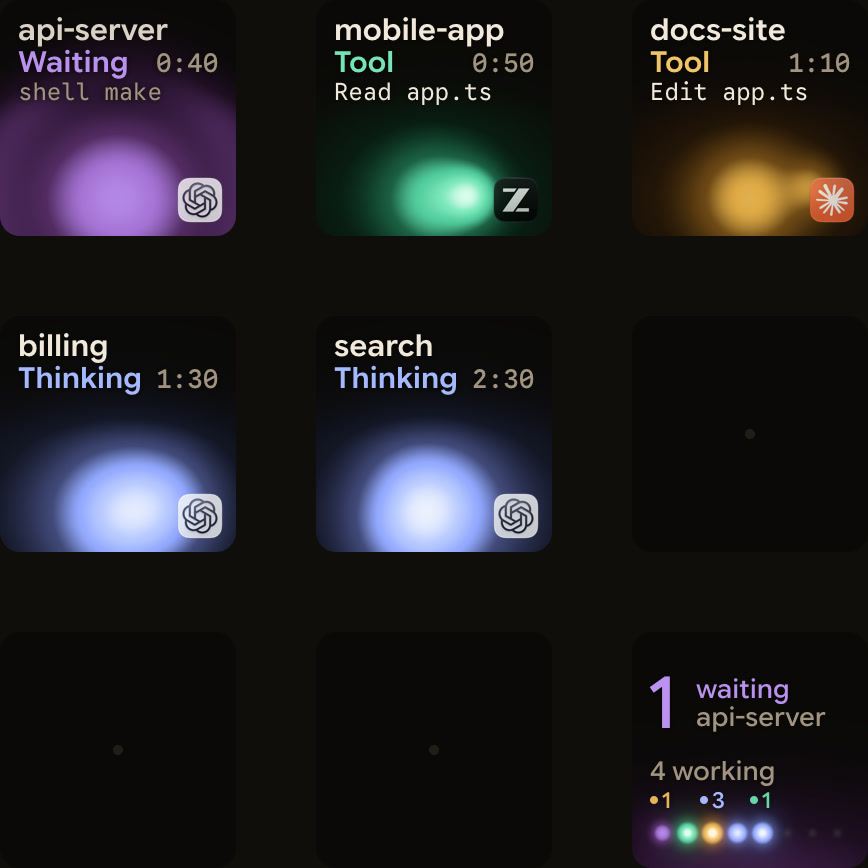
Codex Micro follows chats in the ChatGPT desktop app. If you also run Codex in a terminal, Orbtile shows every Codex session on the Logitech MX Creative Keypad or the standalone MX Keypad. Orbtile runs on a computer with macOS 14.0 Sonoma or later on Apple silicon, or Windows 11 (x64). It drives the keypad's nine LCD keys and two page buttons over USB, without Logi Options+ or an account. If Options+ is installed, its keypad profile pauses while Orbtile is in control. To hand the keypad back, press Control-Option-Command-K (Ctrl+Alt+Win+K on Windows) or hold both page buttons for 1.5 seconds. Orbtile Mobile shows the same session tiles on an iPhone or Android phone.
- Codex desktop chats, terminal
codexsessions andcodex execruns each get their own key, with waiting sessions first. - Orbtile reads Codex's own session files, so nothing needs to be installed in Codex.
- Codex keys use a cool blue palette over an animated orb and turn magenta-violet when a session waits for you.
- Tapping key 9, in the bottom-right corner, focuses the first waiting session, including sessions on other pages.
- Holding a session key for 0.6 seconds opens Focus mode.
- For compatible Codex desktop command approvals, press Deny on key 7 or hold Allow on key 9 for 0.6 seconds.
- Supported Codex desktop multiple-choice questions show options on keys 1, 2, 3 and 7, with Next or Send on key 9.
- Terminal command approvals offer Allow only, so to decline you answer in the terminal.
- Optional Codex hooks, installed from
Settings > Agents > Codex, add a compacting state and slightly earlier updates. - Through Remote Hosts, Orbtile can also show Codex sessions running on SSH hosts.
The same keys also show Claude Code, ZCode, Antigravity desktop app and Kimi Code sessions. See Codex notifications for finished turns and approvals and Approve agent tool calls without switching windows.
FAQ
What is the Codex Micro keypad?
Codex Micro is a limited-run keyboard from Codex and Work Louder for the ChatGPT desktop app. It has six frosted Agent Keys that show chat status by colour, six Command Keys, an analog stick and a dial. The ChatGPT desktop app also supports Work Louder's Creator Micro 2.
Why can Logitech Options+ interfere with Codex Micro on macOS?
Work Louder notes that Karabiner and Logitech Options+ can interfere with the Micro when those apps have Input Monitoring permission. To test, quit the utility or turn off its Input Monitoring access for a while, then reconnect the Micro.
Can I use the Logitech MX Keypad with OpenAI Codex?
Yes. With Logi Options+ 2.07 or later, it runs prompt macros, refactors code and launches voice commands for OpenAI Codex. This needs an internet connection and an account with the AI provider. With Orbtile, the same keypad shows the live state of each Codex session over USB, without Logi Options+.
Which Codex prompts can I answer from the keypad with Orbtile?
Compatible Codex desktop command approvals offer Deny and Allow, and supported desktop multiple-choice questions can be answered on the keys. Terminal command approvals offer Allow only. Other requests show Answer on computer.