
Xcode agentic coding runs inside Apple's IDE or alongside it on macOS. In Xcode 26, sign in to Claude in Intelligence settings for Claude Sonnet 4, or select OpenAI Codex in the coding assistant. Alongside Xcode, Claude Code Desktop streams the iOS Simulator, while Claude Code CLI and Codex CLI build and test from Terminal.
Ways to run coding agents with Xcode on a Mac
Run an assistant inside Xcode or point standalone coding agents at the same repository folder.
| Surface | Agent | macOS requirements | What it does |
|---|---|---|---|
| Claude in Xcode | Claude Sonnet 4 | Xcode 26 from the Mac App Store, with a Pro, Max or Ultra plan or a premium Team or Enterprise seat | Answers questions, works with attached files, creates SwiftUI previews and playgrounds, edits inline, fixes warnings and errors |
| Codex in Xcode | OpenAI Codex | Xcode's coding assistant | Chats as the agent you choose in Xcode's coding assistant |
| Claude Code Desktop | Claude Code | Claude Desktop v1.24012.0 or later, Xcode with the iOS platform (26.x or 27 recommended) | Builds, launches and tests iOS apps in an interactive Simulator pane |
| Claude Code CLI | Claude Code (computer-use MCP server) | Interactive CLI on Pro, Max or Ultra, with Accessibility and Screen Recording permissions | Compiles with xcodebuild, launches apps, clicks through UI, drives the iOS Simulator, takes screenshots |
| Codex CLI and ChatGPT app | OpenAI Codex | codex CLI or the ChatGPT macOS app | Runs local build tools, captures Appshots of the frontmost window, pairs with the ChatGPT iOS app |
Built-in coding intelligence in Xcode: Claude Sonnet 4 and OpenAI Codex
Set up and use Claude Sonnet 4 in Xcode 26
Claude Sonnet 4 in Xcode 26 requires a Pro, Max or Ultra plan, or a premium seat on a Team or Enterprise plan. Download Xcode 26 from the Mac App Store, open Xcode preferences > Intelligence, and log in with your Claude account.
The coding assistant keeps project context and conversation history, works with attached files, and helps with debugging, code structure and new features. It also powers these coding tools:
- Generate documentation and explain highlighted code.
- Create SwiftUI previews and playgrounds.
- Make inline edits and automatically fix warnings and errors.
Coding in Xcode draws from the same usage pool as your other Claude platforms. That includes any five-hour session limit and your weekly limits. When you reach a limit, Xcode shows "You've reached your rate limit, please try again later."
Select OpenAI Codex in Xcode's coding assistant
VS Code, Cursor and Windsurf use the Codex extension. Xcode and JetBrains IDEs provide their own integrations instead.
- In Xcode, open the coding assistant and start a new chat.
- Choose Codex as the agent for that chat.
Test iOS apps in Claude Code Desktop's iOS Simulator pane
Claude Code Desktop streams Apple's iOS Simulator beside your chat. The pane is in public beta on macOS for Pro, Max, Ultra, Team and Enterprise plans. It isn't available in Enterprise organisations with a HIPAA configuration, with third-party providers, or in cloud and SSH sessions.
Requirements:
- Claude Desktop v1.24012.0 or later on a Mac.
- Xcode with the iOS platform installed, with Xcode 26.x or Xcode 27 recommended.
A "device" means a simulated iPhone or iPad from Window → Devices and Simulators, not physical hardware. If no simulators appear, download the iOS simulator runtime in Xcode's settings or run xcodebuild -downloadPlatform iOS.
With more than one Xcode installed, the pane uses whichever one xcode-select points at. For example, to use an install at /Applications/Xcode-26.4.app, run this and then check the selection:
sudo xcode-select -s /Applications/Xcode-26.4.app
xcode-select -p
Quit and reopen Claude Desktop after switching.
Launch, interact with and manage simulated devices
Open your iOS project in the Code tab and ask Claude to build or run it:
Build the app and run it in the simulator to check the onboarding flow.The iOS Simulator pane opens automatically when the app launches. Name a simulator in your prompt, such as the iPhone SE, to target it. You can also click iOS Simulator in the title bar, then Attach simulator or pick a device. A device Claude boots also appears in Apple's Simulator app, or in Device Hub on Xcode 27.
- Click and drag on the screen to tap and swipe.
- Hold off tapping while the
Claude is using this devicebadge shows. - Press
Cmd+Shift+Hfor Home andCmd+Lto lock the device. - Press
Cmd+Up ArrowandCmd+Down Arrowto change the volume. - Press
Cmd+Right Arrowor the rotate button to rotate a quarter turn clockwise. - Press
Cmd+Sfor a screenshot orCmd+Rfor a screen recording, both saved to your Desktop. - Lower
Frame rateorResolutionin the Display menu if the pane strains your Mac. - Click
Detach simulatorto stop streaming without shutting the device down.
If your prompt doesn't name a simulator, Claude uses one that's already running, even if a parallel session opened it. Claude Code Desktop shuts down simulators it booted when you quit the app, archive the session, or 10 minutes after you detach a device. Devices you boot yourself in Simulator or Device Hub stay running.
Simulator consent, permission modes and organisation policies
The first time Claude uses a simulator, the desktop app asks you to allow it. You give that consent once per device, and it covers tapping, typing and screenshots. The pane doesn't need the macOS Accessibility and Screen Recording permissions that computer use requires. Claude's screenshots are sent to Anthropic and kept under your conversation retention settings, so don't sign in to real accounts on that device.
Three actions still follow your session's permission mode:
- Opening a URL on the device, because a URL can carry data off the device.
- Building the app, because
xcodebuildruns your project's build scripts on your Mac. - Installing and launching the app, because Claude can run any app it names.
You can turn simulator access off in the desktop app's settings. Organisations can set the disableMobileSimulatorTools managed setting to block Claude's simulator tools. The requireCoworkFullVmSandbox policy key disables the pane and the tools entirely.
Compile Swift apps and drive the simulator from the Claude Code CLI
In the Claude Code CLI on macOS, the built-in computer-use MCP server lets Claude compile a Swift app, launch it, click through it and screenshot the result. It can also drive the iOS Simulator without XCTest. Computer use is a research preview on macOS for Pro, Max and Ultra plans. It isn't available on Team or Enterprise plans, with third-party providers such as Amazon Bedrock, Google Cloud's Agent Platform or Microsoft Foundry, or in non-interactive mode with -p. See Install Claude Code: CLI, desktop app, VS Code and JetBrains.
Run /mcp in an interactive session, select computer-use, and choose Enable. The setting persists per project. On first use, grant Accessibility (click, type and scroll) and Screen Recording in macOS System Settings. macOS may require you to restart Claude Code. Then prompt:
Build the MenuBarStats target, launch it, open the preferences window,
and verify the interval slider updates the label. Screenshot the
preferences window when you're done.
Claude runs xcodebuild, launches the app, interacts with the UI and reports what it finds. Safety boundaries:
- Approve each app for the session with
Allow for this session, or chooseDeny. - Browsers and trading platforms are view-only, terminals and IDEs are click-only, and other apps get full control.
- Only one session can use your computer at a time, and it holds the lock until it exits.
- Other visible apps are hidden while Claude works, and your terminal stays visible but is excluded from screenshots.
- Screenshots are downscaled automatically, for example from 3456×2234 to roughly 1372×887 on a 16-inch MacBook Pro.
- Press
Escanywhere orCtrl+Cin the terminal to stop immediately.
Add macOS desktop notifications and Remote Control for long builds
To get a macOS notification when Claude is waiting for you, add a Notification hook to ~/.claude/settings.json:
{
  "hooks": {
    "Notification": [
      {
        "matcher": "",
        "hooks": [
          {
            "type": "command",
            "command": "osascript -e 'display notification \"Claude Code needs your attention\" with title \"Claude Code\"'"
          }
        ]
      }
    ]
  }
}
Run osascript -e 'display notification "test"' once in Terminal. Then open System Settings > Notifications, find Script Editor and turn on Allow Notifications. Set matcher to "permission_prompt" to fire when an approval prompt has waited about six seconds in a terminal. Set it to "idle_prompt" to fire when Claude finished about 60 seconds ago and you haven't typed since.
Run claude remote-control (alias claude rc), claude --remote-control, or /remote-control to connect claude.ai/code or the Claude app for iOS or Android to your local session. In /config, turn on Push when Claude decides, Push when actions required, or both.
Run OpenAI Codex CLI, Appshots and mobile control alongside Xcode
Install or update the Codex CLI on macOS:
curl -fsSL https://chatgpt.com/codex/install.sh | shRun codex in your project folder and sign in with ChatGPT. Codex can inspect files, make edits and run the build tools already installed on your Mac. Useful commands are /init (creates AGENTS.md), /permissions, /review, codex --image for a screenshot with your first prompt, and codex exec for non-interactive runs.
In the ChatGPT macOS desktop app, Appshots send the frontmost window to a chat, such as a preview window, an error or an app state:
- Focus the target window and press both Command keys, or a custom hotkey.
- Grant
Screen & System Audio RecordingandAccessibilityfor Codex Computer Use inSystem Settings > Privacy & Security. - The Appshot carries the window image and its available text, including text outside the visible scroll area.
By default, an Appshot joins a chat you used in the last 60 seconds or starts a new chat. A resumed Codex CLI chat keeps existing Appshots, but the CLI cannot create new ones.
For mobile control, open the ChatGPT macOS app and go to Settings > Connections > Control this Mac or PC. Choose Set up or Add, approve remote access, and scan the QR code with your phone. Sign in to the same ChatGPT account and workspace on the phone. In Codex in the ChatGPT iOS app, choose your Mac to follow progress, approve or deny commands, and review changed files and diffs. Keep the Mac awake and online.
Use a Logitech MX Creative Keypad or phone next to Xcode with Orbtile
When Xcode fills your display, a keypad or phone can show what your terminal and desktop agents are doing.
With Logi Options+, Logitech's MX Keypad offers one-tap AI control across tools such as Claude Code and OpenAI Codex. The MX Keypad needs Options+ 2.07 or later, and the MX Creative Console needs 1.83 or later, on macOS 13 or later. To map your own shortcut, click +, choose APPLICATION PROFILE, then START WITH A BLANK TEMPLATE. Then drag KEYBOARD SHORTCUT from the SYSTEM plugin onto a key.
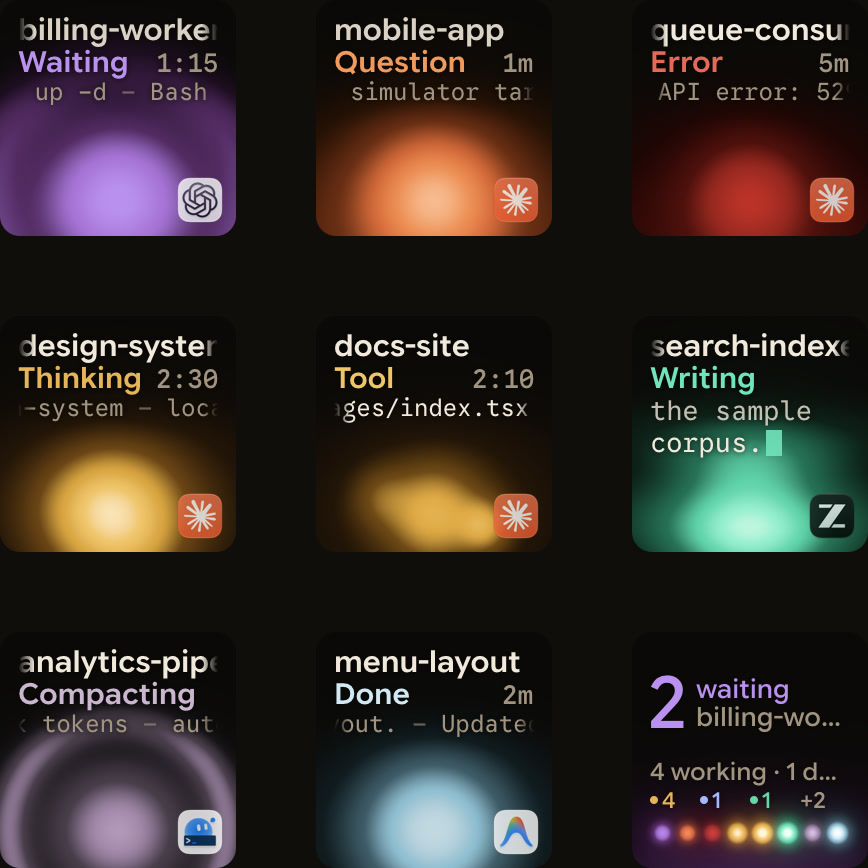
Orbtile drives the nine LCD keys and two page buttons of the Logitech MX Creative Keypad over USB, without Logi Options+. It can also use Orbtile Mobile on an iPhone (iOS 17 or later, App Store) or an Android phone (Android 8.0 or later), paired over Wi-Fi. Orbtile runs on a computer with macOS 14.0 Sonoma or later on Apple silicon (M1 or later), or Windows 11 (x64).
- Install the Orbtile plugin in
Settings > Agents > Claude Code, then restart running Claude Code sessions once. - Codex needs nothing installed, and desktop chats, terminal
codexsessions andcodex execruns appear automatically. - Keys 1 to 8 show each session's name, state and live text over an animated Frosted orb, with waiting sessions first.
- Claude Code keys use amber gold while working and terracotta while waiting.
- Codex keys use cool blue while working and magenta-violet while waiting.
- Key 9 summarises all sessions, and a tap focuses the first waiting session.
- A short press under 0.6 seconds opens a session's window, and a 0.6-second hold opens Focus mode.
- For local Claude Code permissions and compatible Codex desktop command approvals, press
Denyon key 7 or holdAllowon key 9 for 0.6 seconds. - Codex terminal command approvals offer
Allowonly, so decline them in the terminal. - Answer supported multiple-choice questions on keys 1, 2, 3 and 7, then hold
Sendon key 9 for 0.6 seconds.
Orbtile follows Claude Code, Codex, ZCode, Antigravity desktop and Kimi Code sessions. Xcode's built-in coding assistant is not among them. While Orbtile controls the keypad, your Options+ profile for it pauses. To hand it back, press Control-Option-Command-K, hold both page buttons for 1.5 seconds, or quit Orbtile. See Approve agent tool calls without switching windows and Claude Code keypad: MX Keypad setup, keybindings and Orbtile.
FAQ
How do I enable Claude Sonnet 4 or OpenAI Codex inside Xcode?
For Claude Sonnet 4, download Xcode 26 from the Mac App Store, open Xcode preferences, go to the Intelligence settings, and log in with a Claude account on a Pro, Max or Ultra plan or a premium Team or Enterprise seat. For OpenAI Codex, open the coding assistant in Xcode, start a new chat, and choose Codex as the agent.
How does Claude Code test iOS apps in Apple's iOS Simulator?
In Claude Code Desktop v1.24012.0 or later on macOS, open your iOS project in the Code tab and ask Claude to build or run the app. The iOS Simulator pane opens automatically next to the conversation and streams the simulated iPhone or iPad live without taking over your screen. In the Claude Code CLI on macOS, enable the built-in computer-use MCP server from the /mcp menu so Claude can compile the app and control the simulator on screen.
How do I choose which Xcode version Claude Code Desktop uses for simulators?
If you have more than one version installed, such as Xcode 26.x alongside Xcode 27, the iOS Simulator pane uses whichever installation xcode-select points at. Run sudo xcode-select -s followed by the path to the Xcode app in Terminal, then quit and reopen Claude Desktop.
Does Orbtile show agents running inside Xcode's editor panel?
Xcode's built-in coding assistant is not among the agents Orbtile lists. Orbtile follows Claude Code sessions in the terminal or the Claude desktop app, and Codex desktop chats, terminal sessions and codex exec runs. It shows them on a Logitech MX Creative Keypad, an iPhone or an Android phone, and lets you answer supported approvals and multiple-choice questions from the keys.