
Google Antigravity comes in four surfaces: the desktop Antigravity App (v2.5+), the Antigravity CLI (agy, v1.2+), extensions for seven editors plus a standalone Antigravity IDE, and the Python Antigravity SDK. Its agents plan changes, edit files and run commands under permission rules you set. The App, CLI and IDE read the same rule files and the same hooks.json files. Orbtile shows local App conversations on a keypad or phone.
Google Antigravity surfaces at a glance
| Surface | Requirements | Launch | Core workflow |
|---|---|---|---|
| Antigravity App | v2.5+; macOS 13+, Windows 10 (64-bit) or 11, Linux (glibc >= 2.28, glibcxx >= 3.4.25), Googlebook | Applications launcher or menu | Projects, Local or New worktree mode, Software Engineering and Knowledge Work layouts |
Antigravity CLI (agy) | v1.2+; installers for macOS, Linux, Googlebook and Windows (PowerShell or CMD) | agy, agy -i "prompt", agy -p "prompt" | Interactive sessions or single headless prompts, /diff, mode cycling with Shift + Tab |
| Standalone Antigravity IDE | macOS 12+, Windows 10 (64-bit)+, Linux or Googlebook (glibc >= 2.28) | Toggle Agent or Cmd + L / Ctrl + L | Agent side panel on the right, selected lines as context, implementation plans |
| Editor extensions | VS Code, JetBrains IDEs, Android Studio, Visual Studio, Zed, Xcode and Eclipse (Public Preview) | Extension panel or tool window | The Antigravity agent inside your editor |
| Antigravity SDK | google-antigravity on Python 3.10+ | Agent and LocalAgentConfig | Async programmatic agents and declarative tool policies |
See Antigravity App vs Antigravity IDE: what's the difference.
Install and sign in across the App, CLI, IDEs and SDK
Antigravity App installation and interface layouts
Download installers from antigravity.google/download:
- macOS 13 (Ventura) or later, Apple silicon or Intel: open
Antigravity.dmg, drag it toApplicationsand chooseReplacewhen upgrading. - Windows 10 (64-bit) or Windows 11: run the
.exesetup wizard. - Linux (Ubuntu 20+, Debian 10+, Fedora 36+ or RHEL 8+): extract
Antigravity.tar.gzand run./Antigravity. - Googlebook: Antigravity comes pre-installed, and updates come through Google Play.
With a personal Google Account (v2.30.0+), you choose a role after signing in. Skipping selects Software Engineering. After you accept the Terms and Data Use notice, up to three starter prompts appear on Home. Clicking one can install its Marketplace plugin, then prefills it without sending.
Software EngineeringandData & Analyticsuse theSoftware Engineeringlayout.Software Engineeringcan import MCP servers, skills, rules and instructions from Claude Code, Codex, Cursor and Gemini CLI.Knowledge Work,Science,DesignandOtheruse theKnowledge Worklayout.- You can switch layouts under
Settings > General > Interface Layout. - Business users choose
Use Business Account, then pick a licence and Google Cloud project, or pay as you go.
Antigravity CLI (agy) installation and terminal setup
The installer puts agy in ~/.local/bin/agy on macOS or Linux, or in C:\Users\<username>\AppData\Local\agy\bin on Windows:
# macOS, Linux, Googlebook
curl -fsSL https://antigravity.google/cli/install.sh | bash# Windows PowerShell
irm https://antigravity.google/cli/install.ps1 | iex:: Windows CMD
curl -fsSL https://antigravity.google/cli/install.cmd -o install.cmd && install.cmd && del install.cmdVerify with agy --version. On first launch you choose a colour scheme and a rendering mode (Alt-Screen or Inline), then confirm workspace trust. See Google Antigravity on Windows: install, CLI and setup.
Standalone Antigravity IDE, editor extensions and Python SDK
Download the standalone Antigravity IDE from antigravity.google/download. On macOS and Windows, updates download in the background and prompt you to restart. On Linux, an Update Available button appears, and you update through your package manager or a new tarball.
| Editor | Minimum version | Install and open |
|---|---|---|
| VS Code | 1.90+ | Extensions (Cmd/Ctrl + Shift + X) > Google Antigravity > Activity Bar icon |
| JetBrains IDEs | 2026.2.1+ (IntelliJ-based IDEs) | JetBrains AI > Settings > Agents > Install |
| Android Studio | A release with ACP (Bring Your Own Agent) support | Pick Google Antigravity in the Agent tool window, or install from Settings > Tools > AI > Agents |
| Visual Studio | 2026 (17.8+, Windows 10 or 11) | Extensions > Manage Extensions > Download > restart |
| Zed | 0.140.0+ (macOS and Linux) | agent: open settings > External Agents > Install from Registry |
| Xcode | 27 beta 6+ | Xcode Settings > Intelligence > Get |
| Eclipse | 2026-06+ (Public Preview) | Help > Eclipse Marketplace > install and restart > Cmd + Option + E / Ctrl + Alt + K |
Gemini Enterprise sign-in is generally available in VS Code, Visual Studio, JetBrains, Zed and Xcode, and in Preview for Android Studio and Eclipse. Supported auth.type values are "oauth-personal", "oauth-business", "gemini-api-key" and "agent-platform".
Install the SDK in a Python 3.10+ virtual environment with pip install google-antigravity. Authenticate with GEMINI_API_KEY. For Vertex AI, set GOOGLE_GENAI_USE_VERTEXAI, GOOGLE_CLOUD_PROJECT and GOOGLE_CLOUD_LOCATION, then run gcloud auth application-default login. A script creates an Agent with a LocalAgentConfig, chats with it under asyncio, and limits tools with allow and deny policies.
Projects, Git worktrees, slash commands and implementation plans
Starting a project in Local mode or New worktree mode
In the App, agents work inside Projects, which define repository boundaries, file scopes and security permissions. You can also chat from Home without creating a project.
- Click
New Project, thenAdd Folder, thenCreate, and enter a prompt. - In the Software Engineering layout,
Local modeworks directly in your folders. New worktree moderuns the agent in an isolated Git worktree.- In the Knowledge Work layout, conversations run in project folders without a worktree prompt.
See Google Antigravity multi-agent: run parallel coding agents and Google Antigravity Agent Manager: run and review agents.
Reviewing implementation plan artifacts
In the App and IDE, /plan generates an implementation plan artifact. The agent asks you to review the plan before making the changes.
- Click
Proceedon the plan card to carry out the plan straight away. - Comments you add attach to your next message as a chip, such as
2 Comments. - You can also send a message with feedback instead of proceeding.
Core slash commands and keyboard shortcuts
| Surface | Shortcut or command | Action |
|---|---|---|
| App | /goal, /grill-me, /schedule, /browser, /plugin | Run to completion, interview you about requirements, schedule one-time or recurring tasks, delegate to the browser subagent, or manage plugins |
| App | Cmd/Ctrl + K, Cmd/Ctrl + N | Open the conversation picker, or start a new conversation |
| App and IDE | Cmd/Ctrl + L | Focus the message box; from the IDE editor, add the selected lines as context |
| IDE | Cmd/Ctrl + Shift + L | Start a new conversation |
CLI (agy) | agy -i "prompt", agy -p "prompt" | Run a first prompt and continue the session, or run one headless prompt and print the response |
CLI (agy) | Ctrl + R, /diff, Shift + Tab | Open the Artifact Review panel, open the diff viewer, or cycle default, accept-edits, auto and plan (auto only where available) |
CLI (agy) | /agents, /statusline, /usage, /credits | Open the Agent Manager panel, customise the status bar, view model quota usage, or view remaining AI credits |
Permissions, presets and terminal sandboxing
Each sensitive operation is written as an action(target) rule in a Deny, Ask or Allow list. Conflicting rules follow the strict order Deny > Ask > Allow.
App permission presets and CLI execution modes
Set the App preset under Settings > General > Global Permissions > Permission Preset. Override it per project under Settings > Projects, where new projects default to Inherit Global. In v2.23.0+ you can also pick a preset in the message box.
| App preset | Terminal sandbox | Terminal commands | File access | MCP and web |
|---|---|---|---|---|
Request Review | Disabled | Always ask | Workspace only | Ask |
Default | Enabled | Allowed in sandbox, ask outside | Workspace and temp directories | Ask |
Auto | Enabled | Allowed in sandbox, checked automatically outside | Workspace and temp directories | Ask |
Turbo | Disabled | Unrestricted | Full filesystem | Allowed |
Auto needs v2.23.0+ on macOS and Linux, or v2.26.0+ on Windows, with the sandbox available. It is not available for business or enterprise accounts. Sandboxed commands run without network access by default. Domains allowed under read_url join the sandbox's outbound allowlist.
CLI permissions live in ~/.gemini/antigravity-cli/settings.json. That file sets agentMode (auto, accept-edits or default) and toolPermission (request-review by default, proceed-in-sandbox, strict or always-proceed). The flag --dangerously-skip-permissions sets always-proceed. artifactReviewPolicy takes asks-for-review, agent-decides or always-proceed, and enableTerminalSandbox runs agent commands in the sandbox. See Antigravity CLI (agy): settings and allow all permissions.
For the standalone IDE's own agent settings, see Google Antigravity IDE: editor, agents and permissions.
Writing action(target) allow, ask and deny rules
read_filegrants recursive read access, andwrite_filealso grants read access to the same path.read_urltakes a domain or*, covers subdomains and ignores paths.execute_urlcontrols pages the browser subagent opens, and isolateslocalhostby port.commandmatches word prefixes, or patterns with theregex:prefix.- Shell constructs such as
$(...), backticks or brace expansion turn off prefix matching for the whole line. mcptakesserver/tool,server/*or*.- In an Ask prompt you can widen the target, such as a file to its folder, except for terminal commands.
Rules, MCP servers, settings and lifecycle hooks
Persistent rules in AGENTS.md, GEMINI.md and .agents/rules/
Antigravity checks the workspace folder and each parent folder up to the repository root, plus ~/.gemini/. Subfolders below the workspace are not scanned, and all rules found are combined.
- Always-on files without frontmatter:
AGENTS.md,GEMINI.md,.agents/AGENTS.mdand.agents/GEMINI.md. - Global always-on files:
~/.gemini/AGENTS.md,~/.gemini/GEMINI.mdand the matching files under~/.gemini/config/. - Modular rules in
.agents/rules/*.mdand~/.gemini/config/rules/*.mdneed frontmatter with a validtrigger, or Antigravity silently discards them. always_onputs the full rule into the prompt every turn.model_decisionloads the path and requireddescriptionfirst, and the agent reads the full rule when relevant.globactivates when the agent works with files matching the requiredglobs.manualloads only when you @-mention it, and the CLI does not support rule mentions.- Files over
24 KB(24,000 bytes) are truncated. - Global and
always_onrules share a20,000-tokenbudget, after which the largest files become pointers.
MCP servers, CLI settings.json and lifecycle hooks
| Area | Global path | Workspace path | Interactive management |
|---|---|---|---|
| CLI settings | ~/.gemini/antigravity-cli/settings.json | Not applicable | /config or /settings in agy |
| CLI keybindings | ~/.gemini/antigravity-cli/keybindings.json | Not applicable | /keybindings in agy |
| MCP servers | ~/.gemini/config/mcp_config.json | <workspace>/.agents/mcp_config.json | /mcp in agy, or Settings > Customizations in the App |
| Lifecycle hooks | ~/.gemini/config/hooks.json | <workspace>/.agents/hooks.json | Settings > Customizations > Hooks (App), /hooks (agy), … > Customizations > Hooks in the agent side panel (IDE) |
| Plugins | ~/.gemini/config/plugins/<plugin>/ | <workspace>/.agents/plugins/<plugin>/ | /plugin in agy, or Settings > Customizations in the App |
The CLI writes only non-default values to settings.json and saves it with 0600 permissions. notifications is off by default. When on, it rings the terminal bell and shows a desktop notification when the agent needs approval or finishes its turn. See Google Antigravity MCP servers: set up and manage tools and Antigravity notifications: CLI alerts and waiting agents.
Hooks run commands on SessionStart, PreToolUse, PostToolUse, PreInvocation, PostInvocation and Stop. type defaults to "command", and timeout defaults to 30 seconds:
{
  "my-linter-hook": {
    "PostToolUse": [
      {
        "matcher": "run_command",
        "hooks": [{ "type": "command", "command": "./scripts/lint.sh", "timeout": 10 }]
      }
    ]
  }
}
PreToolUse returns a decision of "allow", "auto_approve", "deny", "ask", "force_ask" or "deny_unless_prior_grant". Stop receives terminationReason and fullyIdle, and returning "decision": "continue" keeps the agent running.
Watch Google Antigravity conversations on a keypad or phone with Orbtile
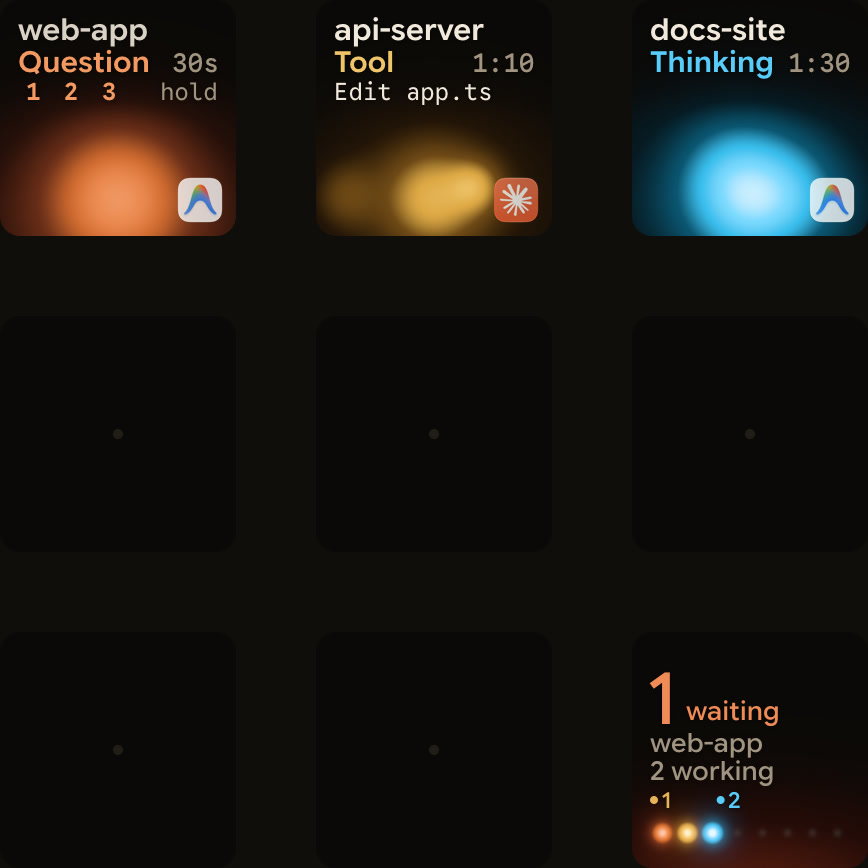
Orbtile shows local Antigravity desktop app conversations on a Logitech MX Creative Keypad over USB, without Logi Options+. It can also use an iPhone (iOS 17+) or Android phone (Android 8.0+) with Orbtile Mobile. It runs on macOS 14.0 Sonoma or later on Apple silicon (M1 or later), or on Windows 11 (x64).
- Each conversation gets its own key with its title and state.
- Antigravity uses an azure blue working palette, and from Orbtile 0.3.4 its waiting states use the shared terracotta alarm colour.
- From Orbtile 0.2.10, replies also appear as live typewriter text.
- Waiting conversations move to the front.
- A tap on key 9 focuses the first waiting session, including sessions on other pages.
- A short press under 0.6 seconds opens that conversation on your computer.
- Holding a session key for 0.6 seconds opens Focus mode.
- From Orbtile 0.2.6, you can answer up to four numbered-option questions with two to four choices each.
- Hold the question's key, pick options on keys 1, 2, 3 and 7, then hold
Sendon key 9 for 0.6 seconds. Sentmeans Antigravity acknowledged the reply.- Written answers, permissions, remote sessions and unsupported questions stay on your computer.
- Antigravity IDE and Antigravity CLI sessions do not appear automatically.
- If an Antigravity update changes how the app talks to Orbtile, live text and keypad answers stop until Orbtile catches up, and you answer in Antigravity.
The same pad also shows Claude Code, Codex, ZCode and Kimi Code sessions, and your own scripts through Orbtile's local Adapter API. See Antigravity keypad: MX Keypad shortcuts and Orbtile status pad.
FAQ
What are the four main surfaces of Google Antigravity?
Google Antigravity is available as the desktop Antigravity App, the Antigravity CLI launched with the agy command, extensions for seven editors alongside the standalone Antigravity IDE, and the Python Antigravity SDK.
How do permissions and sandboxing work in Google Antigravity?
Sensitive operations are written as action and target rules in Deny, Ask and Allow lists. Conflicting rules follow the strict order Deny, then Ask, then Allow. Under the Default and Auto presets, terminal commands run in a sandbox, and file access covers your workspace and temp directories. Sandboxed commands have no network access by default.
Where does Google Antigravity load persistent rules and hooks from?
Antigravity loads always-on rules from AGENTS.md and GEMINI.md files, and modular rules with frontmatter from .agents/rules/ in your workspace or ~/.gemini/config/rules/ globally. Lifecycle hooks live in .agents/hooks.json for a workspace or ~/.gemini/config/hooks.json for all workspaces.
Which Google Antigravity sessions and prompts work with Orbtile?
Orbtile follows conversations in the local Antigravity desktop app on a Mac with Apple silicon and macOS 14 or later, or a Windows 11 x64 computer. It shows each conversation's title, state and live reply text on a Logitech MX Creative Keypad, an iPhone or an Android phone. You can answer up to four numbered-option questions with two to four choices each. Permission prompts, written answers, Antigravity IDE sessions and Antigravity CLI sessions stay on your computer.