
Claude Code and Codex each monitor only their own sessions, so you either run both tools' views side by side or use one shared display. For Claude Code, use agent view (claude agents), the Claude Desktop sidebar or a Notification hook. For Codex, use the ChatGPT desktop app's Activity view, a floating pet or a Codex Micro keypad, and each vendor's mobile app covers you away from your desk. Orbtile shows both agents together on one status pad.
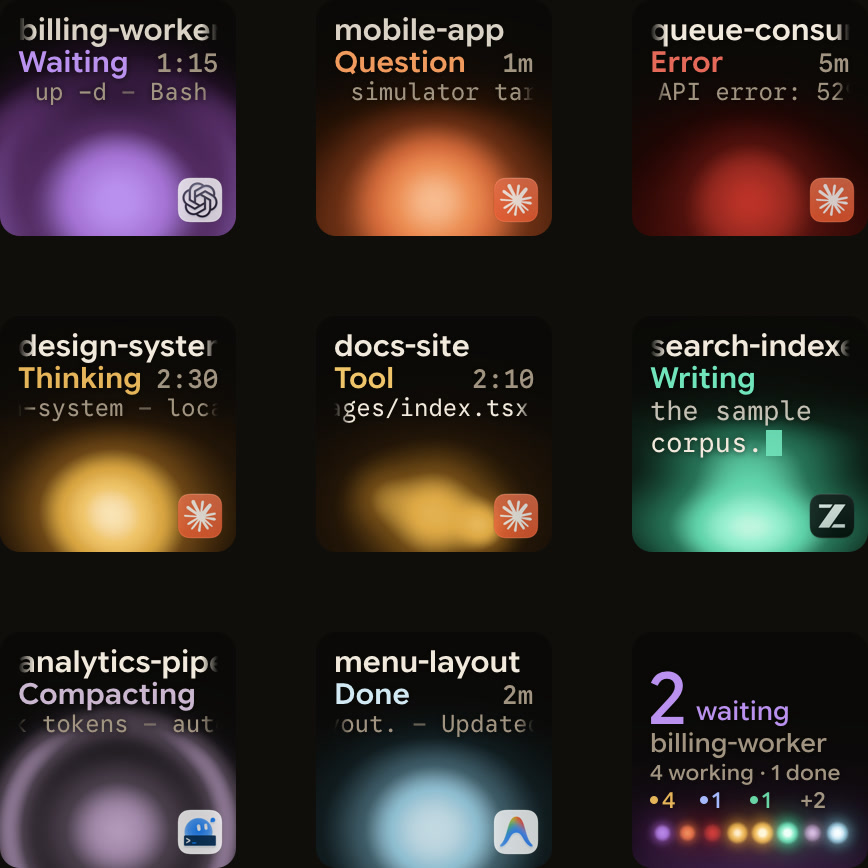
Ways to monitor Claude Code and Codex compared
| Method | What it covers | How it signals | How you answer |
|---|---|---|---|
Agent view (claude agents) | Claude Code background sessions | Needs input, Working and Completed groups, plus notifications | Reply from the peek panel, or attach to answer permission prompts |
| Claude Desktop Code tab | Sessions the desktop app runs | Sidebar list and an OS notification when a session finishes | In the session |
Claude Code Notification hook | Claude Code sessions that load the hook | A desktop alert when Claude waits for input or permission | In the session |
| ChatGPT desktop Activity view | ChatGPT and Codex chats in the desktop app | Unread, running and waiting chats, plus OS notifications | Open the chat |
| ChatGPT desktop pet | Chats in the desktop app | Running, Needs input, Ready or Blocked | Open the chat from the pet's tray |
| Codex Micro | One chat per Agent Key, six keys | Key colours for idle, thinking, complete, requires input and error | Approve and Decline keys |
| Claude and ChatGPT mobile apps | Each vendor's own sessions | Push notifications | In each vendor's app |
| Orbtile | Claude Code and Codex sessions together | One key or tile per session, waiting sessions first | Deny, Allow and question options for supported local requests |
Why each tool's views stop at its own sessions
Claude Code has five ways to run parallel work: subagents, agent view, agent teams, dynamic workflows and projects. Anthropic's docs say that in every approach the workers are Claude sessions. In the Claude Desktop Code tab, Claude can list and message only the local, SSH and WSL sessions the desktop app runs itself. It does not see cloud sessions, or sessions started from the terminal or the VS Code extension.
The ChatGPT desktop app follows its own chats through Activity view, pets and Codex Micro. Those views follow ChatGPT and Codex chats, not Claude Code sessions. To watch both agents, you run each set of views side by side or add a display that reads both. To pass work between the two agents, see Share context between Claude Code and Codex.
Monitor Claude Code sessions with agent view
Run claude agents to open agent view, which is a research preview. It is one screen for all your background sessions: what is running, what needs your input and what is done.
- Start a new background session from agent view, or with
claude --bgfrom your shell. - To move an open session into agent view, run
/bgor press the left arrow on an empty prompt. - Ready for review and Needs input sessions are grouped above Working and Completed ones.
- Press Space on a row to open the peek panel, then type a reply and press Enter.
- Peek cannot answer permission prompts, so press Enter or the right arrow to attach to the full session.
While agent view is open, Claude Code sends a notification when a local background session needs input, finishes or fails. Scheduled sessions, such as /loop sessions, notify only when they need input. For a status bar or script, claude agents --json is the supported way to read session state.
Background sessions keep working after you close agent view or your terminal, and they survive sleep. Shutting down or restarting the computer stops them. Each session uses your subscription quota on its own. Before editing files, a background session moves into its own Git worktree, so parallel sessions don't write over each other.
Inside a session, /tasks lists background work, including subagents that have finished. /workflows lists dynamic workflow runs and the phase each is in. See Claude Code background agents: agent view and /bg.
Get alerts across Claude Code sessions with hooks and messaging
Desktop alerts with a Notification hook
A Notification hook runs a command whenever Claude is waiting for your input or permission. Add it to your Claude Code settings file, then type /hooks to confirm it is listed. This example shows a macOS notification:
{
  "hooks": {
    "Notification": [
      {
        "matcher": "",
        "hooks": [
          {
            "type": "command",
            "command": "osascript -e 'display notification \"Claude Code needs your attention\" with title \"Claude Code\"'"
          }
        ]
      }
    ]
  }
}- On macOS, the command fails silently until Script Editor has notification permission in System Settings > Notifications.
- On Linux, use
notify-send 'Claude Code' 'Claude Code needs your attention', which needs a desktop notification daemon. - The
permission_promptmatcher fires once a permission prompt has waited about six seconds. - The
idle_promptmatcher fires about 60 seconds after Claude finishes responding, if you haven't typed since.
See Claude Code hooks: events, matchers, settings and handlers.
Ask one session to tell you when another finishes
Cross-session messaging lets one Claude Code session message another. It needs Claude Code v2.1.224 or later on macOS, Linux and WSL 2, or v2.1.234 or later on native Windows. To hear when a long task ends, ask from the session you are watching:
Tell me when the migration session finishes what it's working onClaude then asks that session for one notice when it next goes idle or exits. This needs Claude Code v2.1.236 or later in both sessions. A request sent on its own spends no tokens in the watched session, and it lapses after 12 hours. A message from another session can never approve a permission prompt. Run /list-agents to see which sessions Claude can reach.
Monitor parallel Codex chats in the ChatGPT desktop app
Activity view and notifications
- In Settings, choose whether turn-completion alerts appear never, only while ChatGPT is in the background, or always.
- Separate controls turn permission and question notifications on or off.
- Select the bell in the sidebar to open Activity view, which lists chats that are unread, running or waiting for you.
- Open or close Activity view with Cmd+Option+U on macOS or Ctrl+Alt+U on Windows.
In the Codex CLI, you choose when the terminal interface sends a notification and whether Codex runs an external program when a turn completes. The IDE extension has no separate notification controls, so keep the chat open to follow it. See Codex notifications for finished turns and approvals.
For parallel work in one repository, select Worktree under the composer and pick a branch. Codex creates a separate Git worktree and works in a detached HEAD state by default. It keeps your 15 most recent Codex-managed worktrees. Hand off moves a chat between your local checkout and a worktree. See Git worktrees for parallel coding agents: Claude Code and Codex.
Pets and Codex Micro
In the ChatGPT desktop app on macOS and Windows, a pet can float above other app windows. Wake it with /pet, or choose Show pet in the command menu. It shows Running, Needs input, Ready or Blocked, and its bell icon lets you follow progress in your chats. The default toggle shortcut is Option+Space on macOS or Windows+Alt+P on Windows.
In the Codex CLI, a terminal pet follows only the current session. It needs iTerm2 3.6 or later, or a terminal with Kitty graphics or Sixel support. It does not work inside tmux or Zellij.
Codex Micro is a limited-run keypad made with Work Louder for the ChatGPT desktop app. The app also supports Work Louder's Creator Micro 2. It connects by USB-C or Bluetooth.
- Six frosted Agent Keys each follow a chat: recent, pinned or priority chats, or your own assignments.
- A key glows white for idle, blue for thinking, green for complete, amber for requires input and red for error.
- The Approve key handles the current request, and the Decline key rejects it.
- A single press switches to that chat, and a double press within 350 milliseconds also brings ChatGPT forward.
- On macOS, allow Input Monitoring for ChatGPT so it can respond to key presses.
See Codex keypad: Codex Micro, MX Keypad and Orbtile setup.
Watch both agents from the desktop and your phone
Claude Desktop beside the ChatGPT desktop app
Claude Desktop runs on macOS and Windows, with a beta for Ubuntu and Debian. Its Code tab sidebar lists your sessions and lets you run several in parallel. Hold Option on macOS or Alt on Windows and click a session to open it side by side. The app sends an OS notification when a session finishes and you are not viewing it. After you open a pull request, the Changes card shows its CI checks, which needs the GitHub CLI installed and signed in. Put ChatGPT's Activity view on the same screen and you can follow both agents.
Phone apps
The Claude app on iOS and Android is a client for Claude Code sessions:
- It reaches cloud sessions, projects, Remote Control sessions on your computer, and Dispatch.
- Start Remote Control with
claude remote-control, or run/remote-controlin an open session. - With Remote Control active, Claude can send push notifications when a long task finishes or needs a decision.
- Cloud sessions and Remote Control need a claude.ai account, not an API key or Amazon Bedrock.
- Remote Control needs your computer on, while cloud sessions keep running with your laptop closed.
The ChatGPT app on iOS and Android controls Codex on a paired Mac or Windows host:
- Pair your phone by QR code from Settings > Connections in the ChatGPT desktop app.
- From your phone you can approve commands, answer questions, review diffs and get notified when a task needs you.
- The host must stay awake, online and signed in to the same account and workspace.
- You cannot set up phone access from the Codex CLI or the IDE extension.
Watch and answer Claude Code and Codex together on one pad with Orbtile
Orbtile shows every Claude Code and Codex session on one status pad: a Logitech MX Creative Keypad, an iPhone or Android phone with Orbtile Mobile, or your computer screen. It runs on an Apple silicon Mac with macOS 14 or later, or a Windows 11 PC (x64). The phone needs iOS 17 or later, or Android 8.0 or later. On the keypad, Orbtile drives the nine LCD keys and two page buttons over USB, without Logi Options+.
- Waiting sessions come first, followed by working sessions and recent finishes.
- Claude Code glows warm amber gold while working and terracotta while waiting.
- Codex glows cool blue while working and magenta-violet while waiting.
- A tap on key 9 opens the first waiting session, including sessions on other pages.
- Hold a session key for 0.6 seconds to open Focus mode.
- In Focus mode, press Deny on key 7, or hold Allow on key 9 for 0.6 seconds.
- Answer a question with up to four options on keys 1, 2, 3 and 7, then hold Send on key 9.
For Claude Code, install the plugin in Settings > Agents > Claude Code on a Mac, or with its Install button on Windows. Then restart running Claude Code sessions once. Turn on Show background sessions to give agent view sessions their own keys. Codex needs nothing installed: desktop chats, terminal codex sessions and codex exec runs all appear. Optional Codex hooks add a compacting state and slightly earlier updates.
Compatible Codex desktop chats offer Allow or Deny for command approvals. Codex terminal command approvals offer Allow only. Sessions on a remote host over SSH are display-only, except Allow for Codex terminal command approvals. See How to monitor multiple Claude Code sessions and Watch and answer Claude Code and Codex sessions from your iPhone.
FAQ
Can Claude Code agent view or the ChatGPT desktop app show both agents together?
No. Anthropic's docs say every Claude Code parallel approach runs Claude sessions, and Claude Desktop lists only its own Code tab sessions. ChatGPT's Activity view, pets and Codex Micro follow ChatGPT and Codex chats. To see both at once, run the native views side by side or use a shared status pad such as Orbtile.
How do I monitor background Claude Code sessions and parallel Codex chats in the terminal?
In Claude Code, run claude agents to open agent view, or move an open session there with the bg command or the left arrow on an empty prompt. Scripts can read session state with claude agents and the json flag. In the Codex CLI, choose when the terminal sends notifications, run an external program when a turn completes, or open a terminal pet in a supported terminal.
Can I approve both Claude Code and Codex prompts from my phone?
Yes, with each vendor's app. The Claude app drives local sessions started with Remote Control and can send push notifications when one needs a decision. The ChatGPT app, paired with your desktop host by QR code, can approve commands and answer questions while the host stays awake and online. Orbtile Mobile shows both agents on one screen and answers supported local requests.
Which Claude Code and Codex prompts can Orbtile answer from the keypad or phone?
For local Claude Code sessions, Orbtile can deny or allow permission requests and answer multiple-choice questions with up to four options. Compatible Codex desktop chats offer Allow or Deny for command approvals. Codex terminal command approvals offer Allow only, so you decline them in the terminal. Typed answers stay on your computer.