
In the Codex CLI, codex remote-control runs remote control for the local app-server daemon and prints short-lived pairing codes. The --remote flag connects the terminal UI to an app server over WebSocket or a Unix socket. To control a Mac or Windows computer from your phone, you start setup in the ChatGPT desktop app, not in the CLI. For work that keeps going while your computer sleeps, you use Codex Cloud.
Ways to control or connect to Codex CLI remotely
OpenAI splits remote access across the Codex CLI, the ChatGPT desktop and mobile apps, and Codex Cloud.
| Remote path | Where you set it up | Commands or settings | What it does |
|---|---|---|---|
| Local daemon | Codex CLI | codex remote-control, start, stop, pair | Runs remote control for the local app-server daemon and prints short-lived pairing codes |
| App-server client | Codex CLI | codex --remote, codex app-server --listen | Connects the TUI and supported session commands to an app server |
| Mobile or desktop control | ChatGPT desktop app on macOS or Windows | Settings > Connections > Control this Mac or PC, then a QR scan | Lets a phone or another desktop send prompts and approvals to the host |
| SSH and Handoff | ChatGPT desktop app and ~/.ssh/config | Settings > Connections, the chat footer | Runs Codex on an SSH host and moves a chat and its Git state between hosts |
| Codex Cloud | Codex CLI | codex cloud, exec, list, codex apply | Runs tasks in the cloud while your computer sleeps, then applies the diff locally |
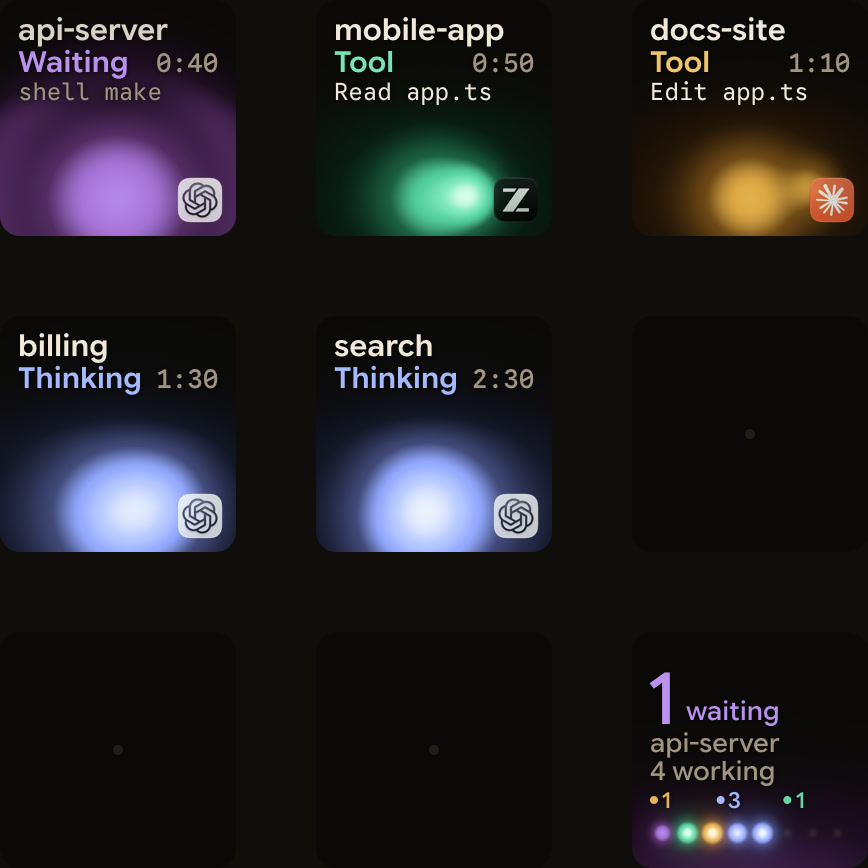
| Orbtile status pad | Orbtile on a Mac or a PC with Windows 11 | Orbtile settings | Shows Codex sessions on a keypad or phone and answers supported approvals |
See OpenAI Codex: CLI, desktop app, IDE extension and setup.
Manage the local daemon with codex remote-control
codex remote-control is Experimental. Managed remote-control clients and SSH remote workflows use it. It is not a replacement for codex app-server --listen when you build a local protocol client.
codex remote-control
codex remote-control --no-daemon
codex remote-control start
codex remote-control stop
codex remote-control pair --json- The bare command uses the managed background server when it can, and falls back to the foreground.
--no-daemonruns in the foreground and works only on the bare command, not onstart,stoporpair.startturns on remote control for the local app-server daemon, andstopstops it.pairprints a short-lived manual pairing code.--jsonworks on everyremote-controlcommand.- With
pair --json, the output includespairingCode,manualPairingCode,environmentIdandexpiresAt.
Turn off device remote control for a workspace
Admins can turn off device remote control with allow_remote_control = false. For cloud-managed users, set it with Edit as TOML in Agent security, in the Global requirements.toml. Device-managed clients can use a supported local requirements source instead. The setting does not turn off SSH remote connections.
Connect the TUI to an app server with --remote
Running codex opens the interactive terminal UI (TUI). Add --remote to attach it, or a supported session command, to an app server.
codex app-server --listen ws://IP:PORT
codex --remote ws://host:port
codex --remote wss://host:port --remote-auth-token-env <ENV_VAR>
codex --remote unix://--remoteacceptsws://host:port,wss://host:port,unix://andunix://PATH.- Only
codex,agents,queue,resume,fork,archive,deleteandunarchiveaccept--remote. --remote-auth-token-envreads a bearer token from an environment variable when you connect with--remote.- Codex sends the token only over
wss://or local-onlyws://URLs. - The global
--no-daemonflag cannot be combined with--remoteorcodex agents.
Start and secure a codex app-server listener
codex app-server is Experimental. It is mainly for development and debugging, and may change without notice.
--listentakesstdio://,ws://IP:PORT,unix://,unix://PATHoroff.--stdiois short for--listen stdio://and cannot be used with--listen.--ws-authtakescapability-tokenorsigned-bearer-token.- Without
--ws-auth, WebSocket auth is off, and non-local listeners warn at startup. - Capability tokens use
--ws-token-fileor an expected digest in--ws-token-sha256. - Signed bearer tokens need
--ws-shared-secret-file. - For
wss://clients, use TLS termination or a secure proxy.
Browse, queue and resume sessions on a remote server
These Stable commands also work with a --remote server.
codex agentsopens the agent command centre on a shared local or remote server.- With
codex agents,--cdsets the folder for new remote tasks. codex queueadds a message to an existing session, found by UUID or exact name with--thread.codex queue --resumealso resumes the session if it isn't loaded.codex resumecontinues a chat by ID, and--lastpicks the most recent chat in the current folder.- Add
--alltocodex resumeto include chats from other folders. codex archiveandcodex unarchivealso act on the subagent sessions a session spawned.codex deleteremoves a session permanently, and--forceskips the prompt only when you give a UUID.
Control a Mac or Windows computer from the ChatGPT mobile app
Remote connections in the ChatGPT mobile app for iOS and Android reach a Mac or Windows computer running the ChatGPT desktop app. Setup starts in the desktop app. You can't set it up from the Codex CLI or the IDE extension. From a terminal, codex app [PATH] launches the desktop app. See Codex app vs Codex CLI: desktop app and terminal compared.
What you can do from your phone and what stays on the host
A secure relay keeps the host reachable without exposing it directly to the public internet.
- Start or continue chats in projects on the host, and switch between hosts and chats.
- Send follow-ups, answer questions, steer active work and approve commands.
- Review diffs, test results, terminal output and screenshots.
- Get notified when a task finishes or needs your attention.
- Repository files, local documents and shell commands come from the host.
- MCP servers, skills, browser access and Computer Use come from the host's configuration.
- Sandboxing, security controls and approval settings still apply.
Pair your phone with the desktop app by QR code
You need Codex access in your ChatGPT account and workspace. You also need the latest ChatGPT mobile app and the latest ChatGPT desktop app on a macOS or Windows host. The host must be awake, online and signed in to the same account and workspace. In a workspace, your admin may need to turn on Remote Control access first.
- In the host's desktop app, open
Settings > Connections > Control this Mac or PCand selectSet uporAdd. - Approve remote access and complete any requested verification.
- Scan the QR code with your phone, then confirm the same account and workspace.
- Complete any MFA, SSO or passkey steps.
- Pair each phone with each host it will control.
- If you haven't used a connection since 8 June 2026, update both apps and pair again.
Keep the host awake and reachable
Remote access needs the host awake and online.
- Use
Settings > Connectionson the host to manage connected devices. - Keep the host plugged in and turn on
Keep this Mac awake. - A Mac laptop stays reachable with the lid open on power, or closed with an external display connected.
- Choosing Sleep on the Mac stops remote access.
- On Windows, keep the session unlocked for tasks that use Computer Use.
- Signing out turns off Remote Control but keeps your existing pairings.
- Use
Control other devicesin the same settings to add another host to control from this desktop.
SSH hosts, Handoff and Codex Cloud
Connect the ChatGPT desktop app to an SSH host
The ChatGPT desktop app can open remote projects over SSH. Add a concrete host alias to ~/.ssh/config, because Codex ignores pattern-only hosts.
Host devbox
  HostName devbox.example.com
  User you
IdentityFile ~/.ssh/id_ed25519- Install Codex on the remote host.
- Make sure the
codexcommand is on the remote host'sPATH. - To reach a machine outside your network, use a VPN or mesh network rather than exposing the app server to the internet.
Hand off a chat between your computer and a remote host
Handoff moves an existing chat and its Git state between your computer and a connected remote host. Handoff to a Codex cloud environment isn't supported.
- Select the destination in the chat footer, or
This computerto bring a remote chat back. - Codex creates or reuses a worktree on the destination host.
- Codex interrupts any running response before the move.
Run and apply Codex Cloud tasks from the terminal
Codex Cloud runs coding tasks in the cloud, so work continues while your computer sleeps. On the web or in the desktop app, choose Work in > Cloud. On mobile, open Codex. Plus and Edu Plus plans get 2 vCPUs, 8 GiB of memory and 8 GiB of disk. Pro, Business, Enterprise, Edu and Edu Pro get 4 vCPUs, 16 GiB of memory and 32 GiB of disk. By default, a task's saved state can be recovered for up to seven days after you last start a turn or resume it.
From the terminal, use codex cloud (Experimental) and codex apply (Stable, alias codex a).
| Command | Options | What it does |
|---|---|---|
codex cloud | None | Opens an interactive picker |
codex cloud exec | --env <ENV_ID> (required), --attempts from 1 to 4 | Submits a task to a cloud environment, with optional best-of-N attempts |
codex cloud list | --env, --limit from 1 to 20, --cursor, --json | Lists recent tasks |
codex apply <TASK_ID> | TASK_ID | Applies the latest diff from a cloud chat to your local working tree and prints the patched files |
Notifications and hooks for unattended terminal turns
Put alerts in your user-level ~/.codex/config.toml. Codex ignores notify in a project-local .codex/config.toml and prints a startup warning.
notifyruns an external program onagent-turn-completeand passes it one JSON argument.tui.notification_methodtakesauto,osc9orbel.tui.notification_conditiontakesunfocusedoralways.- Hooks in
hooks.jsonor under[hooks]inconfig.tomlrun scripts or MCP tools on events such asPermissionRequestandStop. - Codex skips new or changed non-managed hooks until you review and trust them with
/hooks.
See Codex notifications for finished turns and approvals.
Watch and answer Codex sessions on a keypad or phone with Orbtile
Logitech's MX Keypad page lists OpenAI Codex among the AI tools its keys can work with. Logitech's software for MX Keypad needs Logi Options+ 2.07 or later on Windows 10 or later, or macOS 13 or later. Windows on ARM64 is not supported. In Logi Options+, the Keyboard Shortcut action maps keys to keyboard shortcuts.
Orbtile takes a different approach. It drives the nine LCD keys and two page buttons of the Logitech MX Creative Keypad over USB, without Logi Options+. Orbtile Mobile shows the same sessions on an iPhone with iOS 17 or later, or an Android phone with Android 8.0 or later, over your local network. Orbtile runs on a Mac with Apple silicon and macOS 14.0 or later, or a Windows 11 PC (x64).
- Nothing to install: Orbtile reads Codex thread files and Codex's own signals.
- Desktop threads, terminal
codexsessions andcodex execruns all show as Codex. - Working sessions glow cool blue, and waiting or permission states glow magenta-violet and move to the front.
- Tap key 9 to focus the first waiting session, including on other pages.
- A short press on a session key opens its window, and a 0.6-second hold opens Focus mode.
- Compatible Codex desktop command approvals offer Deny and Allow on the keys.
- Supported desktop multiple-choice questions can be answered on the keys.
- Terminal command approvals offer Allow only, so decline one in the terminal.
- Other requests show
Answer on computer. - In
Settings > Agents > Codex > Native waiting, Terminal engine address accepts aunix://socket or aws://127.0.0.1:portlistener. - For example, run
codex app-server --listen ws://127.0.0.1:4500, start work withcodex --remoteon the same address, and set that address in Orbtile. - Leave Terminal engine address blank to use Codex's default socket, and restart Orbtile after changing it.
- For an SSH host, choose Install Codex Hooks from the host's menu in Remote Hosts, which needs Python 3 on the host.
- Then enter
/hooksin Codex on the host and trust the 12 Orbtile hooks. - Remote keys are display-only, except Allow for Codex terminal command approvals.
See Watch Claude Code and Codex running on a remote server over SSH.
FAQ
Can I set up ChatGPT mobile remote access directly from the Codex CLI?
No. Setup starts in the ChatGPT desktop app on the Mac or Windows host, under Settings, Connections, Control this Mac or PC. You then scan a QR code with the ChatGPT mobile app. You can't set it up from the Codex CLI or the IDE extension, but codex app opens the desktop app from a terminal.
What do codex remote-control and the --remote flag do in the Codex CLI?
codex remote-control start and stop turn remote control on and off for the local app-server daemon. codex remote-control pair prints a short-lived manual pairing code. The --remote flag connects the terminal UI and supported session commands to an app server over ws://, wss:// or unix://. Add --remote-auth-token-env to send a bearer token.
How do I run Codex Cloud tasks from the terminal and apply their changes locally?
Run codex cloud to open an interactive picker. Use codex cloud exec with the required --env flag to submit a task, or codex cloud list to see recent tasks. To bring the latest diff from a cloud chat into your local working tree, run codex apply with the task ID.
How does Orbtile work with local, --remote and SSH Codex sessions?
Orbtile reads Codex thread files and Codex's own signals, and shows each session on a Logitech MX Creative Keypad, an iPhone or an Android phone. For a session using an explicit listener, set the same address in Orbtile's Terminal engine address setting. SSH hosts are added under Remote Hosts. Their keys are display-only, except Allow for terminal command approvals.