
OpenAI Codex notifications on Windows work across the CLI, the ChatGPT desktop app and the ChatGPT mobile app. In the CLI, tui.notifications in config.toml sends an OSC 9 or terminal bell alert when a turn completes or an approval is requested. The top-level notify key runs your own program when a turn completes. Hooks in %USERPROFILE%\.codex\hooks.json run commands on events such as PermissionRequest and Stop. On Windows 11, Orbtile also shows waiting sessions on a Logitech MX Creative Keypad or a phone.
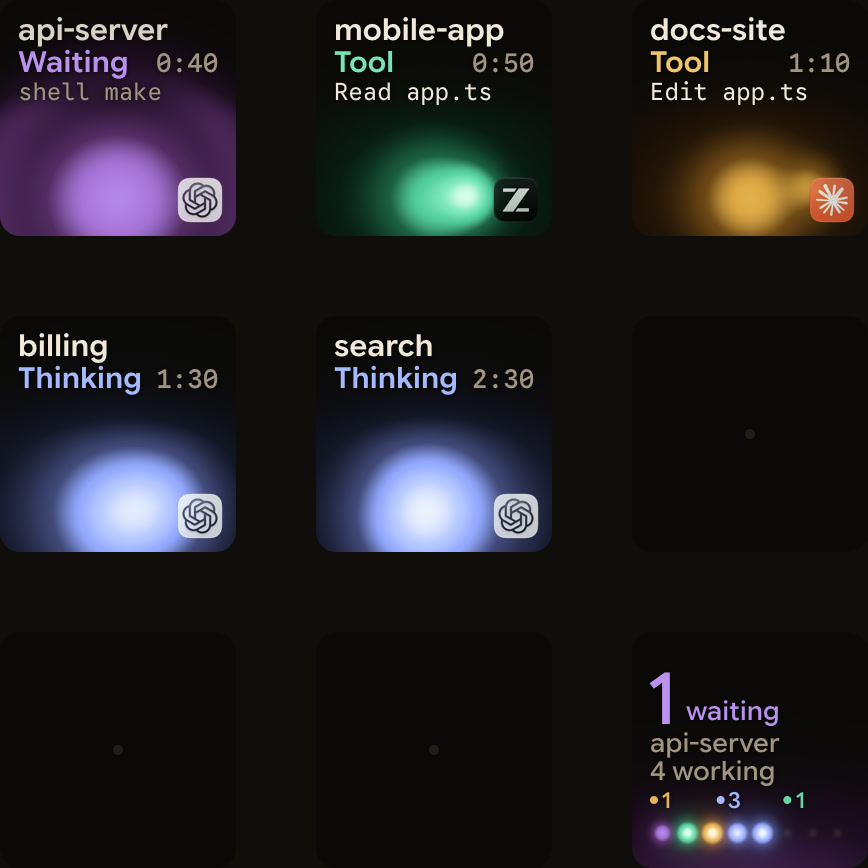
Ways to get OpenAI Codex notifications on Windows
| Notification method | Surface | Where to configure it | Events covered |
|---|---|---|---|
| Built-in TUI notifications | Codex CLI (codex) | tui.notifications, tui.notification_method, tui.notification_condition in ~/.codex/config.toml | agent-turn-complete, approval-requested |
| Windows Terminal bell | Windows Terminal | bellStyle, bellSound in Windows Terminal settings.json | Any BEL (\x07) character |
External notify program | Codex CLI and IDE extension host | Top-level notify array in user ~/.codex/config.toml | agent-turn-complete |
| Lifecycle command hooks | Codex CLI and local threads | %USERPROFILE%\.codex\hooks.json, .codex/hooks.json, %ProgramData%\OpenAI\Codex\hooks.json or [hooks] in config.toml | PermissionRequest, PostToolUse, Stop and other turn and session events |
| Desktop alerts, Activity view and floating pet | ChatGPT desktop app | App Settings, sidebar bell or Ctrl+Alt+U, floating pet | Turn completion, permission and question prompts, Running, Needs input, Ready, Blocked |
| Codex on mobile | ChatGPT mobile app | Settings > Connections > Control this Mac or PC | Task progress and requested approvals |
| Orbtile status pad | Desktop app, codex and codex exec on Windows 11 (x64) | Nothing to set up; optional hooks in Settings > Agents > Codex | Live states, waiting approvals and questions, latest assistant text |
See Install Codex CLI on Windows: PowerShell, npm, sandbox and WSL.
Built-in TUI notifications in the Codex CLI and Windows Terminal
Running codex starts the interactive TUI. Configure notifications under [tui] in user-level config.toml, or pass a one-off TOML override with -c or --config.
Configure tui.notifications in config.toml
Codex stores its local state under CODEX_HOME, which defaults to ~/.codex (%USERPROFILE%\.codex on Windows). Three keys control TUI notifications:
tui.notificationsturns TUI notifications on or off, or takes an array of event types such asagent-turn-completeandapproval-requested.tui.notification_methodacceptsauto,osc9orbel, and defaults toauto.- In
automode, Codex prefers OSC 9 desktop notifications and otherwise falls back toBEL(\x07). tui.notification_conditionacceptsunfocusedoralways, and defaults tounfocused.
See Codex notifications for finished turns and approvals and Codex CLI: install, download, commands and config.toml.
Configure bellStyle and bellSound in Windows Terminal
When Codex uses BEL, Windows Terminal decides what the bell does. In settings.json, put these settings inside a profile in "list", or inside "defaults" to apply them to every profile.
| Property | Default | Accepted values | Behaviour |
|---|---|---|---|
bellStyle | "audible" | "all", "audible", "window", "taskbar", "none" | Action on BEL. "all" plays a sound and flashes the taskbar icon, and only flashes the taskbar icon when the terminal is not in focus. |
bellSound | Optional | File location string or array of strings | Audio file for "all" or "audible". With an array, the terminal picks one at random. |
Share CODEX_HOME between native Windows and WSL2
The ChatGPT Windows app uses the same Codex home directory as native Codex on Windows: %USERPROFILE%\.codex. The CLI inside WSL2 uses the Linux home directory by default. To share config, auth and sessions, sync WSL ~/.codex with %USERPROFILE%\.codex, or set CODEX_HOME in ~/.bashrc or ~/.zshrc:
export CODEX_HOME=/mnt/c/Users/<windows-user>/.codexRun an external alert program with notify in config.toml
Use the top-level notify key in config.toml to run an external program, for example for webhooks, desktop notifiers or CI hooks. Currently, notify supports only agent-turn-complete:
notify = ["python3", "/path/to/notify.py"]Codex passes your program a single JSON argument. Common fields in that argument are:
type, which is currentlyagent-turn-complete, plusthread-id,turn-idandcwd.input-messagesandlast-assistant-message.
Why notify must live in your user-level config.toml
Project config files cannot run machine-local notification or telemetry commands:
- Codex ignores
notifyin a project-local.codex/config.tomlfile and prints a startup warning. - It also ignores
openai_base_url,chatgpt_base_url,apps_mcp_product_sku,model_provider,model_providers,profile,profiles,experimental_realtime_ws_base_urlandotelthere. - Put
notifyin user-level~/.codex/config.toml. - The Codex IDE extension has no separate notification controls.
- In the IDE extension, keep the chat open, or set
notifyon the connected Codex host.
Trigger alerts on approvals and turn events with Codex hooks
Codex lifecycle hooks run command scripts or Model Context Protocol tools at specific points in a conversation:
| Timing | Hook events |
|---|---|
| During a turn | PreToolUse, PermissionRequest, PostToolUse, PreCompact, PostCompact, UserPromptSubmit, SubagentStop, Stop |
| Model requests | PreModelRequest, PostModelRequest |
| Session or subagent start | SessionStart, SubagentStart |
| Interrupt or end | Interrupt, SessionEnd (neither runs for subagents) |
Where Codex loads hooks on Windows
Codex launches multiple matching command hooks for the same event concurrently. If one layer declares hooks in both hooks.json and config.toml, Codex loads both and warns at startup, so use one format per layer.
- System:
%ProgramData%\OpenAI\Codex\hooks.jsonon Windows, or/etc/codex/hooks.jsonon macOS and Linux. - User:
$CODEX_HOME/hooks.json, which is%USERPROFILE%\.codex\hooks.jsonby default. - Project:
.codex/hooks.json, loaded only from trusted projects. - User and system hooks can still load in untrusted projects.
- Plugins: Codex looks for
hooks/hooks.jsonin the plugin root, unless.codex-plugin/plugin.jsonsets ahooksentry. - Managed: administrators can declare hooks directly in
requirements.toml.
Use commandWindows and async background hooks
Command hooks support Windows-specific overrides:
- In
hooks.json, add the optionalcommandWindowsfield as a Windows-only command. - In TOML, use either
command_windowsorcommandWindows. - In
requirements.toml,windows_managed_dirsets where managed hook scripts live on Windows, alongsidemanaged_dirfor macOS and Linux.
allow_managed_hooks_only = true

[features]
hooks = true

[hooks]
managed_dir = "/enterprise/hooks"
windows_managed_dir = 'C:\enterprise\hooks'

[[hooks.PreToolUse]]
matcher = "^Bash$"

[[hooks.PreToolUse.hooks]]
type = "command"
command = "python3 /enterprise/hooks/pre_tool_use_policy.py"
command_windows = 'py -3 C:\enterprise\hooks\pre_tool_use_policy.py'
timeout = 30
statusMessage = "Checking managed Bash command"
To run a notification hook in the background, set async to true:
{
  "hooks": {
    "PostToolUse": [
      {
        "matcher": "Bash",
        "hooks": [
          {
            "type": "command",
            "command": "python3 ~/.codex/hooks/post_tool_use.py",
            "async": true,
            "timeout": 120
          }
        ]
      }
    ]
  }
}
Hook execution rules:
- Every command hook receives one JSON object on
stdinwithsession_id,transcript_path,cwd,hook_event_nameandmodel. - Turn-scoped events add
turn_id, and events such asPermissionRequestandStopaddpermission_mode. PermissionRequestruns when Codex is about to ask for approval.- Its
matchertakes values such asBash,apply_patchand MCP tool names, andapply_patchalso matchesEditandWrite. - If no matching hook decides, Codex uses the normal approval flow.
Stopdoes not usematcher, and it expects JSON onstdoutwhen it exits0.- Background hooks cannot block, approve or rewrite the operation that triggered them.
- Codex runs up to eight background hooks at once per session.
SessionEndhooks always run synchronously, even whenasyncistrue.SessionEndandInterruptuse a 1 second timeout by default and support up to 3 seconds.- Most other hooks use 600 seconds when
timeoutis omitted.
See Claude Code and Codex hooks: payload reference.
Review and trust hooks with /hooks
- Codex records trust against each non-managed hook's current hash, and non-managed hooks must be reviewed and trusted before they run.
- Review them with
/hooksin the CLI, or withReview hooksin the composer orSettings > Hooksin the desktop app. - For pre-vetted one-off automation,
--dangerously-bypass-hook-trustruns enabled hooks without saved trust for that run. - Hooks are on by default. To turn them off, set
hooks = falseunder[features]inconfig.toml.
ChatGPT desktop app notifications, Activity view and mobile on Windows
By default, the ChatGPT Windows app uses the Windows-native Codex agent, which runs with PowerShell and the Windows sandbox. You can switch the agent to WSL2 and restart the app. Install the app with winget:
winget install --id 9PLM9XGG6VKS -s msstoreConfigure desktop alerts, Activity view and the floating pet
- In
Settings, choose whether turn-completion alerts appear never, only while ChatGPT is in the background, or always. - Separate controls turn permission and question notifications on or off, and Windows may need to grant the app notification permission.
- Click the bell in the sidebar or press
Ctrl+Alt+Uto openActivityview for chats that are unread, running or waiting for you. - Activity view filters can include
Work,Chat,PinnedandScheduled, andMark all as readclears unread items. - The floating pet shows whether a chat is
Running,Needs input,ReadyorBlockedwhile you use other apps.
See Codex app vs Codex CLI: desktop app and terminal compared and How to monitor multiple Claude Code and Codex sessions at once.
Pair the ChatGPT mobile app with your Windows PC
- In the Windows app, open
Settings > Connections > Control this Mac or PC, chooseSet uporAdd, and approve remote access. - Scan the QR code with your phone, sign in to the same ChatGPT account and workspace, and approve the connection.
- On iOS, open
Codexin the ChatGPT app, orRemoteif your app still shows it. - Keep the PC awake and online to follow progress, send instructions, inspect diffs, and review and approve requested commands.
Watch and answer Windows Codex sessions on a keypad or phone with Orbtile
Logitech's own route works on Windows 10 and later, excluding ARM64 systems. The MX Creative Console is compatible with Logi Options+ 1.83 or later, and the MX Keypad with 2.07 or later. Logitech states that the Keypad cannot be used without Logi Options+. For apps without a plugin, click + in Logi Options+ and choose APPLICATION PROFILE. Pick your app, then START WITH A BLANK TEMPLATE. Then drag the SYSTEM plugin's KEYBOARD SHORTCUT action to a key, for example to send Ctrl+Alt+U.
Orbtile drives the MX Creative Keypad's nine LCD keys and two page buttons over USB, without Logi Options+. It runs on a Windows 11 (x64) computer or an Apple silicon Mac with macOS 14.0 or later. Orbtile Mobile can be the pad instead, on an iPhone (iOS 17+) or an Android phone (8.0+).
On Windows, install Orbtile from the Microsoft Store, with winget install --id 9P9HNFZHR8NG --source msstore, or with the .msi installer:
- Orbtile reads Codex thread files and Codex's own signals, so there is nothing to set up in Codex.
- Desktop chats, terminal
codexsessions andcodex execruns each show session state, tool labels, waits and the latest assistant text. - Working Codex sessions glow cool blue, and waiting or permission states glow magenta-violet and move to the front.
Settings > General > Waiting in the traysets the tray badge toOff,DotorDot and count.- Press
Ctrl+Alt+Win+Oto open the Orbtile menu, orCtrl+Alt+Win+Kto switch the keypad between Orbtile and Logi Options+. - Tap key 9 to focus the first waiting session, including sessions on other pages.
- A press under 0.6 seconds on a session key opens that session's window.
- Hold a session key for 0.6 seconds to open Focus mode across all nine keys.
- Compatible local desktop chats offer
Denyon key 7 andAllowon key 9 for command approvals. - Supported multiple-choice questions in desktop chats show options on keys 1, 2, 3 and 7, and you hold
Sendon key 9. - Terminal
codexcommand approvals offerAllowonly on the keys, so decline one in the terminal. codex execnever asks for command approval in Codex 0.159.0.- Optional hooks, installed in
Settings > Agents > Codexand trusted inCodex > Settings > Hooks, add aCompactingstate and slightly earlier updates. - The same pad also shows Claude Code, ZCode, Antigravity and Kimi Code sessions, and sessions on remote servers over SSH.
See Codex keypad: Codex Micro, MX Keypad and Orbtile setup and Approve agent tool calls without switching windows.
FAQ
How do I enable terminal notifications in the OpenAI Codex CLI on Windows?
Open the user-level config.toml file in your .codex directory and add a tui table. Set notifications to true, or to an array containing agent-turn-complete and approval-requested. Set notification_method to auto, osc9 or bel, and notification_condition to unfocused or always. In Windows Terminal, set bellStyle to all or audible in settings.json so bell alerts play a sound.
Why does Codex ignore the notify setting in my project .codex/config.toml file?
Codex does not let project-local config files set notification or telemetry commands. When it sees notify in a project-local .codex/config.toml file, it ignores the key and prints a startup warning. Put notify in your user-level config.toml file instead.
How do I run a Windows-specific command from a Codex hook?
In %USERPROFILE%\.codex\hooks.json or a trusted project's .codex/hooks.json, add the optional commandWindows field to your command hook. If you declare hooks inline in TOML, you can use command_windows or commandWindows. Non-managed hooks must be reviewed and trusted, for example with the /hooks command in the CLI, before they run.
Can Orbtile show and answer waiting Codex sessions on Windows 11?
Yes. On a Windows 11 x64 computer, Orbtile reads Codex thread files and Codex's own signals with nothing extra to install. It shows desktop chats, terminal codex sessions and codex exec runs on a Logitech MX Creative Keypad, an iPhone or an Android phone. Compatible local desktop chats accept Allow and Deny for command approvals and answers to supported multiple-choice questions. Terminal command approvals offer Allow on the keys.