
Anthropic's Claude Code, OpenAI Codex and Google Antigravity each have their own session manager. Each one saves your conversations, lets you resume or switch between them, and can give a parallel session its own Git worktree. Claude Code and Codex also show many sessions on one screen. If you run several agents at once, a keypad helps too. The Codex Micro follows Codex chats. The Logitech MX Keypad swaps its tools as you move between apps. Orbtile shows sessions from several coding agents on one pad.
Native session managers compared
| Capability | Anthropic Claude Code | OpenAI Codex | Google Antigravity |
|---|---|---|---|
| CLI resume and switch | claude --continue, claude --resume, claude --from-pr <number>, /resume | codex resume, codex fork, codex queue | agy --conversation=<conv_id>, /resume |
| Multi-agent view | claude agents, /bg, /tasks, /workflows | codex agents, codex cloud | /agents in agy |
| Desktop sessions | Desktop app sidebar, split view, archive | ChatGPT desktop app Local and Worktree chats | App Projects and the Cmd + K conversation picker |
| Git worktrees | claude --worktree <name>, EnterWorktree, Desktop Worktree toggle | codex --worktree, desktop Worktree mode with Handoff | New worktree mode in a Project |
| History and cleanup | /clear, claude purge, cleanupPeriodDays | /clear, /archive, codex archive, codex unarchive, codex delete | Conversation histories kept per project |
Manage and resume Claude Code sessions in the CLI
In Claude Code, a session is a saved conversation tied to a project directory. Claude Code saves it locally as you work. The desktop app, claude.ai/code and the VS Code extension each keep their own session list.
claude --continue
claude --resume auth-refactor
claude --from-pr 1234
claude --continuereopens the most recent session in the current directory.claude --resumeopens the session picker, or resumes a session directly by name, ID or transcript path.claude --from-pr <number>opens the picker filtered to sessions linked to that pull request.- Inside a session,
/resumeswitches conversations and/branchcopies the conversation into a new session. - If a session is still running in the background,
claude --resume <session>runsclaude attachon it in the same terminal.
Session picker, naming and cleanup
By default, the picker shows sessions from the current worktree, including background sessions marked bg.
- Press
Ctrl+Wto show all worktrees of the repository, orCtrl+Ato show every project. - Press
Spaceto preview a session andEnterto resume it. - Press
/to search, or paste a pull request URL to find the session that created it. - Name a session with
claude -n <name>, with/rename <name>, or withCtrl+Rin the picker. - Transcripts are kept for 30 days by default, and
cleanupPeriodDaysinsettings.jsonchanges this. - Run
claude purgeto delete a project's transcripts sooner.
See How to monitor multiple Claude Code sessions for terminal multiplexers, hooks and notifications.
Dispatch and monitor parallel Claude Code work
Claude Code has five ways to work on several tasks at once: subagents, agent view, agent teams, dynamic workflows and projects. In a session, /tasks lists background items and lets you check on, attach to or stop them.
Manage background sessions in agent view
Agent view is a research preview. Run claude agents to see every background session on one screen. A separate supervisor process runs those sessions, so they keep going after you close agent view or your shell.
claude agents
claude agents --cwd ~/projects/my-app- Type a prompt in agent view and press
Enterto start a new background session on that task. - In a session, run
/bgto move it to the background. - Run
/forkto copy the current conversation into a new background session. - Sessions that need you sit at the top, with
Ready for reviewandNeeds inputaboveWorkingandCompleted. - Press
Spaceto open the peek panel, orEnteror→to attach. - Press
←on an empty prompt to detach, and the session keeps running. - Press
Ctrl+Xto stop a session, and press it again within two seconds to delete it. - Filter by state with
s:<state>, such ass:working, or by a pull request number such as#1234.
See Claude Code background agents: agent view and /bg.
Parallel sessions in the Claude desktop app
- Click
+ New, or pressCmd+Non macOS orCtrl+Non Windows, to start a session. - Press
Ctrl+TabandCtrl+Shift+Tabto switch between sessions. - Hold
Optionon macOS orAlton Windows and click a session to open it in split view. - Select
Archivefrom a session's menu to archive it. - Turn on
Auto-archive after PR merge or closeinSettings > CodeorSettings > Claude Code.
Manage OpenAI Codex sessions in the CLI and ChatGPT desktop app
Running codex with no subcommand launches the interactive terminal UI. Inside a session, /clear starts a fresh chat in the same CLI session. /archive archives the current session and keeps its transcript.
codex resume
codex agents
codex fork
codex archive <SESSION>
codex resumecontinues a previous session by ID, or resumes the most recent chat.codex forkcopies a previous session into a new chat and keeps the original transcript.codex agentsopens the agent command center on a shared local or remote server.codex queuequeues a message for an existing session, picked by UUID or exact session name.codex archivearchives a saved session, andcodex unarchiverestores it.codex deletepermanently deletes a saved session.codex cloudworks with Codex cloud chats from the terminal.codex applyapplies the latest diff from a cloud chat to your local working tree.- Run
codex appto launch the ChatGPT desktop app on macOS or Windows.
See Codex app vs Codex CLI: desktop app and terminal compared.
Organise Google Antigravity sessions across Projects, the App and agy
In Google Antigravity, Projects hold multi-folder workspaces, agent settings and conversation histories. They work in both the Antigravity App and the agy CLI. A project can use local folders, a local Git checkout, or folders on a remote Linux machine through SSH Host….
agy --project=<project_id>
agy --new-project
agy --conversation=<conv_id>- In the Antigravity App, press
Cmd + K(Ctrl + Kon Windows and Linux) to search past conversations and switch to one. - Press
Cmd + NorCtrl + Nto start a new agent session. - Press
Option + ↑orOption + ↓(Alton Windows and Linux) to move through conversations in the sidebar. - In
agy, conversations run indefault-cli-projectunless you pass--projector--new-project. - Resume a conversation with
--conversation=<conv_id>at startup, or with/resumeduring a session. - Run
/agentsto switch between active background subagents.
See Google Antigravity Agent Manager: run and review agents.
Isolate parallel sessions with Git worktrees
Claude Code, OpenAI Codex and Google Antigravity can all give a session its own Git worktree, so parallel sessions don't edit the same checkout.
Claude Code worktrees
Start Claude Code with --worktree (or -w) and a name. It creates a worktree on a new branch named worktree-<name>.
claude --worktree feature-auth
claude --worktree "#1234"- Pass a pull request number such as
"#1234"to start a worktree from that change's head commit. - You can also ask Claude to work in a worktree, which uses the
EnterWorktreetool. - In the desktop app, turn on
Worktreebefore you start a session. - To give a custom subagent its own worktree every time, add
isolation: worktreeto its frontmatter. - An isolated session can't edit files in the main checkout or run Bash commands there.
OpenAI Codex worktrees and Handoff
Pass --worktree to codex, codex fork, codex exec or codex exec fork. In the ChatGPT desktop app, select Worktree under the composer in a new chat.
- By default, Codex works in a detached HEAD state.
- Click
Create branch herein the chat header to keep the work on a branch. - Use Handoff to move a chat between
LocalandWorktree. - By default, Codex keeps your 15 most recent Codex-managed worktrees.
- Codex saves a snapshot of the work before it deletes a managed worktree.
Google Antigravity worktree mode
When you start a conversation in an Antigravity project, the worktree selector sets how the agent uses your folders. Local mode works directly in your local folders or Git checkouts. New worktree mode creates a new Git worktree for the conversation.
Copy gitignored files with .worktreeinclude
A new worktree doesn't have your gitignored files, such as .env. Claude Code and Codex both copy ignored files that match a .worktreeinclude file. In Claude Code, this file goes at the project root.
See Git worktrees for parallel coding agents: Claude Code and Codex.
Hardware keypads and cross-agent session management with Orbtile
OpenAI Codex Micro and Logitech MX Keypad
OpenAI's Codex Micro is a limited-run keypad made with Work Louder for the ChatGPT desktop app. It connects over USB-C or Bluetooth. Each of its six frosted Agent Keys can follow a chat and light up to show its status. It also comes with six actions in its default layout.
- In
Settings > Codex Micro, choose whether Agent Keys follow recent chats, pinned chats, priority chats or custom assignments. - A key glows white when idle, blue when thinking and amber when the chat needs input.
- Green means a completed chat with an unread update, and red means an error.
- Press an Agent Key twice within 350 ms to switch chats and bring the ChatGPT window forward.
- The default actions toggle Fast mode, approve, decline, continue in a new chat, start push-to-talk and send.
The Logitech MX Keypad needs the Logi Options+ app, on recent versions of Windows and macOS. It swaps its tools as you move between apps such as VS Code, Slack and Figma. It can run prompt macros, refactor code and launch voice commands in tools like GitHub Copilot, Claude Code and OpenAI Codex. You can build your own tools with the Logi Actions SDK.
Watch and answer multiple coding agents on one pad with Orbtile
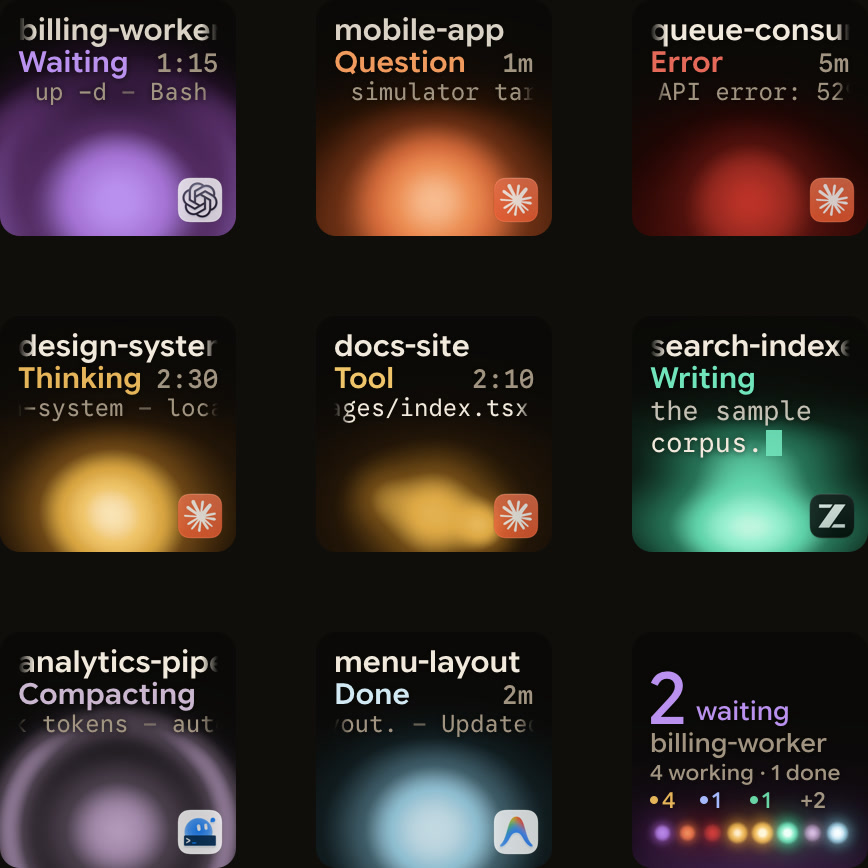
Orbtile shows parallel sessions from Claude Code, OpenAI Codex, ZCode, the Google Antigravity desktop app and Kimi Code. It also shows Claude Code and Codex sessions on a remote server over SSH, and scripts that use its local Adapter API. It runs on a computer with macOS 14.0 Sonoma or later on Apple silicon, or on Windows 11 (x64). It drives the Logitech MX Creative Keypad over USB, without Logi Options+. Orbtile Mobile turns an iPhone (iOS 17 or later) or an Android phone (Android 8.0 or later) into the pad.
- Keys 1 to 8 show your sessions over an animated Frosted orb, sorted as waiting, working, recent finishes and then idle.
- Key 9 summarises all sessions, and a tap on it focuses the first waiting session.
- A short press on a session key opens that session in its app or terminal window.
- Hold a session key for 0.6 seconds to open Focus mode, where key 2 shows the session's subagents.
- In Focus mode, press Deny on key 7 or hold Allow on key 9 to answer a supported permission request.
- Permission answers work for Claude Code, ZCode and compatible Codex desktop chats.
- Kimi Code takes keypad answers when you run
kimi web,kimi rcor/rc. - Codex terminal command approvals offer Allow only, so you decline them in the terminal.
- For multiple-choice questions, keys 1, 2 and 3 show options 1 to 3, and key 7 shows option 4.
- Antigravity CLI and IDE sessions don't appear.
- Remote sessions are display-only, except Allow for Codex terminal command approvals.
See Codex keypad: Codex Micro, MX Keypad and Orbtile setup and Kimi Code, Claude Code and Codex on one status pad.
FAQ
How do I list and resume saved sessions in Claude Code, OpenAI Codex and Google Antigravity?
In Claude Code, run claude --continue to reopen the latest session in the current directory, or claude --resume to open the session picker. For background sessions, run claude agents. In the Codex CLI, run codex resume to continue a saved chat, or codex agents to open the agent command center. In the Antigravity App, press Cmd+K on macOS or Ctrl+K on Windows and Linux to search and switch conversations. In agy, use /resume, or start with --conversation and a conversation ID.
What happens when I run claude --resume on a Claude Code background session that is still running?
Claude Code opens the running session itself rather than loading the saved transcript. From your shell, claude --resume runs claude attach on that session in the same terminal.
How do coding agents keep parallel sessions from editing the same files?
Claude Code, OpenAI Codex and Google Antigravity all support Git worktrees, so each session gets its own working directory. In Claude Code, start with the --worktree flag or ask Claude to work in a worktree. In Codex, start the CLI with --worktree or pick Worktree in the ChatGPT desktop app. In Google Antigravity, choose New worktree mode when you start a conversation in a project.
How does Orbtile manage sessions across different coding agents?
Orbtile shows parallel sessions from Claude Code, OpenAI Codex, ZCode, the Google Antigravity desktop app and Kimi Code. You see them on a Logitech MX Creative Keypad, an iPhone or an Android phone. Waiting sessions come first, and a short press opens a session's window. From the pad, you can answer supported permission requests and multiple-choice questions.