
Google Antigravity orchestrates work in two ways. The Orchestrator model option pairs a planner model, such as Gemini 4 Neon, with an executor model, such as Gemini 4 Hydrogen, in one session. To run several agents at once, you use subagents, plus Dynamic Workflows (/run-workflow), /boost, /swarm and /teamwork in the App and CLI.
How the Orchestrator model option works
Orchestrator pairs a planner model with an executor model in a single session. The planner explores the codebase, writes the plan and reviews progress. The executor searches, edits files, runs builds and runs tests. When pairing Gemini 4 Neon with Gemini 4 Hydrogen:
- Gemini 4 Neon handles upfront planning, architecture and complex reasoning.
- Gemini 4 Hydrogen handles routine code edits, package updates and test runs.
- When Hydrogen hits friction, it hands back to Neon to inspect state, repair the plan and resume.
Planner choices are Gemini 4 Neon (the default), Gemini 4 Carbon, Gemini 4 Argon and Claude Opus 5.5. Executor choices are Gemini 4 Hydrogen (the default) and Claude Sonnet 5.5.
Plan availability and Orchestrator Settings
- Google says Gemini 4 Neon is rolling out to paid Google AI Pro and Ultra subscribers, alongside Orchestrator support pairing Neon and Hydrogen.
- That rollout covers the Antigravity desktop app, the Antigravity CLI and the Antigravity IDE extensions.
- On Pro and Ultra, you can set default
Orchestrator ModelandExecutor Modelchoices and their thinking levels. - You find these under
Settings > Models > Orchestrator Settingsin the Antigravity App. - In Gemini Enterprise, Orchestrator only runs Gemini 4 Carbon (High) as planner with Gemini 4 Hydrogen (High) as executor.
- Custom planner and executor selection is available on Google AI Pro and Ultra only.
Comparing Antigravity's orchestration options
Antigravity offers six ways to split work across models and agents:
| Option | Surface and plan | Coordination | Workspace isolation | Best for |
|---|---|---|---|---|
| Orchestrator model | App, CLI, IDE extensions; Pro, Ultra, Enterprise | Planner plans and reviews while executor edits and runs tests | Single conversation | Mixed reasoning, edits and tests |
Subagents (invoke_subagent) | App, CLI, IDE extensions, IDE | Clean-context background workers started by a parent agent | inherit, branch worktree or share | Research, browser checks, test runs |
Dynamic Workflows (/run-workflow) | App, CLI; all plans | Python script calling parallel() and pipeline() | inherit, branch worktree or share | Repeatable multi-file checks, staged phases |
Boost (/boost) | App, CLI; paid plans | Orchestrator and DeepCoder or DeepInvestigator run rounds | Current workspace, isolated contexts | Hard bugs, race conditions, algorithms |
Swarm (/swarm) | App, CLI; all plans (admin-controlled on business and enterprise) | Named workers and a verifier share an @mentions board | Shared project folder or per-worker copies | Broad work across independent files, packages, tracks |
Teamwork (/teamwork) | App, CLI; paid plans | Sentinel, Project Orchestrator, Explorers, Workers and verifiers | Dedicated project folder, exclusive file ownership | Multi-milestone migrations, simulations, proofs |
Multi-agent orchestrators: /boost, /swarm and /teamwork
Antigravity provides three multi-agent orchestrators for structured coordination beyond single-task subagents.
Boost deep reasoning (/boost)
Available on paid plans in the App and CLI, /boost <task> starts immediately. It suits problems that are hard rather than broad, such as race conditions, tough bugs or algorithms:
- An Orchestrator and a DeepCoder or DeepInvestigator coordinator lead iterative rounds.
- An initial worker runs the project's test suite and edge-case checks.
- Improvement workers review the original requirements independently, then challenge and fix earlier attempts.
- The orchestrator independently verifies the result across rounds.
Swarm parallel board coordination (/swarm)
Available on all plans in the App and CLI, /swarm <task> starts immediately. On business and enterprise accounts, it works when organisation admin settings allow it:
- Your current conversation becomes the swarm's coordinator.
- It splits work across named workers, usually with a verifier.
- Workers coordinate on one shared message board with
@mentions. - Idle workers wait without using tokens until someone mentions them.
- The verifier reads the diffs, runs the tests and sends problems back to the worker that wrote the code.
- The coordinator can give each worker its own working copy of your repository.
Teamwork multi-milestone agent teams (/teamwork)
Available on paid plans, /teamwork suits work spanning hours to days, such as large migrations, system simulations or mathematical proofs. It runs in two phases.
- Phase 1 is a scoping interview about objectives, requirements, verification methods and acceptance criteria.
- The interview also sets a project folder, by default
~/teamwork_projects/{PROJECT_NAME}. - Phase 1 ends with a reviewable prompt artifact that you approve.
- Phase 2 runs after approval and tracks
Request,Project planandProgressartifacts. - Each subagent gets its own scratch directory for helper scripts, notes and logs.
- The Project Orchestrator assigns each file to one Worker, so no two Workers edit the same file at once.
| Role | Responsibility |
|---|---|
Sentinel | Takes over after approval, routes tasks, posts updates and spawns the Success Auditor |
Project Orchestrator | Breaks the brief into milestones, runs parallel tracks and hands off to a fresh successor between milestones |
Explorers | Read-only agents that research the repository and evaluate candidate solutions |
Workers | Build components, refactor code and write unit tests |
Critic | Reviews code for correctness, robustness and style |
Challenger | Stress-tests code with adversarial tests and edge cases |
Auditor | Checks work against the integrity mode (development, demo or benchmark) and confirms test results against real command output |
Success Auditor | Runs a final end-to-end verification before Sentinel presents the result |
Teamwork offers five execution paths: General (the default), Iterative coding, Document Review, Math / Proof and Math / Proof (Large Team).
Scripted orchestration with Dynamic Workflows (/run-workflow)
Dynamic Workflows are available on all plans in the App and CLI. With /run-workflow <task>, the agent reads the built-in run-workflow skill and writes a Python script for the task. It asks you to approve the script unless your permission preset, such as Turbo, already allows it. Antigravity includes its own Python for workflows, or you can set ANTIGRAVITY_PYTHON to Python 3.8 or later.
phase("Discover")
files = await agent("List Python files changed since main.", schema={"type": "array", "items": {"type": "string"}})

phase("Review")
reviews = await parallel(files, lambda f: agent(f"Review {f} for unhandled exceptions.", schema={"type": "string"}, role=f"Review {f}", model="flash"))
for r in reviews:
    log(r)
Key primitives and rules:
phase(name)starts a named phase that groups later logs, tool calls and agent cards.parallel(items, fn)runs all items at once and returns results in item order.- If one item in
parallel()fails, the others are cancelled. pipeline(items, fn)runs one item at a time and also returns results in item order.agent(prompt, schema, role, type_name, workspace, model)runs one agent, or one turn of a conversation that continues across calls.workspaceacceptsinherit(the default, your current workspace),branch(an isolated Git worktree) orshare.sharegives each agent a new working copy that shares the underlying repository storage.modelacceptsinherit(the default),flash_lite,flashorpro.type_nameacceptsself(the default),researchor the name of a custom subagent.- Ask the agent to save the script to a
.pyfile, then re-run it with/run-workflow Run scripts/review-changes.py. - Stopping the parent conversation also stops every running workflow agent.
Subagents, Git worktree isolation and permission inheritance
Underneath the higher-level orchestrators, a parent agent calls invoke_subagent to start a concurrent subagent with a clean context. Built-in subagents are research (codebase exploration), browser (UI playtesting and screenshots) and self (a clone of the caller). On personal Google Accounts in App v2.30.0+, the main agent can launch the browser subagent automatically. In the CLI and on business or enterprise accounts, /browser connects to Google Chrome.
Define reusable custom subagents as Markdown files with YAML frontmatter in .agents/agents/, ~/.gemini/config/agents/ or plugins/<plugin_name>/agents/. You can also create one mid-session with define_subagent.
Lifecycle, limits and workspace isolation
- A
Runningsubagent is actively working. - An
Idlesubagent has finished and wakes when it receives a message, with its context intact. - A
Killedsubagent is terminated, its worktrees are cleaned up and its JSONL transcript stays readable. - Nesting is capped at a maximum depth of 10 levels.
- In App Projects,
New worktree modecreates new Git worktrees, keeping your active working folder untouched. - It also stops parallel subagents conflicting, while non-Git local folders stay directly accessible.
- With the
Knowledge Worklayout in App v2.30.0+, new conversations run directly in project folders without the worktree selector.
Permission inheritance
- Subagents inherit their parent's allowed terminal command prefixes, file read and write scopes and sandbox settings.
- Authorisation prompts from subagents bubble up to the main UI or subagent panel.
Monitoring orchestrated sessions and notifications
In the Antigravity App
- Press
Cmd+Option+O(Ctrl+Alt+Oon Windows and Linux) to toggle the Overview panel at the top right. - The Overview panel lists
Subagents,Background Tasks,GoalsandArtifacts. - Click a subagent to follow its conversation in the side panel.
- Press
Cmd+Shift+B(Ctrl+Shift+Bon Windows and Linux) to toggle the side panel. - Press
Cmd+D(Ctrl+D) for Split Right orCmd+Shift+D(Ctrl+Shift+D) for Split Down to watch two conversations side by side.
In the Antigravity CLI (agy)
- Run
/agentsfor a live list showing each agent's Identifier, Role, State and Step. - States are
running,done,killedorerror, andEnteropens the Detail View. - To message a subagent, start your prompt with
@followed by its name. - Run
/tasksto track background work that is not an agent, such as shell commands and test suites. - When the status bar blinks, press
Alt+Jto jump to the subagent awaiting approval. - Press
Ctrl+Kto approve a pending fast-path action without switching panels. - The
notificationssetting is off by default. - Turn it on in
/configor in~/.gemini/antigravity-cli/settings.json. - It then rings the terminal bell and shows a desktop notification when the agent needs approval or an answer, or finishes its turn.
Watching Google Antigravity sessions on a keypad or phone with Orbtile
Shortcut keys are one way to use a keypad. In Logi Options+, you can add an APPLICATION PROFILE for Antigravity on an MX Creative Console or MX Keypad. Choose START WITH A BLANK TEMPLATE, then map shortcuts with the KEYBOARD SHORTCUT action under SYSTEM ACTIONS.
Orbtile works the other way: it shows what each conversation is doing. It drives the nine LCD keys and two page buttons of the Logitech MX Creative Keypad over USB, without Logi Options+. Orbtile Mobile can also turn an iPhone (iOS 17+) or an Android phone (Android 8.0+) into the pad. Orbtile runs on a computer with macOS 14.0 Sonoma or later on Apple silicon (M1 or later), or on Windows 11 (x64).
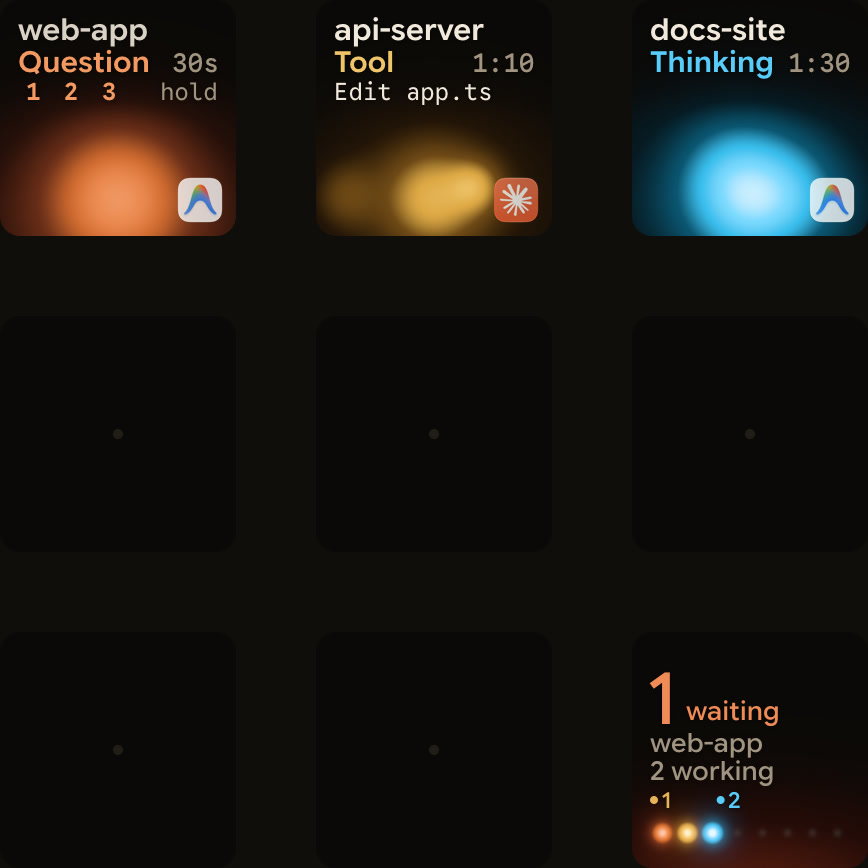
- Each conversation in the local Antigravity desktop app gets its own key, with its title and state.
- Antigravity uses an azure blue working palette.
- From Orbtile 0.3.4, Antigravity's waiting states use the shared terracotta alarm colour.
- From Orbtile 0.2.10, replies appear as live typewriter text.
- Waiting conversations come first, and a tap on key 9 focuses the first waiting session, including on other pages.
- From Orbtile 0.2.6, hold a waiting conversation's key so its numbered options appear on keys 1, 2, 3 and 7.
- Tap your picks, then hold
Sendon key 9 for 0.6 seconds. Sentmeans Antigravity acknowledged the reply.- Up to four questions with two to four choices each work this way.
- Written answers, permissions, remote sessions and unsupported questions stay on the computer.
- If an Antigravity update changes how the app talks to Orbtile, live text and keypad answers stop until Orbtile catches up.
- Antigravity IDE and Antigravity CLI sessions do not appear automatically.
- Your own tools can show sessions through Orbtile's local Adapter API, which you turn on in
Settings > Agentsbefore allowing each adapter.
Orbtile also shows Claude Code, Codex, ZCode and Kimi Code sessions alongside Antigravity.
FAQ
What does the Orchestrator model option do in Google Antigravity?
Orchestrator pairs a planner model with an executor model in a single session. For example, Gemini 4 Neon handles planning and architecture while Gemini 4 Hydrogen runs routine edits and tests. If the executor hits friction, it hands back to the planner to inspect state and repair the plan. On Google AI Pro and Ultra you can set default planner and executor models under Settings, Models and Orchestrator Settings. Gemini Enterprise runs Gemini 4 Carbon (High) paired with Gemini 4 Hydrogen (High).
When should I use /run-workflow instead of /swarm or /teamwork?
Use Dynamic Workflows with /run-workflow when you want a Python script to run the same task across many files in parallel, or to chain steps one after another, with structured outputs. Use /swarm when workers should collaborate directly on a shared message board with mentions. Use /teamwork for multi-milestone projects that need a scoping interview, a dedicated project folder and independent verification roles.
How do permissions and worktree isolation work for orchestrated subagents?
Subagents inherit their parent agent's allowed terminal command prefixes, file read and write scopes and sandbox settings. Any request needing authorisation bubbles up to the main interface or subagent panel. To stop parallel agents conflicting on the same files, start a project conversation in New worktree mode, or use the branch workspace option in subagents and Dynamic Workflows for isolated Git worktrees.
Which Google Antigravity sessions can Orbtile show on a keypad or phone?
Orbtile follows conversations in the local Antigravity desktop app on an Apple silicon Mac with macOS 14.0 Sonoma or later, or a Windows 11 x64 computer. It shows each conversation's title, state and live reply text on a Logitech MX Creative Keypad, an iPhone or an Android phone. You can answer up to four numbered-option questions with two to four choices each. Antigravity CLI and IDE sessions do not appear automatically, and permission requests stay on your computer.